
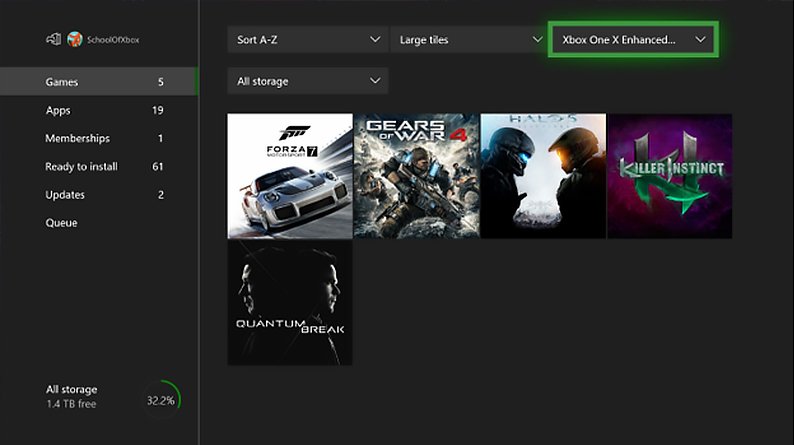
To update games on Xbox One, ensure your console is connected to the internet. Updates typically download automatically in the background. You can also manually check for updates in the ‘My games & apps’ section.
Is your Xbox game experience a bit behind? It happens! Sometimes the latest content and fixes are only available if you know how to update games on Xbox One. Thankfully, the process is generally simple and automatic, but lets go over the ways you can ensure you are always enjoying the newest versions of your games. If you’re keen to stay current and enjoy all the improvements, keep reading.

How to Update Games on Xbox One
Keeping your games updated on your Xbox One is super important! Updates often include new features, fix problems, and make the game run smoother. Nobody wants to play a glitchy game, right? Knowing how to update your games ensures you get the best possible experience every time you play. Let’s explore all the ways you can keep your Xbox One games fresh and ready.
Understanding Game Updates
Before we dive into the “how,” let’s talk a little about “why.” Game updates are like mini-improvements that developers send out for their games. These improvements come in different forms:
- Bug Fixes: Sometimes games have little mistakes (bugs) that can cause problems. Updates squash these bugs.
- Performance Enhancements: Updates can make the game run faster and smoother, reducing lag and making the graphics look better.
- New Content: Excitingly, updates often bring new things to the game, like new levels, characters, or game modes.
- Security Patches: These updates help protect your Xbox One from security issues.
Basically, updates make your games better. Think of it like giving your car a tune-up or your bicycle a new set of tires – it makes everything work more nicely.
Automatic Game Updates: How They Work
The good news is that your Xbox One is pretty smart! Most of the time, it will automatically download and install game updates for you. Here’s how it usually works:
Instant-On Mode and Updates
If your Xbox One is set to “Instant-On” power mode, it will often check for updates while it’s in a low-power state (like when it seems “off”). This means your games are often updated in the background while you’re not even using the console. Here’s the breakdown:
- Background Downloads: Your Xbox checks for game and app updates automatically when you’re not actively playing.
- Installation Ready: Once downloaded, updates usually install automatically too. You might just see a quick message when you start a game that says, “Update applied.”
How to Check if Instant-On is Enabled
To make sure Instant-On is working:
- Press the Xbox button on your controller to open the guide.
- Go to “Profile & system” (it’s the icon with your gamerpic).
- Select “Settings.”
- Choose “General.”
- Go to “Power mode & startup.”
- Make sure “Power mode” is set to “Instant-on.”
Manual Game Updates: Taking Control
Sometimes, you might want to check for updates yourself or you might have turned off the automatic update feature. Here’s how you do a manual check:
Checking for Updates from “My Games & Apps”
This method allows you to check all of your installed games for available updates.
- Press the Xbox button on your controller to open the guide.
- Go to “My games & apps.”
- Select “See all.”
- Go to “Updates.” Here you will find if any of your games needs an update.
- If updates are available, you’ll see an update icon (usually a little arrow) next to the game.
- Select the game.
- Press the “Menu” button on your controller (it looks like three horizontal lines).
- Select “Manage game & add-ons.”
- Select “Updates.” If any updates are available, an option to update will show here.
Checking for Updates for a Specific Game
If you’re only interested in updating one game, you can check directly from its tile.
- Go to “My games & apps.”
- Select the game you want to update.
- Press the “Menu” button.
- Select “Manage game & add-ons.”
- Select “Updates.” If any updates are available, an option to update will show here.
Troubleshooting Game Update Issues
Sometimes, updates don’t go as smoothly as we’d like. Here are some common problems and how to fix them:
Game Update Stuck
If an update seems to be stuck downloading or installing, try these solutions:
- Pause and Resume: Go to “My games & apps,” find the game, select it, press the menu button and go to “Manage game & add-ons”. Then choose update, pause the download, and then resume it. This can sometimes restart the process.
- Restart Your Xbox: A simple restart can often fix the issue. Hold the Xbox button on your controller, and select “Restart Console.”
- Check Your Internet Connection: Make sure your Xbox is connected to the internet. You can check by going to “Settings,” then “Network.” If your connection is weak, try resetting your modem and router.
- Clear the Cache: Turn off your Xbox One completely by holding the power button on the console for 10 seconds. Then unplug the power cord for at least 30 seconds. Plug it back in, turn the Xbox on, and try updating again.
Game Fails to Update
If the game refuses to update even after you’ve tried the above, these actions might help:
- Free Up Storage Space: Sometimes, you might not have enough space on your Xbox for the update. Go to “Settings,” then “System” and check your storage to ensure that you have enough available space. Delete some old games or content that you no longer use.
- Uninstall and Reinstall: If nothing else works, try uninstalling the game completely and then reinstalling it from your games library. This often forces the system to download the latest version.
- Check the Xbox Status: Sometimes, Xbox servers might have problems. Check the official Xbox website or their social media for any status updates.
Update is Too Slow
If the update process is going very slowly, it can be a sign of a problem with your Internet connection or the Xbox servers. These things can help:
- Use a Wired Connection: If possible, try connecting your Xbox to your router using an ethernet cable instead of Wi-Fi. Wired connections are usually more reliable and faster.
- Close Other Applications: Ensure that no other games are running in the background. Also, make sure that no one else in your home is using bandwidth-heavy applications like streaming video. This can slow down your download.
Managing Update Settings
Your Xbox One gives you some options for managing how game updates work. Let’s see how you can change them:
Turning Off Automatic Updates
If you prefer to update your games manually, you can turn off automatic updates. Here is how:
- Press the Xbox button on your controller to open the guide.
- Go to “Profile & system.”
- Select “Settings.”
- Go to “System.”
- Select “Updates.”
- Uncheck the box that says “Keep my games & apps up to date.”
Adjusting When Updates Happen
With Instant-On power mode, your Xbox can update while you’re not using it. But if you use the “Energy-saving” power mode, updates may happen when you turn on your Xbox, which may cause you to wait before playing your game. You can use Instant-On power mode, if you want to update when you are not using the console. To change it:
- Press the Xbox button on your controller to open the guide.
- Go to “Profile & system.”
- Select “Settings.”
- Go to “General.”
- Select “Power mode & startup.”
- Change the power mode to the mode that suits you.
Why Updating Is Important
We have covered ‘how’, let’s quickly re-iterate ‘why’:
- Better Gameplay: Updates can make the game play smoother and better by fixing errors and making it faster.
- New Content: Game updates often give you new stuff to play with, like new areas, new game modes, new things to collect and characters.
- Keeping Up to Date: Sometimes games have extra content for players who have updated to the latest version, you may miss out on it, if you don’t keep the game up to date.
- Avoiding Problems: If you don’t update your game, you may encounter errors, glitches, or incompatibility issues.
Keeping your Xbox One games updated is easy and very essential to have the best playing experience possible. Automatic updates handle most of the process, but now you’re equipped with the knowledge to manage updates manually, and you also know how to solve some of the common problems. Now, go enjoy those updated games!
How to Auto Update Games & Apps on Xbox One (Easy Tutorial)
Final Thoughts
To update games on Xbox One, ensure your console is connected to the internet. Usually, updates download automatically when available. You can also manually check for updates by going to ‘My games & apps’, selecting the game, pressing ‘Menu’ and choosing ‘Manage game & add-ons’.
Doing this allows you to see any available updates and start downloading them. Remembering these steps will ensure you have the most current versions of your games. This explains how to update games on xbox one.

