
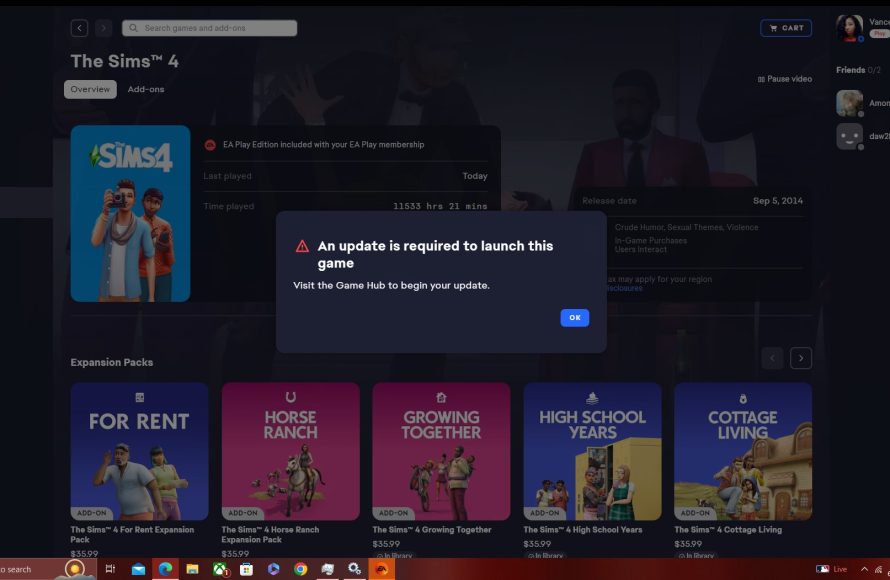
To update Sims 4 game, you should launch the EA app (or Origin), which will automatically check for and install any available updates.
Struggling to keep your Sims living their best lives with the latest content? It can be frustrating when the game is out of date and you’re missing out on new features. Knowing how to update Sims 4 game is key to enjoying the complete experience.
The good news is, the process is usually very simple. Typically, the EA app or Origin handles this process for you. So, let’s ensure you have the most up-to-date version!

How to Update The Sims 4 Game
Keeping your Sims 4 game updated is super important! It makes sure your game runs smoothly, has all the cool new features, and doesn’t have any annoying bugs. Think of updates like giving your game a super cool upgrade. Sometimes these updates add exciting new content like furniture, clothing, or even entire new worlds to explore! But, how exactly do you do it? Don’t worry; it’s easier than you think! This guide will walk you through everything you need to know about updating The Sims 4.
Understanding Game Updates
Before we jump into how to update, let’s talk a little about what these updates actually are. Game updates, also called patches, are like little fixes or additions that the game developers, EA (Electronic Arts), release. These updates are essential for a few key reasons:
- Bug Fixes: Sometimes, games have little errors or glitches that can make your gameplay a bit wonky. Updates usually fix these problems. Imagine your Sim suddenly being able to walk through walls; updates can fix that!
- New Features: EA often adds new cool stuff to the game through updates. This might include new objects, clothing, or even changes to gameplay mechanics. These additions can make playing even more fun!
- Compatibility: As time goes on, computer systems change. Updates ensure your game continues to work well with these newer systems. Without them, your game might not run properly or even at all.
- Performance Improvements: Updates also can help your game run faster and smoother. Nobody likes a slow, laggy game, and updates often improve performance, giving you a better overall playing experience.
Knowing why updates matter is the first step in making sure you have a great gaming experience!
Automatic Updates with the EA App
The easiest way to update The Sims 4 is through the EA App. This app is like the central hub for all your EA games on your computer. Most of the time, updates happen automatically, so you don’t even have to think about it! Here’s how it works:
Checking if Automatic Updates are Enabled
The EA App usually updates your games on its own, but it’s good to check and make sure it’s set up correctly. Here’s how to do it:
- Open the EA App: Find the app on your computer (it looks like a green circle with the EA logo) and click on it to open it.
- Go to Settings: Usually, you will find your settings option in the top-left corner, click on the menu icon, then click on settings.
- Select Application Tab: Now, click on the “Application” tab.
- Check the Update Setting: There you will see the “Updates” area. make sure the “Automatic Game Updates” option is enabled/checked. If it’s checked, then all your games, including The Sims 4, should be updated automatically. if it’s not checked, then click on the check box to enable it.
How Automatic Updates Work
When a new update for The Sims 4 is released, the EA app will detect it, download it, and install it for you automatically when you’re not actively playing the game. It’s very convenient and saves you the trouble of doing it manually! Sometimes the EA app will show you a message to let you know if an update is available when you start the app. Keep the EA app updated to get the latest features.
Manual Updates Through the EA App
Sometimes, you might want to check for updates manually, just to be sure you have the latest version. Or, if your automatic updates are disabled, you’ll have to use this method. Here’s how to manually check for updates using the EA App:
Checking for Updates Manually
- Open the EA App: Just like before, start by opening the EA App.
- Go to Your Game Library: Find the “My Collection” tab. This is where all your EA games are listed.
- Find The Sims 4: Look for The Sims 4 icon and click on it.
- Check for Update: Look for the “Manage” or “Update” button. The text might vary depending on the current situation. If an update is available, you will see an update button there. if not, there will not be any update button, then you are running the latest version.
- Initiate the update: Click on the button to start the downloading and installation of the update.
The EA App will handle the rest of the process and the game will be updated once the process is finished.
Troubleshooting Manual Updates
Sometimes, even with manual updates, things might not go as planned. Here are a few common problems and how to fix them:
- No Update Button: If you do not see any update button, that means your game is already updated. if not, then try restarting the EA app, or sometimes rebooting your computer helps.
- Slow Downloads: Internet connection can sometimes be the reason for slow downloads, or many other downloads or uploads going on in your device can also cause slow downloads. Make sure you have good speed of the internet, try to pause the other downloads and check the speed again.
- Error Messages: If you receive an error message, it’s important to read it carefully. Sometimes it might tell you exactly what’s wrong. Common problems may include low space in hard drive, or corrupted game files. Usually, restarting the app can sometimes solve this issue. Sometimes you may also have to do a clean installation to fix the issue.
Updating through Origin (For Older Users)
If you’ve been playing The Sims 4 for a long time, you might still be using the Origin client instead of the EA App. EA is gradually getting rid of Origin but if you are still using Origin, here’s how you update the game there.
Checking for Updates in Origin
The steps are quite similar to the EA App:
- Open Origin: Find the Origin app on your computer (it has a white logo with an orange circle) and open it.
- Go to your game library: Look for the “My Game Library” or similar tab in the app.
- Find The Sims 4: Find The Sims 4 game icon.
- Check For Updates: Similar to the EA App, you will see an “Update” button if an update is available.
- Install the Update: Click the button and Origin will start the update process.
The Origin client will install all of the required game update files for you. It works the same way as the EA App. Although it works the same, it is recommended that you use the EA App, as Origin is gradually getting replaced by the EA App.
Troubleshooting Origin Updates
Just like with the EA App, you might run into some problems with Origin. Here are a few common ones and how to handle them:
- No Update Button: If no update button is there, then make sure the game is already up to date. If you still doubt, restart the Origin app and try again.
- Download Problems: If the downloads are slow, check your internet connection. A bad internet speed can be the reason for the slow download speed.
- Errors: If you receive error messages, read it and try to troubleshoot the errors yourself. Common issues might include corrupted files, or full hard drive. Restarting the app, or rebooting the computer might be the quick solution.
Dealing with Mods and Custom Content
Mods and custom content (CC) can be amazing for adding new things to your game, but they can sometimes cause problems after an update. It’s important to manage these carefully.
Why Mods Might Cause Problems
Mods are created by other people who love the game. They can change how your game works. When EA releases a new update, these mods might not work correctly anymore because the update may change the original game files. This is very common.
How to Handle Mods After an Update
Here’s how to manage your mods after an update:
- Move Your Mods Folder: After an update, don’t directly start the game. First, go to your “Documents” folder, then “Electronic Arts,” then “The Sims 4,” and find the “Mods” folder. Move the whole “Mods” folder to somewhere safe, like your desktop or another folder. This ensures that it won’t conflict with the base game files.
- Start the Game: Now, start the game without any mods. If it runs fine, then the mods are the reason. if you still find problems, you can do the “repair game” process to fix other issues.
- Test Mods Individually: Start adding mods back to your “Mods” folder one by one, testing the game each time, to find which of the mods is causing problems. This process can take a while, but it will help you find out the exact mod that is causing problems.
- Check Mod Creator’s Pages: Many mod creators release updates to their mods after the official game updates. Check the place where you downloaded the mods to see if there are any new updated versions for your mods.
- Remove Problematic Mods: If a mod is causing problems and not updated, it is better to remove it from your game, to avoid errors and crashes.
Remember to be patient when dealing with mods, it may take time, but it can save the game from any potential crashes or errors.
Custom Content (CC) Considerations
Custom content usually is less problematic than mods, but it can still cause conflicts with the game, specially if the CC are outdated. If you notice any issues with your game, you can try removing all your custom content first, then re-adding them one by one to see if the problem persists. Keep in mind, updating your CCs is also essential.
Repairing Game Files
Sometimes, updates might not install properly or some game files can get corrupted. If you face issues even after updates or removing the mods and CC, you can use the “Repair Game” option, in both EA App and Origin, to solve the issues. This can help fix errors.
How to Repair Game Files
Here are the steps to repair your game files:
- Open the EA App or Origin: Start by opening the application, whichever you are using.
- Go to your Game Library: Find your game library.
- Select The Sims 4: Find The Sims 4 game icon and click on it.
- Find the Repair Option: There will be the “Manage” or “Three dots” option. click on it. This will show more options. Then find the “Repair” option and click on it.
The app will check your files and fix any problems it finds. This can sometimes take a while, be patient during this process.
Keeping Your Game Running Smoothly
Apart from regular updates, there are a few other things you can do to make sure your Sims 4 game runs well:
- Keep your computer updated: Make sure you have the latest version of your operating system (Windows or macOS) and graphics card drivers.
- Close other programs: When playing Sims 4, close other programs running on your computer. This frees up resources for the game.
- Adjust graphics settings: If your game runs slowly, try lowering your graphics settings in the game settings menu. Lowering the settings might affect the visual quality, but can make the game run a lot faster and smoother.
- Clean your game folder: Sometimes, the game folder can become cluttered with old or unnecessary files. You can clean it up regularly, this process might be slightly different based on your knowledge about the computer and the game files.
Updating your Sims 4 game is an important step towards having a good playing experience. By following these simple steps and tips, you can keep your game updated and running smoothly. Always be careful about updating the mods after each game update. With all this information, you are good to play the game without any hassles. Enjoy!
How To UPDATE Sims 4 / TURN OFF UPDATES? Avoid ISSUES after Sims 2021 UPDATE | TS4 Beginner's Guide
Final Thoughts
To update The Sims 4, you must first close the game completely. Then, you should open the EA app or Origin. The app will automatically check for any available updates for your game.
If an update is found, it will begin downloading and installing. Make sure to have a stable internet connection during this process. This is how to update sims 4 game and keep it current.
Finally, once the update completes, relaunch The Sims 4. You can now enjoy all the new content or bug fixes.

