
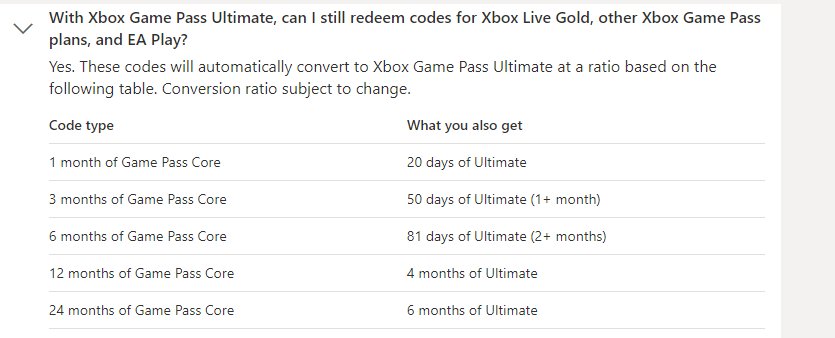
To upgrade Xbox Game Pass Core to Ultimate, simply purchase an Xbox Game Pass Ultimate subscription. The system will automatically convert your remaining Core time to Ultimate, typically at a ratio.
Ready for a gaming experience that goes beyond the basics? Many Xbox users start with Game Pass Core, but there’s a whole other world with Ultimate. This expanded tier offers a lot more games, cloud play, and other perks.
Many players wonder about ‘how to upgrade Xbox Game Pass Core to Ultimate’. It is actually easier than you might think, and this article will guide you through the process. You can do this right through your Xbox console, or the mobile app.

How to Upgrade Xbox Game Pass Core to Ultimate
So, you’ve got Xbox Game Pass Core, and you’re having a blast playing online with your friends. That’s awesome! But maybe you’ve heard about Xbox Game Pass Ultimate, and all the cool extra stuff it offers, like way more games to play on your console, PC, and even your phone. You’re probably thinking, “How do I get in on that action?” Don’t worry; it’s easier than you think! This guide will walk you through exactly how to upgrade your Xbox Game Pass Core subscription to the amazing Xbox Game Pass Ultimate, step-by-step.
Understanding Xbox Game Pass Core and Ultimate
Before we dive into the upgrade process, let’s quickly break down what each subscription provides. Think of it like this: Xbox Game Pass Core is like a base level, giving you the essentials, while Xbox Game Pass Ultimate is like the deluxe version with all the bells and whistles. Knowing the differences will help you appreciate why upgrading is such a great option.
Xbox Game Pass Core
Xbox Game Pass Core replaced Xbox Live Gold, so if you’ve been an Xbox player for a while, this might sound familiar. It mainly focuses on providing the ability to play online multiplayer games with friends, along with a small selection of games to play as part of the membership. Key features of Xbox Game Pass Core include:
- Online console multiplayer: You can play games online with your friends and other players.
- Access to a library of 25+ games: These games are available for you to play as long as your subscription is active.
- Deals and discounts: You get special deals on buying games.
Xbox Game Pass Ultimate
Xbox Game Pass Ultimate is the all-in-one subscription for serious gamers. It builds on everything Game Pass Core offers and adds a whole lot more. It’s kind of like getting the best of everything in one package. Here’s what you get:
- All the benefits of Xbox Game Pass Core: Everything we just talked about, including online multiplayer.
- Access to a huge library of games on console, PC and cloud: This includes hundreds of games!
- Xbox Cloud Gaming: Play games on your phone, tablet, or other compatible devices.
- EA Play membership: Get access to a selection of Electronic Arts games.
- Exclusive perks and discounts: You often receive add-ons, DLC, and special deals just for being an Ultimate member.
The main advantage of Xbox Game Pass Ultimate is the massive game library and the ability to play games on multiple devices. It’s perfect for people who want to enjoy a wide variety of games without having to buy them all individually.
Why Upgrade from Core to Ultimate?
So, you understand what each service offers, but why specifically should you upgrade from Xbox Game Pass Core to Ultimate? Here are some compelling reasons:
- Game Library: The sheer number of games offered by Ultimate is the primary appeal. It can save you a lot of money versus buying each game individually. If you like trying new titles and having something always to play, this upgrade is for you.
- Play Anywhere: With Cloud Gaming included, you aren’t restricted to playing on just your Xbox console or PC. You can continue your gaming on mobile devices, which is super handy.
- PC Games: If you own a Windows PC and enjoy playing PC games, Xbox Game Pass Ultimate allows you to access a huge library of titles for your computer.
- EA Play: Get access to a collection of popular EA games. This is another way to play more titles without spending extra money.
- Value: While Ultimate costs more than Core, many people find it provides much better value if you’re going to be playing a lot of different games.
- Special Perks: Ultimate members often get access to free add-ons, DLC, and other special perks.
If any of the above benefits sound appealing to you, upgrading to Xbox Game Pass Ultimate is the best choice.
The Upgrade Process: Step-by-Step
Okay, let’s get to the good part. Upgrading your Xbox Game Pass Core to Ultimate is not difficult. Follow these steps, and you’ll be enjoying all the benefits of Ultimate in no time. There are multiple ways to start this, so let’s check them out:
Upgrading via Xbox Console
This is probably the easiest way for most people. If you’re already using your console for gaming, you can do the upgrade process directly from there. Here’s how:
- Turn on your Xbox: Fire up your Xbox console and sign in to your Microsoft account.
- Go to the Store: From the home screen, go to the “Store” option. It might look like a shopping bag.
- Search for Game Pass: Inside the store, search for “Xbox Game Pass”.
- Select Xbox Game Pass Ultimate: You’ll see different Game Pass options. Select “Xbox Game Pass Ultimate.”
- Choose to Upgrade: You will be prompted to “Join” or “Upgrade”. Choose the option to “Upgrade” Your current Xbox Game Pass Core will convert to Xbox Game Pass Ultimate.
- Confirm and Pay: Follow the prompts to confirm your purchase and pay for the upgrade. If you have a balance on your account it might be applied to the upgrade.
After completing these steps, your subscription will be upgraded. You can verify this by going back to your Xbox account and checking your subscriptions.
Upgrading via the Xbox Mobile App
You can also upgrade via the mobile app if you prefer to do it from your phone or tablet. Here’s how:
- Download the Xbox App: If you haven’t already, download the Xbox app from the App Store (iOS) or Google Play Store (Android).
- Sign in to the App: Open the Xbox app and sign in with your Microsoft account. Make sure it is the same account you use for Xbox.
- Go to Game Pass Section: On the bottom, tap on the “Game Pass” tab.
- Choose to Upgrade: The app will display your current subscription. Look for the option to “Upgrade” to Xbox Game Pass Ultimate.
- Confirm and Pay: Follow the on-screen prompts to complete the purchase of the upgrade. You might need to confirm your payment details.
Once you’ve confirmed the upgrade through the app, your subscription will be converted to Xbox Game Pass Ultimate. You can then go back to your Xbox console and see the updated subscription.
Upgrading via the Microsoft Website
You can also perform the upgrade on the Microsoft website if you prefer to do it from a computer.
- Open your Browser and Navigate to the Xbox Website: Open your internet browser, and go to the official Xbox website.
- Sign In: On the Xbox website, sign in with your Microsoft account that is linked to your Xbox Game Pass Core account.
- Go to the Xbox Game Pass Section: Look for the Game Pass option and click on it.
- Find Xbox Game Pass Ultimate: You’ll see options for different Game Pass plans, locate Xbox Game Pass Ultimate.
- Select to Upgrade: There will be an “Upgrade” option next to Xbox Game Pass Ultimate, and select that.
- Confirm and Pay: Follow the prompts to complete the purchase, making sure you’re using your desired payment method.
After confirming the upgrade through the website, your Xbox account will now be set for Game Pass Ultimate.
What Happens to Your Remaining Core Time?
A common question is what happens to the remaining time on your Xbox Game Pass Core subscription. No, you won’t lose any time. Microsoft converts your remaining Core time to Ultimate, using a conversion ratio. This is awesome because you are not losing any time on your subscription.
- The Conversion Ratio: Microsoft has a conversion ratio for time to time conversion. It’s not a one-to-one conversion because Ultimate offers more than Core. A conversion guide can be seen on the Xbox website, or in the Microsoft store, when performing the upgrade.
- Example: Let’s say you have three months left on Xbox Game Pass Core and decide to upgrade to Ultimate. You’ll receive less than three months of Ultimate based on this conversion. But, it’s still better than losing the remaining time, as every conversion is beneficial to the customer.
The exact conversion rate may vary slightly, but Microsoft makes sure you get the most value out of your existing subscription. Always confirm this time during the purchase process.
Tips for a Smooth Upgrade
Upgrading is pretty simple, but here are a few tips that can make the process even smoother and trouble-free:
- Have your payment information ready: Before you start the upgrade process, make sure you have your payment method details available, so the process doesn’t take too long.
- Check your internet connection: Ensure your internet is stable, so you don’t run into any issues while upgrading. A stable connection will ensure a smooth purchase process.
- Double-check your account: Make sure you are signed in to the correct Microsoft account before upgrading.
- Read the fine print: Before you complete the upgrade, take a quick look at the terms and conditions, so you know what you are agreeing to.
Following these simple steps will ensure you have a smooth and easy upgrade process.
Managing Your Xbox Game Pass Ultimate Subscription
Once you’ve upgraded, it’s good to know how to manage your subscription. Here’s a quick guide to help you:
- Automatic Renewal: Xbox Game Pass subscriptions are set to automatically renew. If you don’t want to be charged again, you have to cancel your subscription through your Xbox settings, mobile app, or the website.
- Checking Your Subscription: To check the details of your subscription, including the renewal date, go to your Xbox account settings through the console, app, or the website.
- Changing Your Plan: If you decide you no longer want Ultimate, you can downgrade back to Core at any time, but just remember that the remaining time of your current subscription will be calculated with the conversion rate.
Exploring Your New Game Library
One of the most exciting parts of upgrading to Xbox Game Pass Ultimate is exploring all the games available. This can be a little overwhelming since there are so many titles to choose from.
- Browse by Category: The Game Pass library is divided into genres like action, adventure, puzzle and others, making it easy to browse through the different types of games you enjoy.
- Check Out Popular Games: The “Most Popular” section lists trending games that other members are enjoying, so you can try popular games you might not have heard of before.
- Look for New Releases: New games are constantly added to the Game Pass library, so keep an eye out for new releases you might enjoy.
- Download and Play: When you find a game you want to try, simply download it and start playing!
Take some time to explore the Game Pass library and you are sure to find new games you will love.
Upgrading from Xbox Game Pass Core to Ultimate is a great way to get the most out of your gaming experience. You gain access to a huge game library, Cloud Gaming, EA Play membership, and more. The upgrade process is quite simple and can be done on your Xbox console, the mobile app, or the Xbox website. With all the extra games you will be playing, you’ll be glad you upgraded to Xbox Game Pass Ultimate.
How To Upgrade XBOX Game Pass Core to Ultimate (2025) – Step by Step
Final Thoughts
To upgrade your Xbox Game Pass Core to Ultimate, you purchase the Ultimate subscription. Microsoft will then convert your remaining Core time to Ultimate, usually at a specific ratio. This method is the must-easiest approach.
The conversion process happens automatically. You do not need to cancel your existing Core membership first. Enjoy the expanded game library and additional features Ultimate offers.
Remember, the conversion ratio may change, so it’s always a good idea to check the current details. This clarifies how to upgrade Xbox Game Pass Core to Ultimate simply and directly.

