
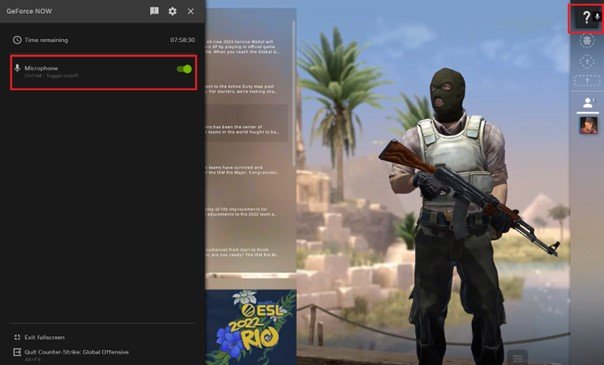
To use in game voice chat in CS:GO, press and hold your designated push-to-talk key (default is usually ‘K’) while speaking. Release the key to stop transmitting.
Effective communication is critical in CS:GO, and knowing how to use in game voice chat in CS:GO significantly impacts team coordination and performance. You need to use this feature correctly to share vital information with teammates. Clear and concise communication will increase the chance of winning.
Proper setup makes using the voice chat simple. We’ll discuss the push-to-talk key, making sure it works well, and other helpful things. This will help you work as a team and have fun.

How to Use In-Game Voice Chat in CS:GO
Getting your communication right in Counter-Strike: Global Offensive (CS:GO) is super important. It’s not just about shooting; it’s about talking to your teammates and planning your moves. Using the in-game voice chat effectively can be the difference between winning and losing a round. Let’s dive into how you can get the most out of voice comms in CS:GO.
Understanding the Basics of Voice Chat in CS:GO
First, let’s cover the fundamentals. CS:GO’s voice chat system allows you to talk to your teammates using your microphone. It’s built right into the game, so you don’t need any extra programs. However, there are some settings to understand to ensure you can both hear and be heard properly. The system is simple to use, but it’s essential to have it correctly setup.
Enabling Voice Chat
To start, you need to make sure voice chat is enabled in your settings. Here’s how you can check:
- Launch CS:GO.
- Click on the “Settings” gear icon in the main menu.
- Go to the “Audio” tab.
- Look for the “Enable Voice” option. Make sure it is set to “Yes”. If it’s set to “No”, click it to change it to “Yes”.
Once enabled, you should be able to use voice chat in-game. But there is a lot more settings to play with!
Voice Chat Input Device
Also in the audio settings, you’ll need to select the right microphone. Here’s how:
- Still in the “Audio” tab.
- Find “Voice Input Device” setting. It usually auto selects your main microphone, but if you have more than one, you will want to select the correct one from the drop-down list.
- Make sure the correct one is selected so that your teammates can hear your callouts clearly.
Push-to-Talk vs. Open Mic
CS:GO lets you choose how you want your microphone to work:
- Push-to-Talk: You have to hold down a specific key to talk. This is usually the better option for a less noisy environment, but does require pressing a button each time you want to talk.
- Open Mic: Your microphone is always on. This can be useful, but will pick up all the noise in the background and is best used in a quiet room.
Most players prefer Push-to-Talk for team communication, since it cuts down on background noises. To set up Push-to-Talk:
- Go to “Settings” and then to the “Keyboard/Mouse” tab.
- Scroll down until you see “Use Mic”. Click on the input box.
- Press the key you want to use for Push-to-Talk. A commonly used key is “V” or one of your mouse buttons.
Make sure this key isn’t the same as another important game key you use. If you use an open mic, there will be no need to bind it to any key.
Adjusting Mic Volume
Your voice volume is crucial for clarity. If you are too loud, your voice can be distorted and cause issues for teammates. If you are too quiet, people may not hear you. To adjust your mic volume:
- Stay in the “Audio” tab.
- Look for “Voice Mic Volume” slider. Move this slider right or left to make your voice sound just right. You can also try the “Test Microphone” to see how your voice sounds.
Using Voice Comms Effectively in-Game
Now that you have your microphone set up, let’s talk about how to use it properly during matches. Clear and concise communication can win games.
Giving Clear Callouts
When you’re playing, you need to give your teammates accurate information. Instead of saying “He’s over there!”, try using specific callouts. Here are some examples:
- “Enemy mid, pushing B” – this tells your team where an enemy is and where they are headed.
- “I see one at long doors on Dust 2” – this is specific and accurate, helping your team quickly respond.
- “Two hiding behind boxes on A site, Inferno” – this gives your team valuable positional information.
Using common callouts for maps will drastically improve your game.
Keeping Comms Clear and Concise
When you talk, keep it short and simple. Avoid lengthy explanations or unnecessary chatter. Here are some tips:
- Avoid talking when someone else is giving important info, this can cause confusion.
- Say only what is needed for a situation. “One short on A” is better than “Oh, there’s one by short, no he’s now there”.
- Do not speak over other people, let everyone get their message across.
Being Positive and Constructive
Being a good teammate is just as important as your gaming skills. Try to be positive, and don’t blame your teammates when things don’t go well. Instead, try to communicate effectively and strategize together.
- If you see a teammate make a mistake, don’t yell. Instead, offer constructive advice.
- Keep the team’s morale high and encourage your teammates.
- Remember, you win and lose as a team.
Troubleshooting Voice Chat Issues
Sometimes, voice chat might not work as you want. Here are some common problems and how to fix them.
My Teammates Can’t Hear Me
If your teammates can’t hear you, first make sure that you are using push to talk, and actually pressing the correct key, when you are trying to speak. Also, check:
- Your Microphone Is Selected: Go to your audio settings and make sure the correct microphone is selected in the “Voice Input Device” dropdown.
- Mic Volume is Up: Double-check your “Voice Mic Volume” setting in the game settings is turned up to an adequate level.
- Mic is Not Muted in Windows: Make sure that your microphone is not muted in windows sound settings.
- Check your Connection: Sometimes network issues can affect voice chat. Make sure that you have an stable internet connection.
Restarting the game may fix this too.
I Can’t Hear My Teammates
If you can’t hear your teammates, check the following:
- Voice Chat is On: Make sure that “Enable Voice” setting in your audio settings is “Yes”.
- Voice Volume is Up: Check that “Voice Volume” is turned up.
- Your Speakers or Headset are Working: Make sure your speakers or headset are properly connected and working correctly.
- Game Volume is Not Muted: Make sure that the game volume is not muted in your volume mixer in Windows.
You can also try updating your sound drivers.
Voice is Too Quiet or Too Loud
Adjust your “Voice Mic Volume” slider until it is just right. A few things to keep in mind:
- Try testing in a game or a test session to get it perfect.
- If you are too loud, try turning your mic down a little.
- If you are too quiet, try moving it up.
Background Noise Issues
If your teammates complain about background noise, you might need to improve your setup:
- Use Push-to-Talk: If you use open mic, switch to push-to-talk.
- Use a Headset: Headsets can sometimes do a better job at not picking up noise in your room.
- Move to a Quiet Spot: Try moving to a quieter area to minimize background noise.
- Noise Cancellation Software: You can also use third-party programs that will reduce background noise.
Advanced Voice Chat Tips
Now, let’s go over some advanced techniques to enhance your in-game communication.
Using Voice Chat to Coordinate Strategies
Beyond callouts, use voice comms to plan your strategies with your team. Things like:
- Plan a Rush: When you’re on the Terrorist side, you can plan a rush to a specific bomb site. Communicate who will go where.
- Coordinate a Defense: When you’re on the Counter-Terrorist side, discuss where each player will hold to cover the bombsites effectively.
- Set up a Smoke: Coordinate your smoke grenades, to push into certain places as a team.
Adapting to Different Situations
The flow of a match changes a lot. Being able to adapt through voice comms will help your team.
- Changing your Approach: If your team’s strategy is not working, discuss a new approach.
- React to Enemy Moves: If you see the enemy changing their tactics, discuss it with your teammates and come up with a counter-plan.
- Adjust to Teammates Styles: Not everyone will play the same way, so you will need to adjust to how they are playing.
Learning Map-Specific Callouts
Each map in CS:GO has unique locations and callouts. Familiarizing yourself with these callouts can significantly improve team communication. Take the time to learn the common callout names on maps that you often play. This will allow you to instantly tell your teammates the locations of the enemy without any confusion.
- Many maps have common names for places, try to learn these.
- Look up map callout guides online to improve your knowledge.
You can also search for the name of the map followed by “callouts” in youtube to see videos of other players callouts.
Effective use of in-game voice chat is a game changer in CS:GO. Clear communication, good teamwork, and using proper callouts are essential to climbing the ranks and winning matches. Keep these tips in mind, practice using your voice comms, and you’ll be on your way to improving your gameplay.
Fix CS2 Mic Not Working – Counter Strike 2 Voice Chat Issues
Final Thoughts
To use in-game voice chat CS:GO, simply press and hold your designated push-to-talk key. This is typically the ‘K’ key, but you can customize this in the game settings. Remember, clear communication is a must for team success.
Ensure your microphone is properly configured within CS:GO’s audio settings. This prevents issues. Test it before starting a match to avoid unnecessary problems.
By following these simple steps, you can effectively use in-game voice chat CS:GO. Communicate effectively with your teammates. This skill is essential for winning matches.

