
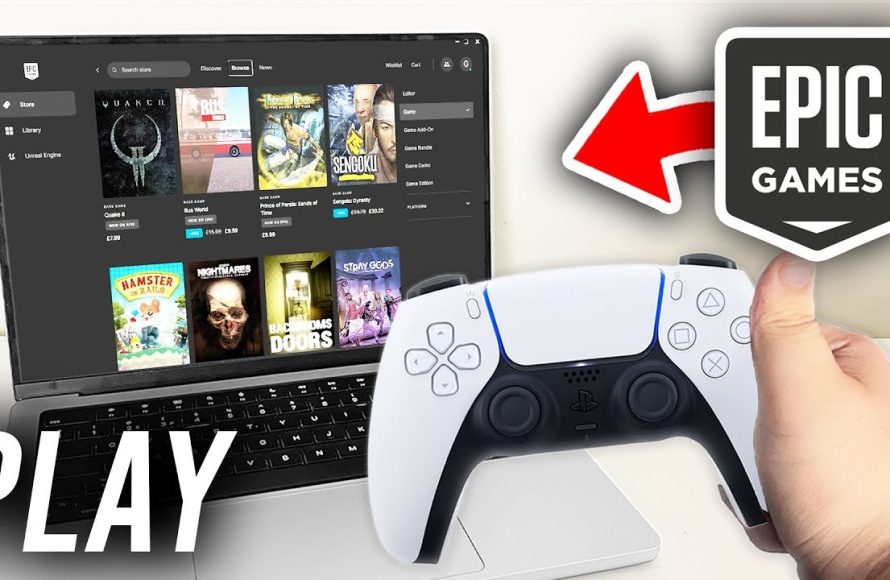
To use a PS5 controller on Epic Games, simply connect it to your PC via Bluetooth or USB. Most games should recognize it automatically; if not, try configuring controller settings within the game or using a third-party program like DS4Windows.
Want to play your favorite Epic Games titles with the immersive feel of a PlayStation controller? You’re not alone; many gamers enjoy that particular gamepad experience. Figuring out how to use PS5 controller on Epic Games can seem tricky at first.
It’s actually quite straightforward! This article will help you get your DualSense controller working seamlessly with your Epic Games library. Get ready to enjoy your games with a familiar feel.

How to Use PS5 Controller on Epic Games
Want to play your favorite Epic Games titles using your awesome PlayStation 5 controller? You’ve come to the right place! It might seem a little tricky at first, but connecting your PS5 controller to your computer and getting it to work with Epic Games is actually quite simple. This guide will walk you through all the steps, making sure you can enjoy gaming with your preferred controller in no time. We’ll cover everything from the basic connection methods to troubleshooting common problems. So, let’s get started and get you gaming!
Connecting Your PS5 Controller: Wired and Wireless Options
Before diving into the specifics of Epic Games, let’s talk about how to connect your PS5 DualSense controller to your computer. You’ve got two main ways to do this: wired and wireless.
Wired Connection: The Easiest Method
A wired connection is usually the most straightforward. Here’s how you can do it:
- Grab a USB-C cable. This is the same cable you use to charge your PS5 controller.
- Plug the USB-C end into your controller.
- Plug the other end (usually USB-A or USB-C) into a USB port on your computer.
- That’s it! Your computer should recognize the controller as a game input device. You might see a notification pop up, confirming this.
The advantage of a wired connection is its stability and lack of any lag, or delay. Also, you don’t need to worry about battery life. However, some people might not like the cord getting in the way. If this sounds like you, then wireless is your next best bet.
Wireless Connection: Using Bluetooth
For a wireless experience, you’ll need to connect via Bluetooth. Here’s how to connect using Bluetooth :
- First, make sure your computer has Bluetooth capabilities. Most modern laptops and desktops come with it, but you might need a USB Bluetooth adapter for older computers.
- Put your PS5 controller into pairing mode. Press and hold the PlayStation button (the one with the PlayStation logo) and the Share button at the same time for a few seconds. The light bar on your controller will start flashing blue.
- On your computer, go to your Bluetooth settings. On Windows, you can usually find it by clicking the start button and typing “Bluetooth”. On Mac, click the Apple logo, select “System Settings”, then choose “Bluetooth”.
- Your computer should now be scanning for devices. You will see an option for “DualSense Wireless Controller.” Click on this.
- Your computer may take a moment to connect. Once connected, the light bar on your PS5 controller will turn solid.
Sometimes, Bluetooth can have issues with connections or latency, but most of the time it will provide a great gaming experience. If you have any problems, try the wired connection first to see if the issue is with the controller or your computer setup.
Epic Games Launcher and Controller Compatibility
Now that you have your PS5 controller connected to your computer, let’s talk about the Epic Games Launcher. The good news is that the Epic Games Launcher is designed to work with most game controllers, including the PS5’s DualSense. Generally, it will recognize your controller automatically, but sometimes you may need to check a couple of settings to make sure everything works as expected. Let’s go through that.
Verifying Controller Support Within Epic Games
Most games on the Epic Games platform will work well with your PS5 controller as soon as it is connected to your computer. Games that have full controller support will usually detect your controller immediately after launch, or at least when you get to the main menu. But here are a few tips to ensure the best experience.
- In-Game Settings: Always check the game’s settings menu. Look for a section labeled “Controls,” “Controller,” or something similar. Here, you should be able to select your controller and adjust any custom configurations. The game should automatically show you the button prompts that are similar to what you see on your PS5.
- Testing your controller: Before you start playing, test your controller’s functionality. Make sure all the buttons work, joysticks move correctly and are not drifting, triggers respond accurately and other controls are responsive. This avoids frustration when you start playing your game and figure out your controller isn’t working.
- Game-Specific Support: Some older games may not fully support the PS5 controller. They may not have the correct button prompts, and some features of the controller might not work. If this is the case, you may need to use a third party application like DS4Windows (covered later) to simulate an Xbox controller.
Common Problems and Solutions
While things should work smoothly most of the time, sometimes problems can arise. Let’s tackle some common problems and their fixes.
Controller Not Detected by the Game
If your controller is connected to your computer but the game doesn’t see it, try the following:
- Restart the Game: Sometimes the simplest solution is to close the game completely and open it again.
- Restart your computer: If restarting the game didn’t work, try restarting your computer.
- Check Connection: Make sure your controller is securely connected. If using a wired connection, double-check the cable. For Bluetooth, make sure it is paired correctly. You may even need to disconnect and reconnect your controller.
- Update Controller Drivers: Go to your computer’s device manager and check to make sure your controller’s drivers are updated to the latest version. The latest drivers are always better because they often contain fixes and can improve performance.
- Steam interference: Steam has controller software that may interfere with your controller working on Epic Games, try to close Steam and any programs linked to Steam.
- Look for other controller software: Make sure that you don’t have other controller software that is causing conflicts. For example, DS4Windows and Steam controller software can interfere with each other, so if you have them installed, try closing them to see if it fixes the issue.
Controller Input Lag
Input lag is when your controller commands are delayed. This can be very irritating. Here are some tips on reducing input lag:
- Wired Connection: If you’re using Bluetooth, switch to a wired connection. It is always faster and more reliable.
- Bluetooth Interference: If you are determined to use Bluetooth, make sure there are no electronic devices in the area that might interfere with the signal. This could include routers, phones and even other Bluetooth devices.
- Close Unnecessary Programs: Close any programs running in the background that may be using up system resources. This allows your computer to concentrate on the game you are playing.
- Update Graphics Drivers: Ensure that your graphics card drivers are updated to the latest version.
- Lower Game Settings: If your computer is struggling to run the game, try lowering the graphics settings, this could reduce the input lag.
Button Mapping Problems
If the buttons on your controller aren’t working as expected, here are some solutions:
- In-Game Settings: Look at the game’s settings to make sure the button mappings are correct. You may even be able to reconfigure the button layout as you like it.
- Restart: Try restarting both the game and your computer.
- Reinstall game: If button mapping is still an issue, try reinstalling the game.
- DS4Windows: If you are still having problems, you might need to use a third party application like DS4Windows.
Using DS4Windows for Enhanced Compatibility
Sometimes the PS5 controller is not fully compatible with some games. In these cases, a third-party program called DS4Windows can help. DS4Windows makes your computer think that your PS5 controller is an Xbox controller, which has excellent compatibility with nearly all games. Here’s how to use it:
Downloading and Setting up DS4Windows
- Download: Find the latest version of DS4Windows on the internet, but download it only from a reputable source.
- Install: Extract the contents of the downloaded ZIP file to a folder and run the ‘DS4Windows.exe’ file.
- Install Drivers: DS4Windows will ask you to install drivers. Accept these instructions and wait until the installation is complete.
- Connect Controller: Connect your controller via USB or Bluetooth. DS4Windows should detect it.
- Profile Creation: DS4Windows has profiles to adjust the button mappings, light bars and other settings. If you want to go deeper into customization you can adjust these profiles. But, for normal use, there is no need to adjust these settings.
- Hide Controller: To avoid problems, you should click the “Hide DS4 Controller” button.
- Start a Game: Now open your game and the game should see your controller as an Xbox controller.
Using DS4Windows is beneficial if the game doesn’t automatically recognize your PS5 controller, if the game requires Xbox controller to use it fully, or if you want to configure the controller to your own needs.
Advanced Tips and Tricks
Now that you have a solid understanding on how to use a PS5 controller with Epic Games, here are a few other tips.
Using PS5 Controller Features
The PS5 DualSense controller has some great features, such as adaptive triggers and haptic feedback. However, not all games on Epic Games will support these features. So, if you are experiencing those features, the game you are playing may not support it. Here are some things you can do:
- Check Game Compatibility: Before you start a game, check online to see if it supports those features.
- Adjust Settings: Check the in-game settings. Some games allow you to adjust the intensity of the haptic feedback.
- Third Party Support: Some third party programs may be able to enable these features on some games. But be aware they may not work on all games.
Using Multiple Controllers
Sometimes you may want to play some games on the same computer using multiple controllers. Here’s what you need to do:
- Connect All Controllers: Connect all your controllers either using a wired connection or Bluetooth.
- Check Game Support: Ensure that the game supports multiple controllers. Not all games will.
- Configure Controllers: Some games allow you to configure the controllers in the settings, and you can even configure which player uses which controller.
Troubleshooting Bluetooth Connections
If you’re having trouble with a Bluetooth connection, try these steps:
- Restart Bluetooth: Turn Bluetooth off and on again on both your computer and controller.
- Move Closer: Make sure your controller is not too far away from your computer.
- Update Drivers: Make sure your Bluetooth drivers are up to date.
- Forget and Re-pair: You can unpair your controller and then pair it again.
- Remove Interference: Move any other Bluetooth devices that may be causing interference away from your computer and controller.
Using your PS5 controller on Epic Games can add a lot to your gaming enjoyment. By following the steps above, you will be able to enjoy all the games on the Epic Games platform using your PS5 controller. Remember to always check the game’s settings, restart when needed, and use DS4Windows if you encounter compatibility problems. Gaming with your favorite controller is now easy.
How To Play Epic Games With Controller – Xbox, PS4, PS5 Controllers
Final Thoughts
To use your PS5 controller on Epic Games, first connect it to your PC via Bluetooth or USB. Epic Games generally detects the controller without extra steps. If you encounter problems, try restarting the game or checking controller settings.
Sometimes you might need to add the game as a non-steam game and launch through steam. This workaround can help with compatibility issues. Remember to ensure your controller drivers are up to date.
Successfully using the PS5 controller on Epic Games makes gaming more comfortable. Follow these instructions to easily set up your controller. Enjoy seamless gameplay with your chosen controller setup.

