
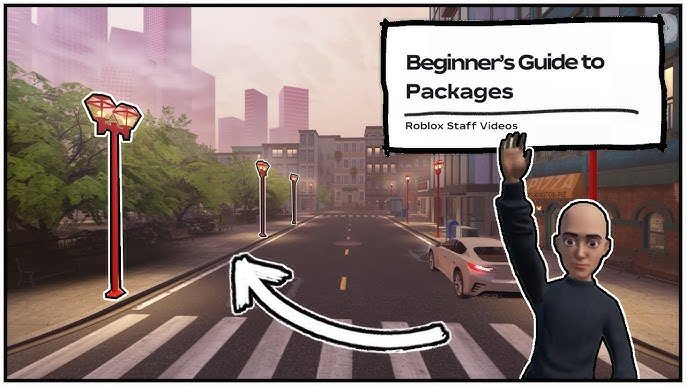
To use Roblox packages, simply insert them from the Toolbox into your game, then drag and drop them into the desired location in your project.
Have you ever wondered how to use Roblox packages to quickly add pre-made assets? They are a fantastic way to save time and add functionality without needing to create everything from scratch. This can really accelerate your game development projects.
Using these pre-built components helps in getting a functional base for your next game creation. Packages speed up the process significantly.

How to Use Roblox Packages
Have you ever built something super cool in Roblox Studio and wished you could use it again in another game? Well, guess what? You can! That’s where Roblox Packages come in. They are like pre-made building blocks you can save and reuse. Let’s jump in and learn how to use them!
What are Roblox Packages?
Think of packages as little bundles of your creations. They can be anything from a single cool tree to a whole complicated building. Instead of recreating the same thing every time, you can simply insert the package. This saves you time and effort!
Key Benefits of Using Packages
Using packages has several big advantages.
- Time Saver: You don’t have to build things from scratch again.
- Consistency: Your creations will look the same across different games.
- Easy Sharing: You can share your packages with your friends or other developers.
- Organization: Keep your important assets in one place, making game building simpler.
Creating Your First Roblox Package
Ready to make your own package? It’s easier than you might think!
Selecting What to Package
First, you need to pick what you want to turn into a package. This can be anything in your Roblox game. It can be a model, a part, or even a group of parts.
How to Create a Package Step-by-Step
Let’s walk through the process together.
- Select Your Creation: In Roblox Studio, use your mouse to select the model, parts, or group of items you want to package in the Explorer window.
- Right-Click and Select: Once selected, right-click on the items and click the “Create Package” option.
- Name Your Package: A window will pop up where you should name your package. Pick a name that helps you remember what it is. For example, “Cool Tree” or “Awesome House.”
- Add a Description: Under the naming, you’ll see a description box. Write a short note about the package’s content or its purpose, this will be helpful for you later.
- Click “Create Package”: Finally, click the “Create Package” button. Roblox Studio saves your creation as a package and now it’s ready to use!
Using Your Created Packages
Now you have a package! Let’s see how to add it to a game.
Inserting Packages into a Game
Adding a package to your game is super easy. Follow these steps:
- Open a Game: Open the Roblox game where you want to use your package.
- Find the Toolbox: In Roblox Studio, look at the top of the screen. You’ll see the “View” tab. Click on it. Then, click on “Toolbox”.
- Go to My Packages: In the Toolbox window, click on the “My Packages” button. You’ll find your saved packages there.
- Insert a Package: Click on the package you want to add to your game, you will see the package icon, and you should click it. Roblox Studio will automatically insert it into your game.
That’s it! Your package is now in your game, ready for you to use.
Updating Packages
What if you make a change to a package? Don’t worry, you can update it! Here’s how.
- Edit Your Package: In Roblox Studio, insert the package into your game. Edit the package and make changes to it as you want.
- Right-Click and Update: Once you’re done, right-click the package in the explorer, and instead of “Create Package” you will see “Update Package”. Click on that.
- Confirm the Update: A window will appear, asking you to confirm the update. Click “Update” and the changes will be saved.
Now, every game that uses this package will automatically get the updated version. That is very convenient!
Sharing Packages with Others
One great thing about packages is that you can share them with other developers. Here’s how:
Publishing Packages for Others to Use
Let’s make your package public and share it with the Roblox community.
- Right-click your package: In your “My Packages” section of the toolbox, find the package you want to share. Right-click on the package name.
- Click Publish: From the options that appear, click on the “Publish Package” option.
- Configure the Publishing Settings: A window will appear to set publishing options, such as whether to make it public or private.
- Confirm Publishing: Click on the “Publish” button and your package will be available for others to use.
Now, your friends or other developers can use your amazing packages!
Finding Packages Shared by Others
Want to use packages made by others? Here’s how to find them:
- Open the Toolbox: Open the Toolbox in Roblox Studio.
- Click “Marketplace”: Instead of selecting “My Packages”, click on the “Marketplace” tab.
- Search for Packages: In the search bar, type the name of the package you are looking for, or use keywords to explore available packages.
- Select a Package: Click the package you want to use, and then you will see the option “Add to Game”. Click that and the package will be inserted into your game.
You can find lots of cool things to add to your game here.
Tips and Tricks for Using Packages
Here are some extra tips to help you use packages like a pro!
Organization and Naming
Give your packages clear names that make sense. Using names like “House” or “Tree” is better than “Part1” or “Object.” A good description helps a lot too!
Version Control
Remember to update your packages when you make changes. This ensures everyone using the package gets the latest version. It prevents the usage of outdated packages.
Use Packages for Repeated Elements
Think about how you can reuse your creations. If you need the same building or object multiple times, use packages! This saves time and keeps your game consistent.
Testing Your Packages
Before publishing, always test your package in a test game to make sure it works correctly. This prevents errors and ensures that your package works smoothly for other players.
Experiment and Have Fun
Try different types of packages and see what cool things you can create. The more you practice, the better you will become at using packages in Roblox Studio. It’s all about learning and playing around with them!
Common Questions about Packages
Let’s address some common questions about packages.
Can I Delete a Package?
Yes, you can delete a package from your “My Packages” section in the Toolbox. But remember, deleting a package will only remove it from your Toolbox, it will not affect the instances in your already created games.
Can I use packages from other developers?
Absolutely! You can use packages that have been shared publicly by other developers. It is a great way to learn and enhance your own games.
Can I edit a package after it is created?
Yes, you can edit a package anytime! Simply add a package to your game, make your changes, and then update the package. All instances of the package will automatically update to reflect the changes you made.
Are packages free to use?
Yes, packages are free to create, share, and use on Roblox. It’s all part of the tools provided by Roblox to make it easier to create games.
Roblox Packages are a wonderful tool for any creator on the platform. They help save time, keep your creations consistent, and enable you to share your great work with others. By using this tool effectively, you will see a change in your game development journey. Whether you’re making a simple park or a complicated city, packages can help. Keep experimenting, keep making, and always have fun building in Roblox!
Getting the SAME things in MULTIPLE GAMES – Roblox Packages Tutorial
Final Thoughts
Roblox packages simplify asset sharing and reuse. You can insert them directly from the Toolbox into your game. This saves considerable development time.
‘how to use roblox packages,’ effectively involves selecting a package then inserting it. Changes you make to a package apply to your games. Remember to update packages if required.

