
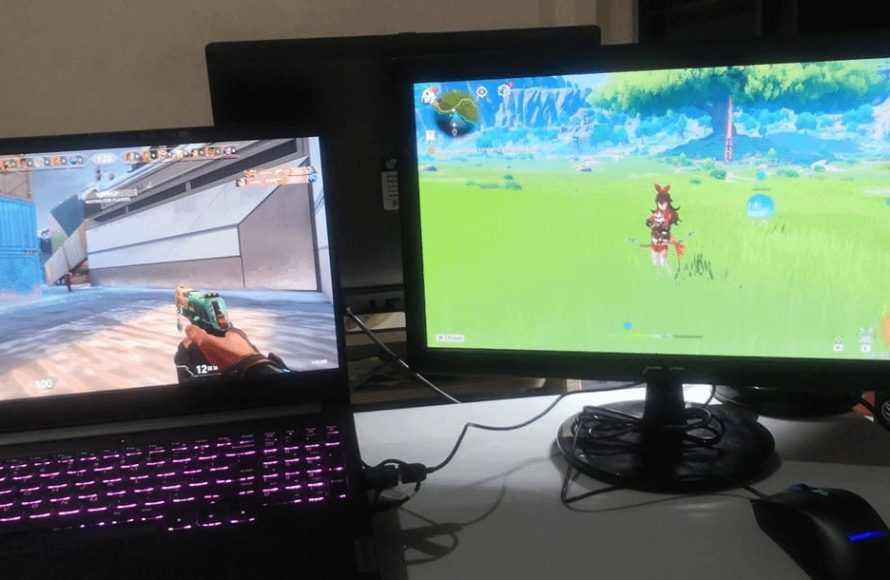
While in game, you can use a second monitor by configuring your display settings to extend your desktop. This allows you to run applications or view web pages on the second screen while your game runs on the main display.
Ever wished you could check a walkthrough or chat with friends without alt-tabbing out of your intense gaming session? Many gamers wonder how to use second monitor while in game to enhance their setup. It’s simpler than you might think and adds a whole new dimension to your play.
Having that additional screen gives you a place to put Discord, guides, or even just music playlists. No more minimizing your game to view information. It really makes a big difference in how you interact with games and other applications simultaneously.

How to Use a Second Monitor While Gaming
Have you ever been deep into a game and wished you could quickly check a guide, talk to your friends, or even just keep an eye on a YouTube video without having to exit out? That’s where a second monitor comes in! It’s like having a superpower for gamers, letting you do more while you’re still in the middle of the action. Let’s explore all the awesome ways you can make the most of your dual-monitor setup for gaming.
Setting Up Your Dual Monitor Gaming System
Before you can start enjoying all the benefits, you need to get your second screen connected and configured properly. This part might seem tricky, but it’s usually pretty straightforward. Here’s what you need to do:
Checking Your Connections
First, you’ll want to make sure your computer has the right ports. Most graphics cards come with multiple outputs (usually HDMI, DisplayPort, or sometimes DVI). You will need to check the back of your computer and your monitor to confirm the available connection type. Here is what a connection looks like:
- HDMI: This is a very common type and can send both video and sound.
- DisplayPort: Another option used for high-quality video and is also a very common one.
- DVI: This is an older option but still works well for video.
Once you have your port types, make sure you have the right cable to connect both your monitors to your computer. Plug in your second monitor just like you did with your first monitor. If you don’t have an extra output, you might need a special adapter or a new graphics card.
Configuring Your Display Settings
With both monitors connected, it’s time to set them up in your computer’s settings. Here’s how to do it on Windows:
- Right-click anywhere on your desktop and select “Display settings”.
- You should see two monitor icons. If you don’t, click “Detect.”
- You can choose how you want your monitors to work. Here are your options:
- Extend these displays: This is usually the best option for gaming. It turns your two screens into one big desktop, letting you move your windows between the two.
- Duplicate these displays: This shows the same thing on both screens. This might be useful for presentations, but not really helpful for gaming.
- Show only on 1 or 2: Select this option to use only one monitor, this will disable the other monitor.
- Pick “Extend these displays” for using the second monitor while gaming.
- You can drag the monitor icons in the display setting screen to match how your monitors are set up in real life. If your second monitor is to the right of the first one, drag the second monitor icon to the right of the first one in your display settings screen.
- Hit “Apply” to save your settings.
For Mac users, the process is similar. Go to “System Preferences” then “Displays” and set up your arrangement.
Why use a second monitor for gaming
Now that your second screen is up and running, let’s dive into what makes it such a great addition to your gaming setup. Here are some of the top reasons for using a second screen:
- Guides and Walkthroughs: Stuck on a tough part? Pull up a guide or video tutorial on your second monitor and follow it step by step while you play. You don’t have to switch screens or use your phone.
- Chatting with Friends: Use your second screen to keep your Discord chat open. You can see who’s talking and join conversations without having to alt-tab out of your game.
- Streaming Support: If you like to stream your games, a second monitor is a must. Keep an eye on your chat, streaming software, and other things without messing with your game screen.
- Music Playback: Control your Spotify or any music player. Change your tracks, albums, and playlists without exiting your game.
- Keeping track of important information: Some gamers keep track of their hardware temperatures and performance by using a software that displays information on their second screen
- Browsing or watching videos: In those long wait times in between the games, you can easily check your social media or watch youtube videos
Practical Ways to Use Your Second Monitor While Gaming
Now that you know why a second monitor is so useful, let’s get into the specific ways you can make the most out of it during your gaming sessions. Here are some of the most popular applications:
Game Guides and Walkthroughs
When you find yourself stuck, instead of pausing your game, or exiting, you can move the guide window to the other monitor. You can easily follow along the guide and still be able to see your game. There are plenty of game guides available online on platforms such as youtube or dedicated websites. You can easily refer to them while in game, without having to minimize your screen.
Discord and Communication
Having Discord on a second monitor is a game-changer for multiplayer gaming. You can see who is talking, mute yourself, or join other channels. You can join your gaming friends in a voice channel or a text channel so that you can communicate with them. This prevents you from alt-tabbing and missing important parts of your gameplay. You can even use other chat clients, for example if your friends use another software.
Streaming and Content Creation
If you are interested in streaming your gameplay online, a second monitor can make it significantly easier. Use your second screen to monitor your streaming software, like OBS or Streamlabs. You can keep an eye on your chat window, keep track of your stream’s performance, and respond to your viewers. You can also have other tools such as streaming overlays and bot softwares.
Music Control
Sometimes you might just want to listen to your favorite music while playing a game. You can move your music application on your second screen. You can change your songs, create a playlist, and adjust the volume with out exiting your game. You can use programs like Spotify, Apple Music, or even YouTube Music to enhance your gaming session.
System Monitoring
For gamers who are interested in keeping track of their systems performance, you can use software like MSI Afterburner to display real time information about the health of your computer. This will show you the current temperature of your computer components, their usage rate, and their clock speed. You can keep your system healthy by keeping your hardware at optimal temperatures.
Browsing and Media
Sometimes in the middle of a game, you might have to wait for a lobby to start, a game to load, or even just simply take a break. During that time, you can quickly browse on the internet on your second monitor. You can check your socials, news, or even watch youtube videos. This is a great way to kill time while you are waiting.
Making the Most of Your Second Monitor: Tips and Tricks
Now that you are set up with a second monitor and are making use of it, here are some additional tips to get the most out of your dual monitor experience:
Proper Placement
The way you position your monitors can make a big difference. Generally, you’ll want your primary gaming monitor directly in front of you, where you naturally look when gaming. Put the second monitor on the side that feels most comfortable to you. You can have both monitors side by side, or even have one monitor on top of the other if you have a desk mount. It is very important to properly set up your displays to reduce any discomfort when gaming.
Keyboard Shortcuts
Keyboard shortcuts will be your best friend when working with dual monitors. Some of the basic keyboard shortcuts are:
- Windows key + Shift + Left/Right arrow: This quickly moves an active window from one monitor to another.
- Windows key + Tab: This allows you to see all your opened windows and easily choose between different applications.
- Windows key + Left/Right arrow: Move the active window to the left or right side of your current monitor.
These shortcuts will help you quickly change between your displays and prevent you from losing focus. Knowing the basics of keyboard shortcuts will greatly improve your experience while using dual monitors.
Customizing Your Desktop
Use different wallpapers on each screen for easier identification, or use wallpaper software to display a unique wallpaper across both displays. You can also customize your taskbars, such as hiding the taskbar on your secondary screen. You can even customize the resolution and refresh rate for each screen. This makes your gaming experience more enjoyable.
Adjusting Game Settings
Some games have special settings to make them work better with multiple monitors. For example, they might let you choose which monitor the game opens on or let you extend the game across multiple screens. Check your game settings and tweak things to work best with your setup. Some games will also support a borderless windowed mode which will make it easier to move applications to your second screen without minimizing the game.
Monitor Calibration
You can calibrate both of your monitors so that they have the same color accuracy. This is especially useful if you use different brands of monitors. Using the monitor’s built-in software, you can configure their color output to be very similar. This will improve your experience when using multiple displays.
Software for Dual Monitors
There are some software you can use to enhance your dual monitor experience. Here are some popular software:
- DisplayFusion: This software lets you customize your taskbars on each monitor, giving you more flexibility.
- Actual Multiple Monitors: This is another option that provides a range of tools for improving your dual-monitor setup, including taskbar management, multi-monitor wallpaper, and more.
- Ultramon: This program allows for different monitor profiles and monitor management, and it has its own collection of tools.
These software options can help you manage your displays more effectively and allow for unique customizations.
Using a second monitor while gaming adds a layer of convenience and productivity to your setup. From following guides, communicating with friends, to watching streams, a second monitor can enhance every aspect of your gameplay. With the right setup, placement, and knowledge you will be able to easily improve your gaming sessions.
Tutorial: Mouse out of full screen games without Alt + Tab w/ Actual Multiple Monitors
Final Thoughts
To use a second monitor while gaming, employ windowed or borderless windowed modes in your game settings. This setup allows you to easily move your mouse between screens. Ensure your operating system correctly recognizes both displays.
Utilizing specific hotkeys can also quickly shift focus between monitors. This is especially useful for multitasking. Properly configuring these settings will make ‘how to use second monitor while in game’ seamless and efficient.

