
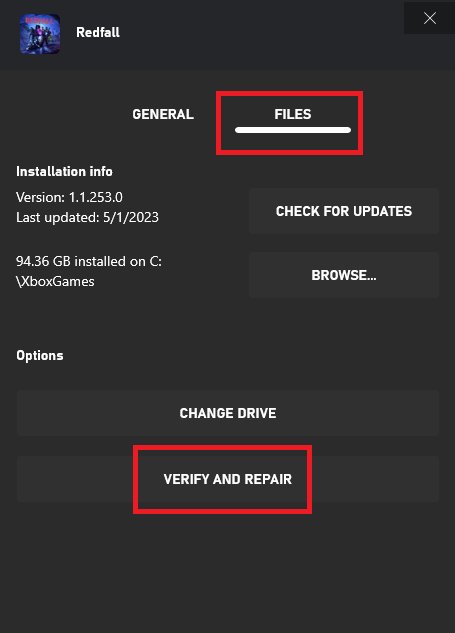
To verify game files on Xbox Series X, you need to go to “My games & apps,” select the game, press the menu button, choose “Manage game and add-ons,” then select “Saved data” and delete local save. This action prompts a file re-sync, essentially verifying the files.
Ever had a game act strangely on your Xbox Series X? It could be due to corrupted or incomplete game files. Knowing how to verify game files on Xbox Series X can often resolve these issues quickly. It’s a straightforward process, and this guide will walk you through the steps.
Sometimes, a simple re-sync of game data is all that’s needed to restore everything to normal. Follow along, and you’ll be back gaming in no time.

How to Verify Game Files on Xbox Series X
Sometimes, games on your Xbox Series X might act a little funny. Maybe they crash, get stuck, or just don’t seem to be working right. One reason for these problems could be that some of the game files are damaged or missing. The good news is that you can often fix this by checking and verifying your game files. This process helps your Xbox make sure all the pieces of the game are in the right place and working properly. Let’s take a deep dive into how you can do just that!
Why Verify Game Files?
Before we get into the “how,” let’s talk about “why.” Think of a video game like a big jigsaw puzzle. Each piece is a file that makes the game work. Sometimes, these pieces can get broken, lost, or put in the wrong place. This can happen for a few reasons:
- Internet Issues: If your internet connection is unstable while downloading or updating a game, some files might not download completely or correctly.
- Power Outages: A sudden power outage during a game install can corrupt files.
- Storage Problems: Issues with your Xbox’s hard drive can sometimes damage game files.
- Software Bugs: Very rarely, software glitches during updates can also cause file corruption.
When game files are messed up, you might see:
- Games that crash a lot.
- Games that freeze or get stuck.
- Strange glitches or graphical errors.
- Games that won’t even start.
Verifying your game files can often fix these issues by finding and fixing or redownloading the damaged pieces. It is like giving your jigsaw puzzle a quick check to make sure all the pieces are intact.
How to Verify Game Files – Step-by-Step Guide
Now, let’s get to the heart of the matter. Unfortunately, the Xbox Series X doesn’t have a single button that says “Verify Game Files.” However, you can achieve the same result through a couple of methods. We’ll explore both the most common method and a slightly different variation. Let’s get started!
Method 1: Using the Manage Game Option
This is the primary and most common method for dealing with file issues on your Xbox Series X. It essentially involves uninstalling and then reinstalling the game, forcing the system to download fresh, verified files.
- Go to My Games & Apps: First, turn on your Xbox and go to the main dashboard. Then, scroll to find “My Games & Apps” and press the A button to select it.
- Select Your Game: Navigate to the “Games” tab (if not already selected). Now, find the game you’re having problems with. Use the left thumbstick or the D-pad to highlight the game.
- Press the Menu Button: Once the game is highlighted, press the Menu button (the button with three horizontal lines) on your controller. This will open a menu with several options.
- Choose Manage Game & Add-ons: From the menu, select the option that says “Manage game & add-ons.” Press A to select it.
- Select Uninstall: You will now be on a screen showing the game’s information and installed content. Look for the “Uninstall” option, usually on the right side of the screen, and select it by pressing A.
- Confirm Uninstall: A pop-up will ask you to confirm if you want to uninstall the game. Select “Uninstall” again to confirm.
- Reinstall the Game: After the game is uninstalled, go back to the “My games & apps” area. Find the game in the “Ready to install” section. Select it. Then, press “Install”. This will start the process of downloading the game with verified files.
This process might take a while, as your Xbox has to re-download the game. The download time depends on your internet speed and the size of the game. After the installation process completes, try playing the game to check if the issue has been fixed.
Method 2: Checking for Updates and Reinstalling
Sometimes, issues arise if your game is not up to date or a recent update was corrupted. This method incorporates both update verification and the concept of reinstalling to ensure the integrity of your game files.
- Go to My Games & Apps: Just like before, go to the main dashboard of your Xbox Series X. Select “My Games & Apps” by pressing the A button.
- Select the Game: Find the game you are having trouble with from the list of your installed games. Use the left thumbstick or the D-pad to highlight the game.
- Press the Menu Button: Press the Menu button (the one with the three horizontal lines) on your controller to open the game options menu.
- Select Manage Game & Add-ons: Select this option from the menu, like you did in the previous method. Press the A button to choose it.
- Check for Updates: On this page, sometimes there will be an option to see if an update is available. Often, updates will automatically download if your console is set to receive them. If you see an option to “check for update” select it. This will ensure your game is the most updated version which could resolve file issues if they stemmed from a software bug.
- Uninstall the Game: If no update is available or you’ve updated and still experience issues, you can now uninstall the game using the “Uninstall” option on the same screen.
- Reinstall the Game: After uninstalling, go back to “My games & apps” area and go to “Ready to install” section, select the game, and install. This re-installation process ensures all game files are clean and verified.
This method is similar to the first, but it also makes sure that your game is running on the latest version. Updates can often contain bug fixes, including some that can cause corrupted game files. If you are not sure, you can also use method 1 directly.
What to Do if Verifying Doesn’t Work
Even with these steps, sometimes the problem with your game might persist. Here are some additional steps you can take if verifying game files does not fix your issue:
Restart Your Console
The simplest solution is sometimes the best. A restart can fix many common bugs on the Xbox Series X. Here is how to do it:
- Press the Xbox Button: Press the Xbox button in the middle of your controller. This opens up the guide.
- Go to Profile & System: Using the thumbstick or D-pad, go all the way to the right to the “Profile & System” menu.
- Select Restart Console: Scroll down and select “Restart Console,” then choose “Restart.”
Your console will shut down and restart. After it is back up, try the game again to see if it is working now.
Check Your Internet Connection
A poor or unstable internet connection can also cause problems with games, especially if there are updates being downloaded. Make sure your Xbox is connected to a strong network and has a stable connection. You can also restart your router to fix any temporary issues with your network.
Free Up Storage Space
If your Xbox hard drive is almost full, it might cause problems with games. Make sure you have enough free space on your storage device. If not, delete some games or other content that you no longer need.
Check for Xbox Service Outages
Sometimes, problems with games aren’t caused by your Xbox. Xbox Live services might be having issues. If you have any issues with game files, you can check the status of the Xbox Live servers on the Xbox website. If there are issues you will need to wait till they are resolved and check your games again after.
Contact Xbox Support
If none of these steps work, it might be time to contact Xbox Support. They are experts at solving console issues, and can provide specific guidance. You can find their support details on the official Xbox website.
Preventing Game File Issues in the Future
While you can verify game files, it’s better to avoid the problems in the first place. Here are a few steps you can take to help protect your game files:
- Stable Internet: Make sure your internet is reliable when downloading or updating a game.
- Uninterrupted Power: Use a surge protector to avoid file corruption due to power surges or outages.
- Close Games Properly: Don’t turn off your Xbox in the middle of playing a game. Always close the game properly first.
- Maintain Storage Space: Avoid filling your storage completely. Keep a good amount of free space.
- Keep Your Console Updated: Always make sure your Xbox is up to date with the latest software.
By following these tips, you can help avoid issues with your game files in the future.
Verifying game files on your Xbox Series X might seem complicated at first, but it is a really simple process once you understand what to do. By following the steps in this guide, you can fix many common issues and get back to gaming. Remember to keep an eye on your internet connection, storage space, and update your console regularly to keep your games running as smooth as possible. If all else fails, reach out to Xbox support for their expert help. Now, go and enjoy your games!
How to Fix Corrupted Data on Xbox Series X [100% FIXED]
Final Thoughts
To verify game files on Xbox Series X, navigate to “My games & apps,” select the problematic game, press the menu button, and choose “Manage game and add-ons.” Then, select “Saved data” and initiate the verification process which will attempt a repair. This action checks for corrupted or missing data.
The process helps ensure game stability. If issues persist, a reinstall may be necessary after verifying your data. Always ensure your console and game versions are updated first.
Therefore, learning how to verify game files on Xbox Series X is an essential troubleshooting step for gamers. It ensures smooth gameplay experiences.

