
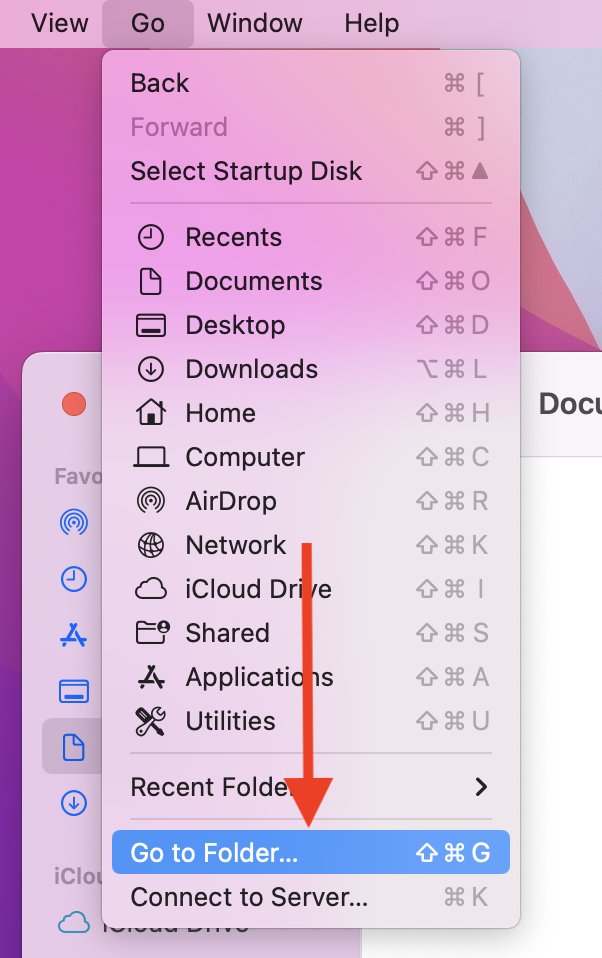
To view BG3 game files, navigate to the game’s installation directory, usually found within your Steam library or wherever you chose to install the game. From there, you can explore the various folders containing the game’s data.
Ever wondered what lies beneath the surface of Baldur’s Gate 3? Many players are curious about the inner workings of the game. This leads to the question: how to view BG3 game files? It’s a common query, and thankfully, accessing these files is not as complicated as you might think.
The game’s file structure holds a wealth of information. Understanding this structure allows for modding or simple curiosity about the game. This exploration provides a deeper appreciation of the development process.

How to View BG3 Game Files
Ever wondered what’s hiding inside the files of Baldur’s Gate 3? Maybe you’re curious about the cool art, want to tweak some settings, or just like exploring the inner workings of games. Looking at game files can be like taking a peek behind the curtain. It’s not super hard, but it does require the right tools and a little bit of know-how. This guide will walk you through everything you need to know to safely explore the world of BG3 game files.
Why Would You Want to Look at BG3 Game Files?
Before we dive in, let’s talk about why someone might be interested in doing this. There are several good reasons:
- Curiosity: Sometimes, we just want to see how things are made. Exploring game files is a good way to see the parts that make the whole game.
- Modding: If you’re interested in making mods for BG3, understanding the files is a must. Modders often use files to create new items, change characters, or add different experiences.
- Troubleshooting: Sometimes, game files can have the answers to your game problems. It might be a setting or file that’s causing an issue, and you can see the exact location of the issue in the game files.
- Learning: It’s a great way to learn about game development. You can see how artists create the visual style or see how they organize information.
Understanding the Basics of BG3 Game Files
Baldur’s Gate 3, like many games, organizes its information into a system of folders and files. These files contain everything from character models and textures to sound effects and scripts. Here are a few common file types you might encounter:
- .pak Files: These are like compressed archives, kind of like a big zip file. They hold many other files inside them, such as textures, models, and more. These are main files of the game, where all the game assets are stored.
- .dds Files: These files store image information and you can see the texture files in them. They make up the skin of 3D objects you see in game.
- .gr2 Files: These files hold the models of characters and objects that you see in the game. These models are the 3D structure and shape of an object in game.
- .wem Files: These hold the audio sounds that you hear while playing like music, sound effects or voice lines.
- .lsf and .lsb Files: These files hold the game data information like the settings, game rules or story events.
Knowing what these different file types are will help you understand what you are looking at when you start exploring the game files.
Important Safety Tips Before You Start
Before we dive into how to actually view these files, it is super important to understand some key safety tips:
- Back up your files: Always, always make a backup of the game folder or specific game files before you change anything. If something goes wrong, you can easily restore your game to its original state.
- Be careful: Do not change files unless you know exactly what you’re doing. Changing the wrong things can break your game or cause it to not work correctly.
- Don’t share modified files online: Do not upload files you have changed, unless you have permission. You should get approval from the original creators before posting or distributing.
- Use proper tools: Make sure you are using tools made for these files. Using the wrong tool can corrupt files.
With these tips in mind, you can proceed safely and happily.
Finding the BG3 Game Files
The first step to viewing the BG3 game files is to know where they are. Here’s how to find them, usually:
For Steam Users
- Open the Steam app.
- Go to your “Library”.
- Find “Baldur’s Gate 3” in the list, right-click on it, and then select “Properties”.
- Click the “Local Files” tab.
- Click the “Browse” button. This will open the game’s main folder in your file explorer.
For GOG Users
- Open the GOG GALAXY app.
- Go to your “Games” tab.
- Find “Baldur’s Gate 3” in the list, click on it.
- Click the “Manage Installation” button (looks like a settings cogwheel), and then select “Show Folder”. This will open the game’s folder in your file explorer.
Default Installation Location
If you can’t find the folder via Steam or GOG, it’s generally located in one of these places:
- Steam: C:\Program Files (x86)\Steam\steamapps\common\Baldurs Gate 3
- GOG: C:\GOG Games\Baldurs Gate 3
Of course, if you chose a different install location, then your files will be there instead.
Once you’ve located the main game folder, you will see all of the various folders and game files. From here, you can begin to explore the various parts of the game data.
Tools Needed to View BG3 Game Files
Now that we know where the files are located, let’s talk about how to see what’s inside them. You can’t just open most game files with a regular text editor or image viewer. You need to use specific software that is designed to work with these file types. Here’s a look at some of the tools you’ll need:
For Viewing .pak Files: LSLib
LSLib is a popular tool for dealing with Larian Studios games, including Baldur’s Gate 3. You can use this tool to:
- Extract .pak files: Get the files that are stored inside, such as textures, models, etc.
- Repack .pak files: Create new .pak files after making changes, for modding purposes, etc.
You can get LSLib from modding community resources like Nexus Mods or GitHub.
How to use LSLib
Here are some simple steps on how to use LSLib.
- Download LSLib from a reliable source.
- Extract the archive into a location.
- Run the program called “LSLib.exe”.
- Click on “File” then “Open Package”, and select the .pak file you want to view.
- Now you can explore the files inside the .pak file.
- To extract files, choose the files you want and click on “Extract Selected” and choose where you want to save them.
For Viewing .dds Files: Image Viewers
.dds files store image information and you can see the texture files in them. To see them, you need an image viewer that can handle this format. Here are some popular options:
- Paint.net: This free program is good at handling all sorts of image file types, and works with .dds files with a special plugin.
- GIMP: This is another free and powerful image editing program that can handle .dds files.
- Photoshop: If you use Adobe Photoshop, it works with .dds files by use of a plug-in, which is often free to use.
For Viewing .gr2 Files: Noesis
To view character and object models ( .gr2 files), you will need to use a special 3D model viewer, such as Noesis. This program is very popular with modders for previewing model files.
- Download: Download Noesis from its official website.
- Install: Extract the program files to a folder of your choice.
- Open File: In Noesis, click “File” and then “Open”, and select a .gr2 file.
- View: Use the mouse to rotate and zoom in on the 3D model.
For Viewing .wem Files: Foobar2000 with a plugin
To listen to the audio files, you can use a free audio player like Foobar2000. You can also use this with a special plugin to listen to .wem files. Here is how to do it:
- Download: First, download Foobar2000 from its official website.
- Install: Install Foobar2000 on your computer.
- Plugin: Find and install the vgmstream plugin for Foobar2000. This plugin allows Foobar to play .wem files.
- Open: Open Foobar2000, drag and drop a .wem file in, and press play. Now you can listen to the audio inside.
For Viewing .lsf and .lsb Files: LSLib
The LSLib tool that we use to look at .pak files can also open and let you look inside these files.
- Open Files: With LSLib, you can select these .lsf and .lsb files to look at their content.
- View Data: You can see things like character info, game settings, and story details.
How to View and Extract Files from .pak Archives
Now that you have the tools, let’s actually go through the process of extracting and viewing files from the game’s .pak files. We will be using LSLib for this.
- Open LSLib: Run the LSLib.exe file that you downloaded and extracted earlier.
- Select File: Click “File” and then “Open Package”.
- Choose .pak File: Go to your BG3 folder and look for a .pak file. You will see many. Choose one to explore. Common ones include Data.pak and Main.pak.
- View Files: Now you can see the folder structure inside the .pak file. You will see subfolders like “Public” and “Assets”. Explore them to find the files you are interested in.
- Select Files to Extract: Select the specific files or folders you want to save.
- Extract: Click “Extract Selected” and pick a place on your computer to save the files. You will need to have enough free storage space for the extracted files.
Now you have the extracted files on your computer. From there, you can use the tools we mentioned before to view different types of files.
Important Things to Keep in Mind When Viewing Game Files
Exploring BG3 game files can be fun, but it’s important to remember these important points:
- Be respectful: These files belong to the game makers. Do not share them online without their permission.
- Don’t change unless needed: Change files only if you know what you are doing and have a good reason.
- Be patient: Game files can sometimes be very large, and it may take time to load, extract or view them.
- Use reliable tools: Always get your tools from safe and trustworthy websites, such as the ones mentioned above.
- Start small: Try exploring some smaller file types to get a feel for things, before trying to make any changes to important files.
Following these points will make the experience much safer and more enjoyable.
By following this guide, you will have a good understanding of the game files in BG3, how to find them, and how to look inside them. Whether you’re curious, a modder, or a troubleshooter, exploring these files can be a fascinating experience. Enjoy the exploration!
Baldur's Gate 3 Patch 7 – How To Fix Your Mods! BG3 Mods EASY Guide For Patch 7!
Final Thoughts
Accessing Baldur’s Gate 3 game files involves navigating to the installation directory, typically within Steam’s folders. You might need a specialized program to open file formats used by the game. Remember, modifying game files can lead to issues if not done carefully.
Knowing how to view bg3 game files can be useful for modding or simply exploring game assets. Specific tools facilitate viewing textures, models, and other data. Be cautious when interacting directly with game files to avoid any potential problems.
In summary, how to view bg3 game files requires finding the game’s directory and using appropriate software. This action enables modding and deeper game exploration, but proceed with caution.

