
Yes, Steam allows you to hide games from your library using its built-in features.
Ever felt the need to keep some of your gaming choices private? You’re not alone. Many users wonder, “is there a way to hide games on Steam?” It turns out the answer is yes and it is quite simple to do.
Steam has features that let you keep specific titles out of sight, whether for personal preference or other reasons. This helps keep your profile tailored to what you want visible.

Is There a Way to Hide Games on Steam?
Ever looked at your Steam library and felt a little…cluttered? Maybe you have some games you’re not so proud of, or titles you’d rather keep private for now. It’s a common feeling! The good news is, Steam offers a few ways to manage your collection and keep certain games out of sight. You don’t have to display everything to everyone. Let’s dive into the different ways to achieve this.
Understanding Steam’s Privacy Options
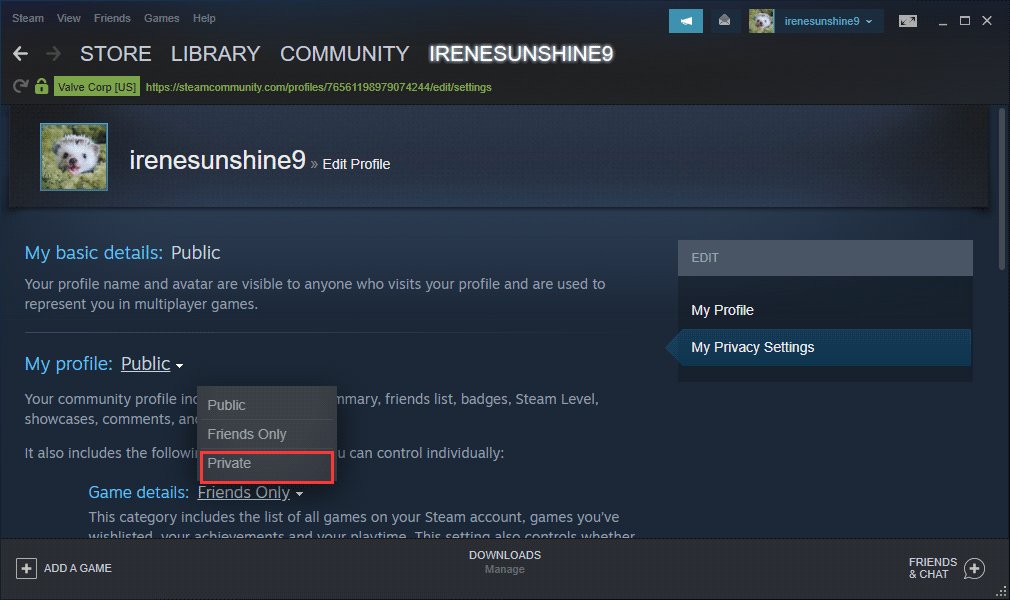
Before we jump into hiding specific games, it’s important to understand how Steam’s privacy settings work. These settings impact who can see your game library, your playtime, and even your friend list. Steam gives you control over your public profile. Here’s a rundown of the privacy levels and how they apply:
Public
This is the least private setting. Anyone can see your profile, including your games, playtime, achievements, and friends. Everything is open for the world to view. You are showing all of your stuff in Steam to everyone.
Friends Only
With this option, only your friends on Steam can see your profile, your games, and other details. Strangers can not see what games you have or how much time you’ve spent playing them. This setting offers a better layer of privacy. This is a common setting that many people use.
Private
Choosing “Private” makes your profile completely invisible to everyone except you. No one, not even your friends, can see your games, playtime, or any other information. This is the highest level of privacy and good for those who want to keep their gaming life very much under wraps. If you choose this setting, you will be like a ghost in Steam world.
How to Hide Games From Your Steam Library
Now let’s get to the main question. How do you hide individual games within your Steam library? Steam provides a couple of methods to do this:
Using the “Hidden” Collection Feature
Steam introduced a feature that lets you create custom collections, and one of these collections is a “Hidden” one. This isn’t a full hiding method, but it does move the games out of your main library view. Let’s see how to do this:
- Open Steam: Start by opening your Steam application on your computer.
- Go to Library: Click on the “Library” tab at the top of the Steam window.
- Select the Game: Find the game you want to hide. Right-click on its name.
- Select “Add to”: From the right-click menu, hover over “Add to”.
- Choose “Hidden”: You should see an option for “Hidden” which is your destination, select it. This will move the game into the hidden collection.
Accessing Your Hidden Games: To see your hidden games, you will need to go to your left side panel where your library game list is present. There you can see the drop down “Collection” menu. Click on the drop-down menu and then you will see the “Hidden” option. Select “Hidden” and your hidden games will be visible on the right panel. They will also have an eye icon to confirm that they are in the hidden list. You can remove games from the hidden category by right-clicking and selecting “Manage” and then “Remove from Hidden”.
Important Note: While this hides the game from your main library view, other users with access to your profile may still see the game in your game list on your profile page, unless you have set your profile to “Private”.
Setting Games as Private
Steam’s “Private” setting for a single game offers more robust hiding options. Here’s how you can use this feature:
- Open Steam: Start by opening the Steam application.
- Go to Library: Access your game library.
- Select the Game: Find the game you want to hide and right-click on it.
- Click “Manage”: From the right-click menu, select “Manage.”
- Choose “Mark as Private”: In the “Manage” sub-menu, select “Mark as Private”.
What happens when you mark a game as private?
- Profile Hiding: This game will not be displayed to anyone visiting your profile. They will not see the game in your library if they visit your profile.
- Playtime Hiding: Your playtime for this game will also be hidden from view. No one will know how much time you have played this game.
- Achievement Hiding: Your achievements for this game will be hidden from view. No one can see your achievements on this game.
- Friend Activity: This will also hide this game from appearing in the friend’s activity feed. No one can see if you play this game from friend’s activity.
Important Notes: If you want to play a private game you should unmark it. You can unmark a private game by repeating the same process and selecting “Unmark as Private”.
Why Hide Games on Steam?
People hide games for various reasons. It’s more common than you might think. Here are some of the common reasons that people do this:
- Embarrassing Games: Let’s be honest, we all have a few games we’d rather keep secret. Maybe it’s a cheesy dating sim, a simple puzzle game, or something we picked up during a sale without thinking. Hiding them helps keep up appearances.
- Keeping Gifts a Surprise: If you plan to gift a game to a friend, hiding it will prevent them from seeing it in your library if they happen to be snooping around. This will keep the surprise intact.
- Account Sharing: If you share your account with family, you might want to hide games that are not suitable for everyone to see. You might have games that are too violent for children.
- Privacy Concerns: Some people prefer to keep their gaming habits private. Hiding specific games is a simple way to have more control over what others can see. They simply don’t want anyone to see what kind of game they are playing.
- Streamlining Your Library: For those of us who have amassed huge libraries over the years, hiding unwanted games can help clean up the view and make it easier to find the games you actually want to play. If you have hundreds of games, hiding the games that you won’t play helps a lot.
Other Ways to Manage Your Steam Library
Hiding games is just one way to organize your Steam library. Here are a few other useful tips:
Creating Custom Collections
You can create custom collections to group your games by genre, mood, or any other criteria you like. This makes it easier to navigate your collection and find the games you want. This is not a hiding method, but more like an organizational technique.
Steps to create Custom Collection:
- Open Steam: Access Steam and open library.
- Right Click on Game: Find any game in your library, and right click on it.
- Add to: From the menu, select “Add to” option.
- Select “New collection”: Select “New collection”. Then you will be prompted to give a name for the new custom collection. Once created the new custom collection will appear on the left side panel.
- Add other games: Add other games to this collection by repeating the same steps.
Using Categories
Steam allows you to add categories to your games. This is another way to group your games and organize your library. It is very similar to the collection feature, but it is much simpler to use. You can use both categories and collections for better organization.
Steps to add Categories:
- Open Steam: Launch Steam. Then go to the Library.
- Right Click on Game: Right click on any game from your game library.
- Select “Set Categories”: Select “Set Categories” option from the menu.
- Enter the Category Name: You can either select an existing category or create a new category name for the game.
- Add other Games: Add category to other games using same steps.
Using the Search Bar
If you have many games, it’s easy to forget titles in your library. The search bar located at the top of your game library is a quick way to find them if you know the game’s name. You can also filter the results by the game’s status (installed, not installed etc.).
Steam Family Sharing and Privacy
If you’re using Steam Family Sharing, you need to remember that other members on the shared list can still see your hidden games, regardless of how you set your profile visibility. Here’s how that works:
- Game Visibility: While a game marked as private will be hidden from your public profile, the game will still be visible to the other Steam account users in your family share if they go to your game library through family share.
- Playtime Visibility: The other users can also see your playtime on games that are available in family sharing, even if you hide it on your account.
- Achievements: Shared users will be able to see achievements in your shared library.
Important Note: The only way to truly hide games from users you are sharing your family library is to not purchase the game in your library, or remove the game from family sharing. If you remove the game from your library you will not be able to play that game.
Limitations of Hiding Games
It’s important to understand that even if you take advantage of these methods, there are still limitations to what you can achieve with Steam’s privacy settings:
- Third-Party Websites: Some third-party websites and tools might still be able to access data about your library, especially if your profile is not set to “Private”. Always be careful about where you provide your steam ID.
- Game Developers: Developers of some online multiplayer games may have access to your playtime data for statistical analysis. There isn’t much you can do about this.
- Steam API: Some apps that use the Steam API may still be able to gather data about your games, depending on the app’s access permissions. Be careful of the application that is asking permission for the Steam API.
- Steam Support: In certain circumstances, Steam support might need to access your game information to help you. This is usually for account recovery or troubleshooting.
So while hiding games is useful, it’s not an invisible cloak. There may be other sources that may still be able to track your game data.
By understanding Steam’s settings and using the available tools, you can achieve a more personalized and private gaming experience. Keeping your profile and games organized is a good habit to have. Remember to be mindful of what you share online, even if it’s just your Steam game list! Steam is always improving its user experience and privacy options, so it’s a good idea to keep yourself updated with the most recent version of Steam.
How to Hide Embarrassing Steam Games from Friends🔒Mark Steam Game as PRIVATE 2024
Final Thoughts
Steam offers features to manage your library’s visibility. You can use categories for organization. This helps keep games private.
Specifically, you can set games as private on a per-game basis. This removes them from public view. So, is there a way to hide games on steam? Yes, multiple methods exist.

