
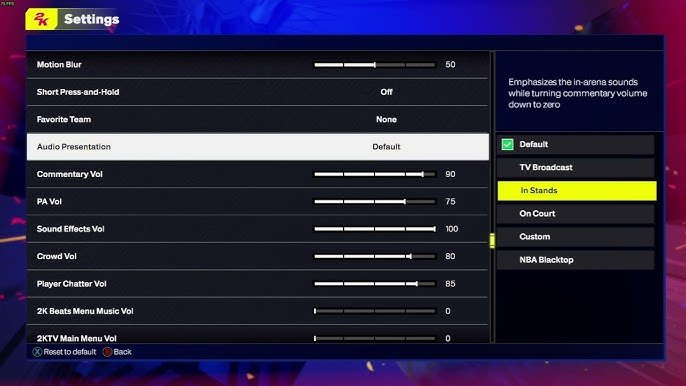
NBA 2K25 audio configuration setup allows you to adjust game sounds, music, and commentary volumes, ensuring your preferred audio balance.
Getting the sound right in NBA 2K25 can greatly affect your immersion. Proper NBA 2K25 audio configuration setup is crucial for hearing every squeak of sneakers and crowd roar perfectly.
This guide will help you quickly navigate the in-game settings. You can change individual volume levels for commentary, in-game effects, and soundtrack. This way, you can tailor the sound to exactly what you want to hear.

NBA 2K25 Audio Configuration Setup
Getting the audio just right in NBA 2K25 is super important for getting totally into the game. Imagine trying to make an awesome dunk, but all you hear is static or the crowd sounds like they’re underwater! Not cool, right? This guide is going to help you make sure your game sounds perfect, whether you’re on a console like PlayStation or Xbox or playing on your PC. We will dive into everything from basic volume controls to more specific audio settings that will make your experience better.
Understanding the Basics of Game Audio
Before we get into the nitty-gritty of NBA 2K25’s settings, let’s talk about the different parts of game audio. Knowing what each one does will help you adjust things just how you like them.
Master Volume
Think of the master volume as the main control for how loud the whole game is. If your game is too quiet or too loud, this is the first place you should go. It controls the overall output level of all sounds together.
- Too Quiet: If you can barely hear the game, turn this up.
- Too Loud: If the game is blasting your ears, turn this down.
Music Volume
The music volume controls how loud the songs and background music are. If the music is distracting you from focusing on the gameplay, you can turn this down. Or, if you love the tunes, turn it up!
- Want less music and more game sound? Turn it down.
- Love the soundtrack? Turn it up!
Sound Effects Volume
Sound effects are all the noises that happen during gameplay – the squeak of shoes on the court, the swish of the net, the bounce of the ball, and the crowd noise too. Adjust this setting to balance the sound effects with other audio, like the music. You might want this a bit louder to hear important cues during the game.
- Can’t hear the shoe squeaks? Turn it up.
- Too much crowd noise? Turn it down a bit.
Commentary Volume
The commentators are the voices you hear talking about the game. If you find their chat too distracting or if you prefer hearing game sounds, you can lower the commentary volume. You might want to increase this if you like listening to what they say!
- Too much talking? Turn it down.
- Want to hear what they are saying? Turn it up.
Finding the Audio Settings Menu in NBA 2K25
Now that you know the basic audio components, it’s time to find the settings menu. The process is similar across different platforms but there could be small changes depending on if you are on Playstation, Xbox, or PC.
PlayStation
On your PlayStation console, start NBA 2K25 and follow these steps:
- Go to the main menu of the game.
- Select the “Options/Features” tab. It could be marked with a gear icon or similar.
- Find and select “Settings”.
- Look for the “Audio” settings. It is usually labeled very clearly.
Xbox
On your Xbox console, getting to audio settings is very similar:
- Start up NBA 2K25.
- From the main menu, go to the “Options/Features” area.
- Select “Settings”.
- Go to the “Audio” section to adjust your settings.
PC
For PC players, here’s how to get to the audio settings:
- Launch NBA 2K25.
- Go to the “Options/Features” section from the main menu.
- Choose the “Settings” menu.
- Select “Audio” to access the different options.
Advanced Audio Settings
Besides the main volume controls, NBA 2K25 has some more specific audio settings that you can play around with. These can really help you tune the sound just how you want it.
Speaker Configuration
This setting is about how the game sends sound to your speakers or headphones. Make sure this matches how your sound is set up.
- Stereo: This setting works if you have two speakers or headphones. It creates a basic sound for left and right.
- Surround: If you have a 5.1 or 7.1 surround system, use this setting to hear sounds all around you. It makes the game feel more real.
Audio Output Device
Here, you can pick where the game audio is coming from. You can choose between your speakers or your headphones or even different types of devices, if you are on PC.
- Speakers: Choose this option when you want sound to come from speakers connected to your device.
- Headphones: When using headphones or a headset, make sure that this is selected to enjoy the best sound experience for headphone users.
Radio Music Settings
NBA 2K25 often includes an in-game radio with a variety of songs. In the settings, you might find options to control this music. You might be able to turn the radio off completely if you are not into radio music, or set a specific genre that you prefer.
Dynamic Range
Dynamic Range has to do with the loudness of sound in your game. A high dynamic range makes quiet sounds very quiet and loud sounds very loud. This can make the game more realistic but can also make some sounds hard to hear. A low dynamic range makes all sounds more uniform. Experiment with this to find what works for you.
- High Dynamic Range: Makes quiet sounds super quiet and loud sounds very loud for a more real-life sound.
- Low Dynamic Range: Makes all sounds closer in volume, so quieter sounds are easier to hear.
Dialogue Boost
This is useful if you are having a hard time hearing the commentary clearly. If you turn the dialogue boost setting on, it makes the commentator sound louder and easier to hear, even when all the other game sounds are going on.
Tips for a Better Audio Experience
Here are some extra tips to make your NBA 2K25 audio sound even better:
Headphone Recommendations
If you use headphones, try to pick ones that fit comfortably and give good quality sound. Good headphones make you feel more connected to the game.
- Comfort: Look for headphones that do not squeeze your head and do not hurt your ears.
- Sound Quality: Headsets with good quality sound will help you pick up even the smallest game noises.
Speaker Placement
If you use speakers, think about where you put them. The right placement helps the sounds surround you, making the game more exciting.
- Stereo Speakers: Place the speakers on the left and right of your computer or TV to hear the full stereo experience.
- Surround Sound: Put your speakers all around you to feel like you are right in the middle of the action.
Experiment with Settings
Everyone likes different sounds. Do not be afraid to change the settings and try different volume levels until you find what you like best. It might take a little while to get the sound exactly how you want it, but it will be worth it!
Update Audio Drivers (PC)
If you’re on a PC, make sure that your audio drivers are always up to date. Old audio drivers can make your sound glitchy or not work properly. Go to your device’s website to get the most recent drivers.
Troubleshooting Common Audio Problems
Sometimes, things don’t go as planned. Here’s what to do if you are having some problems with your audio in NBA 2K25:
No Sound
If you do not hear any sound at all, check to see if your master volume is all the way down. Check the audio settings to be sure that the right output is chosen. Also check that your devices, like speakers or headphones, are correctly plugged in.
- Check the volume: Make sure the master volume isn’t set too low.
- Check Output: Make sure the game is using the right speakers or headphones.
- Check Connections: Ensure that headphones or speakers are plugged in correctly.
Distorted Sound
If your sound sounds funny or distorted, try changing the speaker configuration to match your devices. Also, check if any cables are damaged and are creating the problem. You could also try to lower the volume a little.
- Check the speaker setup: Make sure you chose the right sound type, like stereo or surround sound.
- Check for cable damage: Check to see if any of your sound cables are damaged.
- Turn the volume down: Try turning your volume down a little to check for distortions.
Sound Cutting Out
If your audio is cutting in and out, it could be a problem with the audio cables or with the connection to your device. You can also see if you need to update the audio drivers, especially on a PC.
- Check connections: make sure the connection is not loose and that all the connections are good.
- Update drivers (PC): Update your audio drivers to be sure that it is the most updated version.
Specific Settings for Different Gameplay Modes
Depending on whether you’re playing a career mode, quick game, or online matches, you might want different audio settings. For example, you might want commentary turned up during a career game, but turned down during online matches. Here are some things to consider.
MyCareer Mode
MyCareer mode is often a story-driven experience, with lots of dialogue and action that can help if you want to get into the game. If you want the full experience, set the audio to enhance the commentary and sound effects to immerse yourself fully in your game experience.
Online Modes
When you play online, you might want to hear the game sounds and music more than the commentators. Turn down the commentary volume and raise the sound effects volume so you can focus on gameplay.
Quick Play
In quick play modes, where you’re jumping into a game for a quick session, focus more on getting the sound balanced for all aspects. Adjust it so you hear all game elements, like sound effects, music, and the commentary, so you have the complete NBA 2K25 audio experience.
Setting up the audio in NBA 2K25 is all about finding the right balance for how you like to play. Don’t be afraid to try new things and adjust the settings until you find the perfect sound for your game. With the right audio configuration, you’ll feel even more in the game!
NBA 2K25: How to Find & Change Audio Settings (Adjust Game Volume)
Final Thoughts
Optimizing your game audio significantly improves the immersive experience. Adjusting individual volume levels and selecting the correct output device ensures clarity. Fine-tuning the music and commentary mix allows you to hear essential sounds properly.
Proper speaker or headphone setup is crucial for directional cues. Experiment with different audio presets to find what you prefer. Don’t underestimate the impact of these changes.
For the best experience, careful attention to NBA 2K25 audio configuration setup is essential. A well configured setup will make all the difference and you must adjust your settings to experience the game.

