
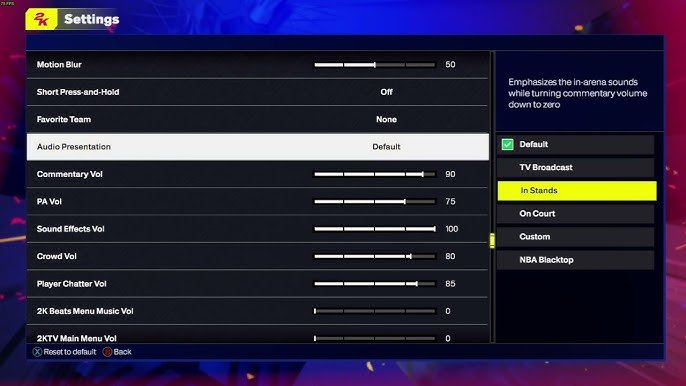
Adjust NBA 2K25 audio configuration through the in-game settings menu, allowing you to control volume levels for different elements like commentary, crowd, and in-game sounds.
Want to make sure you hear every squeak of the sneakers and the roar of the crowd exactly the way you like? Getting the perfect audio mix in the game is essential. The right NBA 2K25 audio configuration can really impact how you experience each match.
Tweaking the sound levels allows you to focus on what’s most important to you. Maybe you prefer to hear the commentary or just the pure on-court action. Luckily, you have full control. You should be able to tailor all the sound elements.

NBA 2K25 Audio Configuration: Getting the Perfect Sound
Hey there, basketball fans! Getting the audio just right in NBA 2K25 is super important. It’s like making sure your sneakers have the perfect squeak on the court – it can make all the difference in how you experience the game. From the roar of the crowd to the bounce of the ball, every sound plays a part. In this guide, we’ll explore all the different ways you can tweak your audio settings to get the most out of NBA 2K25. We’ll go through each option step-by-step, so you can create your perfect soundscape. Let’s dive in!
Understanding the Main Audio Settings
First things first, let’s look at the main audio settings you’ll find in the game. These are like the big knobs on a soundboard, controlling the overall mix. If you change any of these, it impacts most sounds in the game.
Master Volume
The master volume is the most important setting. It controls how loud all the sounds in the game are. If you want the game to be really loud, turn this up. If you need to be able to hear your family or your music, turn it down. It’s a simple slider, but it’s a great way to adjust the overall volume to match your environment. You can set your baseline volume here, and then fine-tune other settings later.
Music Volume
NBA 2K25 has a great soundtrack, but sometimes you might want to hear it a little less. Maybe you want to focus on the gameplay, or perhaps you’re just not a fan of some of the tracks. The Music Volume setting lets you control how loud the music is compared to the other sounds. If you really love the music, keep it high, but if you’d rather hear the ball bouncing and the crowd cheering, lower the music volume.
Sound Effects Volume
Sound effects are all the sounds that make the game feel real – the squeak of shoes, the swoosh of a shot, the thud of a rebound. This setting lets you control the volume of all of those sounds. If you are someone who wants to feel every part of the game, keep this setting high. It’s a crucial aspect to feel the intensity and every move on the court.
Commentary Volume
The commentary team adds a lot to the game. They react to the plays, provide analysis, and generally help make the game feel like a real broadcast. You can adjust the commentary volume to your preferences. If you really want to get immersed into the game, keep it high. If you prefer to focus on the game, try lowering the volume. Some people like to listen to their own music while playing, and in those cases, keeping the commentary low is the best choice.
Advanced Audio Settings: Fine-Tuning Your Experience
Once you have the basics set, it’s time to dive a little deeper. NBA 2K25 provides lots of ways to customize your audio beyond the main volume settings. These settings let you fine-tune specific parts of the game and create a much more personalized experience. This is where you start making the game’s audio exactly what you want. Let’s explore them now!
Arena Atmosphere
The arena atmosphere is a huge part of the game. It’s what brings the energy and excitement. This includes the crowd, the announcers, and the background sound. Here, you have more specific control within the arena experience.
Crowd Volume
The roar of the crowd can really get you into the game, but sometimes it can be overpowering. If you’re trying to concentrate on every move, you might want to turn it down a bit. This setting lets you control just the crowd volume, so you can make the game sound as loud or as quiet as you like without affecting other sounds. If you like the crowd, keep the volume high, but if the noise is distracting, turn it down a little.
Public Address (PA) Volume
The PA is the voice you hear announcing substitutions, time-outs, and other details. This is helpful for understanding the game, but can also feel very loud at times. If you like the feel of a real game, you probably want the PA at a decent volume, but if you find it distracting, you can adjust its volume as needed. This setting is separate from the commentary, so you can have the PA loud and the commentary quiet or vice-versa.
On-Court Audio
This deals with the sounds that happen directly on the court. Think of the ball bouncing, sneakers squeaking, and players shouting. This is where you adjust the sounds that give you the sensation of being in the game.
Ball Sounds Volume
The sound of the ball is very important in the game. The bounce, the swish, and the thud against the backboard are all part of the basketball experience. You can adjust all of these sounds using the Ball Sounds setting. If you love the feel of a real game, having the sound of the ball bouncing is very important. Try to find the perfect balance for your setup.
Player Sounds Volume
Players often make sounds, whether they’re grunting as they dunk, calling for a pass, or celebrating a basket. These sounds add to the realism of the game. If you want to hear the players and feel the energy of the competition, you’ll want to keep this up. However, if you find them distracting or repetitive, try reducing this setting.
Squeak Sounds Volume
The squeak of shoes on the court is one of those sounds you don’t really notice, until it’s gone. It is a part of the game, and if you’re a realistic type of player, you will have the squeaking sounds turned on to feel the complete environment. If you find it a little much, try turning this down. It can make a significant difference to the overall game experience.
Menu and Interface Sounds
Even the sounds in the menus play an important role in the game, guiding your actions and giving feedback while you are navigating in the menu. Adjusting these can make navigating the game much smoother.
Navigation Sounds
This is for the sounds when you are going through the menus. If you like a little “click” sound as you move through the options, this is great, but if you prefer a silent menu, this is also the right setting to turn down. This setting does not impact the gameplay, so it is all about personal preferences.
Button Click Sounds
Every button you press in the game, even outside of the menus, can make a sound. This can be anything from a simple click to a more elaborate sound effect. Adjusting these sounds can make the game sound exactly the way you want it to.
Using Headphones for Better Immersion
If you want to really get the most out of your game, a good pair of headphones can be a game-changer. Headphones provide a more isolated audio experience and let you hear all of the game’s details. They also help to block out background noise, so you can focus on the game.
- Stereo Headphones: These headphones are great for hearing the directional sounds in the game, like when a player runs past you on the left or right.
- Surround Sound Headphones: These headphones take it a step further, creating a more three-dimensional sound field. You’ll feel like you’re in the middle of the action.
Headphone Audio Settings
When you use headphones, NBA 2K25 lets you adjust your settings based on the type of headphones. Here are some things to think about:
Headphone Output
This determines how the game sends sound to your headphones. If the output is set to stereo, and you have surround sound headphones, you won’t be getting the full experience. Pick your output mode to match your headphones for the best sound.
Audio Levels
Headphones tend to have different levels than when you’re using speakers. You may need to adjust the volume controls for each individual setting to find that sweet spot that works with your headphones. It is highly advisable to make a few adjustments when switching from speakers to headphones, or vice-versa.
Speaker Setups: Adjusting for Surround Sound
If you have a surround sound setup, you should absolutely make the most of it. Having a proper surround setup can transform the way the game feels. Here’s a rundown on how you can get the best sound out of your surround setup.
Speaker Channel Settings
The game lets you select how many speaker channels you have. You may have a 2.1 channel setup (two front speakers and a subwoofer), a 5.1 channel setup (front speakers, side speakers, center channel, and a subwoofer), or a 7.1 channel setup (adding rear speakers for even more immersion). The more speakers you have, the richer the sound will be.
Testing your speaker setup
Many audio software, both in the game and in your computer’s sound settings, have speaker test options. If you’re having sound issues, use this test to see if the sound is coming out of each speaker as it should. It can help identify a problem quickly.
Calibrating your Speakers
After choosing the right number of channels, you need to adjust each speaker’s sound. This process is called calibration and it ensures that every speaker is playing at the right level and at the right time, creating a natural and balanced soundscape.
- Speaker Distance: Tell the system how far away each speaker is, so the sound is timed properly.
- Speaker Volume: Make sure each speaker is playing at the same volume, so the sound is balanced across all channels.
Troubleshooting Common Audio Problems
Sometimes things don’t go as planned. Here are some common problems and what you can do to fix them:
No Sound
If you’re not hearing anything, check these things first:
- Check Your Volume: This may sound simple, but it is the first thing you should do. Make sure that the master volume is not turned all the way down.
- Check Cables: Make sure your speakers or headphones are properly plugged in to your system.
- Check Software: See if your audio output device is selected as the game’s output.
Muffled Audio
Muffled audio can happen for a few reasons:
- Wrong Audio Output: Check the audio output in the game and make sure it is set to the device you are actually using.
- Driver Issues: Sometimes old or outdated sound drivers can cause issues. Update your sound card’s drivers.
Audio Cutting Out
If your sound cuts out, it could be due to these reasons:
- Hardware Problems: Faulty speakers or headphones may be the reason for sudden sound cuts. Test other devices.
- Conflicting Software: Some software may conflict with the game’s sound. Try closing other programs to see if that fixes it.
Audio Not in Sync
If the audio does not match the video, there are steps you can take:
- In-Game Settings: Some games have settings to adjust this. Check the audio settings for an audio sync option.
- System Restart: Sometimes restarting your console or PC can fix audio delays.
Tips for Optimizing Your Audio Experience
Here are a few final tips to help you have a good audio experience in NBA 2K25:
- Experiment with settings: Don’t be afraid to try different settings and see what works best for you.
- Don’t max out all the settings: Sometimes keeping the settings at a medium level is best.
- Adjust for your environment: If you are in a noisy environment, turn up the volume more than when you are in a silent room.
- Take breaks and adjust: Sometimes adjusting the settings as you play for longer sessions is best to keep the game sounds at optimum levels.
Getting the audio right in NBA 2K25 is super important for your experience. Take a little time to explore the options. You’ll be enjoying the game even more, and every dribble, dunk, and victory will sound just perfect.
NBA 2K25: How to Find & Change Audio Settings (Adjust Game Volume)
Final Thoughts
Tweaking your settings significantly impacts the game’s atmosphere. Experiment with different sound profiles to find what resonates with you most. Pay special attention to the balance between crowd noise and in-game commentary.
Finding the right configuration is essential for immersive gameplay. A well-adjusted setup allows you to hear critical game sounds. This improves your responsiveness on the court.
Ultimately, fine-tuning your NBA 2K25 audio configuration is key to the best experience. A personalized soundscape can make a big difference in your enjoyment and performance.

