
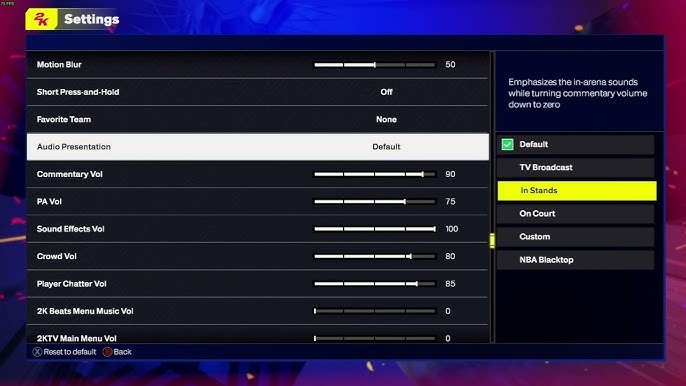
The NBA 2K25 audio customization settings allow you to adjust individual volume levels for game sounds, commentary, and music, creating your perfect audio mix.
Ever wondered how to tailor the soundscape of your game in NBA 2K25? Many players seek the perfect balance between crowd noise, commentary, and the soundtrack. Thankfully, NBA 2K25 audio customization settings offer you granular control over each sound element. This means you can finally enjoy a personalized sound experience. By adjusting the sliders, each player creates a mix that suits their preference.

NBA 2K25 Audio Customization Settings
Let’s dive deep into the awesome world of sound in NBA 2K25! It’s not just about what you see on the court, but also what you hear that makes the game feel so real. NBA 2K25 provides lots of ways to adjust the audio, letting you craft the perfect soundscape for your gaming experience. From the roar of the crowd to the squeak of sneakers, you have the power to fine-tune every sound. We’ll explore all the different options available, making sure you get the most out of every dunk, dribble, and game-winning buzzer-beater.
Understanding the Main Audio Settings
The first stop on our audio journey is the main settings menu. Here, you’ll find the core controls that affect the overall sound in NBA 2K25. Think of these like the master knobs on a big sound board, letting you change how loud certain things are in the game.
Master Volume
The master volume is like the overall volume control for the whole game. If the game is too loud or too quiet, this is the knob you’ll turn first. Turning it up makes everything louder and turning it down makes everything quieter. It’s the easiest adjustment to make and affects every other sound setting in the game. If you are having trouble hearing specific sounds in the game, start by looking at the master volume, it might be set too low, or too high.
Music Volume
This control is for all the music in the game. Whether it’s the menu music, background tunes during replays, or the hype songs that play before the games, this is where you control it. If you like to play with your own music, then turning this down would be the best option. Many people like to listen to music in their headphones while playing, or from an external source, in that case, you might prefer to turn the music volume completely off, this will give you a more clear and immersive sound experience.
Commentary Volume
The commentary volume controls how loud the game announcers are. They’re the voices you hear during the game, giving play-by-play analysis of the action on the court. They provide context and excitement to the game. If you think they’re talking too much, you can turn this down. Or if you want to feel like you’re sitting courtside with them, you can make their voices much louder. Lots of players like to have the commentators loud, and many enjoy playing with no commentary at all.
Sound Effects Volume
This setting is a very important control for the sounds of the game. It controls everything from the squeak of shoes on the court, to the swish of the net, the bounce of the basketball, and the cheering from the crowd. Sound effects are a very important part of the game. If they are too loud they will drown out all other sounds, and if they are too low, they can be hard to hear, leaving the game feeling lifeless. Balancing them out is very important to fully appreciate everything that goes on during a game of 2K.
Advanced Audio Options
Okay, now we’re moving into the more detailed areas of sound customization. These are the controls that let you fine-tune your audio to exactly how you like it. This is where the power of NBA 2K25 sound settings is seen.
Presentation Volume
The presentation volume controls how loud all of the audio cues associated with the game’s presentation, including halftime shows, replays, and pre-game introductions. This is a fun setting to play with, as it’s not necessary for the game itself, but it adds to the realism and enjoyment of the presentation. If you are someone who wants the game to flow from one section to the next without the added frills, then turning it down would be a good option. But, if you enjoy the hype and build up to a game, it’s worth having this turned up.
Crowd Volume
Crowd noise is a big part of the NBA experience. This control lets you choose how much you want to hear the roar of the crowd, the cheers after a dunk, or the groans after a bad play. If you want to feel like you’re in the middle of a packed arena, you’ll want this turned up. If you prefer a quieter gaming experience, turn it down. For those who enjoy playing while listening to music, this is a setting that is sometimes lowered to make the music more easy to hear.
Stadium Announcer Volume
This is very similar to the commentary volume, but it controls how loud the person on the arena’s speakers is, not the people in the booth commentating. The stadium announcer is the voice you hear in the arena that calls out the names of the players, the game’s scores, and any updates during the game. Some people like to hear this loud and clear, while others find it annoying and like to turn it off.
Player Chatter Volume
This controls how loud the players are when they are talking on the court during the game. You might hear them calling for the ball, or talking to their teammates. This gives the game a feeling of realism and helps you feel immersed in the experience. It adds a layer of depth to the overall game, but many people feel that the chatter can be distracting, especially if the voices get repetitive. This is a setting that many players like to adjust based on personal preference.
Menu Sound Effects Volume
This volume adjusts how loud sounds are while you are navigating the menu system. This includes the clicking of buttons, or the beeping sounds when selecting something. They are small sounds that can become annoying if they are too loud. For some people, these small sounds are an important part of the game, but they can be adjusted here to find the perfect balance.
Fine-Tuning Specific Audio Elements
Let’s go even deeper into how to get that ideal sound. NBA 2K25 also provides some other adjustments that you might find helpful. These adjustments give you more granular control over the sound you hear while playing the game.
Headphone Settings
If you play the game with headphones, there are specific settings that can make the sound even better. When you set the game to use your headphones, it sends the game’s sound to the headphone jack instead of sending it to your TV’s speaker. This gives a better quality sound, and provides the most immersive experience. Sometimes people like to use headphones to make the game sounds clearer, or for when they have other people in the room and they want to play without making too much noise.
Speaker Settings
If you play the game with a sound system or TV speakers, there are other settings to look at. The most important thing for your sound system is to ensure that the output for your game’s audio is set to the correct source. This helps your TV and sound system create a high-quality sound that helps give you an experience that is more immersive and helps you feel like you are right there in the action.
Surround Sound Adjustments
Some players have a surround sound system that provides a full 360 sound experience. There are sometimes specific settings that you need to adjust in order to make sure that the sound system is optimized for the game. Different sound systems and TVs have their own ways of controlling sounds, so it’s best to consult with the manual for that product to make sure you have it set up correctly.
Strategies for Optimal Audio Experience
Now that we know all the different settings, let’s explore a few strategies that might help you find the perfect audio balance. Remember, there’s no single right way to set up your audio. It’s all about what sounds best to you!
Start with the Basics: Begin with the Master volume, the music, commentary, and sound effects. Get these levels to a comfortable place before diving into the more specific controls. You might find that making these initial adjustments are all you need to improve the sound.
Personalized Sound: Adjust sound according to your personal preference, if you like music, turn up the volume, or turn it completely off if you would prefer that. There is no perfect audio setting, the setting that is best for you, is the setting you prefer.
Trial and Error: Change each setting, and play around with the game. If you don’t like a particular setting, change it back, and try again. It’s all about finding what works best for you! This is especially important if you use a different set of headphones, or TV with a sound system, the sounds settings will likely need to be adjusted.
Balance is Key: Try to balance the different elements so that nothing overpowers anything else. You should be able to hear the crowd, the sounds of the ball, and the commentary without any sound overpowering any other. Try to find a blend that allows all of the sounds to be heard clearly and make sense.
Consider Your Environment: Think about where you’re playing. If you are in a noisy area, you might need to turn up certain sounds to help you hear them better. If you are somewhere quiet, you might need to turn the sounds down so they don’t become too loud or distracting.
Troubleshooting Common Audio Issues
Sometimes, no matter how carefully you tweak your audio settings, you might run into issues. Here are some tips to help you deal with common sound problems:
No Sound: Double-check all your connections and make sure your headphones or speakers are plugged in correctly. Also, double check that the sound output is set to the correct sound source, if not, the game may be sending the sound to the incorrect output and you might not be able to hear anything.
Sound Distorted: This is often a result of having the volume levels too high, try turning the master volume down. If you use a headset with a volume control, turn it down there as well.
Inconsistent Volume: Make sure no individual sounds are set too high or too low. A good way to test this is to turn the individual sounds all the way up, and slowly turn them back down until you can hear them all clearly.
Commentary is Too Quiet or Too Loud: This is usually caused by the commentary volume setting, make sure this setting is turned up or down depending on what you need. If it is too quiet, turn it up, or if it is too loud, turn it down. Also make sure the sound effects and other sounds are not too loud and drowning out the commentators.
Game Music is too loud or too quiet: Adjust the music volume settings and turn it up if you want to hear it more clearly, or turn it down, if you do not want to hear it as loud. You might also need to adjust other sound settings as well, to hear the music clearly.
By going through all of these settings, and adjusting them to your personal preference, you can make your NBA 2K25 experience that much better. The sounds of the game are what brings the game to life, and it’s important to get them just right. Take some time to adjust each of these sounds and you will find the right mix that works for you.
The audio settings in NBA 2K25 are powerful, offering many tools that allow you to create the ideal soundscape. It’s worth taking the time to explore these options. With the right adjustments, you can immerse yourself more fully in the game. By understanding each setting and experimenting with different combinations, you’ll find the perfect audio setup that will help make every moment on the virtual court sound just as good as it feels.
NBA 2K25: How to Find & Change Audio Settings (Adjust Game Volume)
Final Thoughts
In summary, players gain significant control over their sound experience through the NBA 2K25 audio customization settings. You can adjust various aspects, from commentary volume to in-game music levels. These detailed settings ensure a tailored audio landscape. Fine tuning the audio is essential for an immersive gameplay experience. The game lets you create your perfect sound setup.

