
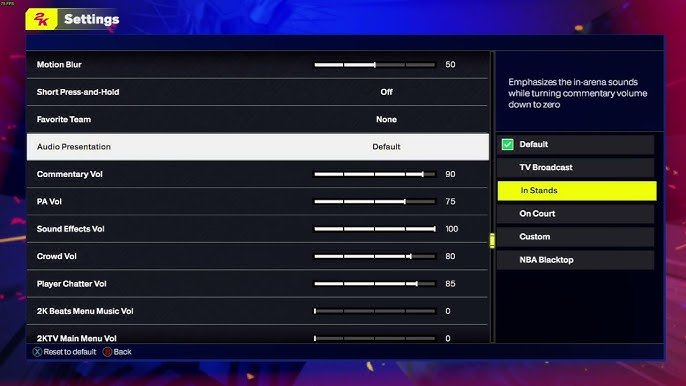
Setting up NBA 2K25 audio customization involves accessing the game’s audio settings menu, adjusting individual volume sliders for various elements like commentary, crowd noise, and music, and potentially selecting different audio presets.
Tired of the same old sounds in your virtual hoops experience? Fine-tuning the audio can dramatically change the feeling of the game, and that is precisely what NBA 2K25 allows. NBA 2K25 audio customization setup gives you the power to control every aspect of sound, making your game tailored perfectly for your ears.
Whether you want to pump up the crowd or focus on the announcers’ words, the game provides granular control. This lets you make the audio match your exact preferences, creating a more immersive and enjoyable time on the virtual court.

NBA 2K25 Audio Customization Setup
Let’s talk about making NBA 2K25 sound just the way you like it! Getting the audio right can make a huge difference in how much fun you have playing. It’s not just about hearing the squeak of shoes or the roar of the crowd; it’s about making the game feel real and personal. In this article, we will explore all the ways you can adjust the sound in NBA 2K25 to fit your gaming style. Whether you’re a seasoned pro or just starting out, these tips and tricks will help you create the perfect soundscape for your hoops journey.
Understanding the Basics of Audio Settings
Before we dive into the nitty-gritty, let’s get familiar with the basic audio settings you’ll find in NBA 2K25. Think of it like the soundboard of a basketball game. These settings are your tools for controlling what you hear and how loud it is. These are the main categories you will see when you navigate the audio setting menu:
- Master Volume: This controls the overall loudness of the game. If everything is too loud or too quiet, this is your first stop.
- Commentary Volume: This lets you adjust how loud the game commentators are. Do you want to hear what they have to say, or prefer to focus on the game itself?
- Sound Effects Volume: This controls things like the bounce of the ball, the swish of the net, and the roar of the crowd.
- Music Volume: This lets you set the loudness of the background music in the game menus and during certain gameplay moments.
- In-Game Music Volume: Similar to Music Volume, but this lets you control the loudness of music playing specifically during games.
Each of these volume sliders lets you fine-tune the individual elements of the game’s audio. By adjusting each of these, you are able to strike a perfect balance.
Diving Deeper: Specific Audio Elements and How to Adjust Them
Now that you understand the basic volume controls, let’s get into the specific sounds and how to manipulate them for an optimal gaming experience. The sound of a basketball game is complex, and NBA 2K25 allows you to get into the details of each sound component. Here are some key sound elements you might want to adjust:
Commentary Options
The game features commentary from some of basketball’s best-known voices. You can choose which commentary team you’d like to hear. Options include:
- Play-by-Play: This is the main voice you’ll hear describing the action.
- Color Commentary: This voice provides extra insight and analysis.
- Sideline Reporter: This voice will give you updates and news.
If you find one of these commentators’ voices more annoying than informative, you can adjust their specific volume slider, or even turn them off entirely. This flexibility lets you choose how much commentary you want to experience while you are playing.
Sound Effects: The Heart of the Game
Sound effects are what bring a basketball game to life. Here’s how you can adjust various sound effect components:
- Ball Sounds: The dribbling, passing, and swish of the net are essential to the game. You might want these to be loud to keep you on your toes.
- Crowd Noise: The cheers, boos, and chants can add excitement. Adjusting this volume can affect the game atmosphere.
- Player Sounds: The grunts, shouts, and other player vocalizations can make the game feel more personal.
- Court Sounds: The squeak of sneakers and the bounce of the ball will help ground you in the action.
You can turn certain sound effects down if you find them distracting, or turn them up if they make you more immersed in the game. Experimenting with these levels is essential to find what works best for you.
Music Options: Setting the Tone
NBA 2K25 includes a variety of music options. Some of you might want to keep it classic, while others might like to play the most recent hip hop tracks. You can also turn off the music completely. This decision will ultimately be based on your personal preference. Here’s how you can customize music:
- Menu Music: This plays when you are navigating the game menus. This is mostly ambient, so feel free to turn it up or down based on what mood you’re in.
- In-Game Music: This plays in the background during games. Adjusting this helps your gameplay focus. Some people find this distracting, while others find it energizing.
- Playlist: Customize the tracks playing during the gameplay and in the menus by selecting and deselecting the in-game songs.
Advanced Audio Customization
Beyond the basic volume controls, NBA 2K25 offers some more advanced settings that let you tweak the audio to a greater extent. These settings can really refine the overall sound of the game. These advanced options include:
Audio Output
The game will allow you to specify where you want the sound to go:
- Headphones: This is the best option for private play. Headphones provide the most immersive sound experience.
- Speakers: If you choose speakers, consider the quality of your speakers to get the best sound experience.
- Soundbar/Surround System: If you have a more advanced audio system, make sure the game knows to output to it.
Dynamic Range
Dynamic range is the difference between the loudest and quietest sounds. This is the most advanced audio setting, so let’s dive into it:
- Wide Dynamic Range: This allows for a large difference between loud and quiet sounds. This makes loud sounds super loud and quiet sounds extra quiet.
- Narrow Dynamic Range: This reduces the difference, making loud sounds a bit quieter and quiet sounds a bit louder. This can make it easier to hear quieter sounds during gameplay.
- Custom Dynamic Range: Some games let you specify a particular range, giving you more control.
Adjusting dynamic range will vary depending on your hearing, so playing around with this setting is vital.
Audio Presets
Many games offer preset audio configurations for different situations, for example:
- Balanced: This preset tries to offer even sound for all audio elements.
- Action: This preset boosts sound effects and crowd noise.
- Cinematic: This preset tries to create a more movie-like experience, often enhancing music and commentary.
- Custom: This is where you save your personal preferences for audio levels.
These presets offer a quick way to customize your audio settings. These are also a great starting point for making your own audio setup.
Tips and Tricks for the Perfect Sound
Now you know the options, but how do you use them? Here are some tips and tricks to help you get the sound setup just right:
Experimentation is Key
Don’t be afraid to try different settings. There is no correct answer to what the perfect audio setup is, because it will be different for everyone. Start with the presets and make small changes one at a time.
Pay Attention to Details
Listen to the individual elements, not just the overall sound. If the commentary is too loud, lower that particular slider. If the crowd noise is drowning out the gameplay, lower that particular volume.
Consider Your Environment
Are you playing in a quiet room or a loud living room? This will affect the volume levels. If you are playing in a loud environment, you may want to boost the volume on certain elements to make them audible. If you are playing in a quiet space, you may want to reduce the overall loudness.
Use Headphones for Immersive Play
Headphones can significantly enhance your gameplay. They block out outside noise and deliver clear, crisp sound. If you are looking to get the most out of the audio options, headphones will be the best way to do it.
Take Breaks and Adjust
Play for a bit, then go back to the settings to make adjustments. Your perception of the sound might change while you are playing. Take a short break, and then adjust the sound to ensure you have the best sound setup for your current hearing.
Common Problems and How to Fix Them
Sometimes, you might encounter audio issues. Here are some common problems and how to tackle them:
Sound Cutting Out
If the sound cuts out or glitches, try these solutions:
- Check your connections. Ensure all cables are properly connected and that nothing is broken.
- Restart the game and/or your system.
- Check for any updates that may contain an audio bug fix.
Audio Too Loud or Too Quiet
If the audio is not quite right, try these solutions:
- Adjust the Master Volume.
- Adjust the sound setting volumes individually.
- Ensure the correct device is selected in the audio output options.
Distorted Audio
If sounds are distorted or scratchy, try these fixes:
- Turn down the overall sound volume.
- Check for loose connections or damaged cables.
- Restart your system.
Making Audio Accessibility Adjustments
NBA 2K25 also includes options to help players with auditory sensitivities or those who are hard of hearing. Here are some ways to improve accessibility:
Subtitles for Commentary
If you can’t hear the commentary, or if you want to read along, try turning on the subtitles for the commentary. This feature is available in the Accessibility options, and can be helpful if you are in a loud environment.
Visual Cues
Look for the visual cues, such as on-screen prompts, as these can help compensate for audio issues. The game may also include closed captions, which can help with gameplay.
Mono Audio
Try selecting Mono audio in the settings, if you only hear out of one ear, or if you are hard of hearing. Mono audio combines the left and right channels, and this can help improve the overall sound in these cases.
Adjusting Pacing
If you find that the gameplay is too fast, try slowing down the game speed in the settings. This can give you more time to hear and process all the sounds.
How to Save and Load Your Custom Audio Settings
Once you’ve found the perfect audio setup, you’ll want to save it so that you don’t have to do it all over again. Here’s how you can save and load custom sound settings in NBA 2K25:
Saving Your Settings
- Navigate to the audio settings menu.
- Make all the adjustments that you need to make.
- Look for the Save or Custom setting option.
- Name your custom setting to help you remember the specific configuration.
Loading Your Saved Settings
- Navigate to the audio settings menu.
- Look for the Load or Custom setting option.
- Select your named setting.
- All of the audio settings will be loaded.
Saving and loading your settings will let you quickly change from one setup to another, which is perfect if you play with headphones in one room and with speakers in another. This also makes it easy to set up all your settings whenever you launch the game.
In summary, the audio customization options in NBA 2K25 are there to make the game sound just the way you like it. Taking the time to get the audio setup correct will enhance your gameplay, whether you’re a casual player or trying to go pro. Don’t be afraid to experiment, tweak, and play around with all the settings to find what sounds right for you!
NBA 2K25: How to Find & Change Audio Settings (Adjust Game Volume)
Final Thoughts
Fine-tuning audio in NBA 2K25 provides a personalized game experience. You can adjust various sound levels for commentary, crowd noise, and music. These options help you emphasize what you prefer hearing.
Tailoring your game audio makes each match feel more engaging. Carefully balancing the different sounds improves focus. The optimal NBA 2K25 audio customization setup means better immersion.

