
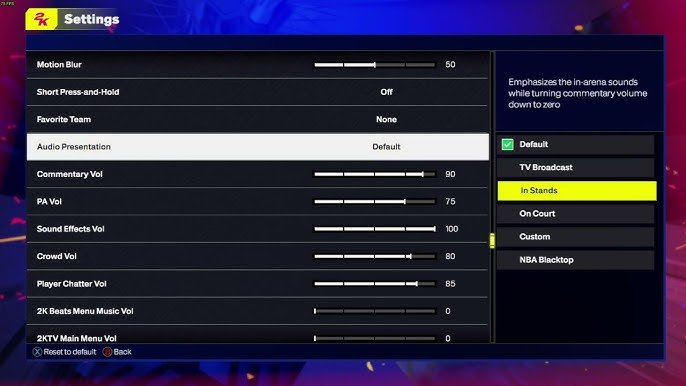
NBA 2K25 audio options
allow players to adjust volume levels for commentary, in-game sound effects, and the soundtrack, offering a personalized soundscape.
Ever wondered how to fine-tune the roaring crowd and the commentator’s voice in your game? With NBA 2K25 audio options, you have control over your gaming experience’s sound.
You can balance the various audio elements. Adjust the volume of the crowd, the sound of the ball hitting the net, or the music during timeouts. This lets you create the perfect atmosphere for your matches.

NBA 2K25 Audio Options: A Deep Dive
Get ready to hear the game like never before! NBA 2K25 is packed with cool audio features that let you customize how the game sounds. We’re not just talking about basic volume controls here; we’re diving into how you can tweak everything from the crowd noise to the commentary to create your perfect basketball atmosphere. This guide will walk you through all the audio settings, explain what they do, and give you some tips on making your game sound awesome.
The Basics: Volume Control
First things first, let’s talk about the basics. NBA 2K25 gives you control over the main volume, and also offers ways to adjust individual sound elements within the game. This is really important if some sounds are too loud and others too quiet. Here’s a rundown of the volume controls you’ll find:
- Master Volume: This slider controls the overall loudness of the game. If everything seems too loud or too quiet, this is the first place to check.
- Music Volume: This controls how loud the background music is. Some people love the game’s music; others would rather focus on the sounds of the game. You can turn it up for a more hype experience or turn it down to hear all the details.
- Commentary Volume: Adjust how loud the voices of the announcers are. If you want to hear what they have to say, turn this up. If they are distracting, turn it down or off.
- Sound Effects Volume: These are the sounds of the game itself, like the squeak of shoes, the dribbling of the ball, and the swish of a net. Changing the sound effect volume can help you focus more on the realistic game sounds.
- Crowd Volume: Adjust the noise from the virtual fans in the stadium. A louder crowd can create a more immersive feel, while a quieter crowd might be better for those who prefer to concentrate on the core sounds.
These basic volume adjustments are important for getting the initial balance you like. Think of it like adjusting the knobs on your radio or speaker—find the sound that works best for you.
Diving Deeper: Sound Mixing
Beyond the basic volume adjustments, NBA 2K25 lets you make even more precise tweaks to your audio experience. These settings are like the secret ingredients in a recipe—they help create a customized feel that suits your playstyle. Let’s examine some of these more detailed options:
Commentary Options
The commentary is a huge part of the NBA 2K experience. You’ll hear the announcers giving their play-by-play and insights, and how you set these up can really change how the game feels.
- Commentary Volume Balance: This gives you even finer control over how you hear the commentators. You can adjust the balance between the play-by-play announcer, color commentator, and sideline reporter, helping you focus on the commentator you prefer listening to.
- Commentary Frequency: Change how often they talk. Some players may want a lot of commentary to keep them involved and excited. others may prefer fewer comments so they can listen to other sounds, like the crowd and the game sound effects.
- Commentary Language: If you prefer listening in another language, you can change the commentary language if it’s supported by the game. This can make the game more fun for gamers from different places.
The Commentary is very customizable so you can choose what you like the most and change accordingly.
In-Game Sound Effects Customization
Beyond just volume levels, you can make small changes to certain sound effects to make your gameplay more immersive.
- Court Surface Sounds: The squeak of shoes, the bounce of the ball—these sounds can make the game more realistic. If you like to focus on these sounds, you can use these settings to turn them up.
- Ball Sounds: You can change how loudly you hear the ball bouncing and swishing. Tweaking these will improve focus on the key sounds of the game.
- Player Vocalizations: Some players like to hear all the grunts and yells that players make during a basketball match. You can change the loudness of those sounds if you want to make the game more realistic.
Spatial Audio and 3D Sound
Many modern games use spatial audio, and NBA 2K25 is expected to make use of such audio. This technology makes sounds feel like they are coming from specific directions around you. This creates a more real soundscape that helps to be more immersed in the gameplay. Here is how this might work in NBA 2K25.
How Spatial Audio Works
Spatial audio (also sometimes called 3D audio) creates a sound environment where different sounds seem to come from specific areas, just like real life. This is a big step up from traditional stereo sound, where all sounds feel like they’re coming from the same place.
- Directional Sound: You can actually hear sounds coming from specific directions. You might hear the crowd cheering behind you or the squeak of shoes coming from the left, etc.
- Improved Immersion: This technology makes the game feel more real. The sound seems to wrap around you, making you feel like you’re right there on the court.
- Better Gameplay Awareness: Spatial audio can sometimes help you hear the location of players during the game.
Adjusting Spatial Audio
NBA 2K25 is likely to have adjustments for spatial audio. Here are some options you may see in the settings:
- Headphone Mode: If you’re using headphones, there might be a special headphone mode that optimizes spatial audio for your device.
- Speaker Mode: When using speakers, there might be different settings to help optimize sound based on the setup you have, whether its a stereo or surround system.
- Spatial Audio Intensity: This lets you turn up or down the spatial effect of the audio. For example, the spatial effect can be too much for some people.
Accessibility Options
Audio accessibility is important, too. NBA 2K25 may include features for gamers who have specific needs.
Mono Audio
Mono audio is a setting that combines all sound channels into a single channel. This can be helpful for players who have hearing challenges in one ear. With mono audio, you will hear all sounds in both ears equally. This may be under accessibility settings.
Audio Descriptions
Some games include audio descriptions of on-screen action to help players who have visual issues. These would be like spoken descriptions of the action and UI on-screen. However, these options may not always be in sports games and could be dependent on the features included within the game.
Microphone and Chat Settings
If you play online, communicating with teammates is essential. NBA 2K25 will probably offer microphone settings that let you adjust how you hear others.
Microphone Volume
You can adjust how loud your voice is for other players in the game. If your voice is too quiet, your team may not hear you, and if its too loud, it may be disruptive. You can adjust the microphone to the right level.
Chat Volume
You can control how loud you hear other players. If they are too loud, adjust the volume so they are not as disruptive. This volume setting may help you to communicate better with your team.
Push-to-Talk
This is a setting where your microphone only turns on when you press a certain button. This prevents background noises from being picked up by your microphone, so you only communicate what you want to communicate.
Troubleshooting Common Audio Issues
Sometimes, sound in a game can be tricky. Here are some common audio problems you may face with NBA 2K25, and how to fix them.
No Sound
If you hear no sound at all, here are some things to check:
- Make sure the game isn’t muted, you can press the MUTE button on your device, this may also be present in the game settings.
- Check the game’s volume settings. Make sure the Master Volume is not set to zero.
- Verify that your headphones or speakers are correctly connected and turned on.
- Try restarting the game. Sometimes it just needs a fresh start.
Sound Too Quiet or Too Loud
If some sounds are too quiet or too loud, here are some solutions:
- Adjust the Master Volume to the appropriate loudness.
- Check the individual volume sliders like music, sound effects, commentary, and crowd noise, etc. Change each one to find the right balance.
- If using spatial audio, try adjusting the intensity setting or turning it off.
Sound Cutting Out
If sound is cutting out, check:
- Make sure there are no issues with your headphones or speakers.
- Update the game if any updates are available, as this may resolve bugs.
- Restart the game to reset the settings.
Microphone Problems
If the microphone is not working, here are some solutions:
- Ensure the microphone is plugged into the device correctly and turned on.
- Check the in-game microphone settings. Make sure that the correct microphone is selected.
- If you are using push to talk, make sure that is set correctly.
Personalizing Your Audio Experience
The best audio settings are the settings that work best for you. Don’t be scared to try and experiment with the settings. What one player prefers may not be what another player likes.
Finding Your Sound
Here is a strategy to find the best sound for you:
- Start with default settings. These are a good beginning to test how you like the basic game audio.
- Play some games and pay attention to the sounds. Find out what sounds you like and what sounds you wish were different.
- Go to the settings and change the different audio settings.
- Play more games with your new sound settings. If you are still not happy, try to fine tune by changing small amounts at a time.
Saving Custom Profiles
If there are different audio settings for different scenarios, many games let you save custom sound profiles. For example, you can have one profile for single-player gameplay and another for online matches.
Audio Tips from Pro Gamers
Many pro gamers or popular streamers have their own settings that they prefer. Here are some popular tips:
- Some pro gamers prefer to turn up the game sounds and turn down the commentary to focus on the game.
- Other pro gamers may turn down the crowd volume if they prefer less noise during a game.
- Some streamers may turn down their game sounds so that the audience can hear them clearly.
Remember, audio is just one part of the experience of playing NBA 2K25, but it can make a huge difference in how much you enjoy the game.
By diving into the detailed audio options that NBA 2K25 provides, you can customize your experience and get the perfect sound balance. Whether you are just getting started or are a pro gamer, you can use these settings to get the most out of your gaming.
NBA 2K25: How to Find & Change Audio Settings (Adjust Game Volume)
Final Thoughts
In summary, NBA 2K25 audio options offer a crucial layer to the game experience. Players have controls to adjust commentary, music, and crowd noises. These settings allow you to fine-tune the sound to your preference.
Customizing the sound environment will impact immersion during gameplay. The ability to emphasize specific audio elements will create a unique playing experience. You should explore these choices to get the audio feeling just right.

