
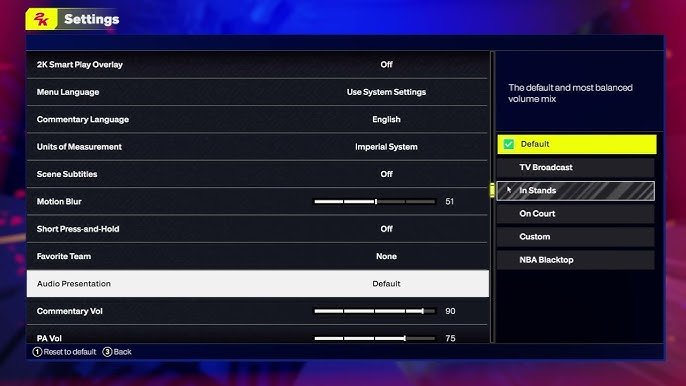
Players can adjust NBA 2K25 audio settings in the game menu, choosing from options like adjusting game volume, commentary volume, and in-game music volume. You can also select different audio output devices.
Want the best possible sound experience while playing NBA 2K25? This NBA 2K25 audio setup guide is your starting point. Getting audio right in the game significantly improves your immersion. It allows you to hear every dribble, swish, and crowd reaction.
Proper audio settings can also give you a competitive edge. You can hear opponents’ footsteps or when a teammate is calling for the ball, enabling you to react accordingly. So, let’s dive in and make sure your audio setup is ready.

NBA 2K25 Audio Setup Guide
Getting the audio right in NBA 2K25 is super important. It’s not just about hearing the crowd cheer; it’s about feeling the game. The right sound can make you feel like you’re right there on the court. From the squeak of sneakers to the announcer’s calls, every sound adds to the excitement. This guide will help you adjust the settings so you get the best audio experience possible in NBA 2K25.
Understanding the Basic Audio Settings
Before we dive into specific tweaks, let’s look at the basic audio settings you’ll find in NBA 2K25. These are your main controls for how you hear the game.
Master Volume
This is your big volume control. It affects all the sounds in the game at once. If the game is too loud or too quiet, this is the first setting you should adjust. If all sound is blasting, lower the master volume. If you can barely hear the sounds, increase the master volume.
Music Volume
The background music in NBA 2K25 is a big part of the game’s vibe. If you like the music, you can turn it up, but if it’s distracting, you might want to lower it. This setting allows you to change the music’s loudness separate from all the other in-game sound. Some players like to turn the music completely off for a more focused playing experience.
Adjusting Music Volume: Find the perfect balance between enjoyment and not being overwhelmed by the soundtrack.
Sound Effects Volume
Sound effects include things like the bounce of the basketball, the swish of the net, the whistle of the referee, and the roar of the crowd. These sounds can really put you in the game. Turning them up makes everything feel more realistic and exciting, and this setting affects the loudness of these important sound details. Adjusting it can enhance your gaming immersion.
Balancing Sound Effects: Experiment with different volume levels to find what feels best to you.
Commentary Volume
The commentary volume controls how loud the announcers are. If you love hearing what they have to say, turn it up. If you find them annoying, turn it down. A lot of people have different preferences on this setting, so you can tailor it to how you prefer. This setting allows you to change the loudness of these important game commentators.
Fine-tuning Commentary: Try different levels until you find the sweet spot where commentary helps and doesn’t bother you.
Advanced Audio Settings for NBA 2K25
Now that we have covered the basics, let’s delve into more specialized settings that you might find useful.
Headphone Audio Output
If you are using headphones to play NBA 2K25, you will see this setting. It’s crucial if you want to have a better experience. This option usually lets you choose between different audio processing modes that optimize sound output for headphones. Here are some options you might see:
- Stereo: This is the standard mode, where the sound is split between the left and right channels.
- Surround Sound: (If available). This mode creates a more immersive, 3D soundscape. Sounds seem to be coming from different directions, which is great for pinpointing on-court action.
Headphone Output Recommendations: Experiment with different audio modes to determine what sounds best with your specific headset.
Speaker Audio Output
If you’re playing NBA 2K25 on speakers, this setting is for you. Similar to headphones, you will have different options to optimize the sound of the game. It might have the following modes:
- Stereo: This option sends sound to both left and right speakers to give basic sound
- Surround Sound: If your speakers have surround sound, you’ll get sounds coming from different areas around the screen, making the game more realistic.
Speaker Output Tips: Make sure you choose the right output mode to fit the sound setup that you have.
Audio Output Device
This setting will let you choose where the sound from NBA 2K25 will play. If you have multiple audio outputs, like speakers, a headset, and a sound card, make sure to pick the correct device. Usually, the default device that is set will work fine. But if you have problems hearing the audio, verify that the correct output is selected.
Selecting the Right Device: This will be different for each person, so choose the output you want to hear the game on.
Audio Equalization
Some platforms may have sound equalization options. Equalization (EQ) lets you adjust the loudness of different sound frequencies. In basic terms, it lets you customize sounds, so you can make some sounds louder and others quieter, depending on how you want to hear the game.
Understanding EQ: With an understanding of how different frequency levels affect sounds, you can greatly improve your overall sound experience. For example, you can bring up the lower frequencies if you want more bass sound in your game, or the higher frequencies if you like more detail in the game sounds.
Fine-Tuning Your NBA 2K25 Audio for Different Game Modes
Different game modes in NBA 2K25 might need different audio setups. What works well in a quick game might not be the best for MyCAREER or online matches. Adjusting your settings for the various modes is crucial.
Quick Play
In quick play modes, where you jump into a game quickly without a storyline or special features, the audio settings need to be simple. Typically, these settings work well:
- Balanced Sound: Make sure that you have a good balance between music, sound effects, and commentary. All parts of the audio in the game are important for the experience.
- Crowd Noise: Make sure the crowd noise is at a realistic level. It should feel like you are at a real game.
- Clear Commentary: Set the commentary to be heard clearly so you can hear game information.
Quick Play Audio Setup: Make sure all audio components are at a balanced level.
MyCAREER
MyCAREER is where you create your own player and grow their career. This mode is very immersive. Here are some things to keep in mind for MyCAREER audio setup:
- Story Emphasis: In this mode, some important things happen. So make sure to balance the audio so you hear all the important parts of the game.
- Music Volume: The music has a good vibe in this mode, but make sure the music isn’t louder than the dialogue with other characters.
- Personal Preference: The audio for this mode is mainly your own preference. Make sure to find a balance for yourself.
MyCAREER Audio Tips: Be sure to test different audio levels during the various events in MyCAREER mode.
Online Matches
Playing online can be competitive. In these games you want to make sure you hear all important sound cues. Audio setups in online games should focus on clarity. Here’s what you should consider:
- Clear Sound Effects: Make sure you hear all the important sounds of the game clearly.
- Commentary Clarity: If you hear the commentary in this mode, make sure to make it clear so you can hear the information being presented.
- Ambient Sound: If the ambient noise of the crowd is too distracting, you can turn it down.
Online Match Audio Optimization: Being able to hear clearly will give you an advantage when playing online. Be sure to adjust based on your needs.
Troubleshooting Common Audio Problems
Sometimes, things don’t go as planned. Here are some common issues you might face and how to fix them.
No Sound
If you can’t hear any sound at all, try these things:
- Check the Volume: Make sure the master volume isn’t set to zero. It’s easy to accidentally turn down all sound.
- Output Device: Make sure the correct audio output device is selected. Sometimes the system switches to a different device.
- Game Update: Make sure your NBA 2K25 game is up to date. Sometimes game bugs can cause audio problems, and updates can fix them.
Troubleshooting Steps: Check each of these items if you have audio problems.
Distorted Sound
If the sound sounds weird or crackles, try these things:
- Lower the Volume: If the sound is too loud, it can distort. Try turning down the master volume to see if this helps.
- Check Headphones/Speakers: Make sure your audio device is working correctly with other sources.
- Driver Updates: Make sure your audio drivers on your computer are updated.
Fixing Distorted Audio: Sometimes, distorted audio is just a result of having levels set too high.
Low Sound
If the sound is very low, even when the volume is up, do these things:
- Master Volume Check: Be sure that the master volume is turned up all the way in the game.
- System Volume: Also check to see that your system’s volume controls are up.
- Device Settings: Some devices have their own volume controls, make sure they are set high enough too.
Improving Low Audio: Start from system level controls before moving to the game’s settings.
Sound Only on One Side
If you are only hearing sound on one side, it could be the following things:
- Headphone Check: Check the cable and connectors of your headphones, to make sure they are not damaged. Also, try them on another device.
- Balance Settings: Make sure you do not have the audio balance set to one side in your system.
- Game Setting: Check the game settings for audio balance settings.
Troubleshooting One-Sided Audio: Start by checking your equipment, then check system settings, and then in-game audio settings.
Tips for Getting the Best Audio Experience
Here are some extra tips to ensure you have the best audio experience when playing NBA 2K25:
- Experiment: Don’t be afraid to test all the different audio settings and see which combination is best for you.
- Use Headphones: Using headphones makes all the sounds more immersive and precise.
- Room Acoustics: The sound in your room affects how you hear the game. Soft items like rugs and curtains can help.
- Check Sound Before Games: Always make sure to check the audio levels before every game to make sure you will hear everything well.
Getting the perfect audio setup might take some time, but it’s worth it for a great gaming experience. By fine-tuning these settings, you will be able to make sure you hear the game as good as it can sound.
Finding the right audio setup for NBA 2K25 is a personal journey. It involves a combination of understanding the game’s audio settings and experimenting to find what works best for you. With the right adjustments, you’ll not only hear the game but feel it, adding a new level of enjoyment to your gameplay.
How to Change Audio Presentation in NBA 2K25 – Easy Guide!
Final Thoughts
Proper audio settings greatly enhance your game. Follow this guide to optimize sound in NBA 2K25. You can adjust individual volume levels. Pay special attention to commentary and crowd noise settings for the best experience.
By adjusting these parameters, players can fine-tune their sound and truly feel the game. This NBA 2K25 audio setup guide is key to a truly immersive experience. Make sure you find your optimal sound balance now.

