
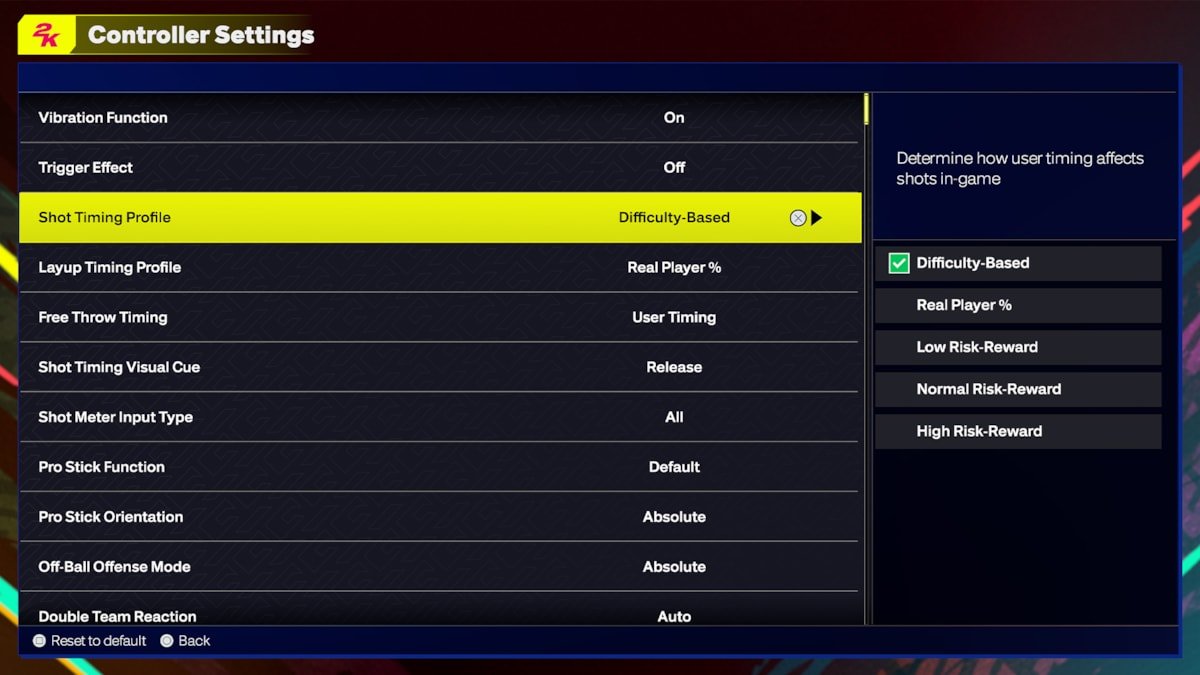
NBA 2K25 control adjustment details allow players to customize button layouts, stick sensitivity, and other settings for a personalized gameplay experience.
Tired of default controller setups hindering your on-court dominance? Players eagerly await the release of NBA 2K25 and with it comes the anticipation for how they can refine their gameplay. The power lies in fine-tuning your setup, which is why understanding NBA 2K25 control adjustment details is essential.
We will explore the options available for tailoring the control scheme. Expect a variety of settings to help you precisely configure your gamepad to match your preferences and skills. This will help you to have the control scheme that fits you.

NBA 2K25 Control Adjustment Details
Get ready to take your game to the next level! NBA 2K25 is almost here, and we know you’re excited to hit the court. One of the most important things about playing any video game, especially a fast-paced one like NBA 2K, is having controls that feel just right. This year, there are some key changes and adjustments you can make to get the most out of your playing experience. This article dives deep into how you can tweak the controls, making sure your dribbles are slick, your shots are on point, and your defense is airtight. Let’s explore everything about control customizations in NBA 2K25, so you can dominate every game.
Understanding the Basics of Controls
Before we jump into the nitty-gritty of adjustments, let’s quickly recap the fundamental controls. Whether you are a seasoned veteran or new to the game, knowing these is essential. The main actions include: movement with the left stick, shooting with the square button (or X on Xbox), passing with the circle button (or B on Xbox), and dribbling moves using the right stick. You’ll also need to use the triggers and shoulder buttons for special moves like sprinting, calling plays, and defensive stances. Each action is designed to work intuitively, but personalizing them can make a big difference. Let’s begin our journey through the customization options.
Default Controller Layout
The default controls in NBA 2K25 are set up to be comfortable for most players. However, everyone’s different. What feels natural to one person might feel clunky to another. It’s very useful to know these default settings because they form the foundation for any alterations we might make.
- Left Stick: Controls player movement.
- Right Stick: Used for dribbling moves and shooting control in some situations.
- Square/X Button: Shooting (tap), Jump Shot (hold).
- Circle/B Button: Pass the ball.
- Triangle/Y Button: Lob pass.
- X/A Button: Pick and roll control.
- L1/LB: Call for a timeout.
- R1/RB: Defensive stance.
- L2/LT: Post up and other contextual movements.
- R2/RT: Sprint/Turbo.
These basics are the starting point. We are going to explore the ways you can change these, based on how you want to play.
Navigating the Controller Settings Menu
The first step to customizing your controls is finding the controller settings menu. Usually, you can find this under the ‘Options’ or ‘Settings’ menu from the main game screen. You might see options like ‘Controller Settings,’ ‘Control Layout,’ or something similar. Inside this menu, you’ll have a variety of choices to change your game experience. Let’s see what options are waiting for us.
Locating the Control Customization Area
Once you are inside the settings, look for the control specific options. Usually the game has a subsection, or a submenu specifically labeled ‘Controls’. It will be somewhere in ‘Gameplay Settings’ or just ‘Settings’. The placement might change a bit based on the version of the game. Don’t worry, though, you won’t have a tough time finding it. This is where we’ll spend our time changing the setup.
Detailed Customization Options
Now, let’s really get into it. NBA 2K25 is giving you a ton of options to fine-tune how your controller responds. These options go way beyond just switching buttons around. We are talking about sensitivity, shot types, and much more.
Button Mapping/Remapping
Button remapping allows you to completely change which button does what. This is great if you find the default layout uncomfortable or you simply want to try a more personalized approach. Want to shoot with the circle button and pass with the square? You can do it! This kind of flexibility lets you make the game feel exactly how you want.
- Switch Actions: Change the button for dribbling, shooting, passing, or any other action.
- Personalized Layouts: Create a setup that matches your comfort and play style.
- Experimentation: Try different setups, until you find what suits you.
Analog Stick Sensitivity Adjustment
How quickly and how far your player moves is determined by analog stick sensitivity. If you want your player to move more swiftly with just a little stick movement, you would increase the sensitivity. Or, if you want to have more gradual, controlled movements, reduce the sensitivity. This is especially useful for dribbling, where subtle movements can be the difference between a turnover and an amazing play.
- Higher Sensitivity: Quicker, more responsive movement.
- Lower Sensitivity: Slower, more controlled movement.
- Fine-tuning: Find the right balance to fit your playstyle.
Shot Meter Customization
The shot meter is a crucial part of shooting in NBA 2K. This meter lets you time your shots, and adjusting it can drastically improve your accuracy. You’re given the option to change the appearance, size, color, and even the feedback that it shows. Some gamers like a larger meter, while others prefer something subtle. Find the adjustments that are best for you to help you with your shooting.
- Meter Size: Choose between different sizes, from small to large.
- Meter Color: Make the meter stand out by changing its color.
- Feedback Style: Adjust the way the meter gives information.
Vibration Settings
Controller vibrations add an extra level of immersion to the game. You can change how much and how often your controller vibrates in different situations. Turning them off, or setting them to low, helps if you find them distracting. If you find vibrations useful, you might want to raise the settings to get more clear feedback about what is going on. This is one of the features that truly depend on what you like personally.
- Intensity: Control the strength of the vibrations.
- Specific Events: Choose vibration settings for specific in game events.
- Completely Disable: Turn vibrations off if you prefer.
On-Ball and Off-Ball Control Adjustments
NBA 2K25 lets you control both when you have the ball, and when you are on defense, or without the ball on offense. In this option, you can customize certain aspects of how you act in these situations. For example, you might want more sensitive on-ball controls so you have a better feel for dribbling. Or perhaps you would prefer less sensitive off-ball controls so you don’t accidentally move off the screen on defense.
- Dribbling Sensitivity: Adjust how responsive your player is when dribbling the ball.
- Defensive Stance: Configure the responsiveness of your defensive stance.
- Movement Speed: Fine-tune how your player moves in off-ball scenarios.
Controller Dead Zones
Dead zones are an often overlooked controller setting, but they make a difference to gameplay. The dead zone is the area around the center of your analog sticks where the game doesn’t register any movement. If your sticks are a bit worn, or if you just want more precision, adjusting these settings can help. A larger dead zone means you have to move the stick further for input, whereas a smaller dead zone will respond to very small stick movements.
- Larger Dead Zone: Requires more stick movement, preventing unintended actions.
- Smaller Dead Zone: Reacts to slightest movements for greater accuracy.
- Balancing Dead Zones: Finding the right setting to avoid accidental input.
Pro Stick Functionality Options
The pro stick is the right analog stick, and it’s extremely important for more advanced moves in NBA 2K25. You can set the pro stick to be used for shots, dribbling moves, or even passing. This is useful for creating very complex moves. If you want to dribble more accurately, you can make the pro stick more sensitive for dribbling. If you prefer shooting, you could set the pro stick so your shot is executed with that stick.
- Shooting Control: Utilize the pro stick to control the direction and timing of your shots.
- Dribbling Moves: Set the pro stick for intricate dribbling techniques.
- Passing Options: Use the pro stick for precise passing maneuvers.
Advanced Control Tips for NBA 2K25
Now that you’ve customized your settings, here are some more tips to become a better player. These suggestions focus on how you can use your customized controls to enhance your game on the court. It’s not just about changing things; it’s about understanding why you’re changing them.
Customizing for Specific Playstyles
Think about how you want to play. If you love driving to the basket, you’ll want quick movements and easy dribbling control. If you prefer to shoot from the outside, you need to focus on shot timing and meter accuracy. Your choices in settings must align with how you want to play. You will find it easier to dominate your opponents.
- Playmaker: Prioritize dribbling sensitivity and quick passes.
- Shooter: Fine-tune shot meter and shooting controls.
- Defender: Increase defensive stance sensitivity and movement precision.
Practice Modes and Control Testing
Don’t just jump into a game without testing your new settings. Use the practice modes to get a feel for your customized controls. Try out different dribble moves, shot types, and defensive actions. This practice will give you the opportunity to make sure everything feels right. You will avoid bad habits and improve your overall game.
- Free Practice: Get a feel for your customized controls in a free environment.
- Scenarios: Practice specific game situations to perfect your moves.
- Feedback: Pay attention to how your controls feel in different situations.
Adapting to Different Game Modes
Different game modes in NBA 2K25 might need slightly different control setups. For example, online matches may require higher sensitivity for quicker reactions. Whereas MyCareer might need more refined, nuanced controls for a more personalized experience. Adapt your controls accordingly and you will find yourself more competitive and successful.
- Online Matches: Use quicker, more responsive controls.
- MyCareer: Create your own personal controls to enhance your play.
- Offline Modes: Find the perfect balance that suits your offline play style.
Advanced Dribbling Techniques
Now that you have set your controls, it’s time to try advanced dribbling. Learn how to use the right stick to execute crossover moves, behind-the-back dribbles, and step-back moves. Combine these with your customized controls to create smooth and effective on court moves. Good dribbling is one of the most effective things to do in the game.
- Crossovers: Practice different crossovers to move past defenders.
- Behind-the-Back: Execute behind-the-back moves to create space.
- Step-Backs: Use step-backs to create shooting opportunities.
Shot Timing and Accuracy
Getting your shot timing right in NBA 2K25 is essential to winning games. The shot meter is your guide, so paying attention to it is essential to accurate shooting. Practice your release point for different shot types. Use your customized controls to help you achieve the perfect shot, every time.
- Practice Shot Timing: Master the timing of your jump shot release.
- Different Shot Types: Focus on the timings of all kinds of shots.
- Meter Feedback: Pay attention to your shot meter for feedback.
Troubleshooting Common Control Issues
Sometimes, things don’t go as planned. You might run into some issues with your controls. Let’s look at some common problems and what you can do to fix them.
Controller Lag or Input Delay
If your controls feel unresponsive, it could be due to input lag. Check to see if your controller is fully charged, or use a wired connection to reduce delays. Restarting your game, or even your console, can also help improve this problem.
- Check Battery: Make sure your controller is fully charged, or has fresh batteries.
- Wired Connection: Use a wired connection if your controller lag still exists.
- Restart Device: Restart your game, or even your gaming device.
Unintended Actions
If your player performs actions you don’t intend, your dead zone settings might need adjustment. Increase the dead zone to avoid accidental inputs. Go back and test your settings, making small changes each time, until you get it right.
- Dead Zone Adjustment: Increase your dead zone setting to avoid accidental input.
- Test Settings: Pay close attention to how your adjustments feel in the practice mode.
- Fine-tuning: Gradually change settings, until you achieve the perfect setup.
Sticking or Unresponsive Buttons
If your buttons don’t respond properly, there might be an issue with your controller. Try to clean your controller, and if it still does not work you may need to try another one. Make sure your game is updated and that you have the latest version installed. Sometimes a simple game update can fix issues.
- Clean Controller: Remove any debris or dirt on your controller buttons.
- Try Different Controller: Test your game with another controller, and see if it works better.
- Game Update: Make sure that your game is up to date.
The ability to adjust your controls in NBA 2K25 is a real game-changer. It’s not about finding the “best” settings—it’s about finding what works best for you. Take the time to experiment, practice, and make adjustments. These changes might feel strange at first, but with practice, your game will get to new heights. It’s all about making the game your own. When you are able to tailor the game to your own needs, you will begin to dominate your opponents in NBA 2K25. Happy gaming!
NEW SHOT TIMING SETTINGS NBA 2K25 #2K25 #NBA #BASKETBALL #GREEN #MAKE #MONEY #BALL #NBA #BEST #SHOT
Final Thoughts
In summary, NBA 2K25 control adjustment details offer players finer customization. These options let users tailor button mappings for preferred gameplay styles, impacting dribbling, shooting, and defensive actions. A must for serious players who wish to optimize their game.
With varied configurations, you gain an edge on the court. Experimenting with different layouts can vastly improve responsiveness. Take time to explore these settings.

