
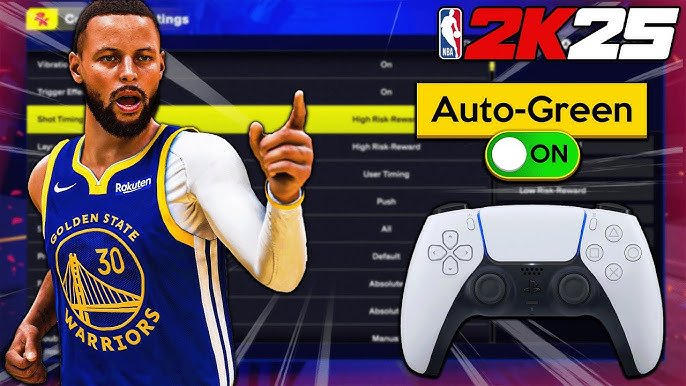
Adjusting controls in NBA 2K25 involves navigating the game’s settings menu, selecting ‘Controller Settings,’ and then customizing button mappings and sensitivity to your preference.
Tired of fumbling with the default controls in NBA 2K25? Many players find that a personal touch greatly improves gameplay. The default configuration might not fit your style. Let’s dive into how you can use the NBA 2K25 control adjustment guide to tailor your controller to your liking.
Tweaking your controller setup can significantly impact your performance on the virtual court. Don’t settle for pre-set layouts when you can personalize every dribble, pass, and shot. Making these changes are simple, accessible within the game’s menu.

NBA 2K25 Control Adjustment Guide
Alright, basketball fans! So you’re hyped for NBA 2K25, ready to hit the court and show off your skills? That’s awesome! But sometimes, the default controls just don’t feel quite right, do they? Maybe you’re a dribbling wizard who needs pinpoint precision, or perhaps you’re a sharpshooter who wants that perfect release. Well, good news! NBA 2K25 lets you tweak almost every button and stick to fit your style. This guide is going to walk you through everything you need to know to make those controls work for you, not the other way around.
Understanding the Basics of NBA 2K25 Controls
Before we dive into the specifics, let’s make sure we’re on the same page about the different types of controls in NBA 2K25. We’ve got your basic movement, which is all about using the left stick to move your player around the court. Think of it like your player’s legs – that’s how they get going! Then, we have the right stick, which is usually used for fancy dribbling moves and shots. It’s where a lot of the magic happens! You also have a bunch of buttons for things like passing, shooting, and calling for screens. These buttons can feel different depending on what you’re doing on the court – attacking, defending, or in the menus. It is crucial to get familiar with the core functions before moving on to advanced settings. It’s like learning the alphabet before writing a novel!
Default Control Schemes
NBA 2K25 offers several preset control schemes. These include:
- Default: The standard setup most players use when they first begin.
- Classic: A throwback scheme for veteran players who prefer a more traditional button layout.
- Custom: This one is where you get to be the boss and make all the changes you want, and we will be focusing mostly on that in this article.
Each control scheme has its own set of assigned buttons for actions such as shooting, passing, dribbling, defending, and others. We will be talking about how to customize these in the upcoming sections.
Accessing the Control Settings
Okay, so where do you actually go to make these changes? It’s easy! Usually, you’ll find the control settings within the game’s options or settings menu. Here’s the general path:
- Start NBA 2K25.
- Go to the main menu.
- Look for “Options,” “Settings,” or something similar. It might have a little gear icon.
- Inside there, you’ll see a “Controller Settings” or “Controls” area.
Once you’re in the controls menu, you’ll see a list of actions and the corresponding buttons. Now, let’s get to the fun part: making them work the way you want!
Customizing Your Offensive Controls
Offense is where you score points, so your controls here need to be spot on! This part explains how to customize your shooting, passing, and dribbling controls. Remember, finding what works best for you takes some experimenting, so be patient and have fun with it!
Shooting Controls
Shooting is a core element of the game. Most people use the square button for PlayStation or the X button for Xbox to shoot. But you can change this if you prefer. You also have control over shot timing. Here are things you can adjust to give yourself a better shot at scoring:
- Shot Button: You can assign any button you like to the shooting action. Some players prefer to use a shoulder button for example.
- Shot Meter: You can turn the shot meter on or off. Some players find it helpful, while others prefer to rely on their own timing. Experiment to see what works for you.
- Shot Aiming: 2K25 lets you aim your shot with the right stick. You can change the sensitivity of this, so it’s more or less sensitive depending on what you like.
Passing Controls
A good offense also relies on good passing. NBA 2K25 gives you control over different pass types, and how you execute them:
- Basic Pass: The main pass button is for short passes to nearby teammates. You can customize the pass button if you like.
- Icon Passing: This lets you pass to a specific teammate by pressing the button corresponding to their icon. You can change the way the icons appear, and even how you trigger the icon passing.
- Bounce Pass/Lob Pass: You can assign different buttons or button combinations for these types of passes.
- Pass Type Modifier: Some buttons act as modifiers, letting you choose the type of pass you want. This modifier button can also be customized to your preferred setting.
Dribbling Controls
Dribbling is all about making moves and creating space to score. The right stick is a key component of this, but you can tweak other controls, too:
- Right Stick Moves: Change the sensitivity of the right stick. If you like quick, sharp moves, turn up the sensitivity. If you prefer smoother, more controlled movements, lower it.
- Signature Size-ups: Assign buttons for specific dribbling moves unique to the player you’re controlling.
- Post Moves: If you play in the post (closer to the basket), you can customize post move controls here.
Pro Tip: Spend some time in the practice mode experimenting with these offensive control settings. It will pay off big time when you’re playing in a real game.
Fine-Tuning Your Defensive Controls
Defense wins championships! This saying is true for basketball and for NBA 2K25. Here’s how to set up your defense controls so you can stop your opponent in their tracks.
Movement and Stance Controls
The basics of defense come down to your movement and stance, which depend on these buttons:
- Lateral Movement: The left stick is again used to move, but it also moves your character sideways. You can’t really change this, but adjusting how you move can help with your defense.
- Intense-D Stance: Pressing this button makes your player get lower and more ready to defend. Changing the button for this stance might be helpful.
Stealing and Blocking Controls
Taking the ball away from the other team is crucial. Customize these to help increase your chances:
- Steal Button: You can change the steal button to a different button if you prefer.
- Block/Rebound Button: Blocking and rebounding usually use the same button. If you want to change it, or make the controls different from jumping, you can set it up in this section.
- Hands-Up Defense: Put up your hands to try and interrupt a shot. You can change the button for this.
Player Switching Controls
Quickly switching between players is a key part of defense.
- Switch Player Button: When playing with multiple players, this is how you switch between your teammates. You can reassign the button to make it more convenient for you.
- Switch Player Icon Control: For advanced switching, you might use an icon system to quickly select which defender to play as. You can change the sensitivity and buttons associated with this.
Pro Tip: Try changing the intensity of your defensive actions. If you find yourself fouling a lot, try changing your steal sensitivity or block buttons.
Advanced Control Adjustments
For those who want to get even deeper into the control customization, there are advanced settings you might want to explore. These aren’t necessary for everyone, but they can provide a competitive edge for serious players.
Controller Sensitivity Settings
How sensitive are the sticks on your controller? If you change this, you may make your game better. Here is what you should consider:
- Left Stick Sensitivity: Affects your movement speed and responsiveness. Increase it for faster reactions and change directions quickly, or decrease it for better precision.
- Right Stick Sensitivity: Affects the sensitivity of dribbling, shooting, and passing with the right stick. Find a sensitivity that fits how you want to move.
Button Layout Customization
- Completely Re-map Buttons: You have the ability to reassign nearly every button to any action you want. This is where you can really make your controller feel truly customized to your liking. For example, if you want to do a dribbling move on the left bumper, you can change that here.
- Toggle vs. Hold: For some actions, you can choose if you want to toggle them on or off or hold the button down. Some players find that holding a button is easier to control, while others prefer toggling the actions. This helps you customize control options to your preference.
Controller Vibration Settings
You can fine-tune the vibration settings:
- Vibration Intensity: Some players prefer a strong vibration feedback, while others prefer little or no vibration. You can experiment with the vibration settings to see what works best for you.
Pro Tip: Remember, there’s no right or wrong setting – it’s all about personal preference. Experiment with the advanced settings to find what gives you the most comfortable and responsive feel.
Tips for Finding the Perfect Control Setup
Finding your perfect control setup can take some time. Don’t worry, here are some tips to help you along the way:
- Start Simple: Don’t try to change everything at once. Start by changing one or two buttons, and then see how it feels for a few games.
- Use Practice Mode: Spend time in the practice mode trying out your changes. This is a good way to adjust to the changes before playing in a real game.
- Think About Your Play Style: Are you a scorer, a playmaker, or a defender? Adjust your controls to fit what you do best.
- Don’t Be Afraid to Adjust: If you feel uncomfortable with your setup, just change it again. You can always go back to default if things get too chaotic!
- Ask Other Players: Sometimes talking to friends or other people online who play the game can give you helpful ideas.
Adjusting the control settings in NBA 2K25 can really make a difference in how you play and how much you enjoy the game. It might take some time to find the perfect setup for you, but don’t be afraid to try out different settings. This guide is here to help you get there!
NBA 2K25 Shooting Tips: Best Controller Settings Visual Cues #nba2k25 #2k25
Final Thoughts
Adjusting controls is crucial for improved gameplay. This NBA 2K25 control adjustment guide offers various customization options. Players can tailor settings to match their preferences.
Experimenting with button mappings and sensitivity settings greatly improves experience. Finding the right configuration makes a huge difference. This NBA 2K25 control adjustment guide helps you optimize performance.
Ultimately, personalizing your setup is must for success.

