
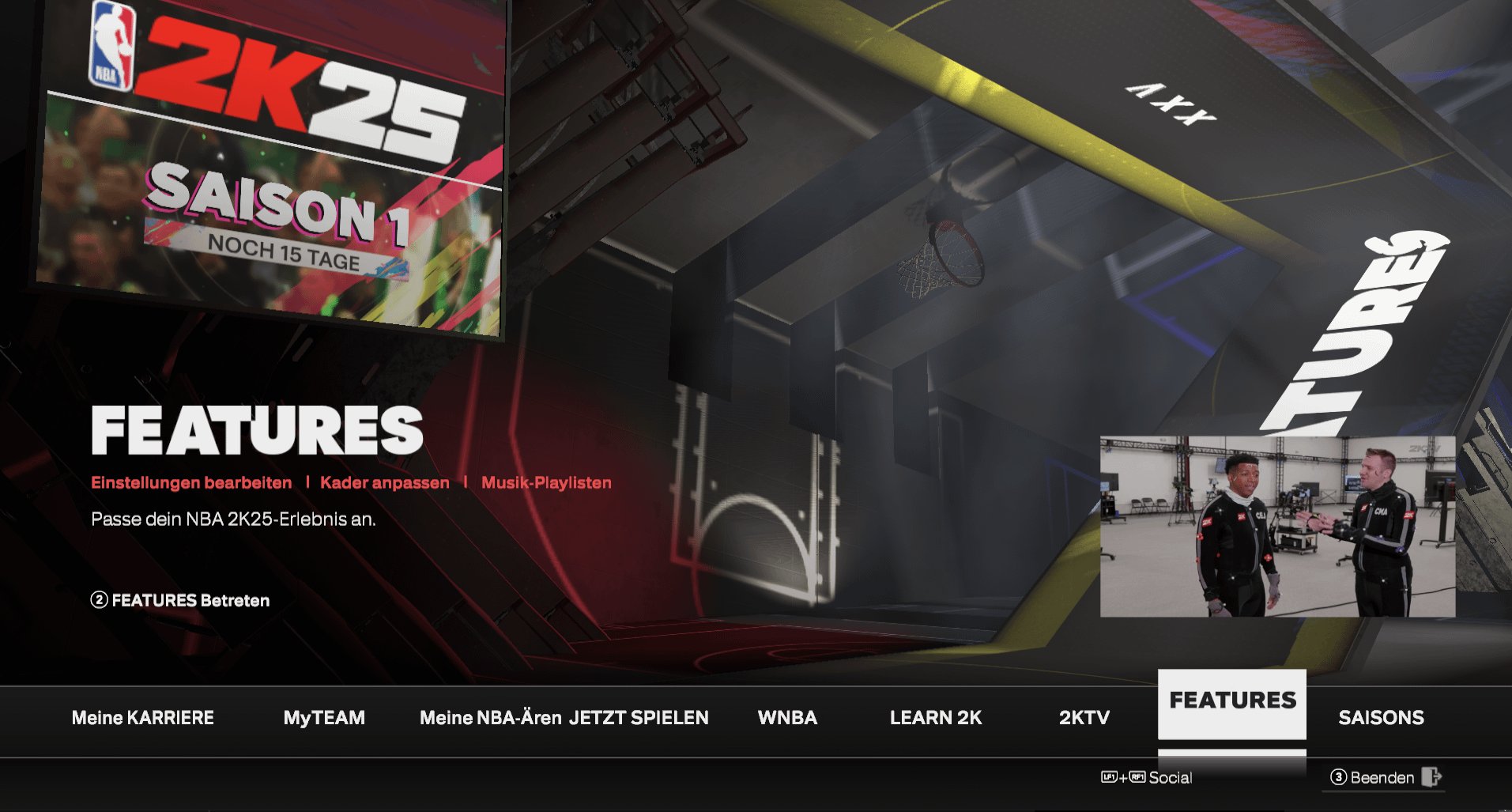
NBA 2K25 control mapping allows players to customize button layouts for dribbling, shooting, and defensive actions, providing a personalized gameplay experience.
Frustrated with default button settings? You’re not alone! Many players struggle with the preset controls in sports games. This is where understanding NBA 2K25 control mapping becomes vital. The ability to adjust your controls greatly improves your performance on the virtual court.
Adjusting these settings can make all the difference. Different players prefer different layouts and button combinations. Fine-tuning the controls allows for smoother gameplay and more precise actions.

NBA 2K25 Control Mapping: Your Guide to Dominating the Court
Getting good at NBA 2K25 isn’t just about knowing the players or the plays; it’s also about having your controls feel like an extension of your own hands. The default settings can be okay, but to truly become a virtual basketball star, you need to understand and customize the control mapping. This guide will break down everything you need to know about setting up your controls in NBA 2K25, making sure you’re making the plays you want to make, when you want to make them.
Understanding the Basics: The Default Layout
Before we start tweaking things, let’s take a look at the standard control setup. NBA 2K25, like previous versions, uses a mix of buttons, triggers, and analog sticks for different actions. On a typical controller, you’ll see buttons for things like shooting, passing, dribbling, and calling plays. The analog sticks control player movement and dribbling moves, while triggers are often used for sprinting and various defensive actions. It’s good to spend a few minutes just running around with the default settings so you get a feel for the basic controls, like moving your player with the left stick and trying out a simple jump shot with the square or X button.
Offensive Controls: Moving with the Ball
When you have the ball on offense, you’ve got a wide array of moves at your fingertips. Let’s look at some key areas:
- Movement (Left Stick): This one’s pretty simple, you use this to move your player around the court. The direction you push the stick is the direction your player moves. It’s really sensitive, so you have to get used to how much you need to tilt it for the perfect dribble.
- Dribbling (Right Stick): Here’s where you can start having fun. Flick the right stick in different directions for various dribbling moves like crossovers, between-the-legs dribbles, and hesitations. Practice these in the training mode until they’re second nature. The direction you flick the stick will determine the type of move your player does, and the timings of your flicks will determine the speed of the dribbles.
- Passing (Button Based): You’ll use different buttons to make passes. Usually, the X/A button is for a standard pass to a nearby teammate, the circle/B button is for a bounce pass, and the triangle/Y button is often used for a through pass, which is useful for leading a player toward the basket. You can also use icon passing, which allows you to choose exactly who to pass to, by pressing the corresponding player button.
- Shooting (Square/X Button & Right Stick): Shooting is one of the most important skills, and how you shoot is controlled by your controller. The most used option is to press the square or X button for standard jump shot. For a Pro Stick shot, flick the right stick down and move it up when the meter reaches the right point. For the layups, you will need to move the right stick towards the basket. You will find more information about the pro stick below in another sub-heading
- Call for Pick & Roll (L1/LB): To call for a screen (pick and roll or pick and pop), press the L1/LB button. This is an amazing tactic, if used correctly.
- Sprinting (R2/RT): Hold down the R2/RT button to move quickly on the court. However, sprinting depletes your stamina, so use it wisely.
Defensive Controls: Locking Down Your Opponents
Playing defense is just as important as playing offense in NBA 2K25. You need to know your defensive controls to stop your opponent from scoring.
- Movement (Left Stick): Same as offense, the left stick moves your player around the court when you’re playing defense. Keep your player between the ball and the basket to get into good defensive positions.
- Steal (Square/X Button): If you think you can get the ball back from your opponent, press square or X to reach for a steal. Be careful though, if you reach too much, you might foul.
- Take Charge (Circle/B Button): Press the circle or B button while moving in front of the attacker to draw a charge. If the attacker runs into you, the attacker might get a foul.
- Block/Rebound (Triangle/Y Button): Use the triangle or Y button to jump for blocks or rebounds. Timing your jump is very important.
- Intense D (L2/LT): Hold the L2 or LT button to get into an intense defensive stance, which allows you to guard your opponent closely.
- Switch Player (Circle/B Button): Switch to the player closest to the ball using the circle or B button.
- Hands Up Defense (Right Stick): To get your hands up to contest the shot, flick the right stick up. You might not block the shot, but it will make the shot harder for your opponent.
The Pro Stick: Master Dribbling and Shooting
The Pro Stick (right stick) is a powerful tool in NBA 2K25. It allows for much more control over dribbling and shooting, and is a good thing to get used to.
Dribbling with the Pro Stick
Using the right stick for dribbling moves is all about the direction and speed of your flicks.
- Quick Flick: A quick flick of the right stick in different directions will result in various quick moves. For example, a quick flick to the left while moving forward will give you a crossover from right to left and vice versa for flicking to right.
- Hesitations: If you flick the right stick forward while not moving, your player will perform hesitation moves. These are useful to trick the defender and get space.
- Spins: By doing a circle motion with the right stick, your player will do a spin dribble.
- Behind-the-back moves: By holding the right stick backward while moving forward, you can perform behind-the-back dribbles.
Shooting with the Pro Stick
When you shoot with the Pro Stick, you have more control over the shot.
- Jump Shot: To take a jump shot with the Pro Stick, flick the stick down and then move it back to the center when the shot meter reaches the optimal point.
- Layup: Flick the stick in the direction you want to make the layup. If you push it to the left, the player will take a layup to the left, and same for right.
- Dunks: If you run toward the basket with the R2/RT button, while flicking the right stick in any direction, the player will attempt a dunk.
Customizing Your Control Mapping
The beauty of NBA 2K25 is that you’re not stuck with the default layout. You can adjust the controls to fit your personal style. Here’s how to change your control settings and some ideas on what you can adjust.
Accessing the Settings
To customize your controls, you’ll need to go to the main menu, navigate to ‘Options’, then ‘Controller Settings’. There, you’ll see a screen with all the different control options you can change.
Key Control Customizations to Consider
- Shooting Button: If you prefer using the X/A button instead of the square/X button, or vice-versa, you can change it here. Some people also like to change the shooting button for more than one player in different team, so they can perform the shot with their favourite button.
- Dribbling Sensitivity: If you think your player is not dribbling the way you want, then you can adjust the sensitivity of your right stick to fine tune your dribbles.
- Passing Buttons: If you want to customize the passing buttons, you can set them here. For example, you might like the X/A button to do a bounce pass.
- Defensive Controls: The defensive controls are often neglected, but you can get a lot of advantage over your opponent by changing these to your liking. You can change the block, steal and charge buttons to different ones.
- Controller Vibration: If you do not like the vibration of your controller, you can turn it off from here.
Testing and Fine-Tuning
Once you’ve made changes, it’s essential to go back into the game and test them out. Don’t be afraid to go into training mode to practice your new controls. You might need to play a few games to really get a feel for things, and you might want to make adjustments even after you’ve customized everything. It’s all about finding what’s most comfortable and efficient for your playing style.
Advanced Control Techniques
As you get more comfortable with the basics, you’ll want to delve into some more advanced techniques. These advanced techniques might require some adjustments to your controls.
Post Moves
If you like to play inside with big men, then mastering the post moves is crucial. You’ll use the right stick for post hooks, fades, and pivots. The buttons you use will be dependent on your preferences and customizations. Experiment and find out what is the best fit for your play style.
Alley-Oops
For those high-flying moments, you’ll want to learn how to execute alley-oops. This often involves double tapping the triangle/Y button, or using the right stick while pressing L1/LB or R1/RB. A perfect alley-oop is a spectacular way to get your points.
Off-Ball Movement
While you don’t control players without the ball directly, you can call for them to make specific cuts by using the D-Pad. You can direct them to cut to the basket or run toward the three-point line, giving you more control on the court.
Playcalling
Understanding how to call plays is vital to controlling the game. You can use the D-Pad to call different plays, or use the L1/LB button to trigger quick plays that are pre-set. These can lead to easy baskets if used properly. Remember to look at your playbook to see what kind of plays are available for you.
Tips for Improving Your Control Skills
- Practice, Practice, Practice: The most important thing is to play the game and practice your controls. The more you use your controller, the better you will be. Spend some time in training mode working on dribbling and shooting.
- Watch Tutorials: There are tons of videos online that explain control techniques for 2K games. Watching them can be very helpful.
- Experiment: Don’t be afraid to try out new things. Change up your controller settings and see what works for you.
- Start Slow: If you’re changing up your controller setup, don’t try to do everything at once. Make small changes and get used to them before you move on to the next.
- Don’t Give Up: It takes time to get good at anything, and that includes NBA 2K25 controls. Just keep playing and practicing and you’ll get there.
Troubleshooting Common Control Issues
Sometimes, you may run into issues with your controls. Here are some common problems and how to fix them:
Input Lag
Input lag is when there is a delay between the time you press a button and the time that action happens on the screen. This can be frustrating. To fix this, try these:
- Use a Wired Connection: Playing with a wired controller often fixes input lag.
- Check Your Monitor: Some monitors and TVs have input lag. Try a different monitor or turn on the game mode on your screen.
- Restart your console/PC: Sometimes, just restarting your console/PC can help.
Sticky Buttons
If your buttons feel sticky, it can cause issues with your gameplay. This means your buttons may not be registering every press. Try cleaning your controller with a dry, soft cloth.
Controller Malfunction
If your controller is broken, it may not register the actions properly, which will not be good for the game. If you believe there is something wrong with your controller, try using a different controller to see if that fixes the problem.
Customizing your NBA 2K25 control mapping is an important part of becoming a competitive player. It allows you to play the game the way you want to play it, and gives you an advantage over players who use the default settings. Understanding all of the basic controls, and then understanding the more advanced techniques will make your experience playing the game a much more enjoyable one. Take some time, play the game, and you’ll find the perfect setup for your playstyle.
HOW TO RHYTHM SHOOT WITH PADDLES #nba2k #2kcommunity #2k25
Final Thoughts
Ultimately, optimizing your gameplay depends heavily on the chosen controller settings. Understanding and customizing button assignments benefits your performance. Experimentation lets you find the most effective setup for your personal playstyle.
Fine-tuning these settings directly influences your on-court actions. NBA 2K25 control mapping requires some effort, but the payoff is worth it. Having controls that feel natural enhances your control, and enjoyment of the game.

