
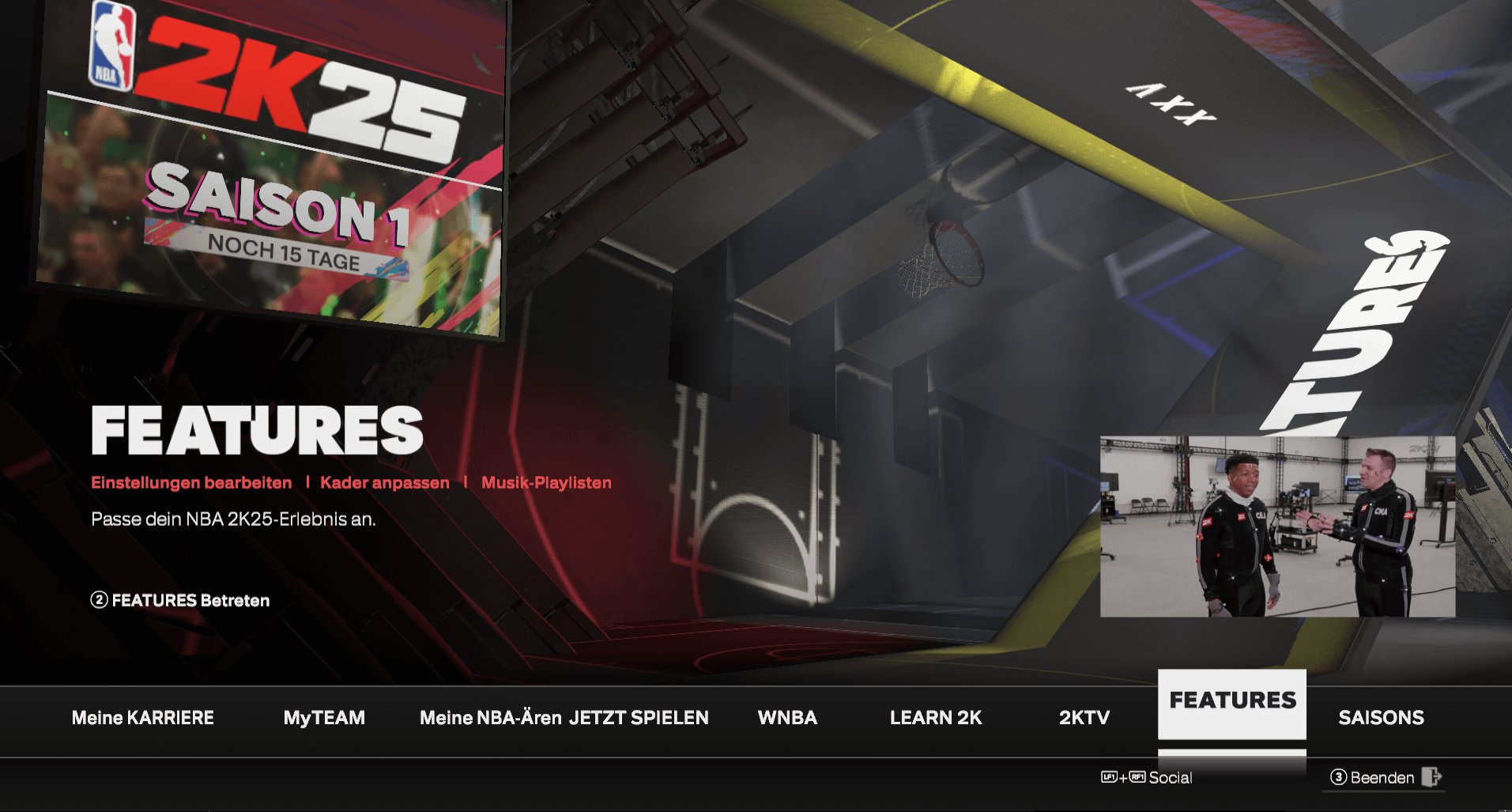
‘To adjust your controls in NBA 2K25, navigate to the settings menu, then controller settings, and choose a custom layout that suits your play style.
Frustrated by awkward button combinations in your NBA 2K25 game? We understand. You need better control to dominate the court. This guide will provide the essential NBA 2K25 controller mapping help you’ve been searching for.
Finding the right layout can make all the difference. We will walk you through the menus and show you how to adjust everything from dribbling to shooting. With proper configuration, you will find it much more comfortable to perform complex plays.

NBA 2K25 Controller Mapping Help
Okay, hoops fans! You’ve got your copy of NBA 2K25, you’re ready to hit the court, but wait – are those controls feeling a little…off? Don’t worry, you’re not alone! Getting comfortable with the controller is super important for playing your best game. This guide is here to break down all things controller mapping in NBA 2K25, so you can play like a pro in no time. We’ll explore everything from default setups to customizing your own, and we will even give you some pro tips along the way.
Understanding the Default Controls
Before we get into the nitty-gritty of changing things around, it’s a good idea to know what the standard controller layout is all about. NBA 2K25, like most sports games, has a set of default controls that are designed to work well for most players. Let’s take a look at what each button typically does:
Offensive Controls
- Left Stick: This is your best friend for moving your player around the court. It’s all about dribbling and driving towards the basket.
- Right Stick: This bad boy is for all your fancy dribble moves. Think crossovers, step-backs, and hesitation moves. It’s how you show off your skills.
- X (PlayStation) / A (Xbox): Use this to pass the ball to a teammate. Timing is key for accurate passes!
- Square (PlayStation) / X (Xbox): This button is for shooting the ball. How long you hold it down affects how much power you put into your shot.
- Circle (PlayStation) / B (Xbox): If you want to bounce the ball, press this. It also does other things like a hop step or Euro step when you’re moving and a pump fake when you are about to shoot.
- Triangle (PlayStation) / Y (Xbox): Use this button to call for a pick or screen. Timing this with your team is important!
- L1 (PlayStation) / LB (Xbox): This button is typically used for calling plays with.
- R1 (PlayStation) / RB (Xbox): To sprint, hold down this button. Be careful not to overuse it, or your player will get tired quickly!
- L2 (PlayStation) / LT (Xbox): Use this to post up against a defender. It allows you to drive towards the basket while having someone on your back, you can also use it to face up and do a dribble move to go past the defender.
- R2 (PlayStation) / RT (Xbox): This button is mainly for doing more intense dribble moves and changing the way you shoot or lay up.
- D-Pad: Use these for calling timeouts and selecting different offensive plays.
Defensive Controls
- Left Stick: Same as offense – use this to move your player around.
- Right Stick: This controls your hands when you are guarding someone. You can swipe for a steal, put your hands up, or use it to try and block shots.
- X (PlayStation) / A (Xbox): This is for switching to the player you want to control on the court, this also goes for offensive controls.
- Square (PlayStation) / X (Xbox): Use this button to steal the ball from your opponent.
- Circle (PlayStation) / B (Xbox): This button is to jump and try to block an opponent’s shot. Be careful not to use it too much, otherwise you might jump too early.
- Triangle (PlayStation) / Y (Xbox): Use this button to switch to the off-ball player.
- L1 (PlayStation) / LB (Xbox): You can use this button to change your defensive strategy.
- R1 (PlayStation) / RB (Xbox): Hold this down to sprint.
- L2 (PlayStation) / LT (Xbox): Use this to face up when defending, and to play a tighter defense.
- R2 (PlayStation) / RT (Xbox): This is for intense steals and hands up guarding.
- D-Pad: For defensive strategy.
These are the default controls for NBA 2K25. But, there’s so much more you can change! Let’s find out how.
Why Change Your Controller Mapping?
You might be wondering why you would want to change the default controls. Well, there are a few reasons why this is a great idea for some people. Sometimes, the default controls just don’t feel right for your playing style. Some players like to have shooting on a trigger button, and not a face button. Here’s why many players change the controller mapping:
- Personal Comfort: Everyone has different hands and different preferences. What feels comfortable for one person might not feel right for you.
- Improved Gameplay: Having controls that match how you think and play can make your game better. If your actions feel natural, it is easier to play well.
- Customized Style: Some of the best players have controller setups that are completely their own!
- Accessibility: If you have physical limitations, changing the controls can make the game easier to play.
If you are new to NBA 2K or you don’t have any issues with the default controls, it is always a good idea to try the defaults out first, to see if you like them. Then, if you don’t, you can change them. Now, let’s get to the best part, changing the controls!
How to Remap Your Controller in NBA 2K25
Alright, let’s dive into how you can actually change those controls. It’s actually pretty straightforward, and the game gives you some options for doing so. Here’s a step-by-step guide to getting your perfect controller setup:
Accessing the Controller Settings
First, you’ll need to get into the game’s settings. Here’s how you can get there:
- Start the Game: Load up NBA 2K25 on your console or PC.
- Go to Options: Head over to the ‘Options’ or ‘Settings’ menu from the main screen. You will be able to see this when you load into the game.
- Find Controller Settings: Look for a section called ‘Controller’, ‘Controls’, or something similar. Click on this.
Now you are in the controller settings and ready to make some changes. This is where the fun begins.
Customizing Your Controller Map
Once you’re in the controller settings, you’ll see options to customize the controls. Here’s what you typically see:
- Presets: Some games have pre-set control schemes you can choose from. Try them out to see if there’s one you like.
- Custom Options: These are the options that allow you to completely change the controls to your liking.
- Button Remapping: This is where you can change what each button does.
- Stick Settings: You can also adjust how sensitive your analog sticks are.
Here’s how to remap a button step by step:
- Select a Button: Choose the button you want to change.
- Choose a Function: Select the new function you want this button to do. For example, if you want shooting to be on your trigger button, you would select the button that you want to change, and choose the shoot function.
- Test It Out: After making the change, go into a practice mode and test the control out to see if you like it.
- Save Your Changes: Once you are happy with the changes, be sure to save them so they stick!
Tips for Effective Controller Mapping
Changing your controller settings is fun, but here are some tips to make sure that you are getting the best setup possible for yourself:
- Start Simple: Don’t change everything at once! Change a few controls first, test them out, and then change some more if needed.
- Consider Your Style: Are you a dribbling wizard? Or do you like to shoot three-pointers? Change controls to match how you like to play.
- Practice, Practice, Practice: After changing controls, take time in the practice mode to get used to the new setup. This is very important.
- Don’t Be Afraid to Experiment: There is not a right or wrong control scheme. Keep playing and experimenting to see what feels right to you.
Let’s get a little deeper and talk about some specific changes you can make that can change the way you play.
Popular Controller Mapping Adjustments
Okay, now we’re talking about taking your game to the next level. Some players like to make some very specific adjustments to their game, to make it suit their style of play. Here are some of the most commonly made adjustments:
Shooting with Triggers
Many people prefer to shoot with the R2/RT trigger buttons, instead of the X/Square face button. This can allow for more control and give you a better feeling of power in your shot. This is a very common change that many players do.
Dribbling with Shoulder Buttons
Some gamers find that mapping dribbling to L1/LB and R1/RB is more comfortable. This frees up your thumbs and gives you more quick access to your dribble moves. The bumper buttons can be used for more controlled dribbling.
Passing with Face Buttons
The face buttons, especially if you are used to them, are the main way to pass the ball in NBA 2K. If you are used to using them to pass the ball, then there is no reason to change that.
Specific Dribble Moves
In NBA 2K, there are many dribble moves you can perform that have special inputs. Changing the buttons to your liking can help you get a quicker trigger finger on these special moves.
Pick and Roll Control
You might want to customize how you call for a pick and roll, so you can time your actions perfectly. Many players put the pick and roll button on an easy to access button so that they are able to call the pick quicker.
Defensive Strategies
Mapping your defensive plays to buttons that you can reach quickly can help you stop the opposing team better.
Remember, the best mappings are those that feel natural to you. The more comfortable you are, the better you’ll play.
Troubleshooting Controller Issues
Sometimes, things don’t go as planned. If you are having problems with your controller, here are some steps to troubleshoot these issues:
My Controller Isn’t Working
- Check the Connection: Make sure your controller is connected properly to your console or PC, whether it’s wired or wireless.
- Battery Check: If you are using a wireless controller, make sure it is charged.
- Try Another Controller: If you have another controller, use it to test if it is a controller issue, or a setting in the game.
- Restart the Game: Sometimes a simple restart can solve connection issues.
My Controls Are Glitched
- Check Settings: Double check that the settings in the game are correct. Sometimes settings can get reset or glitched.
- Update Software: Make sure that your console or PC software is up to date. Outdated software can cause issues.
- Contact Support: If all else fails, you can contact 2K support for help.
My Controller Input Lag is too High
- Check your connection: Make sure your controller’s connection is good and stable.
- Close other applications: Make sure that other apps are not running in the background, taking up processing power.
- Restart Game or System: A quick restart of the game or console can resolve the issue, sometimes.
Hopefully, these steps help you resolve your issues. It’s important that your controller is working correctly so that you can enjoy the game properly. Always double check before starting the game, to make sure everything is in order.
Advanced Tips for Controller Mapping
Alright, you’ve got the basics down. Now let’s look at some more tips that can help take your controller mapping to the next level.
Use of Claw Grip
Some players find they have more control using the “claw” grip. This allows you to hit more buttons at once, giving you more options. This is a more advanced technique, and it does take some time to get used to.
Optimizing Stick Sensitivity
You can adjust your stick sensitivity in the settings. This can really change how you play, so you need to make sure to test it out to find out what is best for you. The higher the sensitivity, the more quickly your player will move with the stick. For some, a higher sensitivity might feel more responsive, but for others it might feel too touchy.
Button Placement
Keep important actions on easy to reach buttons. If you are a heavy shooter, make sure that the shoot button is easy to access. If you do a lot of dribble moves, put them in the easiest place for you to reach.
Practice Makes Perfect
No matter how great your settings are, you will never improve without practicing. Get into a practice mode or quick play, and get used to the changes you made. The more you practice, the more comfortable you will be with the new setup. Once you get used to it, you can make more changes to improve further.
Getting your NBA 2K25 controller setup just right can truly make a big difference in your game. It is important to spend some time figuring out what works best for you, because it is different for everyone. It’s all about comfort, how it flows with your gameplay style, and how quickly you can perform your best actions. Remember to experiment, practice, and don’t be afraid to make changes. This is a good way to make the game feel brand new, and help you enjoy NBA 2K25 to the fullest.
HOW TO RHYTHM SHOOT WITH PADDLES #nba2k #2kcommunity #2k25
Final Thoughts
Tweaking your controller setup can significantly improve gameplay. Experiment with different configurations until you find what feels best. Prioritize buttons for actions you use most.
Remember, finding the right button layout is subjective, but the impact on your game is substantial. Effective use of your chosen mapping will enhance your performance. Don’t be afraid to change it up.
Ultimately, customized settings are key. Proper NBA 2K25 controller mapping help is available with guides and experimentation. It’s essential for anyone wanting to optimize the game.

