
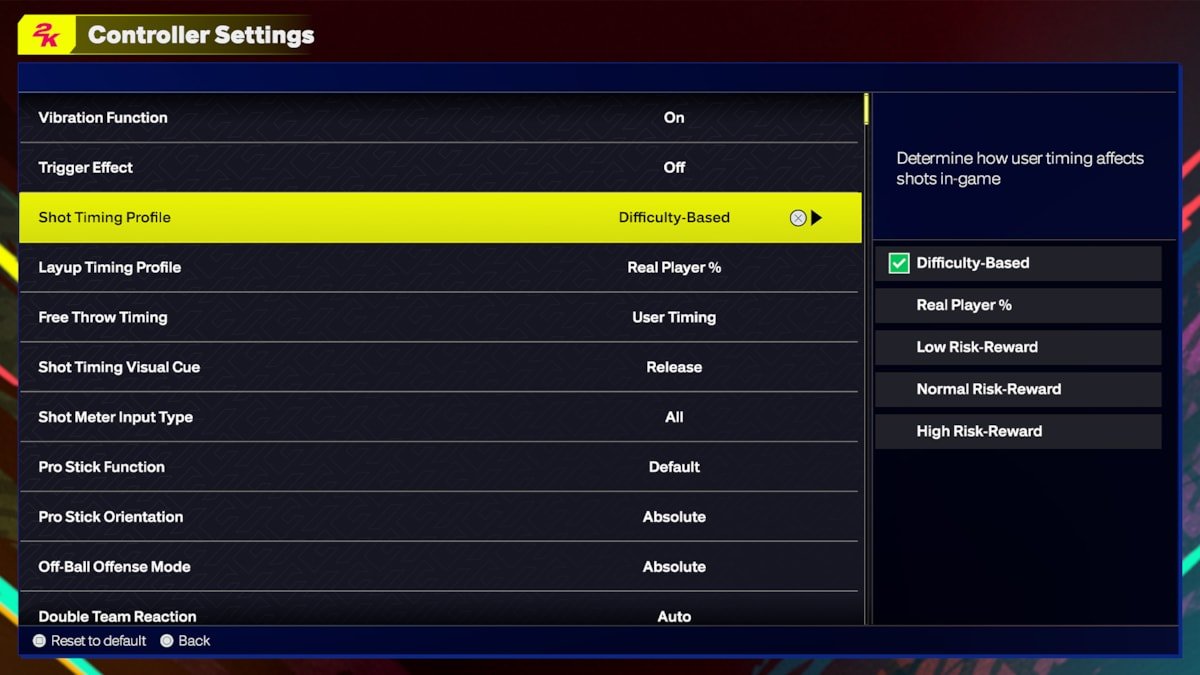
Adjusting NBA 2K25 gameplay preference setup involves fine-tuning sliders and settings within the game’s options menu to tailor the experience to your personal playstyle.
Diving into NBA 2K25? You’re probably keen to get the game feeling just right. Many players want the perfect level of difficulty and control. That’s where understanding your NBA 2K25 gameplay preference setup becomes very important.
Tweaking these preferences lets you personalize the game. You can change things like game speed, shot percentages, and defensive intensity. Get comfortable with these options and find the best experience for yourself.

NBA 2K25 Gameplay Preference Setup
Welcome, basketball fans! Getting the most out of NBA 2K25 means setting up the game to play just the way you like it. It’s not just about being good at the game; it’s also about having fun. This guide will help you dig deep into the settings, so you can create an experience that’s perfect for you. We’ll explore everything from basic controls to advanced gameplay tweaks.
Understanding the Basics: Controller Settings
Let’s start with the most basic interaction with the game – your controller. Whether you’re a fan of the classic button layout or want a more personalized approach, 2K25 gives you options.
Choosing Your Controller Type
The first thing you’ll want to decide is your controller type. NBA 2K25 supports several controller configurations. You can use a standard Xbox or PlayStation controller, and even sometimes you can hook up other PC controllers. Make sure to select the correct one from the options in the settings menu for the best response.
Customizing Button Layout
Don’t like where the pass button is? No problem! NBA 2K25 lets you change almost every button on your controller. Here’s how to do it and why it’s important:
- Accessing Settings: Go to the main menu, then find ‘Controller Settings’ in options.
- Identifying Buttons: The menu shows a visual layout of your controller. Select the button you want to change.
- Assigning Actions: Pick a new function from a list. Make changes that fit how you play.
- Testing your Setup: Go into a practice mode to make sure the changes feel good to you.
Customizing your buttons can make a huge difference. For example, if you often accidentally shoot while trying to dribble, you might want to swap the shoot and the dribble buttons. The key is to choose a setup that feels comfortable and responsive.
Stick Sensitivity and Vibration
Another important part of controller setup is the sensitivity of the analog sticks. You can adjust how much you need to move the stick to make things happen in the game. Some players want quick movements, while others prefer more control.
Here is how you can play with it:
- Sensitivity Adjustment: Increase or decrease the sensitivity to fit your playing style.
- Vibration Intensity: Choose how much you want your controller to vibrate. Some prefer a lot for a more immersive feel, while others like it turned down so it does not bother them.
Experiment with these options and see what settings help you have the most control over your player.
Gameplay Settings: Fine-Tuning Your Experience
Now, let’s get into the core of NBA 2K25’s gameplay settings. These settings can greatly influence how the game feels and how you perform.
Game Difficulty
NBA 2K25 offers several difficulty options, from easy to super hard. Finding the right level is important, so you feel challenged but not frustrated.
- Rookie/Easy: Great for beginners or those who just want a relaxed game.
- Pro: A good starting point for most players. The game is a bit more challenging than on the easiest difficulty.
- All-Star: More challenging, requires good strategies and understanding of the game.
- Superstar/Hall of Fame: This is the hardest option, for experienced players. The AI will be much smarter and your margin for errors is very small.
Don’t be afraid to change the difficulty as you improve. It’s all about finding that sweet spot where you feel challenged and still enjoy the game.
Gameplay Sliders: A Deep Dive
This is where things get really interesting. Sliders let you tweak almost every aspect of the game. They affect things like shot accuracy, the speed of the game, and how often fouls are called. Let’s break down a few important ones:
User/CPU Shooting
These sliders control how accurate shots are for both you and the computer. Lowering these sliders will lead to more misses and feel more realistic, while raising them will mean more shots go in.
User/CPU Dribbling
These sliders change how effective dribbling moves are and how quickly you can perform them. If you prefer a game with a lot of flashy moves, raising this slider may be for you, while lowering it can make it more realistic.
User/CPU Rebounding
These adjust the efficiency of rebounds, affecting how often the ball bounces your way and how easily you grab boards. Changing this one can either make the game more rebound centric or make it less so.
Game Speed
This slider allows you to change how quickly the game plays out. This is good for people who want either a more relaxed or more fast paced experience.
Foul Frequency
This is where you can change how many fouls get called. You can increase the foul frequency for a more realistic, gritty game or decrease it if you want a more free flowing experience.
Tips for Using Sliders:
- Start with Small Changes: Don’t change too many sliders at once. Make small adjustments, play a game, and see how it feels.
- Find the Balance: Aim for a setting that feels fun and challenging. If the game feels too easy or too hard, tweak the sliders some more.
- Online vs. Offline: Keep in mind some online modes might not let you use your custom sliders. They usually use default settings.
Camera Settings
The camera view greatly affects how you see the game. There are multiple camera angles, and you should pick one that works for you. Here are some of the common options:
- 2K Camera: The default, familiar view. Most players use this.
- Broadcast: Mimics how the game looks on TV. It feels more cinematic.
- Baseline: A view from the end line. Great for seeing plays develop.
- Custom: Allows you to move the camera and change the height and zoom to suit you. This is good for people who want a perfect viewing angle.
Pick the one that best lets you see the court and understand what’s happening. You might need to test them out to find your favorite.
On-Screen Display Options
NBA 2K25 gives you a lot of options to change what you see on the screen during the game.
- Scoreboard: Choose what info you see and how often you see it.
- Shot Meter: Change the style and how much information it shows. Some players like it big, some want to turn it off for more realism.
- Player Indicators: Decide if you want to see the names of the players above their heads.
- Play Call Indicators: Choose how play suggestions are displayed.
- Controller overlay: Decide whether you want to see the controller buttons onscreen.
Having the right on-screen info is important. Too much can be distracting, but too little can leave you guessing. Find a balance that feels comfortable for you.
MyCAREER Settings: Making It Your Story
MyCAREER mode is a big part of the NBA 2K experience, and the settings here can shape your whole experience.
Player Archetype
At the start of your MyCAREER journey, you get to decide your player’s main strengths. Will you be a scoring machine, a defensive ace, or a playmaking wizard? Here’s some things to keep in mind:
- Finishing: Focus on getting points near the hoop. Great for inside scorers who love dunks and layups.
- Shooting: Great for players who can nail jumpers from all over the court.
- Playmaking: Ideal for those who want to set up their teammates for scores. Great passers who are creative with the ball.
- Defense/Rebounding: For the players who excel at stopping the opposition and getting rebounds.
Pick an archetype that matches how you want to play. It will be hard to make changes later on. Experiment with different builds to see what you like. You can make a new character if you are not happy with your decision.
Badges
Badges give your character extra abilities. You get them through playing the game. Some can boost your shooting, some your defense, and some other parts of the game. Choosing the right badges can boost your character.
Takeovers
Takeovers are temporary boosts your player gets for performing well. Each archetype has different Takeovers. You can choose which one you like, but pick one that fits your skills.
Advanced Tips: Getting the Most Out of Your Settings
Once you have got the basics down, here are a few pro tips to improve your game.
Practice and Experiment
The most important advice is to experiment. Spend some time in practice mode with your setup and try changing some things. You will learn what you like and what suits your playing style.
Online Considerations
When you go online, keep in mind that not all custom settings may apply. Many online modes will use the default settings. Knowing this is important, so don’t be too confused when you get into an online game and your settings don’t seem to apply.
Pay Attention to Patch Notes
The game is updated frequently, and these updates can sometimes affect how the settings work. You may need to make changes to stay ahead of the curve. Keep an eye out for patch notes and adjust accordingly.
By taking the time to set up NBA 2K25 to your liking, you’re not just playing a game – you’re crafting an experience. Have fun and enjoy the virtual basketball court!
BEST DEFENSIVE SETTINGS & HOW TO SAVE THEM IN NBA 2K25!
Final Thoughts
Ultimately, finding your ideal NBA 2K25 gameplay preference setup involves experimentation. Tailoring controller settings, difficulty, and camera angles greatly impacts your experience.
Adjust these settings to match your play style. Personalization is key to maximizing your enjoyment and competitiveness within the game. The best results come from understanding these options.
Experiment to find the NBA 2K25 gameplay preference setup that works for you. This customized setup will lead to enhanced gameplay.

