
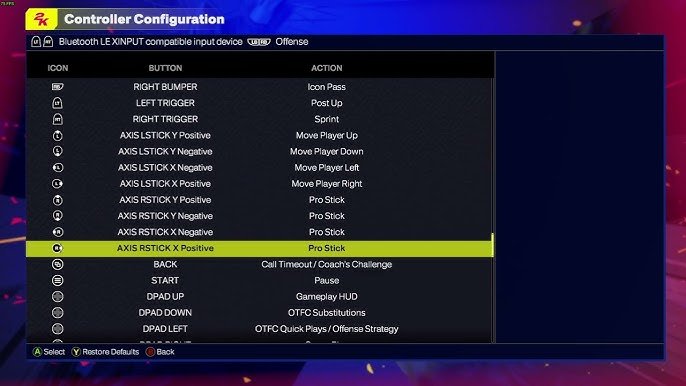
The NBA 2K25 input configuration can be customized within the game’s settings menu, allowing you to remap buttons to your preference.
Okay, so you’re gearing up for the latest season of hoops action in NBA 2K25, right? Getting your controller settings just perfect is crucial for dominating on the court. The good news is, NBA 2K25 input configuration gives you that precise control.
You can tweak the button layouts, adjusting how you dribble, shoot, and defend. This flexibility will let you adapt the game to your play style. Fine-tuning these controls can really enhance your performance.

NBA 2K25 Input Configuration: Your Key to Victory
Getting the controls just right in NBA 2K25 is super important. It can be the difference between sinking that game-winning three-pointer and fumbling the ball out of bounds. This year’s game, like all NBA 2K games, offers a lot of ways to customize your controller setup. Whether you’re a rookie or a seasoned pro, finding the perfect input configuration will help you play better and enjoy the game more. Let’s jump in and explore all the ins and outs of setting up your controls in NBA 2K25!
Understanding the Basics: Default Controls
Before we dive into changing things around, it’s good to know what the default control scheme looks like. NBA 2K25 comes with a set of pre-configured controls, designed to be intuitive for most players. These controls are generally similar to past NBA 2K games, but there might be some slight tweaks this year. Understanding these basics is the first step towards making adjustments that suit your playing style. Here’s a quick rundown of what you’ll typically find:
Offensive Controls
- Left Stick: Moves your player around the court.
- Right Stick: Performs dribble moves, such as crossovers, step-backs, and spins.
- Square/X Button (PlayStation/Xbox): Shoots the ball.
- Triangle/Y Button (PlayStation/Xbox): Performs a lob pass.
- Circle/B Button (PlayStation/Xbox): Bounces or passes the ball.
- X/A Button (PlayStation/Xbox): Used to do a bounce pass.
- L1/LB Button (PlayStation/Xbox): Calls for a pick and roll or pick and fade play.
- R1/RB Button (PlayStation/Xbox): Initiates icon passing.
Defensive Controls
- Left Stick: Moves your player to defend.
- Right Stick: Performs defensive moves, such as hands up and steals.
- Square/X Button (PlayStation/Xbox): Attempts to steal the ball.
- Triangle/Y Button (PlayStation/Xbox): Attempts a block or to jump to contest a shot.
- Circle/B Button (PlayStation/Xbox): Toggles Defensive Stance.
- X/A Button (PlayStation/Xbox): Used to change your defensive assignment.
- L2/LT Button (PlayStation/Xbox): Used to play tight defense.
- R2/RT Button (PlayStation/Xbox): Allows you to switch to a player near the ball
These default controls work great for a lot of people, but they might not be perfect for everyone. That’s why NBA 2K25 provides the ability to customize. Let’s see how we can fine-tune your controls.
Accessing the Controller Settings Menu
Before you can make any changes, you need to find the controller settings menu. This is usually located within the game’s main options or settings. Here’s a general guide on how to find it:
- Start NBA 2K25.
- Go to the main menu.
- Look for the “Options” or “Settings” menu. It might have a gear icon.
- Inside, look for a “Controller Settings,” “Control Options,” or similarly named tab.
- Select that, and you should see various options for customizing your controls.
The exact steps might differ a little based on the platform you’re playing on (PlayStation, Xbox, PC), but this should give you a good idea where to look.
Customizing Your Controls: The Options
Once you’ve arrived in the controller settings, you’ll see a bunch of options that you can tweak. This section will break down the key areas you’ll be working with to find the right setup. Remember, personal preference is key, so play around with these settings until you find what works best for you!
Button Mapping
Button mapping is where the real magic happens. It lets you change which action is associated with which button. If you’re not comfortable with the default layout, you can change it to match your style of play. Want the shoot button on the R1 instead of Square or X? You can do that! Here is how you would do it, for example, you wanna map the shot button from Square to R1 button
- Go to Controller Settings
- Click Customize Controls
- Find the Shoot Button setting which is associated with Square Button
- Click on the button setting and select the new option R1
- Click save settings and try it out
It can take some time to get used to it if you make a drastic change so it is important to try it out in practice first
Stick Sensitivity
This option controls how sensitive the analog sticks are. When you have high sensitivity the player will move very quick, if you are a player who dribbles a lot and like quick movements you should have higher sensitivity. However, if you like a more controlled playstyle you should lower your sensitivity. For example, some people find that a slightly less sensitive stick makes it easier to control the dribble and make precision passes.
Vibration Settings
Some players love the rumble of the controller, while others find it distracting. You can adjust the vibration intensity or turn it off completely. Experiment to see what level of feedback helps or hinders your game.
Shot Meter Settings
The shot meter is a visual aid that shows you the optimal time to release a shot. You can change the position of the meter or choose from different styles. If you do not like having the shot meter on, you can also turn it off, this is mostly for experienced players.
Controller Presets
NBA 2K25 includes some pre-made control schemes that can be a good starting point. These can include settings designed for different playstyles or those that mimic older NBA 2K games, like NBA 2k24, NBA 2K23, and NBA 2K22 etc. If you’re unsure where to start with customizing your controller, try out a few of the presets and see if any of them feel good to you.
Why Customize Your Inputs?
Okay, so we know how to change the controls, but why should you even bother? Here are some of the benefits that you can gain:
Improved Gameplay
Changing the controls to match your style and preference can make a big difference in your game. If you’re struggling to make certain moves, it could be because your hand positioning isn’t optimal for the default layout. By changing the buttons to be more natural for you, you’ll have better control and make less mistakes.
Reduced Hand Fatigue
Playing a long game with an awkward control scheme can really tire out your hands and fingers. Customizing your controls can make it so your fingers are comfortable, reducing strain and fatigue over extended gaming sessions. You should always make sure that you are in a comfortable position when gaming so you can play your best.
Faster Reaction Times
When the buttons are where you expect them to be, you can react much faster to events on the court. You don’t want to be second guessing what button to press, you want to press the button automatically. You’ll be making quicker passes and shooting in the right moments, which can make a big difference in close matches.
Personalized Experience
Ultimately, setting up your controls is about making the game your own. Everyone plays differently. What works for one player may not work for another. Customizing gives you the freedom to design a setup that feels right for you. It will also help you understand the game better, when you play more and more you will understand the game better.
Tips for Finding Your Perfect Configuration
Finding the best setup isn’t always easy. It often takes some trial and error. Here are some tips to help you through the process:
- Start Small: Don’t change everything at once. Make small adjustments and play some games to see how they feel.
- Focus on Problem Areas: Identify specific moves or actions that you struggle with. Try to map the buttons associated with these actions to something that feels more natural.
- Practice Mode is Your Friend: Use the practice mode to get comfortable with the new changes. Practice the moves you are looking to improve and implement the changes you have made in the settings to see the results.
- Be Patient: It takes time to adjust to new control settings, don’t get discouraged if it does not feel right from the start, give yourself a good amount of time to adjust.
- Consider Your Play Style: Are you a fast-paced point guard or a dominant center in the paint? Adjust the settings to suit your play style and position.
- Research: Look online for other player’s configurations if you are still not sure what to do. However, in the end, you should choose what you feel the most comfortable with.
- Take Breaks: If you find yourself getting frustrated, step away and take a short break. Come back refreshed and ready to play.
- Experiment: Do not be afraid to experiment with different settings. That is the best way to understand the game.
Advanced Configuration Tips
If you are someone who likes to dive deep into the game’s mechanics, here are some more advanced tips for your input configuration:
Using Controller Extensions
Some players like to use controller extensions which add extra buttons to the back of the controller. These extra buttons can be configured in game settings. These can really improve your game as you will not need to take your fingers of the analog sticks to perform a different action. For example, if you remapped the shoot button to one of the back buttons it will be easier to dribble and shoot at the same time. A more efficient controller layout will make you better at the game.
Combining Moves
When you play the game more, you will start to understand certain moves and their combinations. When you master dribbling you can try combining moves such as doing a crossover into a step back, then into a pull up 3. The better you get at combining moves you can try to map controls in a way that makes it easier to combine these moves.
Custom Playbooks
A big part of NBA 2K is the plays you call in game. There are certain formations that you will prefer to others. You can get good at calling plays and combine that with quick button configurations that will allow you to do the moves you want in your chosen plays.
Controller Updates
Always make sure that your controller is up to date so that you are not experiencing any latency issues. A bad connection between your controller and console could cause a delay that impacts your game.
Finding the ideal input configuration is like crafting the perfect recipe – it takes some experimenting, patience, and knowing your tastes. NBA 2K25 is designed to allow everyone to find their setup and improve their play. By understanding all the different options and trying out different things, you’ll be dunking, passing, and defending like a pro in no time! Don’t be afraid to make changes, try new things, and most importantly, have fun while playing NBA 2K25!
5 SECRET Settings That You NEED To Use In NBA 2K25
Final Thoughts
Ultimately, fine-tuning your controller settings is key to success. Experiment with different layouts to find what feels best for your play style. A comfortable and responsive setup will improve your in-game performance.
Optimizing your ‘NBA 2K25 input configuration’ can be the difference between winning and losing. Pay attention to details like shot timing and dribble moves. A proper setup allows you to play with precision.
Adjusting your settings to match your habits will enhance your game significantly. This will make your on court movement more fluid.

