
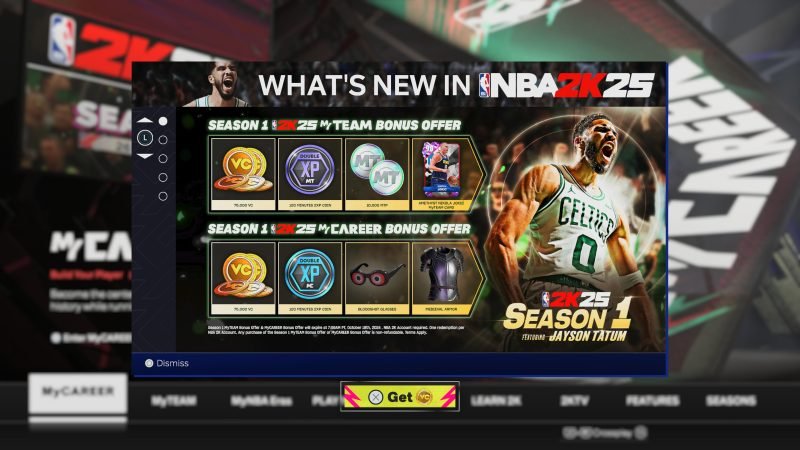
Navigating NBA 2K25 menus involves using the directional pad or analog sticks to move between options, and pressing the action button to select.
Jumping into a new game can sometimes feel confusing. Many players are asking for NBA 2K25 menu navigation help, and it’s understandable. The menus can be extensive with various options and features.
We understand that you need a quick way to find the mode or setting you need. This guide will briefly help you with the controls. We will give you the info so you can spend more time on the court.

NBA 2K25 Menu Navigation Help
Alright, basketball fans! Getting lost in the menus of NBA 2K25 can be as frustrating as missing a wide-open layup. But don’t worry, we’re here to be your guide. This is the place to learn all about moving around the game smoothly. We’ll explore every corner of the menus, making sure you can easily find what you’re looking for. From starting a new game to tweaking your favorite player’s stats, we’ve got you covered.
Getting Started: The Main Menu
The main menu is your first stop when you fire up NBA 2K25. It’s where the game presents all the core options. Let’s break down what you’ll find here:
Play Now
This is your quick ticket to a game. Want to jump straight into a match between your favorite teams? Select this option. It usually lets you pick from exhibition games (standard matchups), and sometimes a quick game type like 3-on-3 or an online match if you are connected to internet. You can play local games against another person on the same console or against the computer.
MyCAREER
Here’s where you make your mark on the NBA world! You can create your own player, guide them through their career, from rookie struggles to hopefully a championship. This mode is loaded with storylines, character development, and a lot of basketball playing.
MyTEAM
Love collecting and building the ultimate team? MyTEAM is for you. Collect player cards, create line-ups, play challenges, compete against others online, and climb the ranks. It combines elements of card collecting and strategy.
MyNBA
Want total control of a franchise? MyNBA is the place. You can manage your team, control drafts, make trades, develop players, and guide your team through a whole season. You can even tweak league rules. It’s like being the general manager of an NBA team.
Online
Ready to play against others online? This takes you to all the online features of NBA 2K25. You can play ranked games, unranked games, or join online communities. There’s a match waiting for you whenever you are.
Features
Here, you will see various features of the game, like highlights, leaderboards, game modes and also sometimes some in game challenges
Options/Settings
Need to change how the game looks or plays? The options menu has everything from graphics settings to controller configurations. You can also adjust the sound and game language.
Navigating MyCAREER
MyCAREER is a big part of NBA 2K25 for many players. It has its own set of menus to help you manage your player’s career. Let’s explore these menus:
The City/Neighborhood
This is the hub of the MyCAREER experience. It’s where you interact with other players, visit different shops, access practice facilities, and start quests. You can move around by walking, skateboarding, or using other modes of transportation.
Player Menu
This is where you manage your player’s personal stuff. You can change your player’s appearance, hairstyle, tattoos and everything else. You can also check your player’s stats and see how they improve. You also view your current attributes and see how much you can improve them. This is also a place where you check your badge progress.
Quests Menu
Here, you can see all the tasks and goals you need to finish to grow in MyCAREER. These tasks include playing games, doing specific challenges, or talking to people. Completing quests gives you rewards, like extra experience points and clothes.
Social Menu
This is your communication center. You can send messages to other players, see your friend list, and invite others to play.
Progression Menu
This area shows your character’s skill tree. You can use attribute points that you earn after completing games. It also shows the badge progression, you can see how much badges you earned in which categories, and how can you upgrade them.
Team Menu
When you are signed in a team, this tab will be open. You can see your teammates, coaching staff, your team’s performance in the season, and other statistics. You can also see how much playtime you are getting and where you are ranked in the team.
Exploring MyTEAM
MyTEAM has a ton of depth. Knowing how to navigate its menus is important to building the best possible team.
Home Menu
This is the central hub for MyTEAM, showing you your team’s latest information, active challenges, and any new card packs that have been released. You can quickly see your team’s record, recent rewards, and any important announcements.
Lineup Menu
Here’s where you arrange your players. You can choose your starting five, bench players, and who you want to be your captain. You can even use custom color themes, logos and arena.
Collection Menu
This is where all your cards live. You can browse through all the different cards you’ve collected, see their ratings, and filter them by position, team, and other criteria. You can also exchange your extra cards for rewards.
Play Menu
This takes you to different game modes within MyTEAM. You can play single-player challenges against the computer, compete against other players online, play a Triple Threat matches, or complete challenges to gain rewards.
Marketplace Menu
This is where you can buy and sell player cards. You can browse the auction house for cards you want or sell any cards you don’t need.
Rewards Menu
This is the place to claim any rewards you’ve earned. This includes player packs, badges, clothing, or any other rewards that you gained by completing challenges or any other in game tasks.
Diving into MyNBA
MyNBA offers a full control for someone who wants to manage a basketball team. Let’s explore the menus:
Home Menu
This is like the dashboard for your team. You see important information like your team’s record, upcoming games, league standings, and any news. It’s the central place for a quick overview of your franchise.
Team Menu
This is where you manage your roster. You can trade players, sign free agents, check player’s skills, and also set game plans. You are the manager here and everything is in your control here.
Staff Menu
A great team requires good staff. Here you can hire coaches, scouts, and other important people. You want to make sure that you are hiring good people that can increase the skill of the team.
Draft Menu
This is where you can scout the best young talent. You can set up pre-draft workouts, review potential draft picks, and decide who your team will pick during the draft. It’s all about planning for the future.
League Menu
This menu gives you a view of the entire league. You can see the league standings, other teams stats, awards, and also view league news.
Options Menu
Here you can adjust the settings for your MyNBA mode, like trade difficulty, simulation speeds, and other settings to tailor the experience.
Common Menu Elements
Regardless of which mode you are in, several menu elements are fairly common:
Back Button
This button lets you return to the previous menu screen. It’s usually located at the bottom of the screen.
Settings/Options
This button shows all of the game’s settings. This can be accessed from main menu and also from the pause menu of the game.
Pause Menu
This menu is very important when you are playing a game. This gives you all the options, such as quitting a game, changing in game camera angles, game settings, and more.
Search Bar
A very common tool that is present in every mode of the game. If you are in the player collection of MyTEAM or you are in the player menu of MyCAREER, you can search for a specific player.
Filters
Filters help you filter the content in the game. If you want to filter players in MyTEAM with the highest overall rating, you can easily do that with the help of filters.
Tips for Easy Navigation
- Use the Thumbsticks: Use the thumbsticks for moving around the menus. It’s simple, but the most easy way to navigate through menus.
- Learn the Shortcuts: Some menus have shortcuts to move to other sections faster. These shortcuts are usually shown at the bottom of the screen.
- Don’t Rush: Spend some time exploring the menus at first so you get to know where everything is. After a while, navigation will be very easy for you.
- Read Descriptions: If you are unsure what a menu option does, take the time to read the description. It can save you a lot of time and confusion.
- Practice: Like any skill, navigating these menus will get easier with practice. So don’t get discouraged, and with some playing time, you will be a pro at maneuvering menus.
Navigating the menus of NBA 2K25 might seem challenging at first, but it doesn’t have to be. Once you get used to the different sections, you’ll be flying through them. By understanding how each menu works, you can spend less time figuring out the game and more time playing. Remember to explore, take your time, and soon, you will be a menu master! This guide should serve as a compass as you move forward with your NBA 2K25 journey. Happy gaming!
5 SECRET Settings That You NEED To Use In NBA 2K25
Final Thoughts
Ultimately, navigating NBA 2K25’s menus becomes simpler with practice. Knowing key button assignments and menu structures will significantly improve your experience. The game offers various options, but you will quickly learn your way around.
Remember to explore the settings to customize your controls and interface preferences. This greatly assists smooth gameplay and provides personalized access. NBA 2K25 menu navigation help becomes second nature with time.

