
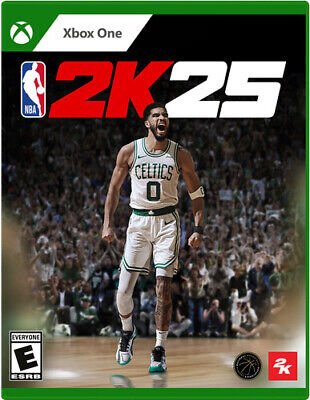
The NBA 2K25 navigation system uses a new, more intuitive menu layout and quicker access points to game modes and features.
Frustration with clunky menus can ruin even the best gameplay experiences. We know how important it is to quickly jump into your favorite modes. That’s why we’re exploring the changes made to the NBA 2K25 navigation system this year.
The developers have focused on user feedback to improve the overall flow. This resulted in a system that feels much more responsive and logical. Getting to MyCareer, Play Now, or The W is now much faster.

NBA 2K25 Navigation System: Your Guide to Getting Around
Okay, so you’re ready to jump into NBA 2K25, but sometimes it feels like you’re wandering around in a giant basketball gym with no clear way to get where you want to go, right? That’s where the navigation system comes in. It’s like the GPS for your game, helping you find your way to all the cool features and game modes. This year, 2K is making moves to ensure navigating the game is smoother than ever, whether you’re a seasoned vet or a rookie just picking up the controller.
The Main Menu: Your Starting Point
The main menu is the first thing you see when you fire up NBA 2K25, and it’s like the hub for all your basketball adventures. It’s not just a place to hit “Play Now”; it’s your gateway to everything this game offers. Let’s break down what you’ll typically find:
- Play Now: This is where you go for quick games. Want to play a casual match between the Lakers and the Celtics? Play Now is your go-to spot. You can pick your teams, set the quarter length, and jump right into the action.
- MyCAREER: Dreaming of becoming an NBA legend? This is where your basketball journey starts. You’ll create your player, guide their career from high school to the pros, and make choices that shape their destiny. MyCAREER offers many things to do, from playing games to interacting with other characters in the story.
- MyTEAM: If you love collecting cards and building a dream team, MyTEAM is the mode for you. You’ll gather player cards, complete challenges, and compete against other players online. It’s like fantasy basketball come to life!
- MyNBA: This mode lets you take control of a whole NBA franchise. You can make trades, draft players, manage your team’s finances, and try to build a dynasty. It’s perfect for those who enjoy the strategic side of basketball.
- The W: The W is the mode dedicated to women’s basketball. You can create your own WNBA player and lead them to glory. This mode offers a unique experience with different storylines and challenges.
- Online: Ready to test your skills against other players? The Online section includes various game types where you can compete head-to-head. Whether you like quick matches or longer tournaments, there’s something here for everyone.
- Options/Settings: This is where you can adjust the game to your liking. You can tweak controller settings, change audio and video options, and customize the game to fit how you want to play.
The main menu is usually designed to be easy to understand, with clear icons and text. Navigating it is usually done with the directional pad or the analog sticks on your controller. Simply move around the menu and press a button to select the option you want.
Diving Deeper: In-Game Navigation
Once you’re in a game mode, the navigation gets a bit more detailed. Depending on the mode you’re in, you’ll have different menus and options to navigate. Let’s explore some common in-game navigation elements:
Pause Menu
The pause menu is your lifeline during a game. Press the pause button on your controller, and you’ll access a range of options:
- Resume: Goes right back to the action, no time wasted!
- Replay: Want to see that awesome dunk again? Replay lets you rewind and watch highlights.
- Instant Replay: Quickly jump back and rewatch the last few seconds of action.
- Camera Settings: Adjust your camera angle to get the view you prefer.
- Controller Settings: Want to change button configurations mid-game? You can do it here.
- Quit: When you’re done for the day, use this to exit the game.
- Options: Same as the main menu, but can be accessed during gameplay.
MyCAREER Navigation
MyCAREER is a big mode with many things to do, so navigation is key to get around effectively. You’ll typically see a main hub area where you can access different areas:
- The City (or Neighborhood): This is your social hub where you can wander around, talk to other players, visit shops, and play at different courts. You’ll use the analog sticks to walk or run around.
- MyCOURT: Here, you can practice your skills, customize your court, and invite friends to play with you.
- The Event Center: This is where you can find live events and tournaments to participate in.
- Quests: Your to-do list in the game. Here, you can accept, track, and complete various objectives to progress your career.
- Stats and Progress: Check your player’s stats, skills, and progress towards your goals.
- Options: Similar to the main menu options but specific to your player’s career.
In MyCAREER, you often navigate through menus using the directional pad or the analog sticks, and the buttons to make selections. Pay attention to the on-screen prompts as they often provide helpful hints on how to get around.
MyTEAM Navigation
Navigating MyTEAM means going through menus to build your squad, manage your cards, and compete. Here’s a quick look:
- Lineups: Create and manage your different lineups to use in various game modes.
- Collection: Browse and sort through the cards you’ve collected.
- Auction House: Buy and sell cards with other players.
- Challenges: Complete specific tasks to earn rewards and cards.
- Rewards: Claim your hard-earned rewards for your efforts.
- Game Modes: Jump into Single Player, Multiplayer, or other game variations.
Just like with other modes, the d-pad and analog sticks are crucial for getting around the MyTEAM menus. Each menu has its own set of functions. Be sure to check your on-screen tooltips for information on any particular area.
MyNBA Navigation
MyNBA is all about managing a franchise. Navigation here is more about menus and data:
- Front Office: Make trades, sign free agents, and manage your team’s roster.
- Scouting: Check out upcoming draft prospects and make plans for the future.
- Team Finances: Manage your budget and make sure your team is financially healthy.
- Schedule: Look at upcoming games.
- League Settings: Customize the settings for your league.
- Team Stats: See player and team stats.
The navigation here is less about moving around and more about selecting options within menus. Use the directional pad or analog sticks to move between the menus, and buttons to select the option. A large part of playing MyNBA is exploring different options in each menu.
Tips and Tricks for Smooth Navigation
Here are some helpful tips to make navigating NBA 2K25 even easier:
- Pay attention to the tutorials: The game often provides tutorials when you start a new mode. Take the time to read them and understand how the controls work.
- Check the button layouts: Familiarize yourself with the button layouts for each mode. They might be slightly different depending on what you’re doing.
- Explore the menus: Don’t be afraid to click around and see what each menu offers. You might find some hidden features or options you didn’t know existed.
- Use the quick menus: Many areas have quick menus that allow you to jump to specific options without going through the main menus. Learn these shortcuts to make your navigation faster.
- Read on-screen prompts: The game often displays helpful prompts on the screen. These prompts often show you what buttons to press to perform specific actions.
- Practice: Like anything else, practice makes perfect. The more you play, the more comfortable you’ll become with the navigation system.
Accessibility Options for Easier Navigation
NBA 2K25 also includes accessibility options that can help players navigate the game more easily. These options may include:
- Menu Narrations: The game will read out the text from the menu, which can help players who have difficulty seeing the screen.
- Text Size Customization: The ability to change the text size will help players who have vision impairment.
- Button Remapping: Players can customize the button layout to make it more comfortable.
- Colorblind options: These options are available in the settings and will help to differentiate the colors on screen.
These accessibility features are designed to make the game easier to use for everyone. Check the settings menu to adjust them to your preference.
Understanding and getting comfortable with NBA 2K25’s navigation system will really improve your gameplay experience. It can help you save time, quickly access different menus, and enjoy the different areas of the game. By understanding the menus, you can spend more time on the court and less time fumbling through menus. With these insights, you are now ready to take control of all the possibilities that NBA 2K25 has to offer.
NBA 2K25: How to Find PlayVision Settings
Final Thoughts
The new NBA 2K25 navigation system appears to offer a simpler experience for players. Developers focused on making menus intuitive. Moving between game modes should feel much smoother. This update aims to get players into the action quicker.
Players can now easily access all their game modes. Finding specific features or customization options is now faster. NBA 2K25 navigation system, according to initial impressions, improves gameplay accessibility.

