
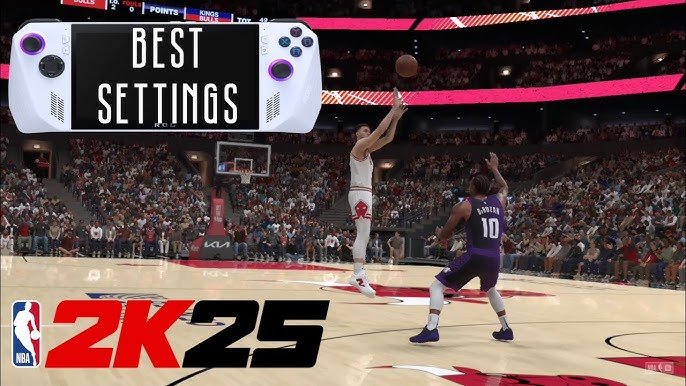
The NBA 2K25 performance optimization guide helps you improve frame rates and reduce lag by adjusting in-game graphics settings, updating drivers, and closing unnecessary background applications.
Tired of stuttering and low frame rates ruining your NBA 2K25 experience? We’ve all been there, that frustrating moment when your perfect play is interrupted by a lag spike. Don’t worry, we can fix that.
This NBA 2K25 performance optimization guide provides simple tips to enhance your game’s performance. We’ll explore easy tweaks you can make right now. These will help make the game run much more smoothly on your PC or console.

NBA 2K25 Performance Optimization Guide
Getting NBA 2K25 to run smoothly can sometimes feel like trying to make a perfect three-pointer with a blindfold on! But don’t worry, we’re here to help you get your game running as smooth as a perfectly executed crossover. This guide will walk you through everything you need to know to make sure your gaming experience is top-notch, from tweaking settings to understanding what makes your computer tick.
Understanding the Basics: What Impacts Game Performance?
Before we dive into settings, let’s understand what makes a game run well. Think of it like building a basketball team. You need the right players (computer parts) and a good strategy (settings) to win. Here’s a breakdown of key things that affect your game’s performance:
The Star Players: Key Computer Components
- CPU (Central Processing Unit): This is like the coach of your computer. It tells all the other parts what to do. A faster CPU means the game can process information more quickly, which leads to smoother gameplay. If your CPU is struggling, you might see the game stuttering or freezing.
- GPU (Graphics Processing Unit): This is your computer’s visual artist. It creates all the amazing images you see on screen. A strong GPU means the game will look better and run smoother. If your GPU is weak, your game might look blurry or feel slow.
- RAM (Random Access Memory): Think of this like the player’s memory on the court. It lets your computer quickly access important game data. More RAM means your computer can handle more information at once, reducing loading times and improving overall performance. Not enough RAM means the computer needs to use the hard drive which is much slower.
- Storage (HDD/SSD): This is where the game is stored. A fast SSD (Solid State Drive) will load the game much faster than a traditional HDD (Hard Disk Drive).
The Strategy: Game Settings
Just like in basketball, settings matter. There are in-game settings that you can change to help your computer run the game more efficiently. We’ll explore these in detail shortly!
Optimizing Your In-Game Settings for NBA 2K25
Now, let’s get into the nitty-gritty. Adjusting your in-game settings can make a huge difference in how well NBA 2K25 performs. Here are some key settings and how they work:
Graphics Settings: Making it Look Good and Run Smooth
Resolution
Resolution is how many pixels are shown on your screen. A higher resolution like 1920×1080 (1080p) makes the game look sharper but uses more power from your GPU. A lower resolution (e.g., 1280×720, 720p) looks less detailed but runs faster. Start by setting your game at 1080p. If you have performance problems, you might need to lower the resolution.
Anti-Aliasing
Anti-aliasing makes edges smoother, reducing jagged lines. There are different types, like MSAA (Multisample Anti-Aliasing) and FXAA (Fast Approximate Anti-Aliasing). MSAA gives the best results but needs more power. FXAA is faster but may look less smooth. Try turning anti-aliasing off if your game is stuttering.
Texture Quality
Texture quality is about the detail of things like the basketball court, the player’s jersey, and faces. Higher textures look fantastic but use more GPU memory. If your GPU has limited memory, use lower texture quality settings.
Shadow Quality
Shadows can make the game look very realistic, but they also need a lot of processing power. Turning down shadows or even turning them off can greatly improve your game performance.
Special Effects
Special effects include things like reflections, motion blur, and depth of field. These make the game look nice, but use up processing power. Experiment with reducing these or disabling them.
Frame Rate Limit
A frame rate limit helps to make sure you are not pushing the hardware unnecessarily. If you don’t need your game to run at 144fps, you can cap your frame rate to 60 or 75. If you have a high refresh rate monitor, try to match your in-game frame rate limit to your monitor’s refresh rate for the best smooth performance.
Advanced Settings: More Control Over Your Game
Crowd Density
The size of the crowd can impact your game performance, especially when the camera pans to a large view of the stadium. If you’re having performance problems, reduce the crowd density to “Low.”
Post Processing Effects
These are effects like bloom, lens flares, and color correction. These can make the game prettier, but require processing power. Turn these off or to low if your game is having problems.
Vertical Sync (V-Sync)
V-Sync synchronizes your monitor’s refresh rate with the game’s frame rate, which can reduce screen tearing, but can also cause input lag and can lower your framerate in situations your PC can’t keep up. This can make your game feel less responsive. Try turning this off if you are having performance problems, or when running a very fast system and high refresh rate monitor.
Step-by-Step Optimization Strategy
If you are not sure what settings to change, here’s a good way to start testing:
- Start by setting your game at the highest resolution, at 1080p and maximum details.
- Start playing. If the game runs smoothly, you’re good to go!
- If the game is stuttering or running slow, then turn down some settings (try to lower or disable anti-aliasing, shadows, and special effects) and test the game again.
- Continue adjusting settings in that way until you get a smooth performance. Try not to lower too many settings, so that the game looks as good as it can.
Keeping Your Computer Happy: System Optimization Tips
Sometimes, it’s not just about game settings. Your computer needs to be in good shape too! Here are some general things you can do to boost performance:
Updating Your Drivers
Drivers are software that help your computer parts work together. Keeping your graphics drivers up to date is super important for game performance. You can usually get these from the website of your GPU maker (NVIDIA, AMD, or Intel).
Closing Background Apps
Lots of programs running in the background can take away from the resources your game needs. Close any unnecessary programs while you’re playing, such as web browsers, other games, music applications, or anything else that is running in the system tray next to your clock.
Managing Startup Programs
Too many programs opening when you start your computer can slow things down. You can manage these programs in your computer’s settings. Disable those programs you don’t need to launch when your computer starts.
Monitoring Your System
You can use tools that will display your computer’s performance in real time, such as the “Performance” tab of the Task Manager on Windows or by using applications from your graphics card drivers. This helps you see if your CPU, GPU, or RAM are struggling when you are playing. That way, you can make adjustments to settings or computer parts that are causing the problem.
Cleaning Up Your Hard Drive
An almost full hard drive can slow down your computer. Delete unnecessary files and programs to free up space. Use Windows’ built-in Disk Cleanup tool to remove temporary files.
Consider Upgrading Parts
If you have an older PC, you may need to upgrade to make the game run well. Upgrading your GPU or adding more RAM can greatly improve performance. This might seem like spending extra money, but it can be a good investment for the future too.
Specific Scenarios and Troubleshooting
Let’s go through some specific scenarios and how you can fix them:
Low Frame Rate/FPS
If your game is running too slowly (low frame rate), try these steps:
- Lower the in-game graphics settings, especially resolution, shadows, and special effects.
- Close background programs.
- Make sure your graphics card drivers are updated.
Stuttering or Freezing
If your game keeps pausing or freezing, try these:
- Make sure your computer meets the minimum requirements of the game.
- Turn off V-Sync.
- Check if the game files are installed correctly and reinstall if necessary.
- Make sure your computer is not overheating, and has proper cooling.
Input Lag
If the game doesn’t respond right away when you press buttons, try these:
- Turn off V-Sync.
- Use wired controllers or peripherals instead of wireless.
- Try a higher refresh rate monitor.
Game Crashes
If your game crashes, try the following:
- Check that all game files are installed correctly and if necessary reinstall the game.
- Make sure your GPU and CPU are not overclocked too aggressively.
- Check the game’s minimum requirements.
- Update your graphic card drivers.
Advanced Tweaks for Tech-Savvy Players
If you know a bit about your computer, these settings can help further refine your gameplay. However, you should only do these settings if you are very sure what you are doing, as some of these can be dangerous for your computer.
Overclocking CPU/GPU (Use Caution!)
Overclocking means making your CPU or GPU run at a faster speed than it was designed for. It can boost performance, but can also cause instability and overheating. Be very cautious with this option and make sure you have proper cooling.
Custom Power Plans (Advanced Users Only!)
You can customize your computer’s power plan settings. For example, you could set the power mode to “High Performance” or create a custom one. It will make the most use of your hardware, but your computer might use more power and create more heat.
Tweaking Graphics Driver Settings (NVIDIA/AMD)
You can tweak settings in the control panel of your GPU drivers. There, you can make specific adjustments to game settings like shader cache, power management mode, and texture filtering quality, which might improve performance of certain games.
Optimizing NBA 2K25 is all about finding the right balance between visual quality and performance. By understanding your computer, adjusting the in-game settings, and performing some general system maintenance, you’ll be sinking shots like a pro in no time. Experiment with different settings, and don’t be afraid to try different combinations until you find what works best for your setup. Remember, the goal is to enjoy the game with a smooth and responsive experience. Happy gaming!
Best Graphics Settings for NBA 2K25 (FIX LAG AND STUTTERING)
Final Thoughts
Implementing these adjustments will significantly improve your gaming experience. You should see smoother gameplay and reduced lag. Experiment with different settings to find your ideal balance.
This NBA 2K25 performance optimization guide provides a path to better performance. Follow these tips to make the most of your game. Remember that each setup is unique, so some tweaking might be necessary.

