
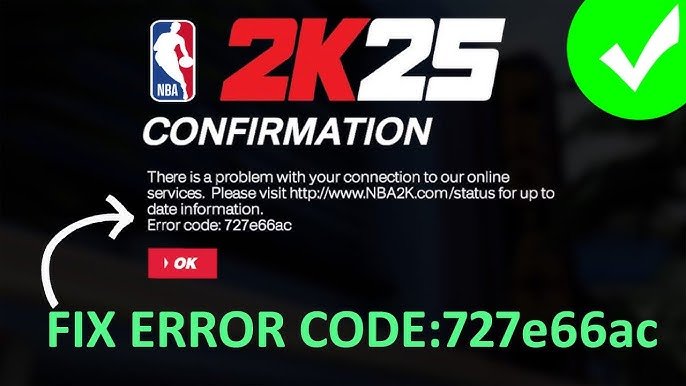
NBA 2K25 problem solving often requires troubleshooting game settings, checking your internet connection, and ensuring your device meets the game’s requirements.
Experiencing glitches or slowdowns in NBA 2K25? You’re not alone. Many players face hurdles while enjoying the game. This article focuses on practical NBA 2K25 problem solving techniques.
We will explore common issues and offer straightforward solutions. From graphics problems to online connectivity, we’ll help you get back in the game quickly. Read on to find out simple fixes to enhance your gameplay.

NBA 2K25 Problem Solving
Okay, gamers, let’s talk about NBA 2K25. It’s awesome when it works right, but sometimes, things go a little sideways. Maybe your game is freezing, or your favorite player is moving like they’re on ice skates. Don’t worry; you’re not alone! We’ve all been there. This guide is all about helping you fix those pesky problems so you can get back to dominating the court. We’ll cover common issues and give you easy steps to try. Let’s get your game back on track!
Common Gameplay Glitches and How to Fix Them
Sometimes, the biggest problems happen right in the middle of a game. Your player might suddenly stop moving, the ball could disappear, or the graphics might get all wonky. These kinds of glitches can be really annoying. Here are some common ones and what you can do:
Player Movement Problems
Is your player moving weirdly? Are they stuck in place or sliding around like they’re on a slippery floor? This can be due to a few things.
- Controller Issues: First, check your controller. Make sure it’s fully charged and connected properly. Try unplugging it and plugging it back in or using a different controller to rule out a hardware problem. Sometimes a simple battery change can fix the issue. Also, ensure no buttons are stuck.
- Game Settings: Sometimes, the game settings can mess with player movement. Go into your game settings and look at the control settings. You might need to adjust the sensitivity of your sticks. Try setting them to default to see if it helps. There could also be a glitch if you’ve changed your custom settings a lot.
- Game Bugs: Sometimes, it’s just the game. A bug in the programming can cause strange player movement. If you suspect this, it may be beneficial to wait for a patch from the game developers. Look on their social media for announcements. Checking online forums and communities, like Reddit or the official 2K support page, can also give you more insights if other players are experiencing same kind of issues.
Ball Disappearing or Acting Strange
Has the ball vanished into thin air? Or is it bouncing in odd ways? This can be a real head-scratcher. Here’s how to approach it:
- Game Restart: A simple restart of the game can often solve this. Close the game completely and then open it again.
- Graphics Settings: Sometimes, if the graphics settings are too high for your device, the game can have trouble rendering the ball correctly. Try lowering your graphics settings, especially shadows and reflections, to see if that fixes it.
- Check For Updates: Game developers often release updates to address these kinds of bugs. Ensure you have the latest version of NBA 2K25 installed. Updates often include bug fixes that can help with the disappearance issue.
Graphic Problems
Are the graphics looking fuzzy, blocky, or flickering? This can make the game hard to play and can make your eyes tired. Here’s what you can check:
- Graphics Card or Console Capabilities: Make sure your graphics card or console can handle the game’s graphics. Some older hardware may struggle. Look at the minimum and recommended system requirements for NBA 2K25 and compare it to your device’s specifications.
- Driver Updates: If you’re on a computer, make sure your graphics card drivers are up to date. Outdated drivers can cause all sorts of graphic issues. Check the website of your graphics card’s manufacturer for new drivers and install them.
- Game Settings (Again!): You might need to lower your graphics settings within the game. Experiment with different options until you find a balance that works well on your device. Try lowering anti-aliasing, texture quality and shadow detail.
Troubleshooting Game Crashes and Freezes
Game crashes and freezes are super frustrating. One second you’re about to sink a three-pointer, and the next, your screen is frozen or the game has closed itself. Here’s a deeper look into why this happens and how to deal with it.
Why Games Crash or Freeze
Games crash or freeze for various reasons. Here are some of the most common culprits:
- Overheating: Your device (computer, console, etc.) can get too hot, especially when playing demanding games. Overheating makes your system slow down, which leads to the game freezing or crashing.
- Memory Problems: Your device may not have enough RAM to run the game smoothly. When the game demands more RAM than your system can provide, the game might crash. Other programs running in the background can also eat up your RAM.
- Software Conflicts: Sometimes other programs running on your computer can conflict with the game, causing it to freeze or crash. Antivirus programs, overlays and other applications can interfere.
- Outdated Software: Older drivers or software can cause issues, such as freezing and crashing.
- Corrupted Game Files: Sometimes the game’s files can get corrupted, which can also lead to freezing or crashes.
- Hardware Issues: Sometimes, the hardware itself could have an underlying problem. The issue may not be with the game, but with the device itself.
Step-by-Step Solutions
Alright, let’s get these crashes and freezes fixed. Here are the steps you can take:
- Cool Your Device: Ensure your device has enough ventilation. If it’s a computer, make sure fans are working and vents aren’t blocked. If it’s a console, ensure it has enough space around it to allow air flow. Consider using a cooling pad for laptops.
- Close Background Apps: Before you start the game, close any unnecessary programs running in the background. This includes web browsers, music players, and other applications.
- Update Drivers and Software: Make sure you have the latest versions of your graphics card drivers, operating system, and any related software.
- Run Virus Scans: Perform a virus scan to make sure that no malware is interfering with the game.
- Verify Game Files: Steam and other platforms have a feature to verify the integrity of game files. Use this to check for and repair any corrupted game files.
- Lower Game Settings: Lowering graphic settings can reduce the stress on your device and prevent it from overheating. Experiment with different settings to find the right balance.
- Reinstall the Game: If none of the other steps worked, try uninstalling and reinstalling the game. This will replace any damaged or missing files.
- Check System Health: If the problem persists, there could be a deeper hardware issue. Use tools to check your RAM, hard drive, and other components for problems. If needed, seek help from technical experts.
Online Mode Problems and Solutions
Playing online with friends or strangers is a big part of NBA 2K25. But sometimes, you may run into problems connecting to the servers, experiencing lag, or having your connection drop.
Connection Errors
Connection errors are common when trying to join online matches or lobbies. This can be caused by a few things.
- Internet Connection: First and foremost, check your internet connection. Make sure you’re connected to your Wi-Fi or network and that your internet is working correctly. Try restarting your modem and router. A wired connection is often more stable than wireless.
- Server Issues: Sometimes the game servers may be down for maintenance or have issues. Check the game developer’s social media accounts or their official forums for announcements. It could be on their side.
- Firewall and Antivirus: Your firewall or antivirus software might be blocking the game’s connection. Check your settings to make sure the game has the permission to access the internet. Add an exception for the game in your firewall and antivirus settings.
Lag and Poor Performance
Lag is when your game is slow and unresponsive, usually making it hard to play. Here’s how to handle it:
- Check Internet Speed: Make sure your internet speed is good enough for online gaming. You may want to use a speed test to check your download and upload speeds. High latency, or ping, can also cause problems. If your ping is high, you will have lag problems even if your download speed is good.
- Close Background Programs: Make sure you aren’t running too many programs in the background that could be taking up bandwidth. This can slow down your connection.
- Server Region: Make sure you’re connected to a server that’s close to your location. This helps reduce latency and lag. Changing the server you play on can affect ping. Try a different server, if you can.
- Reduce Other Network Use: Avoid downloading large files or streaming video while gaming. Other network activities will take up bandwidth that will cause lag when playing online games.
Dropping Connections
Losing your connection mid-game can be frustrating. It may mean having to start again. Here is how to try and reduce this from happening.
- Check Your Router: Ensure your router is working correctly. Try restarting it and check if there are any firmware updates available for it. A router that is old or experiencing problems can cause connection drops.
- Wired Connection: If possible, switch to a wired Ethernet connection. This is often more stable than a wireless connection. Wi-Fi connections are less stable than wired.
- Test Other Games/Devices: Try playing other online games or using other devices on your network to see if they have connection problems. If this is the case, it may be a problem with your internet connection.
MyCAREER and MyTEAM Problems
MyCAREER and MyTEAM are popular modes in NBA 2K25. But they sometimes have their own set of issues. Let’s look at how to fix problems in these specific modes.
MyCAREER Issues
MyCAREER is where you create your player and go through your NBA journey. Here are common problems and fixes.
- Game Progress Not Saving: Make sure you’re logged in to the correct account and that your internet connection is stable. Sometimes saves may be lost if there is an interruption. It is also possible that the game’s save folder could be experiencing problems.
- Character Customization Glitches: There may be issues with how your player looks or the items you use. Try restarting the game and checking for patches or updates. If that doesn’t work, it is possible the customization may have to be redone.
- Problems With Story Progression: If you’re stuck in the story, make sure all objectives are met. Sometimes, it may be a glitch that might need a patch. Check the official forums, Reddit and developer’s social media for reports of any known issues.
MyTEAM Problems
MyTEAM is where you build your dream team using player cards. Let’s look at how to fix common MyTEAM issues.
- Card Collection Problems: Make sure your cards are properly loaded in the game. Sometimes there may be a delay. If you are missing cards you think you should have, check to make sure you didn’t accidently sell them.
- Auction House Issues: If you’re having trouble buying or selling in the Auction House, check your internet connection. If the problem continues, there may be server problems.
- Challenges and Objectives Not Registering: Sometimes, the game doesn’t count when you’ve completed challenges. Try restarting your game and completing the challenge again. If the issue persists, try reporting it to the game’s support team.
Controller and Input Issues
Sometimes, it’s not the game itself, but the way you’re controlling it that’s causing problems. Here’s what to do when your controller isn’t cooperating.
Controller Not Connecting or Responding
If your controller is not working at all, here are things to check:
- Check Batteries or Charge: Make sure your controller’s batteries are charged or that the controller is fully charged if it is rechargeable. Low batteries can cause a controller to become unresponsive.
- Reconnect Controller: If you are using a wireless controller, try reconnecting it to your console or computer. If you are using a wired controller, make sure it is plugged in tightly.
- Try Different USB Port: If you are using a wired controller, try a different USB port.
- Check For Damage: Make sure that there is no damage to the controller, especially the buttons. Sometimes, buttons can be pushed in or be stuck.
Input Lag
Input lag is when there is a delay between pressing a button and the action happening in the game. This can make gaming frustrating. Here’s how to reduce input lag:
- Wired Controller: Wired connections are often faster and more stable than wireless. So if you have one, switch to a wired connection.
- Check Screen Type: Make sure your TV or monitor has good input lag. Some monitors are made for gaming and are faster than typical TV monitors.
- Game Settings: Check your game settings to see if there are options to reduce input lag. Sometimes some settings may cause more input lag.
Custom Control Issues
Sometimes, custom button layouts may cause issues. Here’s how to handle that:
- Reset Settings: If you are having problems with custom settings, try resetting it to the game’s default settings.
- Check Button Conflicts: Ensure that you don’t have overlapping buttons when using custom settings. Overlapping buttons may cause the game to not respond to your inputs correctly.
Hopefully, by using the tips and suggestions above, you are back in the game and dominating once again! NBA 2K25, just like any game, has its own share of issues. But with these troubleshooting tips, you’ll be able to deal with them more easily. Remember to keep checking for new game updates and stay connected to the game’s community. By doing so, you’ll find a wealth of information and assistance with any issues that may come up. Happy gaming, everyone!
Fix NBA 2K25 Low VRAM Error – Full Guide
Final Thoughts
Ultimately, effective NBA 2K25 problem solving requires a multifaceted approach. Players must analyze the specific issues they face in the game. Furthermore, they need to adjust settings or gameplay strategies.
Community forums offer a valuable resource for finding workarounds to common problems. Testing different options provides practical solutions.
Remember, patience and experimentation become key tools for successful gameplay. Tackling frustrating moments through considered adjustments helps. Good NBA 2K25 problem solving is crucial for enjoying the experience fully.

