
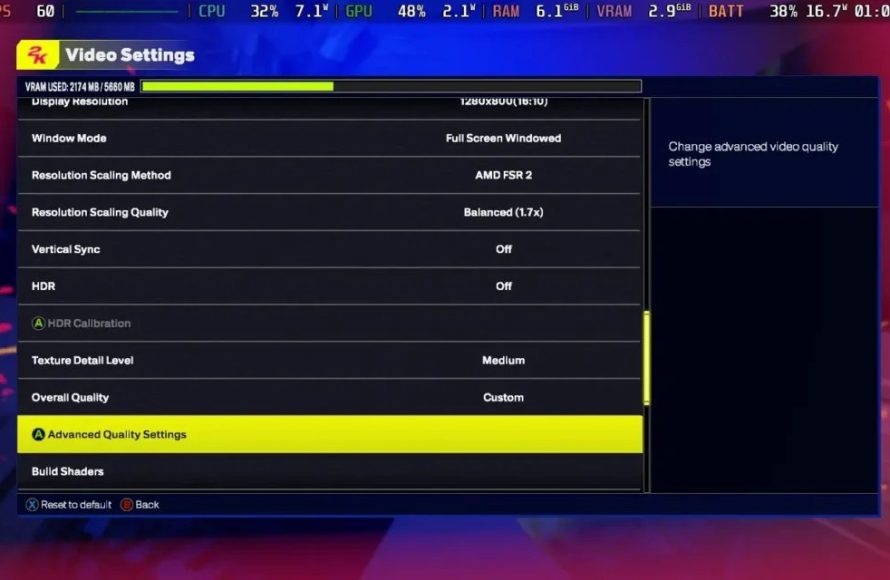
The NBA 2K25 user interface settings allow players to customize elements like the on-screen display, camera angles, and controller feedback for a personalized gaming experience.
Fine-tuning your gameplay experience in NBA 2K25 can make a real difference. Getting the visual elements and controls just right is key. The options available within NBA 2K25 user interface settings let you tailor the game to your specific preferences and play style.
We’ll explore the various adjustments you can make to enhance your time on the court. These include adjusting the display, camera, and controller. These tweaks contribute significantly to both enjoyment and performance.

NBA 2K25 User Interface Settings: Your Guide to a Perfect Game
Okay, so you’re ready to jump into NBA 2K25, right? But before you hit the court, let’s talk about something super important: the user interface (UI) settings. These are like the controls for your game’s look and feel. You might be thinking, “Why bother with settings?” Well, tweaking these options can make a huge difference in how much you enjoy playing. A good UI can help you see the action better, understand what’s going on, and even play the game more smoothly. It’s like having a comfy pair of shoes – it just makes the whole experience better. In this article, we’re going to go through all the important UI settings in NBA 2K25, and I’ll explain what they do and how you can use them to improve your game. Get ready to take control of your 2K experience!
Understanding the Basics: What is the User Interface?
Before we dive into the nitty-gritty of settings, let’s make sure we understand what the user interface actually is. Think of it like the dashboard of your car. It’s everything you see on the screen that isn’t the actual basketball game itself. This includes things like:
- Menus where you pick what you want to play
- Scoreboards that show you who is winning
- Player stats and info
- On-screen tips and notifications
A good user interface is easy to understand and doesn’t get in the way of the gameplay. A bad one can be confusing and make it hard to keep track of what’s happening. That’s why adjusting your UI settings is so important! You can personalize the game to suit your preferences, ensuring a more enjoyable and less distracting experience.
Navigating the Settings Menu: Finding the UI Options
So, where do you actually go to change these settings? It’s pretty straightforward. From the main menu of NBA 2K25:
- Go to “Features”.
- Then click on “Options”.
- Look for a tab or section labeled “UI” or “User Interface”. This might be under “Gameplay” or “Video” depending on the specific setup of the menu.
Once you’re there, you’ll see a bunch of different options. Let’s go through what they mean.
Essential UI Settings to Adjust
Now, let’s break down some of the most important UI settings you’ll find in NBA 2K25. I will explain what each option does and share how you can use it to your advantage.
HUD (Heads-Up Display) Customization
The HUD is the information that’s always on your screen during a game. You know, the score, player names, and sometimes other helpful information. This section of the settings lets you tweak what shows up and how it looks.
Scoreboard Visibility
The scoreboard tells you who is winning. You can often choose between a few options for how it’s displayed.
Always On: The scoreboard is always visible, whether you’re on offense or defense. Good for always knowing the score.
On Possession: The scoreboard shows up only when your team has the ball. A less cluttered view that can help you focus, particularly when defending.
Minimal: The scoreboard shows up very briefly, maybe just between plays or during timeouts. This is for those who want a very clean look.
Off: The scoreboard is hidden completely. It’s for the hardcore players who don’t need the on-screen score.
Shot Meter
This is a big one. The shot meter helps you know when to release the ball when shooting. Here are some options:
On: The shot meter is always visible. Good for beginners who are still learning how to time their shots.
Off: The shot meter doesn’t appear at all. Great for experienced players who rely on feel.
Player Only: The shot meter shows only for the player you’re controlling. Useful in games with multiple human players.
Under Player: The shot meter appears under the player that is shooting.
You might also find settings for the size and color of the shot meter. Try different options to see which works best for your vision and the way you play.
Player Indicators
Player indicators are little markers over players’ heads. They usually show the number and sometimes the name of the player. These can really help you in a fast-paced game.
Always On: Indicators are always visible above all players. It can make it easier to quickly spot specific team members.
Off: The player indicators disappear. Some players will prefer this to reduce the clutter, especially when you are familiar with the players.
On Ball: These indicators will only appear when a player has the ball. This allows you to more easily see who the ball handler is and what their next action may be.
Camera Settings
The camera angle is a key part of the UI, because it’s how you see the game. These settings allow you to choose your view.
Camera Style
Different views change how you experience the game.
2K: This is the default camera, placed behind the offensive player.
Broadcast: A camera angle that’s similar to what you’d see watching a real NBA game on TV.
Drive: Puts the camera closer to the action, following the ball tightly.
Freelance: Gives you a more cinematic view, changing dynamically based on the game.
Custom: Lets you adjust several specific parameters for the camera settings, such as height, zoom, and angle.
Some players prefer one view over another. Experiment to find what works best for you. Some players find they can perform better with the broadcast cam while others prefer 2K.
Camera Zoom
You can often adjust how far in or out the camera is zoomed. Experiment to see which is best for your visual comfort.
Camera Angle
This lets you adjust the vertical angle of the camera. Do you want a higher view looking down or something closer to the court? It’s all up to your preference!
Controller Vibration
While not technically part of the UI, controller vibration affects how you experience the game. Some find the vibration helpful as feedback for what’s happening, while others may find it distracting.
On: The controller vibrates during certain actions, like dribbling, shooting, and collisions.
Off: The controller doesn’t vibrate at all. This can help save battery life or provide a more distraction-free experience.
Accessibility Options
These options help to make the game more accessible to all players. These options often include things like:
Colorblind Modes
If you have difficulty seeing certain colors, these modes can help to distinguish different elements on the screen. This is a must-have feature in a modern game.
Text Size
You can make the text larger, which is great for players who have trouble seeing small print.
Subtitles
These turn on or off subtitles for any voice or audio. It may help the players who like to listen to the audio but also would like to read the subs on the screen.
Other UI Settings
Here are some other important UI options you might find:
Notifications
You can often control what kinds of notifications pop up on the screen. These might be things like messages from your friends, tips about the game, or progress updates. If you find these distracting, you can turn them off.
Menu Backgrounds
You might even have a setting that allows you to choose different backgrounds for your menus. This is mostly a cosmetic feature but it can be a fun way to customize the overall feel of the game.
Game Clock
You can adjust the way the game clock is displayed. Some players like a big clock and some like a smaller one. You can also choose whether to show tenths of a second or not.
Why Customizing Your UI is Important
You might ask, “Why should I spend time on these settings?” Here’s why:
Improved Gameplay: A UI that you’ve set up for your play style makes it easier to track the action and make smart decisions.
Reduced Distractions: Removing clutter from the screen helps you focus on the game.
Personal Comfort: It is your game, so make it feel like it’s yours.
Enhanced Accessibility: Adjusting options like text size and colorblind mode makes the game enjoyable for everyone.
Tips for Finding the Right Settings
Here are some tips to help you find the perfect UI setup for your game:
Start with the Basics: Don’t try to change everything all at once. Start with things like the scoreboard visibility, shot meter, and camera settings.
Experiment: Try different settings for a few games. Note which settings you tried, and try to remember how each felt.
Take Breaks: If you try too many settings at once, you might get lost. Take breaks.
Ask For Help: Look online for what other people do, or ask friends.
Don’t Be Afraid to Change: If something isn’t working, don’t be afraid to change it. It’s your game, so play it your way!
Customizing your NBA 2K25 user interface is all about making the game work best for you. With the right settings, you can improve your focus, have better visual clarity, and be more comfortable. This makes for a better overall experience. Take the time to experiment with these options and find your perfect match!
NBA 2K25 HUD Customization Guide – Make The Game Look How YOU Want It!
Final Thoughts
Ultimately, fine-tuning your experience requires adjusting the game settings. Dive into the menu and experiment with different configurations. You will find the optimal visual presentation.
Consider changing the HUD opacity and information displays. These adjustments can significantly improve your gameplay. Pay close attention to the various options.
Dialing in your preferred experience is key. Optimal NBA 2K25 user interface settings are personal, so experiment. Finding the perfect UI can enhance your time on the court.

