
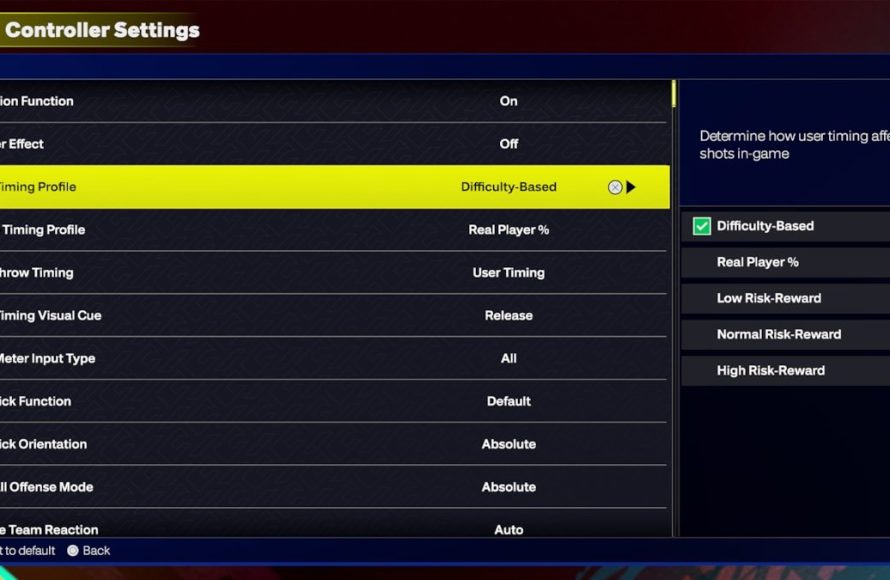
NBA 2K25 user setting configuration allows players to adjust gameplay difficulty, camera angles, control schemes, and graphic preferences to tailor the game to their specific play style and hardware.
Want to make the most of your time on the virtual court? Understanding NBA 2K25 user setting configuration is key to a personalized and enjoyable experience. You’re not stuck with default settings; you have the power to fine-tune aspects to your liking.
This article breaks down the essential areas you can modify. Adjusting these options correctly can significantly impact how you play and win games. Let’s explore how to take full command of your NBA 2K25 experience!

NBA 2K25 User Setting Configuration: Your Guide to Perfect Gameplay
Getting the most fun out of NBA 2K25 means more than just picking your favorite team. It’s about making the game feel exactly right for you. That’s where user settings come in. Think of them as the controls to your own personal NBA 2K25 experience. From how the camera moves to how hard your players shoot, these settings let you fine-tune everything. Let’s explore all the ways you can customize your game and make it truly your own.
Camera Settings: See the Game Your Way
The camera angle is a big deal. It changes how you see the court and how you react to plays. NBA 2K25 gives you several choices, and each one offers a different feel. Let’s take a closer look:
Camera Views: Finding Your Perfect Angle
- 2K Camera: This is the classic, default view. It gives you a good look at the whole court and is a solid place to start if you’re new to the game. It is usually positioned a bit high up and away, so that it covers the complete action.
- Broadcast Camera: If you want your game to feel like a real TV broadcast, try this view. It’s lower to the court and changes based on the action. This view can make game look more engaging for some players, but it may not be the perfect view for players who care about control more than looks.
- MyCAREER Camera: This view focuses on your created player and is often used in the MyCAREER mode. It sits closer to the player, which allows you to follow your player’s actions more closely.
- Fixed Camera: This option provides a static view, keeping the same angle throughout the game, which is a bit different from the camera options which usually move a bit to follow the action. This can be a good choice if you want a consistent view and don’t like camera changes.
- Custom Camera: If none of the presets feel right, you can dive in and create your own. You can change the height, zoom, and angle until it’s exactly what you want. This lets you have the most control on camera angle.
Experiment with each option to see which one helps you play your best game. Maybe you like the 2K camera’s wide view, or perhaps you prefer the more immersive feel of the Broadcast angle. Don’t be afraid to try something different!
Camera Settings: Fine-Tuning the View
Beyond choosing a view, you can also change some other camera settings:
- Camera Zoom: You can zoom in or out to get closer to the action or see more of the court. If you like a closer, more intense perspective, zoom in. If you prefer seeing more of the action happening, zoom out a bit.
- Camera Height: Adjust how high the camera is above the court. A higher camera will show more of the court at once, while a lower camera will give you a more ground-level view.
- Camera Angle: Change the angle of the camera to get your ideal perspective. You can tilt it or rotate it to get a view that suits your play style.
- Camera Speed: Control how quickly the camera moves to follow the action. Some prefer a fast camera for a more dynamic feel, while others prefer slower movement so that they can keep up with the changes.
Don’t forget to test your changes in a quick game before you start a serious match. This can help you see if the changes you made are what you want. It’s all about finding what feels most natural and comfortable for you.
Controller Settings: Get the Perfect Feel
How your controller responds is another crucial part of your NBA 2K25 experience. You want your movements to translate smoothly into actions on the court. These settings let you adjust how your controller behaves. Let’s take a look at some of the key options:
Shooting Controls: Making Every Shot Count
Shooting is the most important part of the game for most of the players. So, getting the shooting controls right is very important. Here’s what you can adjust:
- Shot Meter: Choose whether to show a shot meter. The shot meter appears when you are shooting and is shown on top of the player’s head. Showing the shot meter helps you time your shots, but some players like to play without it and only rely on player animations.
- Shot Timing: Decide whether you want to time your release perfectly or if you want a more forgiving window. If you are new, you can select forgiving window which makes it easier to make shots, and if you are an expert, you can select real player percentage which increases the difficulty.
- Shot Aiming: This allows you to aim your shots and you also have option to turn off the aiming of the shot. Some players find it easier to shoot with it, while others don’t. Experiment with both and see which works best for you.
- Layup Timing: Just like shooting, you can choose to time your layups and get it perfect for better chance of making a layup, or just turn the layup timing off and your player will do a layup according to their stats.
Dribbling Controls: Move Like a Pro
Dribbling allows you to move the ball and get to the basket. These options let you change how dribbling works:
- Dribble Moves: You can choose how responsive you want your dribbling controls to be. If you set this to more responsive, your player will dribble as soon as you move the stick, but some players like to dribble with some delay.
- Iso Handling: This controls how your player reacts when handling the ball in isolation. You can make your player’s iso moves faster or slower.
- Post Control: This option lets you customize post moves. This includes back-to-basket moves, like fakes, spins, and hook shots.
Passing Controls: Get the Ball Where It Needs to Be
Passing is very important in basketball, and you also have many options for adjusting your passing controls. These settings let you adjust how passing works:
- Pass Type: Choose the type of passes your player will do. You can select from different types of passes, and experiment with each to see which works best for you.
- Icon Passing: Turn on or off icon passing. Icon passing lets you pass to the player you select by pressing the button associated with their position. You have to remember the positions of your players to use icon passing and many professional players prefer this method of passing.
General Controller Settings: Other Important Tweaks
There are also some general controller options that you should take a look at:
- Vibration: If you like the controller to vibrate during gameplay, you can turn on the vibration, or if it annoys you, you can turn it off completely.
- Controller Sensitivity: Adjust how sensitive your analog sticks are. If you find it hard to do the dribbling moves or shooting timing, you can try to adjust the sensitivity, so it becomes easier for you.
- Button Layout: You can remap buttons to your liking. This can be helpful if you find some buttons awkward to use. You can re-map each button and completely change how your controller behaves.
All these options allow you to get your controller settings just right. Take your time to adjust each setting and see how it changes the gameplay. It’s about finding the setup that allows you to play your best. Every person likes different kinds of settings, so take your time and make sure you find settings that you like the best.
Game Settings: Control the Flow of the Game
Beyond the visual and controller settings, NBA 2K25 also lets you tweak how the game itself plays. This means changes to the difficulty, gameplay rules, and other important settings which affects gameplay experience. Here are some important options that you can change:
Difficulty Settings: Finding the Right Challenge
The game offers several difficulty levels. Each level changes how the AI opponents behave, making each game feel different.
- Rookie: The easiest setting, great for beginners who are just getting started. Opponents are not that challenging in this setting.
- Pro: A step up from Rookie, with smarter AI opponents who provide a moderate challenge.
- All-Star: This setting provides a significant challenge with very smart AI opponents and it is best for experienced players.
- Superstar: A very hard level for the most experienced players. AI opponents become very hard to beat and requires complete understanding of the game.
- Hall of Fame: The most difficult setting, designed to test the best players with very challenging opponents.
It’s a good idea to start on a lower difficulty setting and work your way up as you improve. This will help you to learn the game mechanics and improve your skills. Don’t be afraid to experiment with the difficulty and see what gives you the best experience and most fun.
Gameplay Rules: Customize the Game
You can also change some basketball rules, just like in real basketball. These are some options that you can change:
- Game Speed: Adjust how fast the gameplay feels. You can make the game slower or faster, according to your preference.
- Quarter Length: Change how long each quarter is. Longer quarters mean longer games, which can be great if you want to have a more realistic experience.
- Fatigue: Turn on or off fatigue. If turned on, players will become more tired as the game goes on, and their stats will go down, which may force you to make some substitutions.
- Injuries: Decide if you want players to get injured. When injuries are on, players can get injured just like in real game, and you will have to replace them and may have to play with less than full strength.
- Fouls: Decide how often fouls should be called. This can make the game more realistic if it’s on.
Presentation Settings: Make It Your Own
You also have some options to change the presentation. This won’t affect gameplay but can change how you experience the game:
- Crowd Volume: Adjust how loud the crowd is. Some like a loud, cheering crowd, while others find it distracting. You can turn down the volume of crowd if it’s too loud for you.
- Commentary Volume: Change how loud the commentators are. You can adjust it to your preference so it is comfortable for you.
- Music Volume: Adjust the volume of the background music during gameplay.
- Replay Frequency: Decide how often you want to see replays. If you prefer quick gameplay, you may want to turn down replay frequency, but if you like replays, you can adjust it to the maximum.
- On-Screen Display: You have the option to change the on-screen display of the game, from which you can show things like shot meter, game score and other useful information, and also change their size and positions.
These options let you make the game feel just how you like it. Do not be afraid to try different settings and find the perfect combination that suits your style. Each setting can change the game completely, and you can have different experiences each time you play.
MyCAREER Settings: Your Personal Basketball Story
If you’re playing the MyCAREER mode, there are even more settings you can tweak that are specific to your created player. These settings influence your player’s progression, gameplay and overall experience in this mode.
Player Progression: Shape Your Career
These settings let you control how your player develops:
- Badge Progression: Control how your player earns badges. Badges give players new abilities and improve certain skills in the game.
- Attribute Progression: Manage how your player’s stats improve. You can choose what you want to focus on and make your player specialize in a certain position or skill.
- Practice Drills: Customize the practice drills your player does. This will help you make your player get better in areas that you want him to be improved.
Gameplay Specific to MyCAREER
There are also some specific game options for your player:
- Team Role: Decide what your role is in your team. You can select if you want to be a star player or more of a role player.
- Playing Style: Customize how your player plays on the court. Select from many different styles of play such as scorer, rebounder or defender.
MyCAREER Presentation
You can also change the way the MyCAREER looks and feels:
- Cutscene Frequency: Decide how often you want to see cutscenes during your career. If you don’t like cutscenes, you can turn them off and focus on gameplay only.
- Camera Angle: Choose the camera angle for the MyCAREER mode, based on your preference.
- Audio Settings: Change sound settings according to your liking in the MyCAREER mode.
These settings let you create your own personal basketball journey. Adjust these options to make your MyCAREER experience unique and engaging. These options will make sure you feel like you are in your own career.
Accessibility Settings: Making the Game Available to Everyone
NBA 2K25 also includes some very helpful accessibility settings. These settings are helpful for those who have different needs and preferences.
Vision Options
- Colorblind Mode: Options for different types of colorblindness to make the game easier to see.
- Text Size: Change the size of the text in menus and subtitles.
- Contrast: Adjust the contrast for better visibility.
Hearing Options
- Subtitle Options: Turn on or off subtitles during gameplay and cutscenes.
- Audio Volume Settings: Adjust individual volumes for different game elements.
Controller Options
- Remapping Buttons: Remap the controller buttons as needed for better control.
- Assist Options: Turn on or off any assist settings for easier gameplay.
These options ensure that everyone can enjoy NBA 2K25, no matter their individual needs. If you or anyone you know have any disability, explore these settings to get the best experience.
The great thing about all of these settings is that they are all designed to help you customize your NBA 2K25 experience. You can get started with default options, but as you learn more about the game and its options, you can change them to be just how you want them. You can save your setting profile as well, so it’s easy to load them and start the game again with your desired settings.
5 SECRET Settings That You NEED To Use In NBA 2K25
Final Thoughts
Optimizing your experience requires thoughtful adjustments. Tweaking controller settings, difficulty levels, and camera angles impacts gameplay. Personalize audio and visual preferences to suit your style.
Fine-tuning these options enhances your enjoyment. A customized experience makes each game feel more personal. This is the key to a great game.
Ultimately, effective NBA 2K25 user setting configuration significantly improves your overall play. Experimentation helps you find your ideal setup. The right adjustments contribute to better control.

