
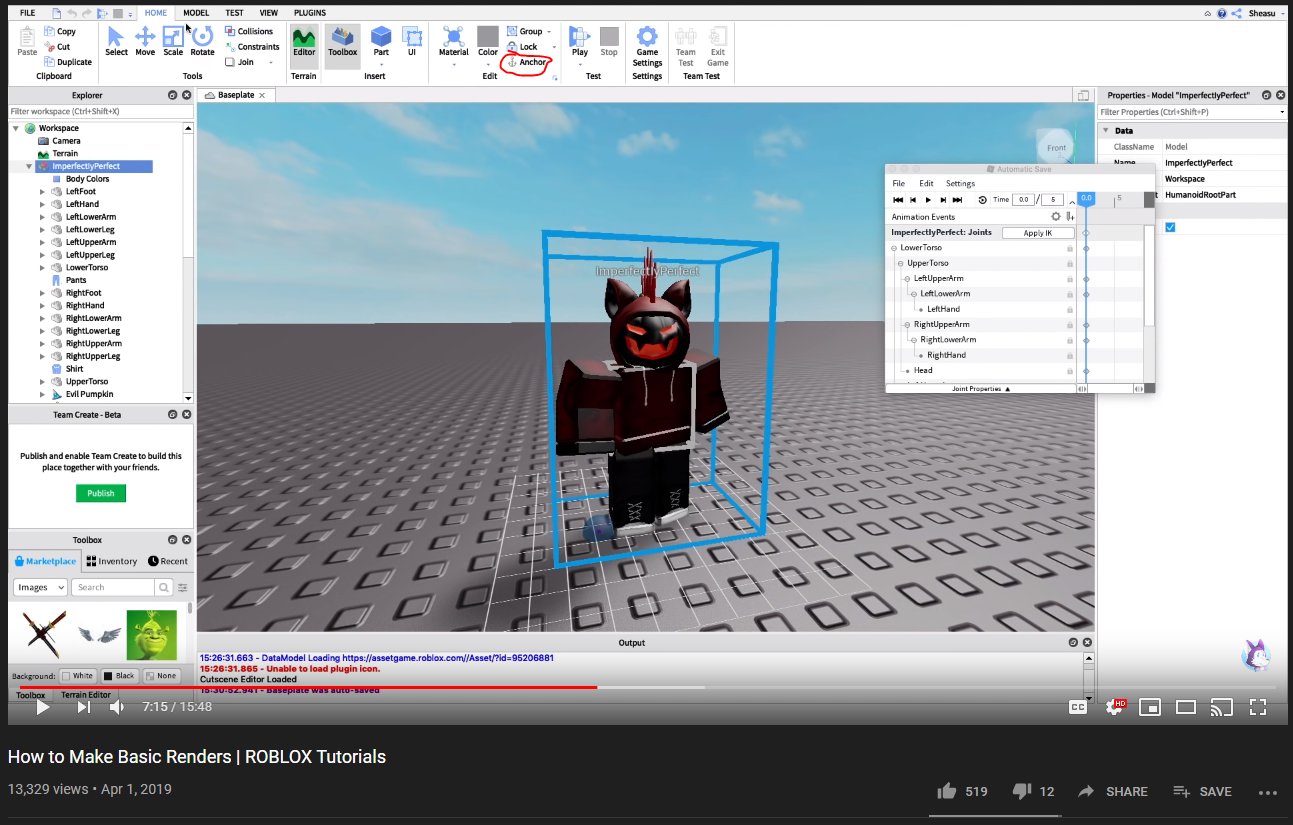
‘Creating animations in Roblox requires using the Roblox animation editor tutorial which allows you to move, rotate, and scale character parts over time, setting keyframes to define each pose.’
Want to bring your Roblox characters to life? This roblox animation editor tutorial will guide you through the basics of creating fluid movements. We’ll break down the interface, explaining how to work with keyframes and manipulate parts effectively.
It’s easier than you think to make your own custom animations. By understanding the tools and techniques, you can quickly make a character do anything you imagine. Get ready to animate your Roblox world!

Roblox Animation Editor Tutorial: Your Guide to Bringing Characters to Life
So, you want to make your Roblox games even more awesome? You’ve probably seen characters moving super smoothly and doing cool actions, right? Well, that’s the magic of animation! And you can do it too using the Roblox Animation Editor. It’s a tool that lets you control how your characters move, jump, dance, and everything else you can imagine. It might seem tricky at first, but don’t worry! This guide will walk you through all the important stuff step-by-step, making it fun and easy to learn.
Getting Started with the Animation Editor
Before we jump into animating, let’s make sure you know how to get to the Animation Editor. First, you need to open Roblox Studio, which is where you build and make your games. Then:
- Open a Place: Start by opening a new or existing game you want to work on.
- Find a Character: Make sure your game has a character model. You can use the default Roblox avatar, or import your own character if you have one.
- Open the Animation Editor Plugin: Go to the “Plugins” tab at the top of the screen, then click “Animation Editor.” It will open a new window, where the fun begins!
Sometimes, the Animation Editor might be tucked away in a different spot depending on your screen settings, so make sure to look around if you don’t see it in the main “Plugins” list.
Understanding the Animation Editor Interface
Now that you have the Animation Editor open, it’s time to get to know all the parts. Think of it like the controls on your video game console – each button and area has a job.
The Character View
This is the big window where you see your character. You can rotate the camera around and zoom in and out to get the perfect view. This helps you see exactly what your character is doing as you move their arms, legs, head, and other body parts.
The Timeline
This is where the magic of animation really happens! The timeline is like a row of frames in a movie strip. Each frame shows a specific pose of your character at a specific time. When you put these frames together, they create a smooth animation. The timeline will usually have a default number of frames. You can always increase the number of frames to create longer animations or decrease to make short ones.
The Keyframes
Keyframes are like snapshots of your character’s pose at different moments in time. On the timeline, they look like little diamonds. When you move a character part and click the keyframe button, a keyframe is made, recording how that part looks at that exact moment. The editor then fills in the ‘in-between’ frames to make the animation flow smoothly. It’s like drawing a flipbook; you draw the first pose, then the last pose, and all the pages in between make the animation move.
The Bone List
This list shows you all the different body parts or “bones” of your character model. When you click on a bone, you can select it, and then you can move that specific body part on the Character View. The bone list is how you navigate between arms, legs, torso, head, and other body parts you want to animate.
Animation Controls
These are buttons that help you play, pause, scrub through, loop your animation, and add new keyframes to the timeline.
- Play Button: Plays your animation to see how it flows.
- Pause Button: Stops the animation so you can tweak it.
- Scrub Bar: A bar you can drag to see your animation in slow motion. This is good for finding parts of your animation you want to adjust.
- Loop: If you click this it will continuously play the animation again from start when it finishes. Good for testing animations continuously.
- Keyframe Button: This is very important, clicking this button makes a keyframe at the time your in the timeline.
Creating Your First Animation: A Simple Walk Cycle
Let’s put what you’ve learned into action! A walk cycle is a basic animation that many games use, so it’s a great place to begin. Here’s how to make a simple walk cycle for your Roblox character:
Positioning the Character
Start with your character standing straight, this pose is very important. Set your timeline to frame 0. Make sure that you are in the Character View. Move the character’s legs slightly forward, one leg at a time. Now, make a keyframe by pressing the keyframe button. You can do this by moving one leg forward and one leg backward.
Adding Keyframes
Now, move to a frame like frame 5 on your timeline. You’ll want to change the position of your character again, but this time, move the legs the opposite direction they were just in. So if you moved one leg forward, now you move that leg backward and the opposite for the other leg. Make sure that the arms are moving opposite of the legs, if you moved the right leg forward, then move the left arm forward. Set a new keyframe at this position.
Completing the Walk
Now you’ll want to move to another frame, like frame 10, and then repeat what you did on frame 0. So move the legs how they were on frame 0 and move the arms as they were also. Make sure you make a keyframe. Now you should have 3 keyframes, you can press the play button and see the animation play. It will be a bit janky and jumpy and not so smooth.
Smoothing Out the Walk
To make the walk cycle smooth, we will need to add more keyframes to make the in between transition much more clear. To do this we need to add a keyframe in the middle of the keyframe we already created. So go to frame 2 in the timeline, we want to start by making the first foot start to come off the ground slightly. This will be the beginning of our stride. Make sure you move the arms slightly as well, and press the keyframe button.
Now, move to frame 7 and make the other foot do the same. Lift it slightly off the ground as if it is about to take a step. Make sure to move the arms opposite of that foot as well. Press the keyframe button. You should now have 5 keyframes on the timeline. Press play and you should be seeing a much smoother animation. If it is still not smooth enough you can always add more in between frames by repeating the steps mentioned.
Refining the Animation
Now that you have a basic walk, you can tweak it. Maybe make the steps bigger, change the way the arms move, or add a little bounce to the character. Experiment with different ideas and make the animation your own. Remember that each character is different, so try experimenting until the animation fits what you envision.
More Advanced Animation Techniques
Once you are comfortable with the basic walking animation, you can explore much more advanced animation techniques. Here are some concepts you can play with.
Using Easing Styles
Easing styles can make your animations look even more realistic and stylish. Instead of movements that start and stop abruptly, easing adds a smooth transition. You can think of this as giving your animations momentum. The movement will gradually speed up and/or slow down, depending on the easing style you use. These styles are usually found on each individual keyframe.
Here are some different types of easing that are used in animation:
- Linear: This is the most basic, it moves at a constant speed without any change. It might seem boring, but can be used in some cases.
- Ease In: The movement starts slowly and then speeds up.
- Ease Out: The movement starts fast and then slows down.
- Ease In Out: The movement starts slow, gets fast, and then slows down again.
Try playing around with all the different styles to get a feel for how it effects the animations. You’ll see the difference when you try them out.
Looping Animations
Many games use animations that repeat over and over, like a character’s idle pose or a walk cycle. The animation editor has a “loop” button, as mentioned before, but there are also more ways to make an animation loop smoothly. You can make an animation loop by making the first keyframe identical to the last keyframe, so when it is replayed, it will not have a janky jump between the ending and beginning frame.
Working with Multiple Animations
As you get better at animation, you might want to make more complex moves or combinations of actions. To do this you can use different animations at different time in the game. For example, a character might have a walk cycle, jump, and attack animation. The trick to using multiple animations is to use the code in the game to play the animation you want at the time you want.
Here’s a simple example:
- Make a new animation in the editor and name it “Jump”.
- Make the animation for a jump, and export it.
- Repeat for other animations you wish to use.
- Use your code in the game to play the “Walk” animation when your character moves.
- Use the code in your game to play the “Jump” animation when your character jumps.
Importing and Exporting Animations
When you make an awesome animation, you will want to use it in your game. To do this, you need to export the animation from the animation editor. Here is how it is done:
- At the bottom of the editor window, you will see an export button. Press it.
- Name your animation, and save it.
- Now you need to copy this animation into your game using code.
You can also import animations you download online. The steps are similar, but instead of exporting you will select an animation file you have already downloaded from online.
Using IK (Inverse Kinematics)
IK is a fancy word for a really helpful feature in the Animation Editor. Usually, when you move a bone, like a shoulder, you have to manually move the elbow and wrist as well. With IK, you can move the hand, and the rest of the arm adjusts automatically. This makes animating much easier and can save a lot of time. This is a more advanced topic and if you are just starting out you will not need to use this right away. To use IK you will click on the bone, for example the hand, and select ‘IK’ from the menu. This will bring up a box that will help you use IK on the hand. This will need to be done for the feet, hands, and elbows for the animation to be made. This is usually used for much more complex animations, but the option is always there to try out.
Tips for Success with Roblox Animations
Animation takes time and practice. Here are a few tips to help you get better!
- Practice Regularly: Like learning any new skill, doing animations regularly will help you improve your skills.
- Watch Others: Look at how other games make their animations. What makes them look good? Can you mimic them in your animations?
- Experiment: Don’t be afraid to try new things. Some of the best animations come from thinking outside the box!
- Get Feedback: Ask other people to look at your animations. Sometimes, fresh eyes can spot things you might have missed.
- Start Simple: Begin with easier animations and gradually move to more complex ones, and dont try to do everything all at once.
- Stay Organized: Save your work often and name your animations carefully. This will save you time and confusion later on.
The Roblox Animation Editor is a powerful tool that can make your games feel much more alive and interesting. By learning how to use it, you’ll have one more step up over the competition. Remember that animation is a process, so have fun with it, be patient, and your animations will become really good in no time! This guide has given you the knowledge and steps you need to start making your own awesome animations! Keep practicing and experimenting, and you’ll be an animation pro before you know it!
The ULTIMATE Beginner's Guide to Animating in Roblox Studio
Final Thoughts
This roblox animation editor tutorial guides you through the basics. You learned how to create keyframes, manipulate parts, and preview animation. Use these techniques to produce your own movements.
Experiment with different timing and interpolation settings to refine animation quality. Practice regularly to enhance skills in using the editor. Applying the skills in this roblox animation editor tutorial will benefit you in game development.

