
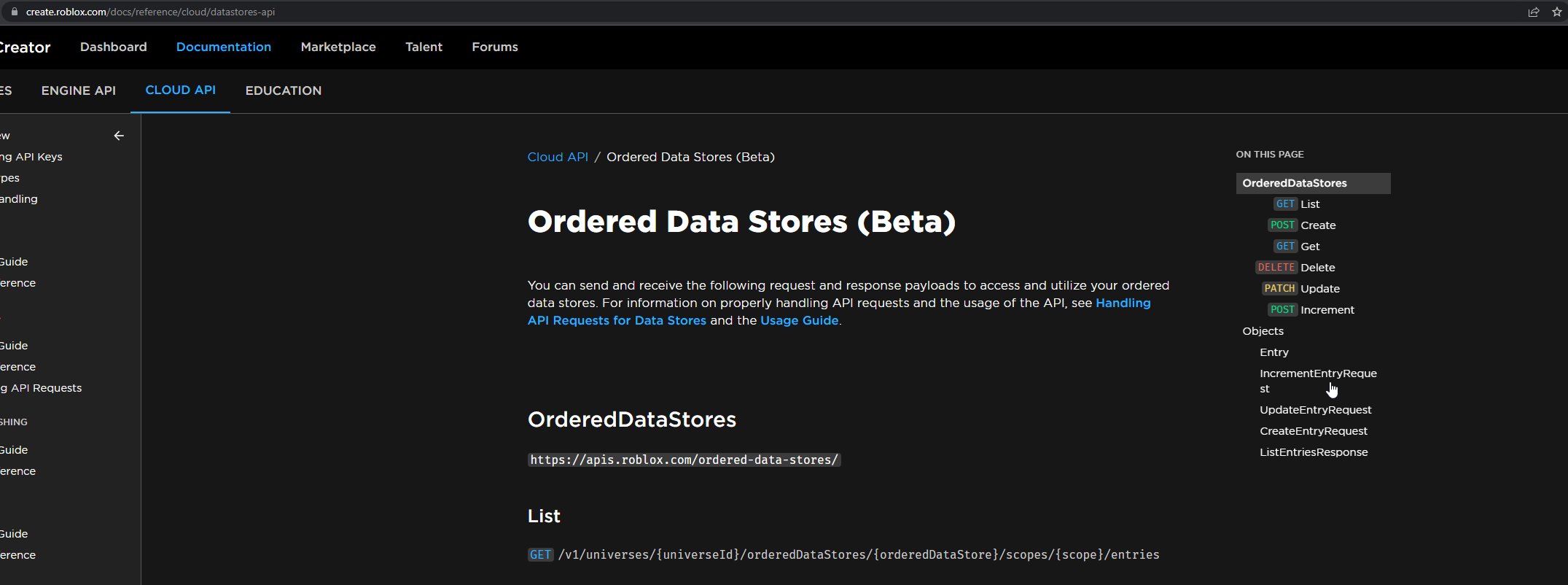
The Roblox API usage guide details how you can interact with the Roblox platform programmatically, allowing you to create custom tools and automate tasks through code.
Want to create amazing experiences on Roblox beyond the basic tools? You can achieve this by understanding how the Roblox API works. This allows you to build custom solutions that directly interact with the game engine and the wider Roblox environment.
Learning about the Roblox API usage guide gives developers the power to implement features which extend game functionality. This can include things like data management, server administration and more. It is key for advanced Roblox development.

Roblox API Usage Guide
Let’s dive into the exciting world of the Roblox API! If you’re dreaming of creating awesome games and experiences on Roblox, understanding how to use the API is super important. The Roblox API is like a special set of tools that lets you control almost everything in your game. It lets you make characters move, change the game world, track player scores, and so much more. Think of it as the secret language Roblox speaks, and we’re going to learn how to understand it.
What is the Roblox API?
The Roblox API, or Application Programming Interface, is a collection of instructions that lets your game code talk to the Roblox engine. It provides a way for developers to interact with the Roblox platform’s features and functionality. It’s not something you see directly in your game; instead, it’s a behind-the-scenes helper. Instead of writing code from scratch for every single thing, the API gives you pre-written blocks that do specific jobs. This makes game creation faster and easier.
Understanding Objects and Properties
Imagine building with LEGOs. Each LEGO brick is an “object” in Roblox. A brick has properties, like color, size, and position. The API lets you change these properties using code. For example, you can change the color of a brick to blue, or make it bigger or smaller.
Here’s a simple table explaining what objects and properties are:
| Concept | Description | Example in Roblox |
|---|---|---|
| Object | Anything in your game world, such as a part, character, or light. | A block (Part), a player’s character (Humanoid), a sun (SunRay) |
| Property | A characteristic of an object that can be changed, such as its color, size, or position. | Part.Color, Part.Size, Part.Position, Humanoid.Health |
Key API Concepts: Functions, Events, and Services
The API has three main tools: functions, events, and services. Think of them like this:
- Functions: They are actions your code can do, like changing a part’s color. Think of them as verbs. Example: Part:SetNetworkOwner(player) this function assigns network ownership of a part to a specific player.
- Events: They are things that happen in your game, like a player joining or a part being touched. Think of them as signals. Example: Part.Touched:Connect(function() –code– end) when the part gets touched, the function will execute.
- Services: They are groups of related functions and events that help you do specific things, like manage players, sounds, and time. Example: game:GetService(“Players”) to get the Players service.
Getting Started with the Roblox API
Okay, let’s get practical. To use the Roblox API, you’ll need to write code in Roblox Studio, using a language called Lua. This might sound hard, but don’t worry – it’s easier than you think!
Setting Up Your Workspace in Roblox Studio
First, open Roblox Studio and create a new place or open an existing one. We’ll be using a “Script” object, so you’ll need to add one. Here’s how:
- In the “Explorer” window on the right side of the screen, find “ServerScriptService.” This is where we put scripts that run on the server (the main computer handling the game).
- Right-click “ServerScriptService” and choose “Insert Object” then “Script”.
- You should see a new script appear under ServerScriptService.
- Double-click this new script to open the script editor, and you’re ready to write some code.
Your First Line of Code
Let’s start with the simplest command: changing the color of a part. Add a part to your workspace (in the “Model” tab) and call it “MyPart”. Now, type this code in your script:
lua
local part = workspace:WaitForChild(“MyPart”)
part.Color = Color3.fromRGB(255, 0, 0) — Set the color to red
This code does three simple things:
- First, it gets the “MyPart” from the workspace.
- Then, it changes its color property to red using the Color3.fromRGB() constructor.
Press “Play” in Roblox Studio. Your part should change to red! This is you using the API!
Working with Parts and Properties
Changing a color is a cool start, but there’s a lot more you can do with parts. You can move them, change their size, or even make them invisible.
Moving Parts
Let’s make your “MyPart” move. Here’s the updated code:
lua
local part = workspace:WaitForChild(“MyPart”)
part.Color = Color3.fromRGB(255, 0, 0) — Still make it red
part.Position = Vector3.new(10, 5, 0) — Move it to a new spot
Now when you play the game, the part will be in a different location. We use Vector3.new() to set the new position, that takes the X,Y and Z coordinates as input.
Changing Size
Let’s resize it:
lua
local part = workspace:WaitForChild(“MyPart”)
part.Color = Color3.fromRGB(255, 0, 0)
part.Position = Vector3.new(10, 5, 0)
part.Size = Vector3.new(5, 2, 1) –Make it longer, taller and wide.
You can change the part’s size by changing the Size property, which takes a vector3 value to represent width, height, and length.
Making Parts Invisible
What about making it vanish?
lua
local part = workspace:WaitForChild(“MyPart”)
part.Color = Color3.fromRGB(255, 0, 0)
part.Position = Vector3.new(10, 5, 0)
part.Size = Vector3.new(5, 2, 1)
part.Transparency = 1 — Make it completely invisible
Setting the Transparency to 1 makes the part totally see-through.
Working with Players
Games are more fun with players! The Roblox API gives us tools to get to know who is playing and what they are doing. The Players Service manages all the players in the game.
Getting Player Information
Let’s add a simple script to print the player’s name to the output window when they join. Add a new script under ServerScriptService. Then paste the following code.
lua
local Players = game:GetService(“Players”)
Players.PlayerAdded:Connect(function(player)
print(“Player ” .. player.Name .. ” has joined the game!”)
end)
This script does the following:
- It gets the Players service using game:GetService(“Players”).
- It uses an event called PlayerAdded that fires when a new player joins.
- When a player joins, it prints a message with their name to the output window.
Changing Player Appearance
You can customize a player’s avatar using the API. Let’s add a hat to all players when they join. First, add a hat (you can create a simple one with parts or import one). Then, you should copy the hat to your server storage folder. Your explorer should look like ServerStorage -> Hat. Now write this code inside the PlayerAdded function.
lua
local Players = game:GetService(“Players”)
local ServerStorage = game:GetService(“ServerStorage”)
Players.PlayerAdded:Connect(function(player)
print(“Player ” .. player.Name .. ” has joined the game!”)
local hat = ServerStorage:WaitForChild(“Hat”):Clone()
hat.Parent = player.Character
hat:FindFirstChild(“Handle”).Attachment.Parent = player.Character:WaitForChild(“Head”)
end)
This script takes the hat from server storage, clones it, makes the cloned hat child of the player’s character and finally add the attachment of the hat to the head of the player.
Using Events and Functions
Events and functions let you make dynamic, interactive experiences in Roblox.
Creating Interactive Buttons
Let’s create a part that acts as a button and changes color when clicked. Add a new part and name it “MyButton”. Create a new script under ServerScriptService.
lua
local button = workspace:WaitForChild(“MyButton”)
button.ClickDetector.MouseClick:Connect(function(player)
if button.Color == Color3.fromRGB(255,255,255) then
button.Color = Color3.fromRGB(255, 0, 0) — Change to red
else
button.Color = Color3.fromRGB(255,255,255) –Change to white
end
print(“Button was clicked by: ” .. player.Name)
end)
This is a bit more complex than what we have done before:
- We grab “MyButton” and then call its ClickDetector.MouseClick property, which is an event.
- We connect a function to this event. This function will run every time the button is clicked.
- If the button is white, it will change to red, and if red then it will change to white.
- The player variable returns the player who clicked the button, so we can print that player’s name to the output window.
Note: you need to add a ClickDetector object under MyButton.
Using Custom Functions
To keep your code tidy, you can create your own functions. A function is just a reusable block of code that does a specific task. Let’s make a function to change a part’s color and make it easier to use.
lua
local function changePartColor(part, color)
part.Color = color
end
local myPart = workspace:WaitForChild(“MyPart”)
local myButton = workspace:WaitForChild(“MyButton”)
changePartColor(myPart, Color3.fromRGB(0, 255, 0)) — change part color to green
myButton.ClickDetector.MouseClick:Connect(function(player)
changePartColor(myPart, Color3.fromRGB(0,0,255)) — change part color to blue when button is clicked
print(“Button was clicked by: ” .. player.Name)
end)
Here’s what the code does:
- It creates a function called changePartColor that takes a part and a color as input and changes the part’s color.
- Then, we use it to change the color of “MyPart” to green right when the script runs.
- We also modify the code for our button, so that the part will turn blue when the button is clicked.
Using Services Effectively
Roblox provides several important services to handle different aspects of your game. Let’s explore a few key ones.
The ReplicatedStorage Service
The ReplicatedStorage service is for storing things that need to be accessed by both the server and the client. A classic example would be a bullet that you want to have in a game. The script that fires the bullet is in the server side and the bullet is handled by the client.
lua
— Server Script inside ServerScriptService
local replicatedStorage = game:GetService(“ReplicatedStorage”)
local bullet = replicatedStorage:WaitForChild(“Bullet”)
— Function to fire the bullet
local function fireBullet(player, pos)
local newBullet = bullet:Clone()
newBullet.Parent = workspace
newBullet.CFrame = CFrame.new(pos)
–Other codes that modify how the bullet behaves goes here
end
–When player touches a trigger
workspace:WaitForChild(“Trigger”).Touched:Connect(function(hit)
local player = game:GetService(“Players”):GetPlayerFromCharacter(hit.Parent)
if player then
fireBullet(player, hit.Parent:FindFirstChild(“HumanoidRootPart”).CFrame)
end
end)
lua
— Local Script inside the bullet object
local bullet = script.Parent
bullet.Touched:Connect(function(hit)
if hit.Parent:FindFirstChild(“Humanoid”) then
–Code that makes the bullet kill a character.
end
bullet:Destroy()
end)
This set of codes creates a trigger that when a player touches the trigger, they will fire a bullet. ReplicatedStorage is used to store the bullet so the server can clone it and the clients can make the bullet look like a real bullet.
The Sound Service
The Sound service lets you add music and sound effects to your game. Let’s add a simple sound effect when a part is clicked.
First add a sound object to ReplicatedStorage.
lua
local soundService = game:GetService(“SoundService”)
local button = workspace:WaitForChild(“MyButton”)
local replicatedStorage = game:GetService(“ReplicatedStorage”)
local sound = replicatedStorage:WaitForChild(“ClickSound”)
button.ClickDetector.MouseClick:Connect(function(player)
local newSound = sound:Clone()
newSound.Parent = button
newSound:Play()
newSound.Ended:Connect(function()
newSound:Destroy()
end)
print(“Button was clicked by: ” .. player.Name)
end)
This script plays a sound every time a player click on the button.
The Lighting Service
The Lighting service controls the visual appearance of your game world. You can change the brightness, the color of the sky, the type of sun and more.
lua
local lighting = game:GetService(“Lighting”)
lighting.Ambient = Color3.fromRGB(150, 150, 255) — Set ambient light to blue
lighting.Brightness = 2 — Set brightness of the game
lighting.OutdoorAmbient = Color3.fromRGB(200, 200, 200)
lighting.ClockTime = 12 — Set time to 12:00 PM.
This code sets the ambient light, the brightness, outdoor ambient and the clock time. You can also change other values such as shadows, fog and many more values.
Best Practices for Roblox API Usage
Here are some tips for using the Roblox API effectively:
Read the Documentation: The official Roblox API documentation is your best friend. It explains every function, event, and service in detail. Always refer to it when you’re unsure about something.
Use Descriptive Variable Names: When you name your variables, be clear and specific. playerHealth is better than h, for example. This makes it easier to understand your code.
Comment Your Code: Add comments to explain what your code does. This helps you remember what you did and helps others understand your scripts.
Test Your Code Often: Don’t wait until you have a huge amount of code before testing. Test small parts of your code frequently so you can quickly find and fix any issues.
Don’t Repeat Code: If you need to do the same task in multiple places, put that code into a function. It will make your code shorter and easier to maintain.
Use the WaitForChild Method: When accessing objects, use WaitForChild instead of just FindFirstChild. This makes sure that the game finds the object even if it’s not loaded right away.
Keep it Simple: Start with basic scripts and gradually add complexity. Don’t try to do everything at once.
Learn From Others: There are a lot of example scripts available on the Roblox community. Feel free to adapt them to your needs.
The Roblox API is powerful and allows for amazing things. Take your time to learn and experiment, and you’ll be creating amazing things in no time! With practice and dedication, you can become proficient in using the Roblox API to bring your creative visions to life.
Understanding the Roblox API opens up a whole new world of possibilities. It might seem complex at first, but with steady learning and practice, you can create sophisticated and interactive games that you and others will be able to enjoy. Remember, it’s all about having fun while you learn. The key is to start simple, experiment often, and don’t be afraid to ask for help when you need it. So go ahead, get into Roblox Studio, and start building!
Roblox API Tutorial
Final Thoughts
This guide provided essential steps for effectively using the Roblox API. Proper API usage allows developers to build intricate game mechanics and connect with external services. Remember to consult official documentation for up-to-date information.
Following this Roblox API usage guide helps create more engaging experiences. Developers should always prioritize security when working with API endpoints. Correct API calls improve game performance and avoid errors.

