
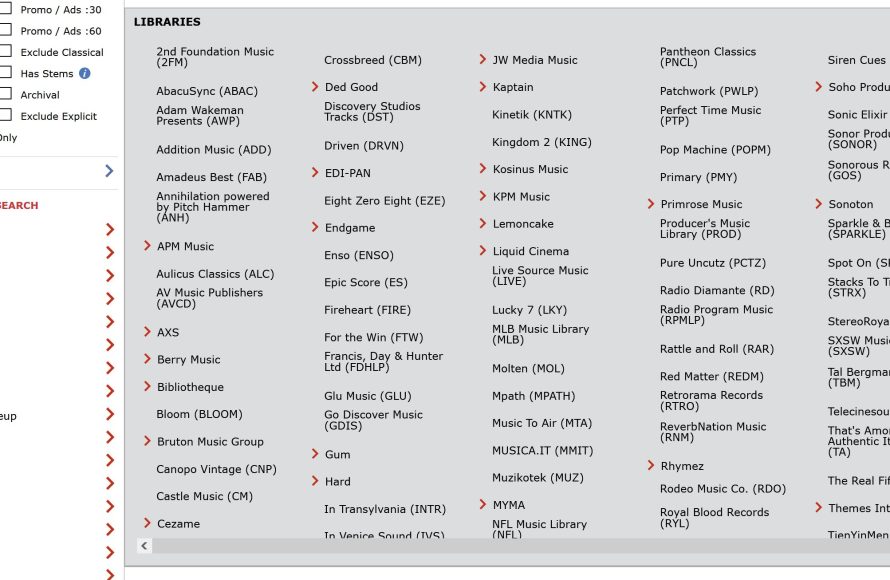
The Roblox audio library provides a collection of sounds that creators can use in their games, offering options for sound effects, music, and ambiance.
Have you ever wondered how games on Roblox achieve such immersive soundscapes? It all comes from the in-game tool called audio library. This feature allows developers to pick from a wide variety of pre-made sound files to enhance the playing experience. So, let’s get into how the Roblox audio library explained functions and how you can use it to improve your games.

Roblox Audio Library Explained: A Deep Dive for Creators
Have you ever played a Roblox game and noticed how cool the sound effects were? Maybe it was the thump of a character jumping, the swish of a sword, or the catchy background music that got stuck in your head. All of those amazing sounds come from the Roblox Audio Library! It’s a giant collection of sounds that developers use to make their games more fun and engaging. Let’s explore this awesome resource and see how it works!
What is the Roblox Audio Library?
The Roblox Audio Library is like a huge music and sound effects store, but for Roblox developers. It’s a place where people can upload their own audio, or use audio created by others. It contains thousands of different sounds, from short little jingles to longer songs, and from realistic effects to totally wacky ones. Think of it as the building blocks that make a Roblox game sound alive.
Types of Audio in the Library
The Roblox Audio Library is home to many different kinds of sound. Here are the main types you will find:
- Sound Effects: These are short sounds, like a door slamming, a coin collecting, a laser blast, or footsteps. They’re often used to give feedback on player actions and enhance the experience.
- Music Tracks: These are longer pieces of audio, like songs that play in the background of a game. They set the mood and make the environment more immersive.
- Ambiance Sounds: Think of sounds like rain, wind, or the hum of a city. They’re used to make the game world feel more real and alive.
- Voice Clips: These are short clips of voices that can be used for character dialogue, announcements, or other spoken parts of the game.
Finding the Right Sound for Your Game
Navigating the Roblox Audio Library might seem a bit overwhelming at first, but it’s actually quite simple. Here’s how to find the perfect sound for your project:
Using the Roblox Creator Marketplace
The best place to look for audio is within the Roblox Studio. This is the place where all Roblox games are made! To access the audio library, do this:
- Open Roblox Studio.
- Open the “Toolbox” from the “View” tab.
- Click on the “Audio” tab in the Toolbox.
- Type in the search bar what type of sound you’re looking for (for example “explosion”, “footsteps”, “happy music”).
The search results will show you a list of different audio files. You can click on them to listen to them before adding them to your game. The best thing is, you can easily import audio directly into your game without having to go to the Roblox website.
Keywords and Searching Effectively
To find exactly what you need, try using specific keywords. For example, instead of typing “music”, try “happy upbeat background music”. Or, instead of typing “sound”, try “scary monster roar”. The more specific you are, the more likely you are to find the exact audio you need.
Filtering Your Search Results
Sometimes, you might get lots of results that are not exactly what you are looking for. The Roblox toolbox provides filters to help you refine your searches further.
- Type: You can filter the search results by the type of audio – either music or sound effects, for example
- Genre: If you’re looking for a specific genre of music, like techno, classical or jazz, you can filter by that category
- Duration: You can also filter by the length of the audio file, useful when you need a short sound effect vs a longer background track.
Using Tags
When people upload audio, they add tags. Tags are single words that describe the sound. For example, you might see tags like “scary,” “action,” “loop,” or “ambient”. Pay attention to these tags when looking through audio files, as they will give you a better idea of what the sound is like and how you can use it in your game.
Working with Audio in Your Roblox Game
Now that you’ve found the right audio, let’s learn how to use it in your game. It’s simpler than you might think!
Importing Audio Into Your Game
Once you find audio you like in the Toolbox, you can import it into your game by clicking the “Insert” button. This will add an “Audio” object into your “SoundService”. This is a special place in your game where all audio files are stored.
Using Sound Objects
To play the audio, you need to use a “Sound” object. You can add a “Sound” object to many different parts of your game. For instance, you can add sound object directly to a part (like a wall, a door, or a character) or into your workspace, or even inside a script.
Configuring Sound Properties
Every “Sound” object has properties that you can change. These properties let you adjust how the sound plays and sounds. Here are a few things you can tweak:
- SoundId: This property is where you put the ID of the audio from the audio library. This is how the game knows which sound to play.
- Volume: You can adjust the volume of the sound, making it louder or quieter.
- Playing: If set to true, the sound will play. If set to false, it will stop.
- Looped: If set to true, the sound will play again and again in a loop. This is very useful for background music.
- Pitch: Changes how high or low the sound plays. This can be useful for special effects.
- RollOffMinDistance and RollOffMaxDistance: Changes how far the sound can be heard. This is very important for creating sound that appears to be coming from a specific point in your game.
Using Scripts to Control Audio
While you can make the sound play automatically when a game starts, the most powerful way to use sounds is with scripts. Scripts allow you to control when sounds start and stop, and even adjust how the sound works while the game is running. This allows you to do things like play a sound effect when a player jumps or plays music when they enter a specific area. You can change properties, add functions, play audio on events, and much more with scripting.
Here’s a simple example of how to play a sound when a player touches a part:
    local part = script.Parent
    local sound = part:WaitForChild("Sound")

    part.Touched:Connect(function(hit)
      if hit.Parent:FindFirstChild("Humanoid") then
          sound:Play()
        end
    end)
This code does the following:
- It finds the part the script is inside of.
- It finds a “Sound” object inside that part.
- It waits for a player to touch the part.
- When a player touches the part, it plays the sound.
Copyright and Using Audio Responsibly
It’s very important to remember that not all audio in the library is free to use however you like. Some audio is copyrighted and cannot be used without permission from the original creator.
Understanding Roblox’s Copyright Rules
Roblox has rules about using copyrighted audio. Using audio that isn’t yours can get your game taken down, and may even result in account penalties. The safest option is to use sounds that are made by Roblox or that you create yourself. Many developers create audios themselves and upload it to library for others to use with proper permissions.
Whenever you use an audio file you didn’t create, look for the permissions associated with the sound. You should always get permission from the audio’s original creator before using it. Some sounds are explicitly made to be shared and used freely.
How to Know if You Can Use a Sound
- If the audio is uploaded by Roblox, it’s usually safe to use.
- Check the audio’s details on the Creator Marketplace. Look for permissions, licenses, or notes from the creator.
- If the creator has stated you can use the audio, make sure you keep a note of that.
- When in doubt, it’s always better to use your own audio.
Best Practices for Audio Usage
- Don’t use audio you don’t have permission to use.
- Give credit where credit is due. If you use audio that someone else created, it’s a good idea to give credit to the original creator in your game description.
- Use high-quality audio. Low-quality audio can make a game sound bad, so always try to use the best audio possible.
- Avoid loud or jarring sounds. Loud and annoying noises can ruin the player experience. Try to make sure your sound effects are pleasant.
- Don’t spam sound. Constantly playing lots of sounds can be distracting, so try to use them sparingly and only when appropriate.
Creating Your Own Audio
Want to add a truly personal touch to your game? Consider making your own audio!
Recording Audio
You can record your own sounds using a microphone. This can be voice overs, music, or sound effects you have created. Many free programs are available for recording on a computer or mobile device.
Creating Music
There are many software programs and online tools you can use to create your own music. Experiment with different instruments and styles until you find something you like.
Sound Design Tips
Creating good sounds takes practice, but here are a few tips to get you started:
- Use a good microphone: The quality of the microphone will affect the quality of the sound.
- Remove background noise: Try to record in a quiet place.
- Experiment with effects: Add things like echo, reverb and pitch to make your sound effects sound unique.
- Keep it short and clear: Short and clean sounds are usually better.
Uploading Audio to Roblox
Once you have created your own sound, you can upload it to the Roblox audio library by following these steps:
- Go to the Roblox website.
- Click “Create” and then select “Audio”.
- Click “Upload Audio” and select your audio file.
- Give your audio a name and description.
- Set your audio permissions (if you want others to use it)
- Click “Upload”.
Remember that it may cost Robux to upload sounds to the library.
The Importance of Good Audio in Roblox Games
Sounds in a Roblox game are like the secret ingredient to a good recipe. They may not be the first thing you notice, but they’re definitely important to making a great experience. Audio can do so much for a game.
Enhancing Immersion
Good sound effects can make the game world feel more realistic. The sound of wind in the trees, birds chirping, or the waves on a beach all give the player a better idea of the environment. This makes players feel like they’re actually in the game.
Providing Feedback
Sounds give players feedback on their actions. When a player jumps, a jump sound will let them know they were successful. When they collect a coin, the sound of coins being collected will confirm their action. This also helps with game play because if you shoot a weapon, you will hear the sound and understand that it was successful.
Setting the Mood
Music can play a very important role in the game. It can be used to make players feel happy, excited, or scared. A game with suspenseful music will feel a lot different than a game with upbeat music. Music can tell a player a lot about how they are supposed to feel.
Creating a Better User Experience
Overall, good audio adds to player enjoyment. When sounds are well-used and balanced, they improve the user experience. Games with quality sound design feel much more polished and professional.
The Roblox Audio Library is a fantastic place to get audio for your games. Remember to search effectively, configure sound properties, use scripts if you want, and be mindful of copyright rules. By using the sound correctly you can completely change how your game sounds and feels for a better experience. Happy creating!
The Roblox Audio Privacy Update – 1 Year Later
Final Thoughts
The Roblox audio library explained offers many sound options for your games. Creators use this to add sound effects and music easily. You can find anything from ambient noise to specific sound cues to improve gameplay.
Using the Roblox audio library properly enhances the player experience. You should always check licensing and attribution rules for the audio you choose. This helps you avoid potential copyright issues.
The audio library makes game development easier. Remember that the Roblox audio library explained has resources to help you create engaging games.

