
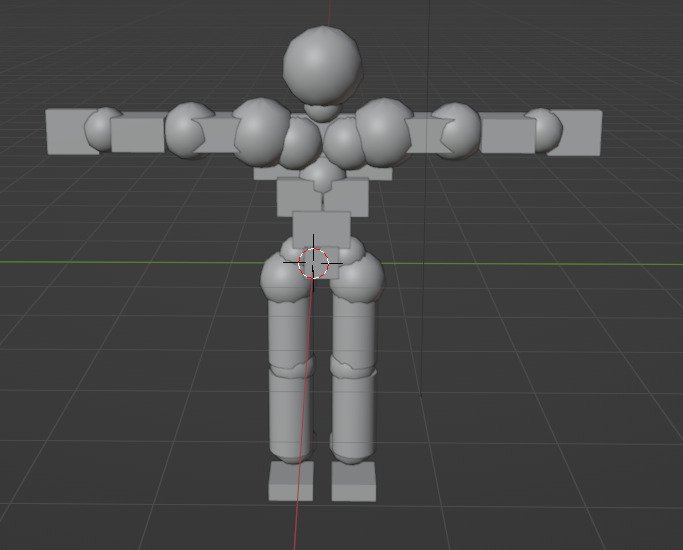
Roblox custom physics implementation involves using scripts to directly manipulate object properties like velocity, acceleration, and forces, bypassing the default physics engine.
Ever wanted more control over how things move in your Roblox games? The default physics engine is great, but sometimes you need something different. Roblox custom physics implementation lets you achieve unique movement and interactions that go beyond what’s normally possible.
This opens a world of possibilities, allowing you to create truly special gameplay experiences. Think of intricate vehicle handling, gravity-defying jumps, or any other motion you can imagine. Scripting these yourself provides the flexibility that the regular physics often lacks.

Roblox Custom Physics Implementation: Diving Deep
Okay, so you’re curious about making things in Roblox move in ways that aren’t just the usual bouncy, slidey stuff? That’s where custom physics comes in! Instead of relying on Roblox’s built-in physics engine, you can write your own rules for how objects interact. This opens a whole new world of possibilities, from creating unique vehicles to crafting puzzles that defy gravity. It might sound complicated, but let’s break it down step-by-step, making it understandable even if you’re new to scripting. We’ll explore what it means to implement custom physics, why you might want to, and how to get started.
Why Bother with Custom Physics?
You might be thinking, “Roblox physics work just fine, why mess with them?” Well, there are several reasons why you might want to go the custom route:
Unique Movement: Imagine a car that drifts in a special way, or a character that glides instead of walks. Custom physics lets you control exactly how things move, creating experiences that are different from anything else on Roblox.
Precise Interactions: Sometimes, you need very specific ways objects behave, like perfectly timed gears in a clock or a very controlled bouncing ball. Roblox’s physics can be a bit general, but you can make your own rules to nail down those interactions.
Advanced Games: For more complex game mechanics, especially simulation and puzzle games, standard physics might not be enough. Custom physics can help you build realistic or fantastical simulations with detailed controls.
Performance Control: When you handle physics manually, you have much better control over how computationally intensive certain tasks are. This means you can prevent lag on lower-end devices and optimize your game’s performance.
Learning and Understanding: Making your own physics system is a great way to learn more about how physics works in general, and also improve your coding abilities.
Standing Out: Unique physics can make your Roblox game memorable. If something moves and feels very different, players will be more likely to remember your experience.
Understanding the Basics of Physics
Before diving into the scripting, let’s touch on some basic physics concepts. Don’t worry, we won’t get too deep into complicated stuff. Here are a few key ideas:
Position: Where an object is located in space. We track position using X, Y, and Z coordinates. Think of it like describing where you are on a map.
Velocity: How fast an object is moving, and in what direction. You describe velocity by a rate of change in position (like 5 studs/second to the right).
Acceleration: How quickly an object’s velocity is changing. If an object goes from slow to fast quickly, it has high acceleration.
Force: Something that can cause an object to change its velocity, like gravity pulling something down or you pushing something. Force is something that causes acceleration.
Mass: How much “stuff” an object is made of. Mass impacts how objects react to forces and it’s crucial for momentum.
Friction: A force that slows objects down when they rub against each other. Think of trying to slide a book on a carpet versus on a polished table.
Gravity: The force that pulls objects toward each other, like how things fall to the ground on Earth.
Knowing these basics will help you when you’re implementing your own physics, because in the end, you’re essentially creating code that simulates these concepts.
Tools in Roblox for Custom Physics
Roblox provides a few important building blocks for making custom physics systems. You’ll primarily be working with:
Scripts: These are how you tell Roblox what to do. You’ll write scripts in Lua, the programming language used by Roblox.
Parts: These are the basic building blocks of your world. They can be blocks, spheres, cylinders, or even custom meshes. These will be the objects your custom physics will act on.
Vectors: These are like arrows that tell Roblox how far to move in each direction (X,Y,Z). They are how you’ll describe position, velocity, and acceleration.
RunService: This service provides the Heartbeat event. This is an event that fires each frame so you can consistently apply physics calculations. Think of it like the metronome that makes all your calculations run at a consistent rate.
Collision Detection: You will need to write your own logic to detect when parts are colliding. There are methods you can use like GetTouchingParts to identify collisions, and this will trigger responses in your physics simulation.
Constraints: If you still want to implement standard physics, you can control parts through constraints. You can use these as a basis for a custom implementation, for example you can lock the part position/rotation for the normal physics and manipulate the parts by setting the CFrame yourself and implementing the collisions yourself too.
Setting Up Your Environment
Before you start writing code, let’s prepare our Roblox studio:
1. Open Roblox Studio: Fire up Roblox Studio and create a new baseplate template game.
2. Add a Part: Insert a simple part (like a block) into the workspace. You can name it something like “PhysicObject”.
3. Add a Script: Create a new script inside the part. This script is where we’ll write the physics logic.
Simple Gravity Implementation Example
Let’s start with something basic: making an object fall under the influence of gravity. Here’s how the script inside your “PhysicObject” part might look:
lua
— Get the part we are working with
local part = script.Parent
— Define gravity as a vector that represents force going down (negative Y)
local gravity = Vector3.new(0, -9.8, 0)
— Initial velocity of the object is zero
local velocity = Vector3.new(0,0,0)
— Function to update the object’s position
local function updatePhysics(deltaTime)
–Apply the gravity to velocity
velocity += gravity deltaTime
–Move the part by the current velocity
part.CFrame = part.CFrame CFrame.new(velocity deltaTime)
end
— Event which is fired every frame
game:GetService(“RunService”).Heartbeat:Connect(function(deltaTime)
–Update physics in every frame
updatePhysics(deltaTime)
end)
Let’s go through what each part of this script does:
local part = script.Parent: Gets the part the script is attached to.
local gravity = Vector3.new(0, -9.8, 0): Creates a Vector3 representing gravity. 9.8 is the approximated value of Earth’s gravity. The negative Y direction means “down”.
local velocity = Vector3.new(0,0,0): Represents the initial velocity of the object. It’s set to zero since we want the part to start falling from still.
local function updatePhysics(deltaTime): This is the function that calculates and updates the object’s position each frame.
velocity += gravity deltaTime calculates and adds the acceleration caused by gravity to the part’s velocity.
part.CFrame = part.CFrame CFrame.new(velocity deltaTime) moves the object by the velocity multiplied by the delta time, which will move the object to it’s new position.
game:GetService(“RunService”).Heartbeat:Connect(function(deltaTime): This part connects the updatePhysics function to the heartbeat event. This means the function is called every frame. deltaTime gives you the time passed between frames, which is important for accurate physics.
If you run the game now, you’ll see the block fall straight down! Congratulations, you’ve made a basic custom gravity system!
Adding Simple Collision Detection
Now, a falling block is cool, but it would be better if the block stopped falling when it hits the floor. Let’s add a simple collision detection system. We can check for collisions using GetTouchingParts(), which returns a list of all parts that touch our part. We will be adding to the previous script.
lua
— Get the part we are working with
local part = script.Parent
— Define gravity as a vector that represents force going down (negative Y)
local gravity = Vector3.new(0, -9.8, 0)
— Initial velocity of the object is zero
local velocity = Vector3.new(0,0,0)
— Function to update the object’s position
local function updatePhysics(deltaTime)
–Apply the gravity to velocity
velocity += gravity deltaTime
–Move the part by the current velocity
local cframe = part.CFrame CFrame.new(velocity deltaTime)
–Check for collisions in the current position
local touchingParts = part:GetTouchingParts()
–If there is a collision, set the velocity to 0 to stop falling
if #touchingParts > 0 then
velocity = Vector3.new(0,0,0)
–If there is a collision, place the part on top of the collision part
local collisionNormal = Vector3.new(0,1,0)
local dotProduct = velocity:Dot(collisionNormal)
— Correct the position of the object based on velocity and the floor
if dotProduct < 0 then
cframe = cframe - (velocity deltaTime dotProduct collisionNormal )
end
end
part.CFrame = cframe
end
-- Event which is fired every frame
game:GetService("RunService").Heartbeat:Connect(function(deltaTime)
--Update physics in every frame
updatePhysics(deltaTime)
end)
Here’s what we’ve added:
local touchingParts = part:GetTouchingParts(): This line gets a list of every part touching our object every frame.
if #touchingParts > 0 then: Checks if there are any parts touching. if there are the part is colliding.
velocity = Vector3.new(0,0,0): If there are collisions, we set the velocity to zero, making the part stop.
local collisionNormal = Vector3.new(0,1,0): This creates a vector pointing up (representing the general direction of our floor)
local dotProduct = velocity:Dot(collisionNormal): This uses the dot product to check whether the velocity vector and the collision normal are pointing in opposite directions. If the dot product is negative, we can conclude that the velocity vector is pointing towards the floor.
if dotProduct < 0 then...: If the velocity is pointing towards the floor, it subtracts this vector from the part's CFrame, which moves it up and out of the floor. This prevents the part from entering the floor
part.CFrame = cframe: Moves the part based on the updated position that we made.
Now, when you run the game, your part will fall and stop when it hits the floor. While the collision system is still quite simple, it works for basic collisions.
Advanced Movement Example: Horizontal Push
Let’s add more interesting movement to our object. What about a push that sends it moving horizontally? We can modify our script like this:
lua
— Get the part we are working with
local part = script.Parent
— Define gravity as a vector that represents force going down (negative Y)
local gravity = Vector3.new(0, -9.8, 0)
— Initial velocity of the object is zero
local velocity = Vector3.new(0,0,0)
— Function to update the object’s position
local function updatePhysics(deltaTime)
–Apply the gravity to velocity
velocity += gravity deltaTime
–Move the part by the current velocity
local cframe = part.CFrame CFrame.new(velocity deltaTime)
–Check for collisions in the current position
local touchingParts = part:GetTouchingParts()
–If there is a collision, set the velocity to 0 to stop falling
if #touchingParts > 0 then
velocity = Vector3.new(0,0,0)
–If there is a collision, place the part on top of the collision part
local collisionNormal = Vector3.new(0,1,0)
local dotProduct = velocity:Dot(collisionNormal)
— Correct the position of the object based on velocity and the floor
if dotProduct < 0 then
cframe = cframe - (velocity deltaTime dotProduct collisionNormal )
end
end
part.CFrame = cframe
end
-- Input from mouse click
local pushForce = 5
local function onMouseClick()
velocity = Vector3.new(pushForce, velocity.Y, 0)
end
part.ClickDetector.MouseClick:Connect(onMouseClick)
-- Event which is fired every frame
game:GetService("RunService").Heartbeat:Connect(function(deltaTime)
--Update physics in every frame
updatePhysics(deltaTime)
end)
--Create a ClickDetector if one does not exists
if not part:FindFirstChild("ClickDetector") then
local clickDetector = Instance.new("ClickDetector")
clickDetector.Parent = part
end
Here are the updates we've made:
local pushForce = 5: Sets a value for how strong the horizontal push is.
local function onMouseClick(): Creates a function to be called when the part is clicked. It sets the velocity, adding a horizontal force.
part.ClickDetector.MouseClick:Connect(onMouseClick): Connects the onMouseClick function to the event when the click detector is clicked.
if not part:FindFirstChild("ClickDetector") then...: Creates a click detector on the part if there isn't already one.
Now, when you run the game and click on the part, it will jump to the right.
Building More Complex Physics
This was a simple introduction to custom physics, but you can use these basic ideas to build some very complex systems. Here are some concepts you can continue to explore:
Friction: Adding friction to slow down objects as they move.
Air Resistance: Simulating how air slows down moving objects.
Springs: Making parts connect and bounce or stretch, creating more fluid and interesting motions.
Angular Velocity: Handling rotations and how objects spin, making much more advanced and interesting physics interactions.
Multiple Forces: Handling a variety of forces acting on an object at once. For example, gravity and a push at the same time.
Impulses: Short, strong forces, often used for collisions. When two objects collide, they apply an impulse to each other, causing changes in direction.
Predictive Collision Handling: Predicting where objects will be to avoid going inside of other objects instead of fixing it afterwards.
Optimization Tips
When doing custom physics, optimizing your code is crucial. Here are some tips:
Only update when necessary: If an object isn’t moving or being acted upon by a force, don’t update its physics. It saves computation time.
Use a good physics update rate: The Heartbeat event fires every frame, but you don’t always need to update at that rate. If you have a simulation, running it every few frames instead of every frame can save processing power.
Vector Math Optimization: Try to reduce the number of Vector3 calculations you do, as too many could make your calculations too complex.
Batch Operations: Instead of calculating the movement of parts one by one, try grouping them into batches. This way, your calculations only iterate over each part once per frame.
Custom physics in Roblox offers exciting ways to control movement and interactions in your games. You can create experiences that are very distinct. You now know the basic concepts and tools to implement your own custom physics implementations. By understanding the building blocks, you can make your game stand out with unique physics. With a little experimentation, the only limit is your creativity. Keep pushing the boundaries of what’s possible in your Roblox games and happy scripting!
Roblox hitboxes be like
Final Thoughts
In summary, implementing custom physics gives developers fine-grained control over object movement and interactions. This requires a solid understanding of mathematical concepts and Roblox’s API. Roblox custom physics implementation empowers creators to build unique experiences.
We’ve seen how custom physics can drastically change game feel. Careful planning and testing is key to achieving desired results. Remember that performance optimization becomes very important with complex physics.

