
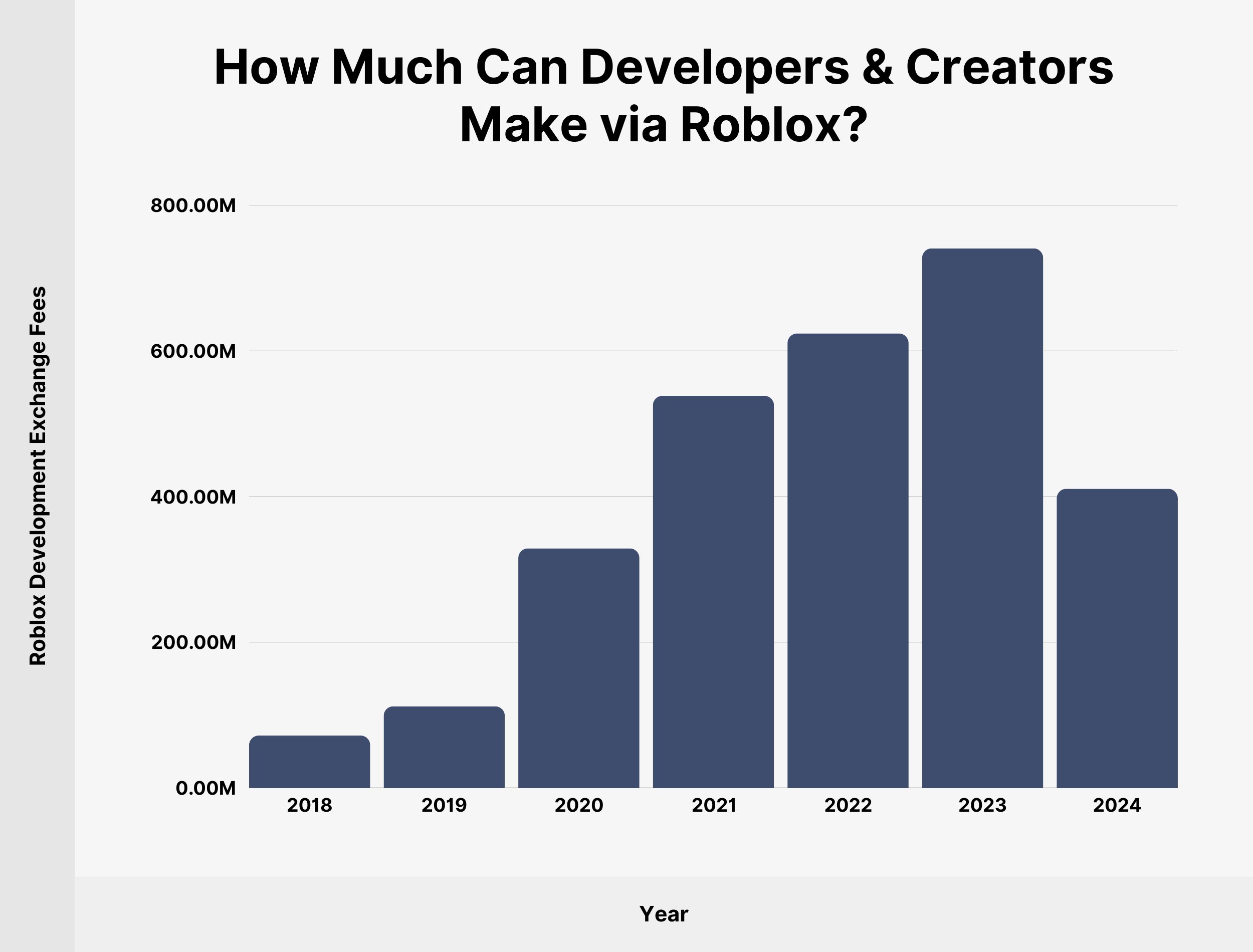
Data analysis for Roblox developers involves examining game metrics like playtime, player counts, and in-game purchases to understand player behavior and improve game design.
Do you ever wonder what makes a Roblox game successful? It’s not just luck; it’s often about using data effectively. Roblox data analysis for developers lets you see how players interact with your creation. This understanding will show you what is working and what needs improvement. Analyzing player behavior leads to better, more engaging experiences. By examining various game metrics, you can make smart design choices and boost your game’s performance.

Roblox Data Analysis for Developers
So you’ve poured your heart and soul into creating an awesome Roblox game! You’ve built cool worlds, coded fun mechanics, and designed captivating characters. But how do you know if players are really enjoying it? That’s where data analysis comes in. It’s like having a secret decoder ring that helps you understand what’s working, what’s not, and how to make your game even better. Let’s dive into the world of Roblox data and see how it can help you become a super developer!
Why is Data Analysis Important for Your Roblox Game?
Think of data analysis as a detective tool for your game. It helps you answer important questions, like:
- Which parts of my game are the most popular?
- Where are players getting stuck or frustrated?
- How long are players playing my game?
- Are players spending money on in-game items?
By looking at this information, you can make changes that improve your game and attract more players. It’s not about guessing; it’s about making smart decisions based on real information.
Getting Started with Roblox Data
Roblox provides built-in tools to collect some basic data about your game. Here are some key places to find it:
Roblox Developer Stats Page
The main place to see how your game is performing is the Developer Stats page. To find it:
- Go to the Roblox website and log in.
- Click on “Create” at the top of the page.
- Find your game in the list of your creations.
- Click on the three dots next to your game’s name and select “View Analytics.”
Here, you’ll see graphs and charts showing the number of players, how long they’re playing, and even how much revenue you’re making, all presented in an easily understandable format. You will find daily, weekly and monthly stats on your game here.
In-Game Analytics
While the Developer Stats page provides overall information, sometimes you need more specific data within your game. To do this, you can use Roblox’s built-in scripts to track specific player actions. For example, you can use scripts to track:
- Which levels are being played the most.
- How long it takes players to complete certain tasks.
- Where players are dying the most often.
- How often players use certain items.
You’ll be able to track user behavior to make improvements. These type of data points can help you find which part of your game that has the most retention.
Key Metrics to Track in Your Roblox Game
Let’s look at some specific things you should be keeping an eye on:
Player Count
This is the most basic metric: how many players are in your game right now? A higher player count usually indicates a popular and well-liked game. It’s important to track both the current player count and the trend of player counts over time, as this helps you know if your game is gaining or losing popularity.
Play Time
How long are players spending in your game? This is measured in average session time and is a key indicator of how engaging your game is. A longer play time suggests that players are enjoying themselves and want to keep playing. If you see players leaving quickly, it might be a sign that they aren’t finding your game as compelling as you hoped. Analyze the game loop and progression to find places to improve on the experience.
Retention Rate
This tells you what percentage of players come back to play your game again after their first session. A high retention rate is vital for long-term success. If players only play your game once, then never return, there is clearly something wrong with the game. Keep tracking the retention rate of daily, weekly and monthly basis.
Revenue
If your game has in-game purchases, tracking your revenue will be crucial for its success. Revenue figures will tell you how well your monetization model is performing. This helps you understand which items are popular and if your game is making enough money to be sustainable. If you have a revenue based business, you want to keep track of this.
Gameplay Data Points
Tracking player behavior within the game is also useful for making informed decisions. For instance, if players are constantly struggling to pass a certain level, you might need to adjust the difficulty. Some common things to track in your game include:
- Level Completion Rates: How often players succeed at each level?
- Time Spent on Tasks: How long do players spend on certain tasks?
- Player Deaths: Where are players dying the most?
- Use of Items: Which in-game items do players use the most?
These types of metrics help you fine tune your game experience for the users by looking at hard data.
Setting Up Custom Data Tracking
While Roblox’s built-in tools are helpful, you can also use scripts to collect specific data that’s more relevant to your game. Here’s how you can do it:
Using Roblox’s DataStoreService
The DataStoreService allows you to store player data and retrieve it. You can use this to track all sorts of in-game activities. Here’s a simple example:
-- Get the DataStoreService
local DataStoreService = game:GetService("DataStoreService")

-- Create a data store
local gameDataStore = DataStoreService:GetDataStore("GameData")

-- Function to save player data
local function savePlayerData(player, data)
    local success, err = pcall(function()
        gameDataStore:SetAsync(player.UserId, data)
    end)
    if not success then
      warn("Data save failed for ".. player.Name .." with error: ".. err)
    end
end

-- Function to load player data
local function loadPlayerData(player)
    local data = nil
    local success, err = pcall(function()
        data = gameDataStore:GetAsync(player.UserId)
    end)

    if not success then
        warn("Data load failed for ".. player.Name .." with error: ".. err)
    end

    if not data then
        return {
            gamesPlayed = 0,
            levelReached = 1,
            itemsCollected = 0,
        }
    end

    return data
end

game.Players.PlayerAdded:Connect(function(player)
    local playerData = loadPlayerData(player)
    -- Use the player data for game logic
    player.Data = playerData
    player:SetAttribute("GamesPlayed", playerData.gamesPlayed)
    player:SetAttribute("LevelReached", playerData.levelReached)
    player:SetAttribute("ItemsCollected", playerData.itemsCollected)

end)

game.Players.PlayerRemoving:Connect(function(player)
    local playerData = {
            gamesPlayed = player:GetAttribute("GamesPlayed"),
            levelReached = player:GetAttribute("LevelReached"),
            itemsCollected = player:GetAttribute("ItemsCollected"),
        }
    -- Save player data before they leave
    savePlayerData(player, playerData)

end)

-- Example of tracking a game start
local function playerGameStart(player)
    -- Load the player's Data
    local playerData = player.Data
    -- Update the game played data
    playerData.gamesPlayed = playerData.gamesPlayed + 1
    player:SetAttribute("GamesPlayed", playerData.gamesPlayed)
    -- save the data
    savePlayerData(player, playerData)
end
-- Connect the function to player join
game.Players.PlayerAdded:Connect(playerGameStart)

-- Example of tracking level completion
local function playerLevelUp(player, levelNumber)
    -- Load the player's Data
    local playerData = player.Data
    -- Update the level data
    playerData.levelReached = levelNumber
    player:SetAttribute("LevelReached", levelNumber)
    -- save the data
    savePlayerData(player, playerData)
end
-- Call this function to save the level, when the player levels up.
-- playerLevelUp(player, newLevelNumber)


-- Example of tracking item collection
local function playerItemCollect(player, numberOfItems)
    -- Load the player's Data
    local playerData = player.Data
    -- Update the item collection data
    playerData.itemsCollected = playerData.itemsCollected + numberOfItems
    player:SetAttribute("ItemsCollected", playerData.itemsCollected)
    -- save the data
    savePlayerData(player, playerData)
end

-- Call this function to save the item collection, when the player collect an item.
-- playerItemCollect(player, itemsCollected)
This code shows how to store basic information such as the player’s games played, level reached, and items collected. This data is saved when the player leaves and loaded when the player joins the game. You can adjust this script to track any information you need for your game. You may also want to implement a more comprehensive system for large amounts of data using third party platforms like Google Analytics or Firebase.
This data will be very useful, especially as you keep on building and updating your game.
Custom Events
You can also track specific events that happen within your game. For example, if a player completes a level, you can log that event. These events can be used to analyze player progression and discover potential design flaws. Logging this data into a spreadsheet or a third-party platform makes it very easy to manage and analyze.
You could, for example, use the following functions to track these events:
-- Function to track player action
local function trackPlayerAction(player, actionType, levelNumber)
    local playerActionData = {
        userId = player.UserId,
        action = actionType,
        time = os.time(),
        level = levelNumber
    }
    -- You will need to write your own method here, on how to save this data to a place where you can access it.
    -- You can also send this data to Google analytics or another analytics platform.
    print(player.Name .. " : " .. actionType .. " : " .. levelNumber)
end

-- Example of tracking a level start
local function playerStartLevel(player, levelNumber)
  trackPlayerAction(player, "LevelStart", levelNumber)
end

-- Example of tracking level completion
local function playerCompleteLevel(player, levelNumber)
    trackPlayerAction(player, "LevelComplete", levelNumber)
end

-- Example of tracking death
local function playerDied(player, levelNumber)
    trackPlayerAction(player, "PlayerDeath", levelNumber)
end
-- Call this function when the user starts a level
--playerStartLevel(player, levelNumber)

-- Call this function when the user completed a level
--playerCompleteLevel(player, levelNumber)

-- Call this function when the user dies
--playerDied(player, levelNumber)
Analyzing Your Data
Collecting data is only the first step. Now you need to analyze it to find ways to improve your game. Here are some tips:
Use Spreadsheets
You can use tools like Google Sheets or Microsoft Excel to organize and visualize your data. You can create charts and graphs to easily see trends and patterns in your player behavior.
Look for Patterns
Are players getting stuck at a certain point in your game? Are they using one item more than others? These are the kinds of questions you can answer by looking at the patterns in your data. Once you know which areas are struggling or succeeding, you can focus on making changes to these areas.
Make Data-Driven Decisions
Avoid making changes to your game based on guesses. Always try to use data to back up your design decisions. For example, if you think a level is too hard, the data should tell you which part of the level is the cause. Using data, you can then make the appropriate change to the section of the level which is giving you the most issues.
Tools for Roblox Data Analysis
There are many tools available to help you analyze your game’s data. Some of them include:
Roblox’s Developer Stats Page
As mentioned earlier, Roblox provides a basic analytics page which can be very useful for a quick overview of your game’s performance.
Google Analytics
Google Analytics is a powerful tool for tracking website traffic, but it can also be used with your Roblox game by logging data through HTTP services. You can use this to understand user behavior and measure how well your game is doing. You need to learn about how to use http requests inside of Roblox in order to make this work.
Firebase
Firebase is another excellent option for collecting and analyzing data from your Roblox game. It offers real-time data tracking and makes it easy to understand how players interact with your game. Just like Google Analytics, you will also need to use HTTP requests in order to make it work.
Custom Spreadsheets
For simpler needs, a spreadsheet might be enough for your data analysis. You can manually log data by connecting it to your data storage system in Roblox, or you can import data collected from other sources into the spreadsheet.
Real-World Examples of Data Analysis in Roblox
Let’s see how data analysis can help in real-world game development:
Example 1: Level Difficulty
Imagine you have a level that many players are having a hard time completing. By looking at your data, you see that most deaths happen at the same point. With this information, you can make your game more balanced. You might choose to make that part of the level easier or move the obstacles so they don’t feel unfair.
Example 2: Popular Items
Let’s say you have a game with different items that players can purchase. When you look at your sales data, you notice one particular item is very popular. You can then use this to understand which items players enjoy and maybe make more items like that.
Example 3: Improving Engagement
If you notice players leaving the game quickly, you can look at your data to figure out why. It could be that they don’t understand the game, are getting stuck, or aren’t having fun in the starting levels. You can then use the data to make adjustments to fix those areas.
Best Practices for Using Data Analysis
Here are some best practices for data analysis to ensure the best results:
- Start Early: Begin collecting data from the start of your game development. This helps you identify and fix problems early on.
- Be Patient: Data analysis takes time. Give your game time to gather data before jumping to conclusions.
- Be Flexible: Be willing to change your game based on what the data tells you, even if it means changing something you love.
- Test Your Changes: After you make changes, keep an eye on the data to see if those changes had a positive impact.
- Combine Data: Look at different types of data together to get a more complete picture of what is happening in your game.
By understanding the data related to your game, you can make smart, informed decisions which will have a positive impact.
Data analysis is a powerful tool that can help any developer improve their games, it may seem complicated at first but by practicing you will find the power of data to be very useful. By tracking metrics, implementing custom data tracking, and making informed decisions, your games will be much more successful.
📈 How To Use Your Game Analytics [💻Roblox Developers]
Final Thoughts
Effective roblox data analysis for developers empowers you to make informed design choices. You can understand player behavior through metrics. This helps improve game engagement and retention.
By using data effectively, developers identify areas for improvement. You can optimize gameplay loops and increase user satisfaction. Remember that careful roblox data analysis for developers leads to significant game enhancements.

