
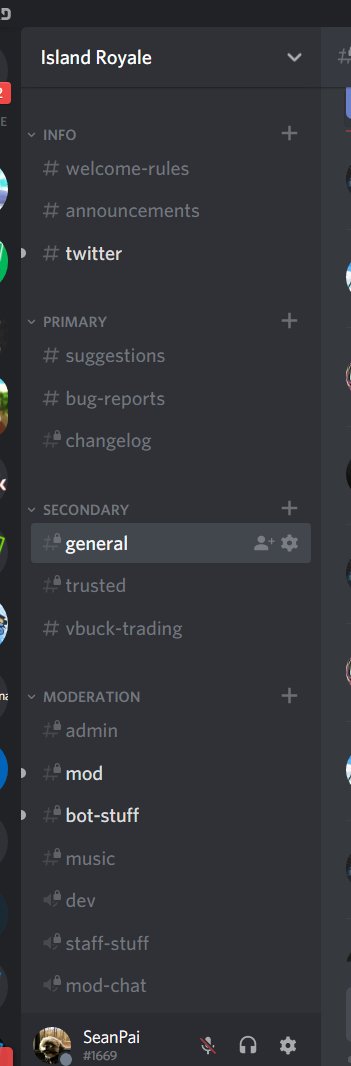
Setting up a Roblox Discord server involves creating a new server on Discord, customizing channels for different game aspects or roles, and inviting your Roblox community members to join.
Ready to connect your Roblox players more effectively? A dedicated Discord server is key. A properly configured server helps build community and makes it easier to communicate with your group. Getting started with a proper roblox discord server setup doesn’t have to be complicated.
It’s all about a few essential steps that you can learn quickly. This short guide will get you on the right track. Let’s create an engaging space for your players.

Roblox Discord Server Setup: Your Complete Guide
Setting up a Discord server for your Roblox game or community can be a fantastic way to connect with players, share updates, and build a thriving online space. It might seem a bit tricky at first, but don’t worry! This guide will walk you through every step of creating and managing a successful Roblox Discord server. We will cover everything from the initial setup to adding cool bots and making your server a fun place to be.
Why Have a Discord Server for Your Roblox Game?
Before we jump into the “how,” let’s talk about the “why.” Why should you bother creating a Discord server for your Roblox experience?
- Building Community: Discord lets your players chat with each other, form groups, and become friends. It’s like having a clubhouse just for your game.
- Giving Updates: You can easily post announcements about new features, updates, and events in your game. Players will always know what’s going on.
- Getting Feedback: Hear directly from your players! They can tell you what they like, what they don’t, and how you can make your game even better.
- Providing Support: If a player needs help, your Discord server can be a place where they can ask questions and get assistance from you or other community members.
- Organizing Events: You can plan and promote in-game events, tournaments, or giveaways right on your Discord server.
Getting Started: Creating Your Discord Server
Okay, let’s make this happen! Here’s how to get your Discord server up and running:
- Open Discord: If you don’t have Discord yet, go to the Discord website (discord.com) and download the app for your computer or phone. If you already have the app, open it.
- Find the “+” Button: On the left side of your Discord screen, you’ll see a big “+” button. This is how you add a new server. Click it!
- Create a Server: Choose the “Create My Own” option and then select “For a community” to best suit your Roblox needs.
- Name Your Server: Give your server a name that is related to your Roblox game. Choose something recognizable and fun. You can also upload a picture to represent your server, which helps people find it easily.
- Invite Your Friends: After creating your server, you will get the option to invite friends. Click that option, copy the link and share it to your community.
Setting Up Your Server Channels
Channels are how you organize different topics of conversation on your server. They are like different rooms in your clubhouse. Here’s how to create essential channels for a Roblox server:
Text Channels
- #general: This is a good main chat channel where everyone can talk about anything related to your game.
- #announcements: Use this channel for important updates, like game updates or event announcements. Keep this channel just for admins.
- #suggestions: Let players share their ideas for the game here. This is great for getting feedback.
- #bug-reports: If players find a problem with your game, they can report it here.
- #off-topic: Create a channel where people can talk about things not related to the game if you want to.
Voice Channels
- General Voice: A place for players to chat while they play the game.
- Event Voice: Create separate voice channels for different events to keep things organized.
Creating a Channel: To make a new channel, click the “+” button next to “Text Channels” or “Voice Channels” on the left side of your server. Give your channel a name and click “Create Channel”.
Adding Roles and Permissions
Roles help you manage your server. They let you give different permissions to different people. Here are some roles you might want to create:
- Admin: These are people who have full control of the server. They can change settings and manage everything.
- Moderator: They help keep the server friendly and follow the rules.
- Verified Player: This role can be given to people who play your game. It shows they are part of the community.
- Event Host: If you have players who help you host events, you can give them this role.
Creating Roles: Go to “Server Settings” then “Roles”. Click on “Create Role”. Give your role a name, choose a color, and select the permissions you want them to have. After that, you can assign roles to specific members by clicking on their name and manage roles.
Adding Essential Bots
Bots can make your server more engaging. Here are some useful bots for a Roblox community:
Verification Bots
Bots like Bloxlink help you verify that players have linked their Roblox account to Discord, this is important for many features like using player names in your server or checking if a user is playing your Roblox game.
- Benefits: Helps you track in-game users and add verified user tags, to show the player is in your community.
Music Bots
Bots like Rythm or FredBoat let users play music in voice channels. It can make gaming sessions more fun and enjoyable.
- Benefits: Allows players to share their favorite songs and provides background music during game play or events.
Moderation Bots
Bots like MEE6 or Dyno can help automate moderation tasks, keeping your server clean and safe.
- Benefits: Automatic welcome messages, rule enforcement, and anti-spam protection.
Game Update Bots
These bots can automatically post game updates to your announcements channel.
- Benefits: Automatic posting of new game updates, so your players stay in the know!
Adding Bots: To add a bot to your server, find the bot you want to add and click the invite button. You will need to authorize the bot on your server.
Server Rules and Guidelines
Having rules helps keep your server friendly and safe. Make sure to clearly state these rules and guidelines on your server, usually in a dedicated channel like #rules or #server-guidelines.
Some important rules to consider:
- Respect everyone: Don’t insult other players.
- No spamming: Don’t send the same message over and over.
- No advertising: Don’t promote other games on your server.
- Keep it clean: No using bad language or sharing inappropriate content.
- Follow Discord rules: Don’t do anything that violates Discord’s Terms of Service.
Engaging Your Community
Now that your server is all set up, let’s talk about ways to keep it active and fun. Here are some strategies you can use:
- Ask Questions: Ask your community about their favorite in game moments, what they would like to see next.
- Run Contests and Giveaways: Host contests on your Discord server, these are great for creating interactions and excitement.
- Regularly Announce Updates: Let your community know what changes you make or what events are coming.
- Create Polls: Let players vote on new features or changes you are planning. This also creates more engagement in your community.
- Host Events: In-game meet ups or private servers for only those in the discord to play together.
- Recognize Your Players: Give special roles to your active community members.
Moderation and Keeping Your Server Safe
Moderation is key to ensuring that your server remains a welcoming and secure place. Here are some tips for keeping your server safe:
- Enforce the rules: Make sure you and your moderators follow the server rules and guidelines, even if you have to enforce it on a close friend.
- Use bots: Moderation bots are great at detecting inappropriate messages and helping you to manage your server.
- Listen to reports: Pay attention when someone reports a problem and take appropriate action.
- Stay active: By staying active yourself in the server you ensure that your players feel safe and that you are there to keep an eye on things.
Promoting Your Discord Server
Now that you have built your community, it’s time to tell more people about it! Here’s how to promote your server:
- Share in Your Roblox Game: Include a link in your game description or even within the game itself.
- Tell your friends: Let your Roblox friends know about your Discord.
- Social Media: Share your server on other social media platforms such as, Instagram, twitter, Facebook or Youtube.
- Roblox Groups: You can also try advertising it in Roblox groups.
ROBLOX – How to make the perfect Roblox Discord! (2021)
Final Thoughts
Effectively setting up your Roblox Discord server involves clear roles, dedicated channels, and relevant bots. Proper configuration enhances community interaction and moderation. A well-organized server is key for a positive user experience within your game’s community.
Prioritize member verification to prevent malicious actors. Make sure to establish rules to create a safe environment. The setup of your ‘roblox discord server setup’ should always keep your community’s specific needs in mind.

