
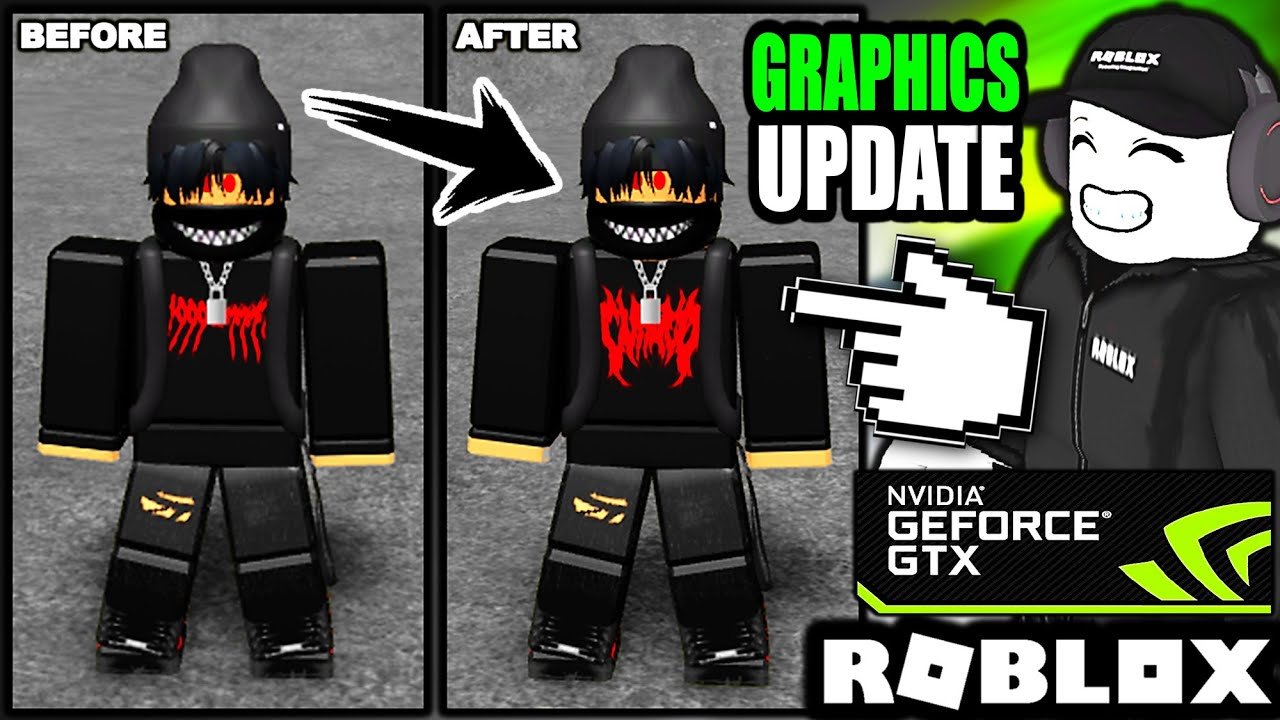
Troubleshooting Roblox graphics issues involves updating drivers, adjusting in-game settings, and ensuring your system meets minimum requirements.
Experiencing choppy visuals or bizarre textures in your favorite Roblox games? You’re not alone; many players encounter Roblox graphics issues and fixes often require a few tweaks. Let’s explore some common causes and solutions to get your game looking its best.

Roblox Graphics Issues and Fixes
Hey Roblox fans! Ever been playing your favorite game and suddenly, things look… weird? Maybe the colors are off, or the game is super choppy. That’s likely a graphics issue, and they can be a real bummer. But don’t worry, we’re here to help you fix them!
Common Roblox Graphics Problems
Let’s talk about some of the problems you might see. We’ll break it down so it’s easy to understand.
Game Looks Blurry
Sometimes, Roblox games appear blurry. It’s like your screen is out of focus. This can make it hard to see details and enjoy the game.
This usually happens because of low graphics settings or issues with your screen resolution.
Colors Are Wrong
Have you seen a game where the colors are totally off? Maybe everything is too bright or too dark, or the wrong colors are showing. It’s definitely distracting!
This can be caused by driver problems with your graphics card or incorrect in-game settings.
Choppy or Laggy Gameplay
If your game feels choppy or moves slowly, it might be due to lag. This means your game isn’t running smoothly. This kind of issue makes it difficult to play properly.
This is frequently caused by your computer struggling to keep up with the game’s demands, a poor internet connection, or having too many other apps running at the same time.
Textures Not Loading
Sometimes, the pictures on objects, like walls or floors, don’t fully appear. They may be blurry or look like a solid color, not what they are supposed to be.
This can result from having low graphics settings or your computer having older hardware.
Game Freezes or Crashes
The worst graphics problem is when the game freezes or closes completely. This is very frustrating because you will need to start again from the beginning.
These can happen because of graphics card issues, computer problems, or even a bug in the Roblox game itself.
Weird Visual Glitches
Visual glitches are when things look strange on the screen. Like, parts of objects may flicker or disappear briefly.
These glitches can be due to old graphics drivers or a glitch in the Roblox engine.
How to Fix Common Graphics Problems
Now for the good part! We’ll tell you how to fix these annoying issues, step by step. Let’s get your game looking awesome again!
Adjusting Roblox Graphics Settings
The first thing to try is changing the graphics settings inside Roblox. These options can make a big difference in how your game looks and runs.
Here’s what you do: First, go to a game in Roblox and press the ESC key.
Next, click on “Settings.”
Here, you will see “Graphics Mode.” Try switching it from “Automatic” to “Manual.”
Under the “Graphics Quality” section, you’ll see a slider. If the game is choppy, move the slider to the left towards “Low”. If your game looks blurry, try moving the slider to the right towards “High”.
Once you’re done, you’ll notice some changes.
Updating Your Graphics Drivers
Old graphics drivers can create many problems. Updating to the newest versions can often fix glitches and improve game performance.
Here’s how you do it:
- First, find out what graphics card you have. On Windows, search for “Device Manager,” then click on “Display adapters.” You’ll see the name of your graphics card there.
- Then, go to the website of your graphics card maker. This is usually either NVIDIA or AMD.
- Search for the latest drivers for your card. Then, download and install them, making sure you restart your computer after installation is complete.
Checking Your Screen Resolution
Sometimes, Roblox looks bad because your screen resolution isn’t right. It needs to match what your monitor supports.
Here’s how to check and change it (Windows):
Right-click on your desktop and click “Display Settings.”
Scroll down and look for “Display resolution.” Make sure it’s set to the recommended resolution for your screen.
Closing Background Apps
If too many other programs are running on your computer, Roblox might slow down. Closing these apps helps free up resources.
Press Ctrl+Shift+Esc (on Windows) to open “Task Manager”. Look for the apps that are using the most CPU or memory, and close the ones you don’t need.
Adjusting In-Game Graphics Settings
Some Roblox games have their own graphics settings. These settings can affect how the game looks and plays.
To see this, look for a settings menu inside the game. You may see options to change the graphics, shadows or other things. Try adjusting them until the game looks and runs well.
Lowering Graphics Settings in Roblox Studio
If you make Roblox games, Roblox Studio can also cause graphics problems. Here’s how to adjust it:
Open Roblox Studio. Go to “File”, then click on “Studio Settings”. Then, go to “Rendering.”
In “Rendering” you can lower the graphics quality settings. Experiment with them until the performance improves.
Checking Internet Connection
Sometimes, lag can look like a graphics issue. Make sure your internet connection is good.
Try restarting your modem and router. Also, make sure no one else is using a lot of internet at the same time while you are playing. If you can, try using an ethernet cable instead of wifi to see if it helps.
Restarting Your Computer
It’s simple, but sometimes a restart fixes everything! It can clear up little glitches that are causing issues.
Turn off your computer and wait a minute, then turn it back on.
Reinstalling Roblox
If nothing else works, try reinstalling Roblox. This will give you a fresh version of the game, so it will get rid of any bad files.
Go to your computer’s “Add or Remove Programs”, find Roblox, uninstall it. Then go to the Roblox website and download and install the newest version.
Advanced Troubleshooting
What if the simple fixes don’t work? Here are some more steps to try.
Checking for Computer Issues
Make sure your computer is running well. Check for viruses or other problems that could affect your computer’s performance.
Run a virus scan using your antivirus software. Also, try running a disk cleanup to remove old files, freeing up space on your computer.
Checking Your Graphics Card
Sometimes, graphics cards can get old or have problems that need fixing. Look at your graphics card carefully.
Check that it’s installed correctly. Make sure the fan is working, so it doesn’t get too hot. You could also try testing it with a different computer to make sure it is working well.
Seeking Help From the Roblox Community
If nothing seems to work, get help from other Roblox players. They may have had the same issues and can give you tips.
Visit the Roblox forums or a Roblox Discord server. Ask other players for help, or search to see if others have had the same problem before.
Understanding Different Graphic Settings
Understanding the graphic settings will help you better adjust them based on the game’s needs. Let’s take a look at what these settings actually do.
Graphics Quality Explained
This setting affects the detail level of the game. High quality makes everything look great but can make your game lag if your computer is not powerful enough. Low quality is best for smoother gameplay. Lowering the quality can also help if your game is choppy or slow.
Texture Quality
Textures are like the skin of objects in the game. High texture quality makes things like walls and floors look sharper and more detailed. Lowering the texture quality can reduce blurriness and help with performance but will result in less detailed looking items.
Shadow Quality
Shadows add depth and realism to a game. The higher the shadow quality, the more realistic but it uses more computer power. If your game is slow try reducing the shadow quality.
Render Distance
Render Distance is how far away you can see the game world. If your render distance is low, far-off objects and terrain may not load fully, making them appear to pop in as you approach. Setting this too high can reduce your game’s performance.
Anti-aliasing
Anti-aliasing helps make the edges of objects look smooth, rather than jagged. Having a high anti-aliasing setting will make the game look better, but like other settings will require more power from your computer.
V-Sync
V-Sync helps prevent screen tearing by synchronizing the game’s frame rate with your monitor’s refresh rate. Turning V-sync off will remove the limitation to your monitors refresh rate, potentially increasing the smoothness of the game if your game is not limited by the V-Sync. But it may cause screen tearing on your screen.
Additional Tips for Smooth Gameplay
Here are some more extra things that might help if the tips above don’t completely fix your issues.
- Keep your computer clean: Don’t let your computer get full of junk. Delete old files, and uninstall old programs you don’t need.
- Keep your game updated: Make sure Roblox is always updated to the newest version, as well as the games you are playing.
- Play with friends: Sometimes playing with friends can make things more fun, even if the graphics aren’t perfect!
- Check for game updates: Roblox is constantly updated so some game issues could be addressed in game updates.
- Experiment: Try changing your graphic settings each time you play a game to see what works best for you.
We hope these tips helped you! Graphics issues can be frustrating, but with a little work, you can get back to enjoying your favorite Roblox games. Keep trying different things until you find what works best for your computer. And remember, even with perfect graphics, the most important thing is to have fun!
How To Fix Roblox Low Quality Bug
Final Thoughts
To summarize, common fixes for Roblox graphics issues include updating drivers, adjusting in-game settings, and ensuring your device meets minimum specs. Some users also find success by reducing texture quality. Addressing ‘roblox graphics issues and fixes,’ often requires a combination of these steps.
Experimenting with different combinations of these solutions can significantly improve your gaming experience. Players should also check for game updates.

