
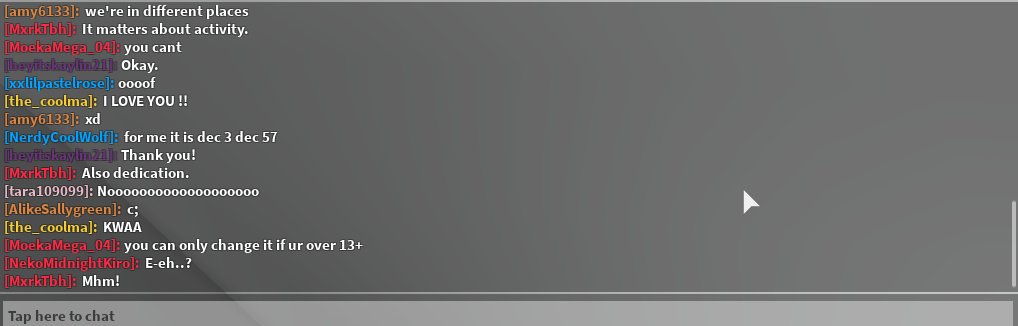
‘Roblox in game chat design’ typically involves creating user interfaces for text input, display, and moderation, often incorporating features like player tagging, chat filters, and command functionality.
Ever wondered how those seamless text conversations happen within your favorite Roblox games? Well, the magic lies in thoughtful roblox in game chat design. It is a crucial aspect of any multiplayer experience. It dictates how players interact and communicate with each other.
The chat system needs to be intuitive, easy to use, and also safe for everyone. This also includes elements like filtering profanity and making it easy to report abusive players.

Roblox In-Game Chat Design: Creating Great Communication
Okay, so you’re making a Roblox game! That’s super exciting! You’ve got your cool characters, amazing world, and fun gameplay. But wait, how will players talk to each other? That’s where in-game chat comes in! Good chat design is like the friendly helper in your game, making it easier and more fun for everyone to connect and play together. It’s more than just typing words; it’s about how players feel and interact. Let’s dive into how you can make your game’s chat awesome.
The Basics: What Makes a Good Chat?
Before we get into the nitty-gritty, let’s talk about the main things a good chat should have. Think of it like building a treehouse: you need strong foundations first. A good chat should be:
Easy to Use: Players need to quickly understand how to type, send messages, and read what others are saying. No confusing menus or hidden buttons!
Clear: The text should be easy to see. Colors should be readable against the background, and the font should be big enough. No squinting!
Unobtrusive: The chat shouldn’t get in the way of the game. It should pop up when needed, but not cover the whole screen.
Safe: You should have ways to keep the chat friendly and safe for everyone. This includes things like filtering bad words.
Understanding Different Chat Types
Roblox offers different types of chat. You can use the default chat, which is really simple, or you can make your own custom chat. Let’s explore the most common options.
The Default Roblox Chat
This is the standard chat that comes with every game on Roblox. It’s easy to use because it’s already set up.
How it Works: When players type, their messages appear above their heads and in a chat window.
Pros:
Simple to implement—no coding required.
Most players know how to use it.
Has built-in filtering.
Cons:
Not customizable. You can’t change how it looks or acts.
Can feel boring. All Roblox games use the same basic chat.
Custom Chat Systems
If you want something unique, you can create your own chat. This means you’ll need to use Lua scripting (Roblox’s programming language). Don’t worry, you don’t need to be a super coder to get started, and there are loads of tutorials available!
How it Works: You design and code everything: how the chat looks, where it shows up, and how it works.
Pros:
Completely customizable. You can change everything about the way chat functions and looks.
You can add special features. Think of things like chat commands, different chat channels, or even emotes.
Makes your game stand out. It feels more special when you have your own chat style.
Cons:
More complicated to set up. You need to know some scripting.
Requires more time and effort to design and test.
You need to create your own filtering system.
Designing Your Chat: The Look and Feel
The look and feel of your chat is super important. It’s like decorating your treehouse – you want it to be comfy and inviting. Here are the things to think about:
Chat Window Design
Placement: Where should the chat window go? Usually, it’s in the bottom left or right corner of the screen. Try experimenting to see what feels best for your game.
Size and Shape: The window needs to be big enough to read, but not too big that it blocks the game. A narrow rectangle is usually a good shape.
Transparency: Make the chat window slightly transparent. This means you can still see the game behind it. This stops the chat from fully blocking your view.
Colors: Choose colors that are easy to read. Light text on a dark background is a good idea, or the opposite if your game uses bright colors. Avoid colors that clash or make text blurry.
Text Display
Font: Select a font that’s easy to read, even for younger players. Stay away from fonts that are too fancy or small.
Text Size: Make the text big enough for everyone to see clearly, even from a distance.
Colors: Think about using different colors for different types of messages. Maybe normal chat is white, and system messages are in a different color like blue or gray.
Message Bubbles: You can show the chat messages above the characters’ heads or in a chat window. Showing it above the character’s head allows you to see who said what. You can even use both!
Special Features
Timestamps: Adding a timestamp next to each message can help players keep track of conversations.
Player Names: Make sure the names of players who are talking are easy to see. Try using a different font or color for the name.
Chat Commands: Chat commands are shortcuts that allow players to do things quickly. Think of commands like /whisper [username] [message] to send a private message or /me dances to show an action. This can make the experience more engaging.
Advanced Chat Features: Taking it Further
If you’re ready to move beyond the basic chat, let’s explore some cooler stuff:
Chat Channels
Think of channels like separate rooms in the chat. You can create different channels for different topics or groups of players. Some common channels are:
General Chat: For regular chatting with everyone in the game.
Team Chat: For players on the same team. Only people on your team can see what you type.
Admin Chat: For game admins or moderators to communicate. Only the admins can see this.
Whispers/Private Messages: So players can talk privately to other users, without everyone else reading their message.
Emotes and Icons
Emotes are animated characters that can express emotions or actions. Adding them to the chat can make it much more fun! Instead of saying “I’m happy!”, you can type a command that shows your character smiling. Icons can represent different things too such as your rank, team, or special status.
Text-Based Emotes: These use text to represent an emote, like 😀 for a smile.
Image-Based Emotes: These show a small image or animation when players type a special command like /dance to trigger an animation.
Player Icons: Small icons next to their name can denote rank, roles, or team affiliations.
Voice Chat
Voice chat lets players speak directly with each other through a microphone, rather than typing messages. While this might be more complex to implement, it adds a more personal and lively touch to your game.
How It Works: Players connect their microphone and can talk to other players nearby in the game or in specific teams.
Things to Think About: You need to manage how far the sound travels, so players don’t hear people far away. You also need to filter bad language and handle loud players, perhaps with volume control features. It’s essential to provide a way for players to mute individuals.
Safety: Voice chat requires a great deal of responsibility, since this could pose security risks to young children. Ensure that you have very strong filtering in place and also a way to report harmful behaviour or instances of exploitation.
Making Your Chat Safe and Friendly
Safety is crucial, especially when children are playing your game. You must make sure your chat is a happy place for everyone. Here’s how:
Filtering
Filtering bad language is a must. Roblox has its own filtering system, but you can also add your own rules and words to filter out.
Roblox’s Default Filter: This is a starting point, but it’s not perfect. It might miss some bad words, and it might block some harmless words.
Custom Filters: You can add extra words, acronyms, and phrases that you want to block in your game. This gives you more control over what people can say. You can also change the filters for your intended audience.
Alternatives to Bad Words: Instead of just deleting bad words, you can replace them with something funny or harmless. For example, you could replace swear words with the sound of a cat meowing! This adds a humorous touch.
Moderation
Moderators are people who make sure the chat is friendly. These can be developers or trusted players.
Admin Commands: You can give admins special commands to mute or ban players who are being mean or harmful.
Reporting System: Let players easily report others who are breaking the rules. They can click a button to say someone is being unkind.
Automatic Systems: Use scripts that can automatically detect and take action against people who are using bad language or spamming the chat.
Promoting Positive Behavior
Chat Rules: Clearly show players the rules of the chat. Make sure these are easy to understand for young people and easy to find within the game.
Rewards: You could reward players who are nice to others with special in-game items or special titles.
Positive Community: Encourage players to be friendly to each other and make your game a positive place for everyone to enjoy.
Testing Your Chat: Making Sure It Works
Before you let everyone use your chat system, test it. This is like doing a practice run before you play the game. You want to ensure your design is good and free of errors.
Play Testing
Get Feedback: Ask friends or family to test the chat. See what they think. Is it easy to use? Is the text easy to read?
Try it in Different Ways: Test the chat on different devices (computers, tablets, phones). Make sure it works well on all of them.
Look for Bugs: Find any glitches or mistakes in the chat. Does it sometimes mess up when you type too fast? Do special commands work correctly?
User Experience
Ease of Use: Is it simple for new players to understand how to use the chat? Can they find the chat box easily?
Readability: Can everyone read the text without any strain? Is the contrast between text and the background good?
Flow: Does the chat feel good during the game? Does it add to the experience or get in the way?
Examples of Good Roblox Chat Design
Let’s look at some examples of successful Roblox games that have great chat systems:
Adopt Me!
Has simple, readable chat, and uses icons for pets and characters.
It doesn’t get in the way of the gameplay.
Brookhaven RP
Features chat commands for actions.
Shows names clearly above player’s heads.
Work at a Pizza Place
Simple, clean design.
It includes a clear system chat for game information.
These games show that a chat system should be easy to use, fit in with the game, and promote a good user experience.
Key Takeaways and Best Practices for Roblox Chat Design
Let’s recap what we’ve covered so you can get started on building a great chat system!
Keep it simple: Make sure the chat is very easy to use. Avoid complicated setups.
Make it readable: Use a good font, good size, and color choices for your text.
Keep it safe: Filter bad language and make sure you have moderators.
Test it often: Test the chat while developing your game to make sure it works very well.
Be creative: Add unique features to make your chat more fun!
With thoughtful design, testing, and a commitment to safety, you can create a chat system that players will enjoy using and that makes your game even better.
Designing a great chat system is not just about writing code; it’s about making a place where players can connect, laugh, and work together. By following these suggestions and thinking creatively, you can build a chat that truly enhances the playing experience for everyone. Good luck, and have fun designing!
TOP 3 ROBLOX GAMES WITH VOICE CHAT 🎙️🔥
Final Thoughts
Effective roblox in game chat design requires careful planning of UI and features. Developers should prioritize clear message display and user-friendly input methods. These elements improve communication and overall player experience.
Consider the visual style and placement of chat boxes for accessibility. Think about ways to filter messages, and tools for reporting inappropriate content. A great roblox in game chat design promotes positive interactions.

