
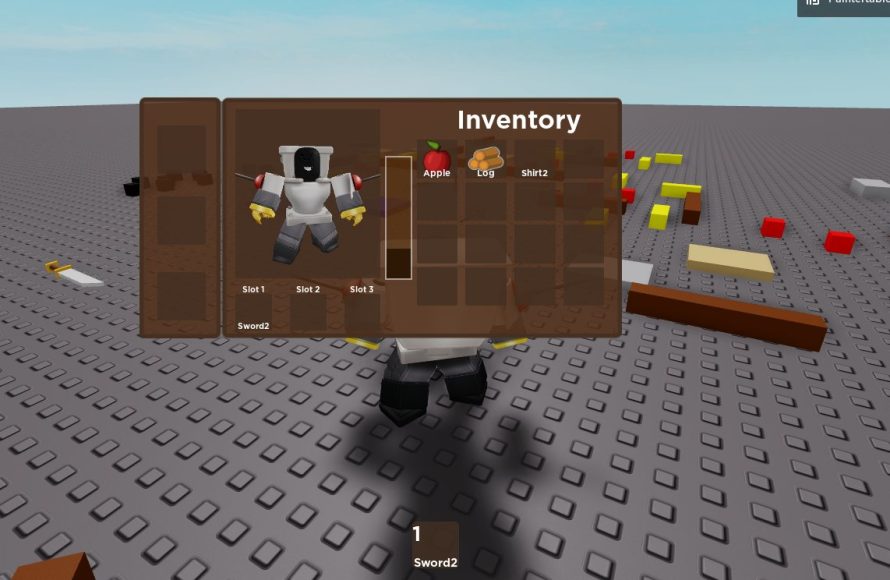
The Roblox inventory system lets players collect, manage, and use items they acquire within a game.
Ever wondered how you keep track of all the cool stuff you get in Roblox games? Many games use an inventory system. This Roblox inventory system guide will explain the basics. It helps you understand how to get items, store them, and use them later.
Understanding how this works enhances the game experience. Players can manage their resources efficiently. So, let’s explore more about managing your items. This knowledge can help you be more organized.

Roblox Inventory System Guide
The Roblox inventory is like your personal treasure chest in the game! It’s where you keep all the cool stuff you collect: clothes for your avatar, items for your games, and even special badges you’ve earned. Understanding how to use your inventory is super important for having a great time on Roblox. Let’s dive deep into everything you need to know about it.
Understanding the Basics
First things first, let’s figure out what exactly the inventory is. Think of it like a digital backpack. When you’re playing a Roblox game, you might earn or buy items. These items don’t just disappear; they go into your inventory. Your inventory holds different types of items that you can use to make your Roblox experience unique.
Types of Inventory Items
Your Roblox inventory is not just a jumble of random stuff. It’s organized into categories to help you find what you need quickly. Here are the main types of items you’ll find:
- Avatar Items: This includes clothing like hats, shirts, pants, and accessories that change how your character looks. You can mix and match these to create cool and unique avatars.
- Game Items: These are special tools, weapons, or other objects you might get from playing different Roblox games. Each game can have its own type of game items, so it’s like having a different set of toys for each game.
- Badges: Badges are like awards you earn for doing cool stuff in games or on the platform. They’re not items you can use, but they’re fun to collect and show off your achievements.
- Models: If you’re interested in creating your own games, you might find models in your inventory. These are pre-made structures and objects you can use in Roblox Studio.
- Decals: Decals are like stickers you can apply to surfaces in Roblox. They can be pictures, logos, or other designs that make your creations stand out.
- Audio: If you’ve uploaded or bought audio, you can find it in this section. It is used to give your games background music and sound effects.
Accessing Your Inventory
Getting to your inventory is simple! Here’s how you do it:
- On the Website: Log into your Roblox account on your computer’s web browser. Then click on the three lines at the top left side, this button usually called “menu”. After you’ve clicked it, you’ll see a menu of options. Click on “Inventory.” Now you can see everything you own.
- On the Mobile App: Open your Roblox app on your phone or tablet. Look for the three dots at the bottom right side of the screen; it usually called “More”. Tap it, and a menu pops up. Scroll down and tap “Inventory.”
Navigating Your Inventory
Once you’re in your inventory, you’ll see a list of different categories on the left side of your screen. Here’s what you can do:
- Choose a Category: Click on a category like “Clothing” or “Game Items” to see only those types of things. This makes it easy to find exactly what you’re looking for.
- Use the Search Bar: If you have a lot of stuff, the search bar is your best friend! Type the name of the item you’re looking for and you’ll quickly find it. For example, if you are looking for a “Blue Hat”, type it in the search bar, and it will appear.
- Sort Your Items: You can sort your inventory by “Recent,” “Name,” and “Creator”. This helps organize your items the way you like.
Using Your Inventory Items
Just having items isn’t enough, you need to know how to use them! Here’s how:
Equipping Avatar Items
Equipping clothes and accessories is how you change your Roblox character’s appearance. Here’s the process:
- Go to your inventory and select the “Avatar Items” category.
- Find the item you want to wear.
- Click on the item.
- You’ll see an “Equip” option. Click it to put that item on your avatar.
- If it is a clothing type item, and you already have one that is similar, it will take place of the older item.
You can equip multiple items at once, like a shirt, pants, and a hat, to create a whole new look.
Using Game Items
Game items are special tools or objects that you use while playing. Here’s how to use them:
- Join a Game: First, enter the Roblox game where you got the item.
- Check Your Inventory: Most games have their own inventory system. You can usually find an icon in the game that opens your game-specific inventory.
- Select and Use: Select the item from the inventory in game and use it according to what the game instructs you to do.
Each game has its own way to handle game items. Pay attention to the instructions in the game to understand how to use your items correctly.
Viewing Badges
Badges don’t need to be equipped, but you can always view them in your inventory. They showcase your achievements and progress. To see your badges:
- Go to your inventory.
- Select the “Badges” category.
- Browse through the list to see all the badges you’ve earned.
Using Models, Decals, and Audio
Models, decals, and audio are primarily used in Roblox Studio when you are making your own games. Here is how you use them:
- Open Roblox Studio: Open the Roblox Studio application on your computer.
- Access Your Inventory: Inside the studio, you can access your inventory by going to “View” and then clicking “Toolbox”.
- Use Your Items: You’ll find your models, decals, and audios in the toolbox, in their appropriate category. You can then drag them into the game.
Purchasing Items
Sometimes you want to add some new and cool items to your collection. Here is how you buy them.
Buying Avatar Items
You can get new clothes and accessories for your character by buying them from the avatar shop. Here’s how:
- Go to the Avatar Shop: On the Roblox website or in the app, look for the “Avatar Shop” option. Usually it’s next to the inventory option.
- Browse or Search: Look through the categories or use the search bar to find the items you like.
- Preview Items: Click on an item to see how it looks on your avatar before buying it. This is helpful for choosing something perfect for your avatar.
- Purchase with Robux: If you like it, click the “Buy” button. You’ll need Robux, the in-game currency, to complete the purchase.
Buying Game Items
Some games will have items for sale in the in-game stores. These are purchased with the games currency. Make sure you like the game you are planning to spend in game money on, so that the purchase is worth the money you spend.
- Join a Game: First, enter the Roblox game where you want to buy items.
- Find the Store: Most games have a place to buy items. This could be called “Shop,” “Store,” or something similar.
- Browse and Buy: Look through the items and make your purchase using the games currency or by purchasing Robux directly in the game, if the game offers it.
Managing Your Inventory
As your collection of items grows, it’s good to know how to manage it efficiently.
Selling Items
Sometimes, you might want to sell items you’ve created or obtained. Not all items can be sold, but here’s how to do it if you have the option:
- Go to Your Inventory: Head to your inventory and find the item you want to sell.
- Check for Selling Options: If an item can be sold, there will be an option to sell the item with a price for sale. Note that Roblox takes a cut of each sale.
- Set the Price: Choose the price you want to sell the item at. Be sure to compare it with other sales on the platform so you can get a good value for your item.
- Confirm and List: Confirm your listing. Now other players can buy your item.
Deleting Items
Roblox doesn’t typically allow you to delete items from your inventory. This is to prevent accidental deletion of rare or valuable things. However, if there are unwanted items, you can contact support for help.
Trading Items
Trading is a way to exchange items with other players. Here is how you do it:
- Check If Item is Tradable: Not all items can be traded. Check in your inventory to see if an item has trading option.
- Make a Trade Offer: If it is tradable, you can start a trade with another user.
- Review and Accept: Review the offer made by other player, and if you are happy, accept the offer.
Tips for a Better Inventory Experience
Here are some extra tips to help you make the most of your Roblox inventory:
- Regularly Check Your Inventory: Make sure you know what you have! This helps you find stuff quickly when you need it.
- Organize by Category: When you have lots of stuff, using categories can save you time and frustration.
- Use the Search Bar: When you have a large inventory, the search bar is a powerful tool to find specific items fast.
- Be Smart About Purchases: Before you buy anything, think about whether you really want it. This will prevent buying items you do not need.
- Trade Wisely: If you are trading items with others, make sure you are not giving out rare items for cheap items. Do your research on item prices.
Your Roblox inventory is a dynamic space where you keep all of your virtual treasures. By understanding how to manage and use it, you make the most out of your Roblox experience.
Understanding the Roblox inventory system can enhance your experience in the game. Knowing how to manage, buy, use, and sell your items effectively allows you to express your creativity, achieve your in-game goals, and interact with others. Your inventory is your key to making your time on Roblox even more fun and engaging.
HOW TO MAKE AN INVENTORY SYSTEM IN ROBLOX STUDIO (2024)
Final Thoughts
The roblox inventory system guide details crucial aspects for players. You must manage items correctly for optimal gameplay. Understanding categories and storage is essential for success. Effective item handling significantly impacts experience.
Navigating your inventory smoothly improves efficiency. Properly organizing equipment saves valuable time. This guide helps players understand core functionality. Therefore, they can focus on enjoyment, not clutter.

