
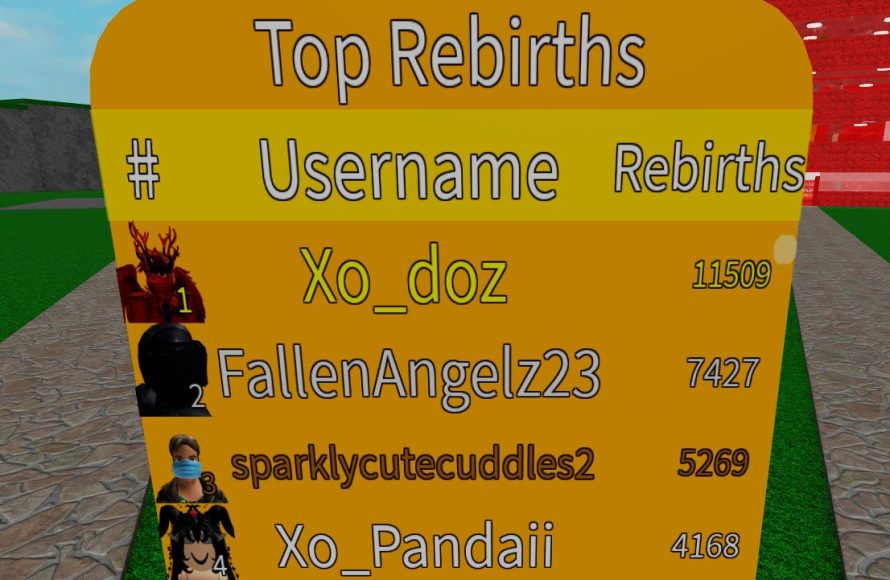
Implementing a Roblox leaderboard requires using DataStoreService to save player scores and then displaying them on a user interface.
Have you ever wondered how those competitive games on Roblox track player performance? It is all about the roblox leaderboard implementation. It shows the players, who is doing best at the game. We will discuss the technical process of creating and displaying these dynamic lists within a Roblox game.

Roblox Leaderboard Implementation: A Deep Dive
Creating a leaderboard in your Roblox game is a fantastic way to add competition and keep players engaged. It lets them see how they stack up against their friends and other players around the world. But how do you actually make one? Don’t worry, it’s not as tricky as it might seem! This guide will walk you through everything you need to know about Roblox leaderboard implementation, from the basic concepts to some more advanced features.
Understanding the Basics of Leaderboards
Before we jump into coding, let’s understand what a leaderboard actually is. In Roblox, a leaderboard is a way to display player information, usually related to their scores, stats, or achievements. Think of it like a scoreboard in a real-life sports game. It shows who is doing well and encourages everyone to try their best. You’ll usually see leaderboards on the top right corner of the screen or in a separate menu within a game.
Key Elements of a Roblox Leaderboard
There are a few key things that make up a basic leaderboard:
- Player Names: The first thing you see is usually the name of the player, or their username.
- Score or Stat: This shows the number related to how well they are doing. It could be points, wins, levels, or any other game-related statistic.
- Ranking: Usually, leaderboards are ranked from highest to lowest score, so players can see their position relative to others.
Planning Your Leaderboard: What Should It Track?
Before we start coding, we need to figure out what the leaderboard will track. What is the most important thing in your game that you want to show off? Here are some examples:
- Score-Based Games: If your game is about collecting points, you’ll likely track and display player scores. For example, in a racing game, it might be the fastest time to complete a lap, or in an arcade game, the number of points scored.
- Survival Games: If your game is about survival, the leaderboard might display the player’s survival time, such as how long they have remained alive, or how many enemies they have defeated.
- Level-Based Games: In games where players advance through levels, you can display their current level, or the highest level they have reached, making the progression clear to other players.
- Collection-Based Games: You can track the number of items or collectables that a player has acquired.
The type of data you decide to track will influence how you code your leaderboard. Think carefully about what makes the most sense for your game.
Setting Up a Basic Leaderboard in Roblox Studio
Now it’s time to get our hands dirty with some code! We will use Lua scripting language in Roblox Studio to create a basic leaderboard.
Steps to Create a Basic Leaderboard
- Open Roblox Studio: Start by opening Roblox Studio and creating a new place or opening an existing project.
- Insert a Script: In the Explorer window, navigate to “ServerScriptService” and click on the “+” button. Select “Script.” This creates a new server script where we’ll put our code.
- Write the Script: Copy the code below into the script. Don’t worry if it looks complicated, we’ll go through it step by step.
 -- Create a new folder to hold leaderboard values for each player
 local leaderboard = Instance.new("Folder")
 leaderboard.Name = "leaderboardData"
 leaderboard.Parent = game:GetService("Players")

 game.Players.PlayerAdded:Connect(function(player)
	-- Create a leaderstats instance to show the stats
	local leaderstats = Instance.new("Folder")
	leaderstats.Name = "leaderstats"
	leaderstats.Parent = player

	-- Create value for the score to be displayed
	local score = Instance.new("IntValue")
	score.Name = "Score"
	score.Value = 0
	score.Parent = leaderstats

	local playerFolder = Instance.new("Folder")
	playerFolder.Name = player.Name
	playerFolder.Parent = leaderboard
	local playerValue = Instance.new("IntValue")
	playerValue.Name = "Score"
	playerValue.Value = 0
	playerValue.Parent = playerFolder

	-- Function to update the leaderboard value
	local function updateScore(newScore)
		score.Value = newScore
		playerValue.Value = newScore
	end

  -- Example: Increase score
  player:WaitForChild("leaderstats").Score.Changed:Connect(function()
     updateScore(player.leaderstats.Score.Value)
   end)

 end)
Understanding the Code
Let’s break down what this code does:
- Create a Folder: The line local leaderboard = Instance.new(“Folder”) creates a folder called leaderboardData to store the player scores. This folder is kept in the Players service.
- game.Players.PlayerAdded:Connect(function(player)) : This part of the code is triggered every time a new player joins the game.
- local leaderstats = Instance.new(“Folder”): A folder named “leaderstats” is created inside the player object to hold all the stats that needs to be displayed in the leaderboard.
- local score = Instance.new(“IntValue”): We create a new integer value called “Score” and set it to 0. This will be displayed in the leaderboard for each player.
- playerFolder = Instance.new(“Folder”): Creates a folder that store score data of each player within the leaderboard folder.
- playerValue = Instance.new(“IntValue”): Create a value that will be used to store the score of individual player.
- local function updateScore(newScore): A function called updateScore is made which updates the player’s score on the client and server.
- player:WaitForChild(“leaderstats”).Score.Changed:Connect(function(): This piece of code waits for the value of player score to be changed and call the function updateScore that we made above.
Testing the Basic Leaderboard
- Open the Game: After adding the script, play your game.
- View the Leaderboard: You should now see a basic leaderboard in the top-right corner of your screen.
- Update the score: Use the following code to update the score, you can use this in another script in a part that has been touched or collision detected.
        local player = game.Players.LocalPlayer

        player.leaderstats.Score.Value = player.leaderstats.Score.Value + 1
It might not look fancy, but it’s a fully functional basic leaderboard. We will improve it further in following sections.
Advanced Leaderboard Features
Now that you have a basic leaderboard, let’s explore some advanced features to make it even better.
Sorting Leaderboard by Score
By default, the leaderboard shows players in the order they joined. We want to sort the players by score, from highest to lowest. We can use a bit of extra code to accomplish this.
 -- Create a new folder to hold leaderboard values for each player
 local leaderboard = Instance.new("Folder")
 leaderboard.Name = "leaderboardData"
 leaderboard.Parent = game:GetService("Players")

 local function updateLeaderboardDisplay(player)
    -- This function recreates the actual leaderboard based on the current leaderboard data
	local players = {}
	for _, playerFolder in pairs(leaderboard:GetChildren()) do
		local playerName = playerFolder.Name
		local playerValue = playerFolder:FindFirstChild("Score")
		if playerValue then
			table.insert(players,{name = playerName, score = playerValue.Value})
		end
	end

	table.sort(players, function(a,b) return a.score > b.score end)

	-- Clear all players from the display and then recreate the ui
	if player.PlayerGui then
		local lbFrame = player.PlayerGui:FindFirstChild("Leaderboard")
		if lbFrame then
			for _, item in pairs(lbFrame:GetChildren()) do
				if item:IsA("TextLabel") then
					item:Destroy()
				end
			end
			local ypos = 40
			for i, playerInfo in ipairs(players) do
				local playerLabel = Instance.new("TextLabel")
				playerLabel.BackgroundTransparency = 1
				playerLabel.Size = UDim2.new(1,0,0,20)
				playerLabel.Position = UDim2.new(0,0,0,ypos)
				playerLabel.Text = playerInfo.name .. ": " .. playerInfo.score
				playerLabel.Font = Enum.Font.SourceSans
				playerLabel.TextColor3 = Color3.new(1,1,1)
				playerLabel.Parent = lbFrame
				ypos = ypos + 20
			end
		end
	end

 end

 game.Players.PlayerAdded:Connect(function(player)
	-- Create a leaderstats instance to show the stats
	local leaderstats = Instance.new("Folder")
	leaderstats.Name = "leaderstats"
	leaderstats.Parent = player

	-- Create value for the score to be displayed
	local score = Instance.new("IntValue")
	score.Name = "Score"
	score.Value = 0
	score.Parent = leaderstats

	local playerFolder = Instance.new("Folder")
	playerFolder.Name = player.Name
	playerFolder.Parent = leaderboard
	local playerValue = Instance.new("IntValue")
	playerValue.Name = "Score"
	playerValue.Value = 0
	playerValue.Parent = playerFolder

	-- Function to update the leaderboard value
	local function updateScore(newScore)
		score.Value = newScore
		playerValue.Value = newScore
		updateLeaderboardDisplay(player)
	end

  -- Example: Increase score
  player:WaitForChild("leaderstats").Score.Changed:Connect(function()
     updateScore(player.leaderstats.Score.Value)
   end)

   -- Create leaderboard ui
   local leaderboardFrame = Instance.new("ScreenGui")
   leaderboardFrame.Name = "Leaderboard"
   leaderboardFrame.Parent = player
   local lbFrame = Instance.new("Frame")
   lbFrame.Size = UDim2.new(0, 200, 0, 200)
   lbFrame.Position = UDim2.new(1, -210, 0, 10)
   lbFrame.BackgroundColor3 = Color3.new(0.1,0.1,0.1)
   lbFrame.BorderColor3 = Color3.new(0,0,0)
   lbFrame.Parent = leaderboardFrame

   updateLeaderboardDisplay(player)

 end)

 game.Players.PlayerRemoving:Connect(function(player)
    updateLeaderboardDisplay(player)
 end)
The main change here is adding the updateLeaderboardDisplay function that takes each player’s scores, sorts them from highest to lowest, and recreates the leaderboard ui from the updated data each time scores are changed or a player leaves/joins. This is accomplished by creating a frame called Leaderboard within the ScreenGui for each player and displaying text label for each entry on the leaderboard based on updated data.
Adding More Stats to the Leaderboard
It’s not that hard to track more stats for the leaderboard. Simply create more IntValue objects and add them within leaderstats folder, you can have Wins, Kills, Deaths or any other stat that your game needs. For example, to add a “Kills” stat:
 -- Inside the game.Players.PlayerAdded:Connect(function(player) function
   local kills = Instance.new("IntValue")
	kills.Name = "Kills"
	kills.Value = 0
	kills.Parent = leaderstats

 -- Within your game, update Kills whenever appropriate:
  -- player.leaderstats.Kills.Value = player.leaderstats.Kills.Value + 1
Now, you can change the updateLeaderboardDisplay function that we made above to show these stats too on the leaderboard, you can change the text label to something like:
playerLabel.Text = playerInfo.name .. “: Score = ” .. playerInfo.score .. “, Kills = ” .. playerInfo.kills.
Making Leaderboard Visuals more Appealing
You can make the leaderboard look much better by designing the ui elements. Instead of simple text labels, try using images, custom fonts, colors, etc. You can place them in a frame and use UIListLayout to automatically arrange items on leaderboard.
Handling Player Data Persistence
By default, player data, like their score, is lost when they leave the game. If you want to store these stats for future gameplay sessions, you’ll need to implement data persistence.
Using DataStoreService for Persistence
Roblox’s DataStoreService is the way to go for saving and loading player data. Let’s add the persistence to our leaderboard example:
 local DataStoreService = game:GetService("DataStoreService")
 local myDataStore = DataStoreService:GetDataStore("PlayerData")

 -- Create a new folder to hold leaderboard values for each player
 local leaderboard = Instance.new("Folder")
 leaderboard.Name = "leaderboardData"
 leaderboard.Parent = game:GetService("Players")

 local function updateLeaderboardDisplay(player)
    -- This function recreates the actual leaderboard based on the current leaderboard data
	local players = {}
	for _, playerFolder in pairs(leaderboard:GetChildren()) do
		local playerName = playerFolder.Name
		local playerValue = playerFolder:FindFirstChild("Score")
		if playerValue then
			table.insert(players,{name = playerName, score = playerValue.Value})
		end
	end

	table.sort(players, function(a,b) return a.score > b.score end)

	-- Clear all players from the display and then recreate the ui
	if player.PlayerGui then
		local lbFrame = player.PlayerGui:FindFirstChild("Leaderboard")
		if lbFrame then
			for _, item in pairs(lbFrame:GetChildren()) do
				if item:IsA("TextLabel") then
					item:Destroy()
				end
			end
			local ypos = 40
			for i, playerInfo in ipairs(players) do
				local playerLabel = Instance.new("TextLabel")
				playerLabel.BackgroundTransparency = 1
				playerLabel.Size = UDim2.new(1,0,0,20)
				playerLabel.Position = UDim2.new(0,0,0,ypos)
				playerLabel.Text = playerInfo.name .. ": " .. playerInfo.score
				playerLabel.Font = Enum.Font.SourceSans
				playerLabel.TextColor3 = Color3.new(1,1,1)
				playerLabel.Parent = lbFrame
				ypos = ypos + 20
			end
		end
	end

 end

 game.Players.PlayerAdded:Connect(function(player)

	local leaderstats = Instance.new("Folder")
	leaderstats.Name = "leaderstats"
	leaderstats.Parent = player


    --Load data from datastore
	local savedData
	local success, errormessage = pcall(function()
		savedData = myDataStore:GetAsync(player.UserId)
	end)
	if success then
		if savedData then
            local score = Instance.new("IntValue")
            score.Name = "Score"
            score.Value = savedData.score or 0
            score.Parent = leaderstats
        else
            local score = Instance.new("IntValue")
            score.Name = "Score"
            score.Value = 0
            score.Parent = leaderstats
		end
	else
        local score = Instance.new("IntValue")
        score.Name = "Score"
        score.Value = 0
        score.Parent = leaderstats
		warn("Error getting data" .. errormessage)
	end


    local playerFolder = Instance.new("Folder")
	playerFolder.Name = player.Name
	playerFolder.Parent = leaderboard
	local playerValue = Instance.new("IntValue")
	playerValue.Name = "Score"
    if savedData then
	    playerValue.Value = savedData.score or 0
    else
         playerValue.Value = 0
    end

	playerValue.Parent = playerFolder

	-- Function to update the leaderboard value
	local function updateScore(newScore)
		score.Value = newScore
		playerValue.Value = newScore
		updateLeaderboardDisplay(player)
	end

  -- Example: Increase score
  player:WaitForChild("leaderstats").Score.Changed:Connect(function()
     updateScore(player.leaderstats.Score.Value)
   end)

   -- Create leaderboard ui
   local leaderboardFrame = Instance.new("ScreenGui")
   leaderboardFrame.Name = "Leaderboard"
   leaderboardFrame.Parent = player
   local lbFrame = Instance.new("Frame")
   lbFrame.Size = UDim2.new(0, 200, 0, 200)
   lbFrame.Position = UDim2.new(1, -210, 0, 10)
   lbFrame.BackgroundColor3 = Color3.new(0.1,0.1,0.1)
   lbFrame.BorderColor3 = Color3.new(0,0,0)
   lbFrame.Parent = leaderboardFrame

   updateLeaderboardDisplay(player)

 end)

 game.Players.PlayerRemoving:Connect(function(player)
    --save data
    local dataToSave = {
        score = player.leaderstats.Score.Value,
    }
     local success, errormessage = pcall(function()
        myDataStore:SetAsync(player.UserId,dataToSave)
    end)
    if success then
        print("data save for " .. player.Name)
    else
         warn("Error saving data" .. errormessage)
    end
    updateLeaderboardDisplay(player)
 end)
In this version, the player’s score is saved whenever they leave the game, and loaded when they join again. Be aware that you cannot do dataStore calls on studio play test. You need to run the test on the actual roblox game on the website.
Considerations for Data Persistence
- Rate Limits: DataStoreService has rate limits on saving and loading data. Be careful not to call it too often, or you might get errors.
- Error Handling: Always use pcall when working with DataStoreService to catch any errors that might occur.
- Data Structure: Organize your data into dictionaries or tables to make it easier to manage and save.
Further Enhancements
There are so many possibilities to take your leaderboards to the next level. Here are a few ideas to continue to make your game better:
- Visual Styles: Style the look and feel of your leaderboard to match the theme of your game. Add images, animations, and sound effects to add polish.
- Multiple Leaderboards: Create separate leaderboards for different stats, game modes, or time periods (daily, weekly, monthly).
- Social Features: Allow players to share their rankings on social media or see their friends’ positions on the leaderboard.
- Real-time Updates: Make the leaderboard update instantly, so players can see their scores change.
- Special Rewards: Give special awards to the players who reach the top of the leaderboard.
Always remember to keep your player’s experience as the first priority, by adding cool and engaging features to your leaderboard. This can help to keep your players engaged and provide a competitive, fun environment for everyone.
Creating a good leaderboard is a lot of fun and important for any game. Use the information you have just learned and have fun. You now have the foundational knowledge you need to add leaderboards to your games and make them better. Remember that practice makes perfect. Keep experimenting, and you’ll become a master at Roblox game development!
ROBLOX – HOW TO MAKE LEADERBOARDS
Final Thoughts
Implementing effective Roblox leaderboards requires careful planning. Decide on the data you want to track and display. Ensure the leaderboard updates smoothly and accurately for a great player experience.
Good scripting is necessary for handling data and rankings efficiently. Consider using DataStore to save information properly. Optimize your code to avoid lags and keep the game running well.
Successfully implementing Roblox leaderboard ensures player engagement. It adds a competitive element and sense of progression. Players enjoy seeing their ranking, fostering positive game interaction.

