
Reducing sound file sizes and adjusting playback settings within Roblox Studio significantly improve game performance by minimizing lag and resource consumption, therefore making effective roblox sound optimization a must for smooth gameplay.
Have you ever played a Roblox game where the sound stutters or causes annoying lag? It’s likely due to inefficient sound handling. This affects user experience and can turn players away. This is why roblox sound optimization is extremely important.
Careful management of audio assets is vital for creating a polished game. Small adjustments to file sizes and playback behavior can yield large benefits in gameplay quality. We will show you how to do this.

Roblox Sound Optimization: Making Your Games Sound Awesome!
Have you ever played a Roblox game where the sounds were just… off? Maybe the music was too loud, or the footsteps sounded like a giant stomping around? Good sound is super important for a fun Roblox experience. That’s why we’re going to talk all about Roblox sound optimization. It’s about making the sounds in your game work perfectly so they make your game even better. We’ll go over lots of tips and tricks to help you create a great sound experience for everyone who plays your game.
Why Sound Optimization Matters
Imagine watching a movie where the music is louder than the actors talking. You probably wouldn’t enjoy it much, right? The same goes for Roblox games. Sound isn’t just something that’s there; it’s a key ingredient that makes a game feel alive. Good sound can make your game feel more exciting, more scary, or even more relaxing, depending on what you’re going for. Properly adjusted sound can provide information to players and make a game much easier to navigate. Here’s a breakdown of why optimizing sound is essential:
- Immersion: Sound helps players feel like they’re really in the game. The right background music, the whoosh of a weapon, or the crunch of footsteps all add to the experience.
- Information: Sounds can alert players to things happening in the game. For example, a warning siren can tell them danger is near, or a character’s voice can guide them.
- Engagement: Good sounds grab players’ attention and keep them involved. A well-timed sound effect or a catchy tune can make a game much more engaging.
- Polish and Professionalism: Games with good sound generally feel more polished and well-made. It shows that you have put extra care and effort into your game’s creation.
- Enjoyment: Ultimately, proper sound optimization directly increases a players enjoyment of the experience, without the sound quality causing distractions.
Understanding Roblox Sound Properties
Before we start making our games sound better, let’s get familiar with some of the tools Roblox gives us. Roblox uses something called “Sound Instances”. Think of a sound instance as a container for a specific sound. Each sound instance has lots of settings you can change. These settings let you control how the sound plays in your game.
Key Sound Properties Explained
Here are some key properties you’ll be working with:
- SoundId: This is the most important property! It’s like the address for your sound. It tells Roblox which sound file to play. You can pick sounds from the Roblox library or upload your own.
- Volume: This one is pretty simple. It controls how loud the sound is, from very quiet to very loud. The volume slider goes from 0 (silent) to 1 (full volume).
- Pitch: Pitch changes how high or low a sound is. You can make a sound deeper or higher with this. A low pitch can give a sound more of an aggressive or rumbling feel, while a high pitch can make a sound feel more light or playful.
- Looped: If this property is set to true, the sound will play again and again, constantly looping, until you tell it to stop. If set to false it only plays once. This is good for music or background sounds.
- PlayOnAwake: When set to true, the sound will begin playing as soon as it is loaded into the game. Setting it to false means you have to trigger the sound in your script.
- Playing: This is not a property you set, but it shows the sound’s current state. It is either playing or not.
- TimePosition: This is how far into the sound the sound is playing. This is great for syncing sounds with game events.
- PlaybackSpeed: This changes how fast or slow the sound plays. A higher speed can make something feel rushed or quick while a lower speed may make it feel slow or dragged out.
- RollOffMinDistance and RollOffMaxDistance: These properties control how far away a player can hear the sound. The MinDistance is the distance before the sounds volume starts to decrease, while the MaxDistance is where the sounds volume will be at it’s minimum, even if the player goes further away.
- RollOffMode: This determines how the sound’s volume decreases with distance. There are several options, like Linear and InverseTaper, each offering different effects.
Visualizing Sound Properties
Imagine a simple speaker in your Roblox game. These properties are all ways you can modify how that speaker works.
- SoundId is like picking a music track to play on the speaker.
- Volume controls how loudly or quietly the music plays.
- Pitch can make the music sound higher or lower.
- Looped decides if the music repeats or plays just once.
- RollOffMinDistance and RollOffMaxDistance determine how far you can walk away before you can’t hear the music clearly anymore.
Let’s move on from theory and see how we can practically apply these concepts.
Practical Sound Optimization Techniques
Now that we understand the basic properties of Roblox sound, let’s move on to actually making your games sound better. Here are some optimization techniques to follow:
Setting the Right Volume Levels
One of the most basic, but most crucial aspects of sound optimization is setting the volume to the right levels. Too loud, and it’ll hurt players’ ears. Too quiet, and they won’t even notice it’s there. It’s important to balance the volume of your sounds to ensure that everything is audible without being overpowering. Here are some things to think about:
- Test Different Devices: Make sure to test your sound volumes using headphones, earbuds and speakers, as sound levels can vary depending on playback device.
- Use a Consistent Volume Scale: Keep your background music lower than your key sound effects. For example, ambient sounds should be subtle and not overpower more important sound cues.
- Avoid Loud Sudden Sounds: Be careful when using sudden loud sounds, these can surprise players and even make them stop playing if they are too annoying.
Using Spatial Audio
Spatial audio makes your game feel more real. This refers to how sounds change depending on where they are in the game world and where the player is located. For example, a monster’s growl should be louder the closer the player gets. Here is how to achieve this:
- RollOff Properties: Use RollOffMinDistance and RollOffMaxDistance to make sound fade out as the player moves further away.
- Experiment with RollOffMode: Try different roll-off modes to see what works best. ‘Linear’ and ‘InverseTaper’ are the most commonly used modes.
- Use 3D Sound: If a sound comes from a certain direction, set it’s position to that. This will make it only play in one ear when the player is facing a certain direction.
Creating an Immersive Soundscape
Think of your game like a movie, and each sound as a character, and they all need to work in harmony to be a great movie. A well-planned soundscape can make a huge difference. Here’s how to do it:
- Ambient Sounds: Use background sounds like birds chirping, wind blowing, or water flowing to create a mood. These sounds should be subtle and not distracting.
- Vary Sound Effects: Don’t use the same sound effect over and over. Add variations to keep the game sound fresh. For example, if you have footsteps you could have a slight variation in each step to avoid it being repetitive.
- Layer Sounds: Layer different sounds on top of each other to create a more interesting mix. For example, you could use wind noise, leaves rustling, and animals moving to create a forest sound.
- Dynamic Music: Try having the music change according to what’s happening in the game. This can make events feel more intense or calming.
Sound Design Tips
Sound design is about choosing the right sounds for your game. Good sound design elevates the quality of your game. Here are some tips to make your sound design better:
- Use High Quality Sounds: Choose clear, high-quality sounds that fit the theme of your game. Avoid fuzzy or distorted sounds.
- Avoid Sound Clutter: Make sure not too many sounds are playing at the same time, if multiple loud sounds are playing at once it can cause sound clutter and sound messy.
- Think About the Mood: Consider the feeling you want to create and choose sounds that match that mood. For example, if you want a happy game you would want to use bright, playful sounds.
- Test your sounds regularly: As you progress through development, check the sound of your game often to ensure it is still perfect.
Optimizing Sound Performance
Too many sounds at once can make a game slow down. It’s important to keep sound performance in mind. Here’s how:
- Limit Sound Instances: Try to avoid having too many sounds playing at the same time, especially complex sounds as this can impact your performance. Use as few sounds as possible to get your intended effect.
- Use Looping Sounds Wisely: Looped sounds work great for ambient audio and music, but can put a strain on your game if they aren’t well optimized.
- Load Sounds Efficiently: Use the PreloadAsync function to load your sounds when the game starts, this is better than loading them as you play the game, as it makes the game run smoother.
- Unload Unused Sounds: Unload any sounds when you are done using them to reduce the load on memory, this will make the game run smoother.
Implementing Sound in Your Roblox Game
Now, let’s talk about the practical steps of putting these tips into action in your game.
Adding Sound Instances
There are two ways to add sounds to your game:
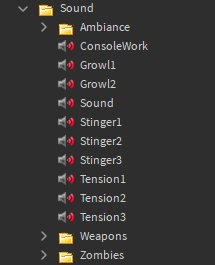
- Using the Explorer Window: You can add a Sound object to any part of your game, like a character or a part of the map, by right-clicking the part and selecting “Insert Object” then “Sound”.
- Using Scripts: You can also create Sound objects in your game through a script. This gives you more control, as you can trigger sounds during specific game events or adjust them dynamically.
Using the Properties Window
Once you have a Sound Instance, select it, and you can edit all the properties we talked about earlier in the Properties window.
Scripting Sound Control
Using a script gives you a lot more control over sounds, lets say you want a sound to play when a player touches a part. This is how you could achieve that:
 -- Find the sound instance and the part.
 local sound = workspace.Part.Sound
 local part = workspace.Part

 -- When the part is touched, play the sound.
 part.Touched:Connect(function(hit)
  if hit.Parent:FindFirstChild("Humanoid") then
   sound:Play()
  end
 end)
Example Sound Design Scenario
Let’s imagine that you are making a spooky haunted house game. Here’s how you might use our tips:
- Ambient Sound: Use looping sounds of wind howling, creaking doors, and quiet whispers. Set these at a low volume so they are not overbearing.
- Sound Effects: Use sudden, loud noises like a door slamming, a glass breaking, or a monster growling to scare the player. Make sure that these are only triggered when necessary and not over-used.
- Music: Choose music that matches the scary atmosphere, with dark and dramatic tones. The music should be lower in volume than sound effects to avoid clutter.
- Spatial Sound: Use spatial audio to make monster growls seem like they are coming from different areas of the map, or make sound effects appear to be coming from the direction they are happening.
This shows how good sound design can increase the scary factor of the game!
Tools and Resources
Let’s take a look at some tools that can help you with your sound design process.
Roblox Sound Library
The Roblox Sound Library has lots of free sounds you can use. It includes sounds of animals, ambience, explosions, and other sound effects you can add to your games. You can find them in the Toolbox section of Roblox Studio, then simply search for whatever sound effect you’re looking for.
External Sound Editors
You can also make your own sounds using a sound editing program like Audacity, GarageBand, or Adobe Audition. These programs allow you to record sounds, or edit sounds to make them sound exactly how you want. You can then import these sounds to roblox.
Sound Effects Websites
There are also many sites online where you can find free sound effects, or paid sound effect libraries to add professional sounds to your game. A good website to start with is Freesound.org, which is a library of free sounds shared by users. Always ensure that you have the right to use any sounds you download from external websites.
Common Mistakes to Avoid
Even with all the knowledge about good sound design, it can be easy to make some common mistakes, so here are some mistakes to look out for.
- Ignoring Sound Levels: Not paying attention to the volume of sounds can cause your game to sound messy, and annoying. Remember to test the volume of all of your sounds and keep the most important sounds at the forefront of the player’s hearing.
- Overusing Sound Effects: Use sounds wisely, overusing them can make your game sound cluttered and overwhelming. You should try to make sure each sound effect has a purpose and is not just there to take up space in your game.
- Ignoring Spatial Audio: Make sure to use spatial audio when possible, this makes your sounds feel much more real and immersive. A lot of the time, spatial audio will make your game sound much more professional.
- Using Poor Quality Sound: Use quality sounds! A lot of sounds from the sound library aren’t of the highest quality, and might sound muffled or overly distorted, so make sure to replace these sounds.
- Forgetting to test your sounds: Make sure you test your sounds thoroughly, and try them out on different platforms to ensure everything is working smoothly.
By following all of the tips above you should have a solid understanding of how to add high-quality and well-balanced sounds to your games.
Final thoughts
Sound is an important part of making your game fun and engaging. By spending some time to make the sound in your games better, you can create a much more engaging experience for your players, and even potentially increase your game’s popularity. Always remember to test your sounds regularly to ensure they are as perfect as possible. With all this information you should have a solid basis on how to make your games sound amazing!
These Devices CAN'T PLAY ROBLOX Anymore!
Final Thoughts
Effective Roblox sound optimization significantly improves game performance. Poorly managed audio can lead to lag and a subpar player experience. Implementing techniques like reducing polyphony and using compressed audio files are crucial.
Prioritizing sounds and utilizing spatial audio thoughtfully enhances immersion without taxing resources. Careful attention to sound assets helps create a smooth gameplay session. Remember, efficient sound design is key to optimal roblox sound optimization.

