
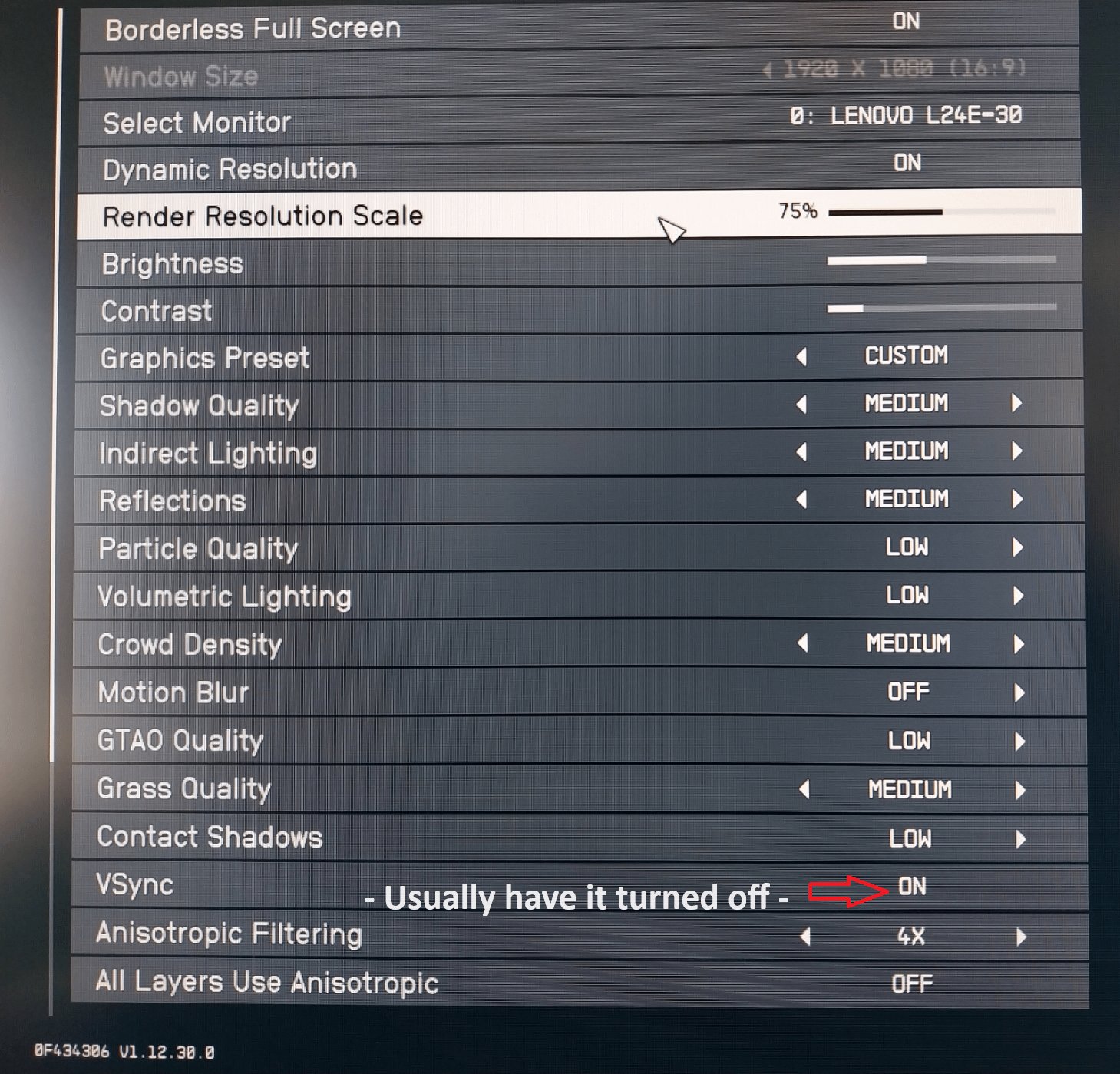
Optimal Starfield performance for low end pc setups requires reducing resolution, lowering graphics settings (especially shadows and volumetric effects), and using FSR if available.
So, you’re itching to explore the cosmos in Starfield but your PC isn’t exactly cutting-edge? Many gamers with older systems face this challenge. Achieving acceptable, enjoyable gameplay is absolutely possible with some tweaks. Let’s dive into practical steps for getting the best Starfield performance for low end pc.
It’s all about balancing graphical fidelity with frame rates. We need to dial back some demanding features without losing too much of the game’s visual appeal. Don’t worry, you can still have fun even with reduced graphical settings. We’ll cover the most impactful adjustments.

Starfield Best Performance for Low End PC
Okay, let’s talk about something really important if you’re excited about playing Starfield but have a computer that isn’t super powerful: getting the best performance possible. Starfield is a big, beautiful game, but that also means it can be tough on older or less fancy computers. Don’t worry! It’s totally doable to make the game run better, and we’re going to show you how. Think of it like giving your PC a little workout to get it ready for space adventures!
Understanding Your PC’s Limits
First, it’s good to know what we’re working with. Your computer has a few main parts that affect how well Starfield runs. These are like the muscles and brain of your computer, and they all need to work together smoothly. Let’s look at them:
The CPU: The Computer’s Brain
The CPU, or Central Processing Unit, is like the main brain of your computer. It handles all the instructions, like deciding what the game should do next. Starfield needs a decent CPU to handle all its calculations. If your CPU is older or less powerful, you might see the game being slow or choppy.
The GPU: The Picture Maker
The GPU, or Graphics Processing Unit, is in charge of drawing everything you see on the screen. It’s like the artist of your computer. Starfield has a lot of details, so a good GPU is really important. If your GPU isn’t strong enough, things might look blurry or not as smooth. This is where we can make significant gains on low end systems.
RAM: Short Term Memory
RAM is your computer’s short-term memory. It’s used to keep track of all the things the computer is working on right now. If you don’t have enough RAM, your computer might have to start using the hard drive for short-term memory and that’s super slow, making the game lag. More RAM is usually better!
Storage: Where Everything is Kept
Your storage (like your hard drive or SSD) is where the game lives. While it doesn’t directly affect game speed that much, having Starfield on a Solid State Drive(SSD) instead of a regular hard drive will make load times much much faster. If you have a regular hard drive, your computer will be spending too much time just fetching the data and hence slowing down your game experience.
Knowing what your PC has can help you decide what kinds of settings changes will give you the most boost in performance.
Essential First Steps
Before we start tweaking game settings, there are some things you should do with your whole computer. Think of it like getting your car ready for a long trip: a tune-up helps a lot!
Update Your Graphics Drivers
Graphics drivers are like the software that tells your GPU how to do its job. Game companies often work with graphics card companies (like Nvidia and AMD) to make sure the latest drivers are the best for new games, like Starfield. So updating your graphics drivers is an easy way to see immediate improvement. You can download the newest drivers from the website of the company that made your graphics card (Nvidia or AMD).
Close Unnecessary Programs
When you run programs, they use up your computer’s resources (CPU, RAM, etc.). Closing programs you aren’t using makes sure your computer is putting all its energy into Starfield. Programs running in the background, like your browser, can eat up a lot of resources without you even realizing. Close everything you don’t absolutely need before you start playing.
Check for Windows Updates
Windows updates sometimes include improvements that can help your computer run better, especially with games. Make sure your computer is fully updated with all the latest software from Microsoft to ensure maximum system stability and performance. It is also worth considering that some Windows updates might cause performance issues in some cases so it is worth trying to go back to a previous Windows version if you notice that the performance is significantly worse after the latest windows update.
Tweaking Starfield’s Settings
Now we get to the good stuff: adjusting the game’s settings. This is where you can make the biggest difference without spending any money. Starfield has a lot of different settings, but don’t worry, we’ll go through the important ones.
Lowering Resolution
The resolution of your screen is like the size of a picture. A higher resolution means more detail, but also more work for your computer. Lowering the resolution makes the picture a bit less sharp, but it can really speed up your game. You can usually find this setting in the game’s graphics options. Try lowering your resolution to 1280×720 as a starting point. Then, you can go up to 1600×900 or 1920×1080 (or similar) based on the game’s performance. This will be the biggest performance increase you’ll see.
Adjusting Graphics Quality Settings
The graphics quality settings control how much detail is shown in the game world. Things like shadows, texture quality, reflections and more all impact performance. Lowering these settings can make your game run a lot smoother. You will usually find presets like “Low,” “Medium,” “High,” and “Ultra.” For a low-end PC, starting with the “Low” preset is a very good idea. If that feels a bit too bad for your eyes, you can gradually bump up some of the settings.
- Shadow Quality: Shadows are beautiful, but they need a lot of computer power. Setting this to “Low” can help quite a bit. Try disabling it completely for maximum performance improvement, if you can accept the visual changes.
- Texture Quality: Textures are the pictures on surfaces. Lower texture quality can help, especially if you have a GPU with limited memory.
- Lighting Quality: Lighting effects can also make your computer work harder. Set it to “Low” or “Medium” for better performance.
- Anti-Aliasing: Anti-aliasing is used to make jagged edges look smoother. It’s a nice effect, but you can turn this off if you really need performance.
- Particles: Particles are effects like smoke and dust. Lowering the number of these effects can be helpful for older or less powerful systems.
- Reflections: Reflective surfaces, like water or shiny floors, take effort for your GPU to render. Reducing or disabling the quality of reflections is another good way to improve performance on low-end machines.
Dynamic Resolution Scaling
Starfield has a feature called dynamic resolution scaling. What it does is it lowers the resolution of the game automatically during the action sequences when it needs to keep a high framerate. This can help the game from slowing down too much during action-packed moments. If you set the target framerate to 30 or 60, it will maintain a mostly consistent framerate with the help of dynamic resolution scaling.
Using AMD FSR
Starfield supports AMD’s FidelityFX Super Resolution (FSR) upscaling technology. Upscaling is a way to make the game look like it is running at a higher resolution without the computer having to do all of that extra work. This makes it a fantastic tool for low end systems. If you have an AMD graphics card you can select this directly from the graphics menu. If you have a graphics card from Nvidia, you can try to enable it via mod. You can select between various quality options of FSR where “Quality” has the most visual fidelity while “Performance” gives you the best framerate increase.
Advanced Tweaks (Be Careful!)
If you’re still having trouble with performance, there are some more advanced tweaks you can try. These can be a little more complicated, so be careful and try them one at a time.
Editing the INI Files
Starfield, like many other games, has “INI” configuration files which can be edited. These files contain all the game’s settings. Changing certain settings here can sometimes give you extra boosts in performance that you can’t adjust in the main menu, but keep in mind you can potentially break the game if you incorrectly edit a file. You can usually find these files in the “Documents\My Games\Starfield” folder. You’ll need to open them using a program like Notepad or a text editor. Before you change anything, make a copy of the file so you can go back if something goes wrong! One change you can try is further lowering some of the settings that are not exposed by the in game menu.
Modding Starfield
The modding community of Starfield is growing. A lot of mods are aimed at improving the visual experience of the game but many are about optimizing the performance for weaker systems. Modding comes with a little risk as you could potentially break your game, so it’s worth doing research about the mod first before installing it. One of the very important mods for performance is Starfield Script Extender which allows many other performance related mods to work correctly. A good place to find mods is Nexus Mods website.
Overclocking Your GPU and CPU
Overclocking means making your GPU or CPU run faster than they were originally designed to. This can give you more performance, but it can also make your components overheat and possibly become damaged. Only try overclocking if you know what you’re doing or have someone experienced to help you. There are many tools available to perform this but it is always recommended to proceed with caution as this procedure can damage your hardware if done incorrectly.
Monitoring Performance
As you make changes, it’s important to monitor how well the game is running. This way you know what changes are actually helping and what changes aren’t making much of a difference. There are a few ways you can monitor your performance in real time.
Using In-Game Tools
Starfield has an in-game console where you can type commands. You can open the console using the tilde key (~) or the key above tab () on most keyboards. By typing in “showfps”, the game will show a simple fps counter on your screen which helps you identify the areas where the game struggles the most.
Using Third-Party Software
Tools like MSI Afterburner (works with any graphics card, not just MSI ones) can show you how your CPU and GPU are doing, along with your frame rate. These programs can show you graphs and numbers that give you a more detailed look at how your computer is performing. Usually it’s recommended to have an overlay which shows you important stats during your game sessions. These tools allow this overlay option to be enabled.
Targeting the Best Performance
The best settings will be a little different for everyone, depending on their PC. If you are struggling to find the correct setting it’s always a good idea to start with the lowest settings first and only increase those settings that do not impact your performance too much. It might take some testing and trying, but it is worth it. The goal is to find a balance where the game looks okay, but also runs smoothly and you have the maximum number of Frames Per Second (FPS) as possible. Don’t expect too much, sometimes you just have to make a compromise between visual quality and performance on low-end systems.
Ultimately, playing Starfield on a low-end PC is possible with the correct settings and tweaks. It is worth spending some time to configure the game to suit your machine. Don’t be afraid to try out new things and ask the community for more support if you need help!
Starfield BEST SETTINGS for FPS BOOST & Perfomance on Low End PC
Final Thoughts
Optimizing graphics settings and using upscaling techniques like FSR provides a significant boost. Lowering resolution and tweaking shadow detail greatly improves frame rates on older machines. Employing mods which improve performance also helps.
Remember, careful configuration is key for playability. The goal is to find a balance. These adjustments ensure a playable experience, even on less powerful hardware. Following this, you will attain best performance.
Achieving ‘Starfield best performance for low end pc’ involves understanding trade-offs. Expect some visual fidelity loss but gain playable frame rates.

