
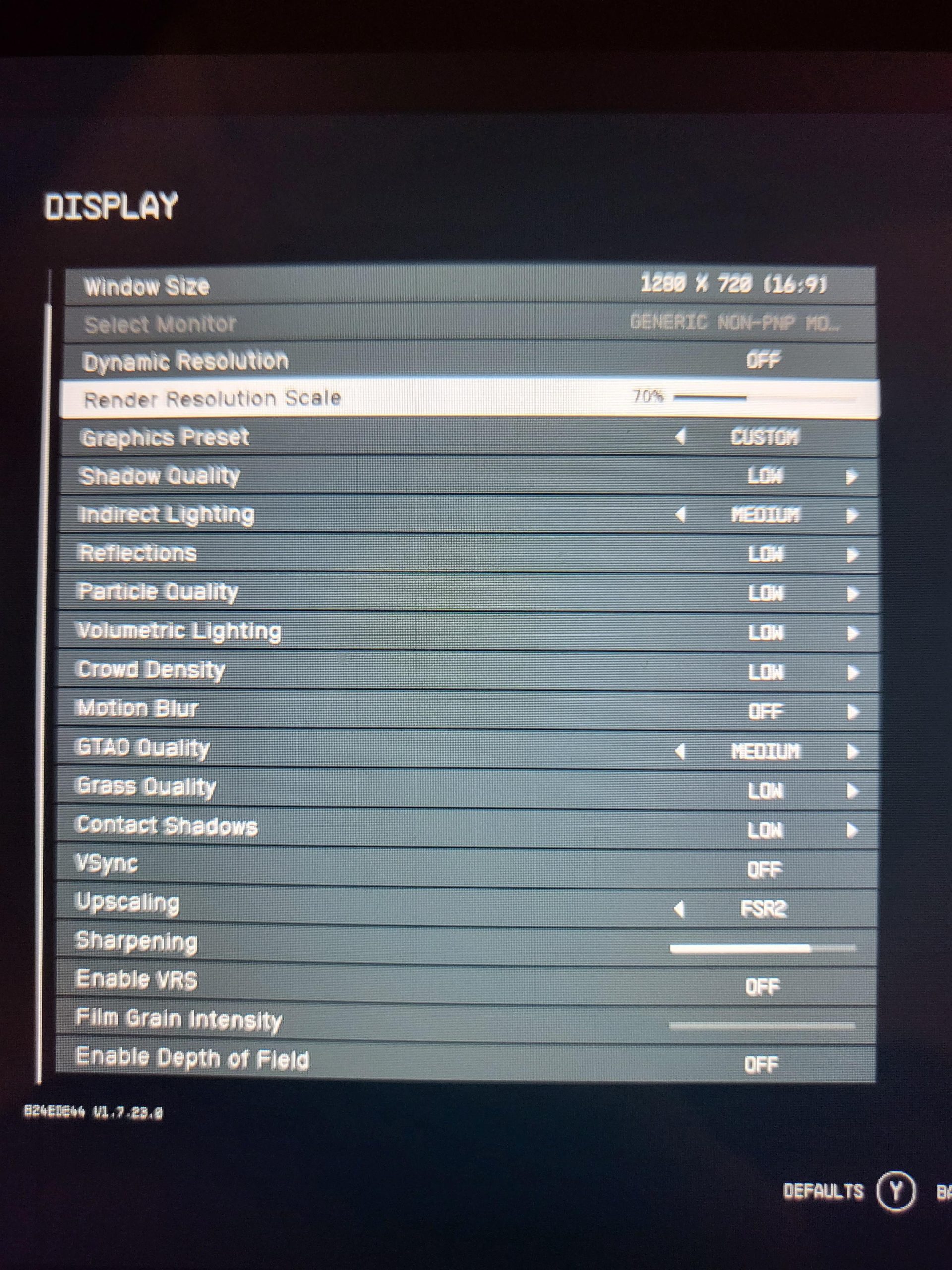
The best resolution setting for Starfield depends heavily on your specific hardware, but generally, aiming for your monitor’s native resolution provides the sharpest image. Experiment with slightly lower resolutions if performance is suffering.
Getting Starfield to run perfectly can be a tricky task for many players. Finding the right balance between visual fidelity and smooth gameplay is crucial, and that’s where tweaking graphic settings becomes vital. Therefore, understanding the implications of each option, including the elusive Starfield best resolution settings for game, can make or break your experience.
This guide will help you navigate this crucial aspect of performance. We will explore the impact of resolution on both image quality and your hardware’s workload, helping you find that sweet spot. Ultimately, the right settings can dramatically enhance your spacefaring adventure.

Starfield Best Resolution Settings for Game
Getting the best picture in Starfield isn’t just about having a super-fancy computer. It’s also about finding the right balance between how clear the game looks (resolution) and how smoothly it runs (performance). Think of it like this: a high-resolution picture is like looking at a detailed photograph, while smooth performance is like watching a movie without any hiccups. Finding the sweet spot where both look great and feel great to play can be tricky, but don’t worry, we’ll explore it all!
Understanding Resolution in Starfield
Resolution is like the number of tiny dots (pixels) that make up the images on your screen. The more pixels, the clearer and sharper the picture will look. Common resolutions you’ll see are 1920×1080 (also called 1080p or Full HD), 2560×1440 (1440p or QHD), and 3840×2160 (4K or Ultra HD). These numbers tell you how many pixels are arranged horizontally (the first number) and vertically (the second number). So, 1920×1080 means there are 1920 pixels across and 1080 pixels going down. Larger numbers mean a higher density of pixels and more detail.
Common Resolutions Explained
- 1080p (1920×1080): This is often considered the standard for gaming. It gives a good picture and doesn’t need as much power from your computer. If your PC isn’t super powerful, this is a good starting point. It provides a crisp image on most monitors and is a solid choice for a balance between graphical clarity and performance.
- 1440p (2560×1440): This resolution is a step up from 1080p. You’ll notice a clearer image with more detail. It requires more processing power, but for gamers who have a mid-range to high-end computer, 1440p is the sweet spot for a sharper image while maintaining a good frame rate.
- 4K (3840×2160): This is the highest resolution we’ll talk about here. It provides amazing detail and clarity, making the game look incredibly sharp. But, it needs a powerful PC to run smoothly. If you have a high-end gaming rig and a 4K monitor, this is the resolution to aim for, you will experience unparalleled visual fidelity and immersion.
The Relationship Between Resolution and Performance
Here’s the thing: a higher resolution means your computer has to work harder to create those detailed images. This can lead to lower frame rates. Frame rate is the number of images your monitor shows each second, measured in frames per second (FPS). A higher FPS means a smoother gaming experience, while a low FPS can make the game feel choppy and laggy. Think of it like a flipbook; lots of pages flipped fast make for a smooth movie, but fewer pages and slower flipping results in a jumpy mess. Therefore, choosing the right resolution is crucial to achieving a balance between a beautiful picture and smooth gameplay.
Why Frame Rate Matters
A good frame rate is crucial for an enjoyable gaming experience, especially in a fast-paced game like Starfield. Here’s why:
- Smoothness: Higher frame rates (ideally 60 FPS or more) make the game feel fluid and responsive, which helps in combat and exploration. A smooth experience reduces motion blur and makes tracking moving objects easier.
- Responsiveness: Lower frame rates create input lag which will lead to a delayed action that can frustrate the player, especially during critical moments. A high and stable frame rate will give you a significant edge in competitive situations.
- Eye Comfort: A choppy frame rate is not only bad for gaming experience, but can also lead to eye strain, headache, or nausea. A smooth experience is comfortable on your eyes and allows you to play for longer hours without feeling fatigued.
Finding Your Ideal Starfield Resolution
The best resolution for Starfield depends on the power of your computer’s graphics card (GPU) and your monitor. The aim is to choose the highest resolution your PC can handle while maintaining a smooth and playable frame rate. Let’s discuss how to figure out what that is.
Assessing Your Graphics Card
Your GPU is the most important factor in determining what resolution you can play Starfield at. Here’s how to figure out what your GPU is capable of:
First, check what type of GPU you have. If you are using Windows OS, right-click on the desktop and click on display setting, after that scroll down and find advanced display setting, click on that and then click on display adapter properties and you’ll find your GPU brand and model, or you can also find the model on your computer or laptop’s information by going to system information. Or, if you are not good with finding information about your hardware, then go to any website, like CanYouRunIt.com and search “Starfield” game in it. It will scan your hardware and tell you what settings you can use to play Starfield. Here’s a general guideline:
- Low-End GPUs (e.g., GTX 1650, RX 570): You’ll likely get the best experience at 1080p with low to medium graphics settings. If you want to play at a higher resolution, like 1440p, you might need to reduce the graphics setting even further.
- Mid-Range GPUs (e.g., RTX 3060, RX 6700 XT): You can usually enjoy 1080p with high settings or 1440p with medium settings. Adjust accordingly to get smooth gameplay. With some tweaking, you may even be able to play certain scenarios in 4K resolution, while keeping the graphics setting at medium level.
- High-End GPUs (e.g., RTX 4080, RX 7900 XTX): You should easily play at 1440p with high or even ultra settings and also play in 4K with medium or high settings. You have a lot of flexibility to fine tune and optimize settings for a premium visual experience.
Consider Your Monitor’s Native Resolution
Your monitor’s native resolution is the resolution it’s designed to display best. Playing the game at a lower resolution on a monitor with a higher native resolution may look blurry because the monitor needs to upscale the image. For the best picture, try to match the game’s resolution with your monitor’s native resolution if your hardware can handle it.
How to Test Resolution Settings in Starfield
Starfield includes the option to change the resolution in the graphics settings. This makes it easy to test different resolutions to see which one performs the best on your system. Here’s a step-by-step guide:
- Open Starfield and go to the “Settings” menu.
- Find the “Display” or “Graphics” options.
- Look for the resolution setting and change it to your desired resolution.
- Apply changes and play for a while, taking note of your frame rate in-game.
- If the game plays choppy, reduce the resolution and try again.
- Repeat this process until you find your ideal balance.
Advanced Techniques for Performance Optimization
If you are having a hard time achieving the right frame rate while maintaining the best resolution, there are some more settings that you can tweak that can affect the performance and visual quality. Here are some advanced techniques:
- Dynamic Resolution Scaling:
Starfield might have a dynamic resolution scaling option. When enabled, this setting automatically adjusts the resolution in the game to keep a consistent frame rate. The game might look slightly less sharp at some times but the experience will be very smooth.
- FidelityFX Super Resolution (FSR) or DLSS:
Both FSR (AMD) and DLSS (Nvidia) are upscaling technologies that can improve performance without greatly sacrificing visual quality. They create a lower-resolution image and then increase it to a higher resolution, making the game run smoother. If your GPU supports these technologies, it is very beneficial to give it a try, and see the results.
- Graphics Setting Adjustments:
Apart from resolution, lowering graphics settings, such as shadow detail, texture quality, and ambient occlusion, will have a huge positive impact on the game’s performance. You can experiment with these settings to fine tune the visual quality and performance. Usually, shadow detail and anti-aliasing have the greatest impact on performance and are often the first settings to lower.
- Background Processes:
Make sure to close any unnecessary programs running in the background before launching Starfield. These programs can use computer resources and slow down the performance of the game.
Recommended Resolution Settings Based on Hardware
Here’s a more specific recommendation based on common types of hardware setups:
For Entry-Level PCs
If you have an entry-level PC, here are some recommendations:
- Resolution: 1080p (1920×1080)
- Graphics settings: Low to Medium
- Upscaling: Enable FSR if available
- Target Frame Rate: 30-60 FPS
For Mid-Range PCs
If you have a mid-range PC, these setting will work well:
- Resolution: 1080p or 1440p (1920×1080 or 2560×1440)
- Graphics settings: Medium to High
- Upscaling: Enable FSR or DLSS if available
- Target Frame Rate: 60+ FPS
For High-End PCs
If you have a high end gaming PC, try out these settings:
- Resolution: 1440p or 4K (2560×1440 or 3840×2160)
- Graphics settings: High to Ultra
- Upscaling: Enable FSR or DLSS if available
- Target Frame Rate: 60+ FPS
Remember, these are just starting points and your ideal settings might be different depending on your computer components and personal preferences.
Understanding Refresh Rates
Your monitor’s refresh rate is another important factor. This refers to how many times the image on the screen is refreshed each second, measured in Hertz (Hz). A 60Hz monitor refreshes the image 60 times per second, while a 144Hz monitor refreshes 144 times per second. Having a refresh rate higher than your game’s frame rate won’t make much difference. If you have a 144Hz monitor and your game runs at 60 FPS, you’ll only see 60 frames, the monitor will still be refreshing, but you won’t be able to experience the smoother 144 FPS. On the other hand, if your game runs at 144 FPS and you have a 60Hz monitor, the monitor will display 60 frames per second. In that case, you won’t be able to take full advantage of the high frame rates that your PC is producing.
Matching Refresh Rates and Frame Rates
To get the most out of your gaming setup, try to match your refresh rate with your frame rate as closely as possible. If your monitor is 144Hz, you will want to try and get the game to run around 144 FPS, even if it requires you to lower the resolution or graphics settings. When you have a higher refresh rate and higher frames, the gameplay experience will be much smoother and enjoyable. If your monitor is 60Hz, you should aim for a consistent 60 FPS. If your computer cannot consistently deliver 60 FPS at a specific resolution, then you should lower it or use upscaling to increase performance.
The Importance of Experimentation
There is no single best setting for everyone. The best resolution for you will always depend on your PC’s hardware and your monitor. The process involves tweaking and testing different settings until you get the ideal balance between the looks and performance. Don’t be afraid to experiment with different resolutions, graphics settings, and upscaling options to see what works best for you in Starfield. Pay attention to how smoothly the game runs and how clear the picture looks, this is the process to get the ideal setting for your computer. Take time to customize and personalize your gaming experience. What works for one may not work for others. You’ll eventually find the best resolution to enjoy the awesome universe of Starfield!
Finding the perfect resolution in Starfield is all about knowing your hardware, experimenting with the game’s settings, and finding the right balance between graphics quality and smooth performance. Don’t be afraid to try different things until you find the magic combination for your system. Happy gaming!
How To Change STARFIELD Game Resolution on PC
Final Thoughts
Finding the perfect balance between visual fidelity and performance is key. Players should experiment with different resolutions. Start with your monitor’s native resolution, then adjust as needed to find a playable frame rate.
Lowering the resolution can boost performance. Consider FSR or DLSS options, if available, to improve clarity at lower resolutions. These upscaling techniques can help maintain image quality while providing a performance uplift.
Ultimately, the ideal settings depend on your hardware and preferences. The aim is to optimize for smooth gameplay. The ‘Starfield best resolution settings for game’ is subjective, but experimentation is always the best solution.

