
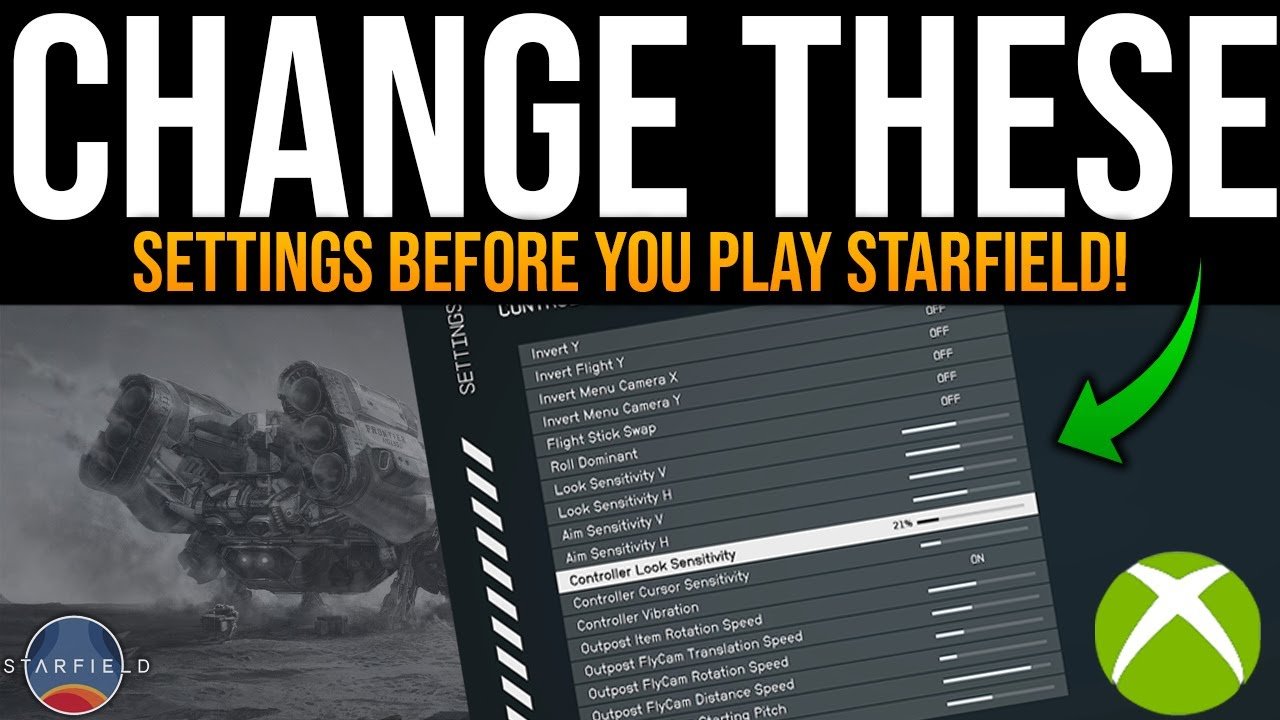
Lowering shadow quality, setting volumetric lighting to medium or low, and reducing crowd density are key for achieving Starfield best settings for smooth play.
Experiencing stutters and frame drops in Starfield? It’s a common issue, but easily addressed. Many players are searching for the ideal configuration. We’ll show you simple adjustments to improve your gameplay. Finding the right balance of visual fidelity and performance makes a big difference. The goal is to get smooth play without compromising image quality too much.

Starfield Best Settings for Smooth Play
Getting Starfield to run smoothly can feel like exploring a whole new galaxy of settings. It’s a big game, and sometimes our computers need a little nudge to keep up. Don’t worry; you don’t need to be a tech wizard to make Starfield look great and play without any hiccups. This guide will walk you through the best settings to try, explained in a way that’s easy to understand. We’ll cover everything from graphics options to things you can tweak on your computer, making sure your Starfield experience is as amazing as it should be. Let’s jump in and get those frame rates soaring!
Understanding the Graphics Settings
Starfield’s graphics settings can seem like a lot, but they’re really just different ways the game shows you the world. Changing these can greatly impact how the game looks and how well it runs. Let’s break down some of the most important ones.
Resolution: The Size of Your Picture
Think of resolution like the size of your TV screen. A higher resolution makes the game look sharper and clearer, but it also makes your computer work harder. If you’re having trouble with performance, try lowering the resolution. You’ll see a bit less detail, but the game should run more smoothly.
- Lower resolutions like 1280×720 or 1600×900: Great for older computers or when you need a big performance boost. The image might look a little blurry.
- 1920×1080 (Full HD): A good balance of sharpness and performance for most computers. This is a common resolution for monitors.
- 2560×1440 (1440p or QHD): Looks much sharper than 1080p, but your computer will need to be powerful enough to handle it.
- 3840×2160 (4K): The sharpest resolution, but very demanding. Only use this if you have a really strong gaming computer and a 4K monitor.
Graphics Quality Presets: Easy Mode
Starfield offers a few preset graphics levels – Low, Medium, High, and Ultra. These are easy ways to quickly change a lot of settings at once.
- Low: Uses the least power, good for older computers. Expect the game to look less detailed.
- Medium: A good starting point for most PCs. It’s a good middle ground between visuals and performance.
- High: Makes the game look really good. You’ll need a decently powerful computer to run this smoothly.
- Ultra: Pushes the graphics to their highest. Great for powerful computers.
It’s often best to start with a preset that’s a bit lower than what you think you can handle, and then adjust from there. If you’re unsure, start with Medium.
Individual Graphics Options: Getting Specific
If the presets aren’t working, you can fine-tune each setting for more control. Here’s a look at some key ones:
- Shadow Quality: How detailed shadows are. Lower this to boost performance, especially in areas with lots of trees or buildings.
- Reflection Quality: How realistic reflections look in water and on shiny surfaces. Lowering this can significantly improve how well the game runs without making a huge difference in the overall look.
- Volumetric Lighting: This controls light beams and fog. Turning it down can free up resources on your computer, and the game will still look great.
- Indirect Lighting: How light bounces off surfaces. Lowering this helps reduce load on your PC.
- Particles Quality: Things like explosions, sparks and fog. Turning this down will reduce visual effects but helps performance, particularly in intense battles.
- Texture Quality: How detailed objects are. Lowering this might make the game a little less crisp, but it’s a good way to gain some frames on older GPUs. Medium or High is good for most computers.
- Render Scaling: This makes the game render at a lower resolution than what you’re playing at, then scales it up to fit the screen. It helps performance but can make the image a little blurry. Try it if you’re struggling.
Experiment with these settings one at a time to see how they affect the look and smoothness of the game. Usually, shadows, reflections, and volumetric effects are the best places to start when trying to improve performance.
Display Settings
Beyond the graphics options, Starfield’s display settings also affect performance. Here are the important ones.
Fullscreen vs. Borderless Windowed
Playing in fullscreen mode generally gives you slightly better performance. Borderless windowed is convenient if you like to quickly switch between Starfield and other apps, but it can use more resources. If you’re looking for the best possible performance, especially on older machines, use fullscreen.
V-Sync: Keeping Everything in Sync
V-Sync helps prevent screen tearing, which is when the top and bottom of the screen look misaligned. However, it can sometimes make the game feel a little less responsive and can even reduce frame rates.
- If you’re getting screen tearing: Turn V-Sync on.
- If you’re not having screen tearing and want better performance: Turn V-Sync off.
Sometimes, it can help to try V-sync both on and off. It’s not always a clear-cut answer and it can change based on your specific set up.
Frame Rate Limit: Controlling the Pace
Starfield doesn’t have a built-in frame rate limiter, but you can achieve the same effect using third-party tools or your graphics card control panel. Limiting the frame rate can sometimes help keep things smooth and prevent your computer from overheating. A lot of people recommend using the frame rate limiter if you’re having issues with your PC generating too much heat.
Optimizing Your Computer
Sometimes, the problem isn’t just the game settings; it’s also about how your computer is set up. Here are a few things you can do to improve Starfield’s performance.
Updating Your Graphics Drivers
Graphics drivers are like the instructions your computer uses to talk to your graphics card. Outdated drivers can cause problems. Check the websites of Nvidia, AMD, or Intel (depending on your graphics card) for the latest drivers and install them.
- Nvidia: Go to nvidia.com, find the ‘Drivers’ section, and search for your graphics card model.
- AMD: Visit amd.com, go to ‘Support & Drivers,’ and choose your product.
- Intel: Visit intel.com, navigate to ‘Support,’ then ‘Downloads and Drivers’.
Keeping your graphics drivers up to date can make a big difference, not just for Starfield but for all games.
Closing Unnecessary Programs
When you have a lot of programs running in the background, they use up your computer’s resources that Starfield needs to run smoothly. Before you start playing, close any programs you don’t need. This includes things like web browsers, music players, and other apps.
You can do this by using task manager (Press Ctrl + Shift + Esc on Windows, or search ‘Activity Monitor’ on a Mac), and closing the programs that are using the most power. But be careful to only close the programs that you actually know what they are!
Adjusting Power Settings
Your computer’s power settings control how much power it gives to different parts. If your computer is set to save power, it might be holding back some resources needed for Starfield.
- On Windows: Go to the Control Panel, then ‘Hardware and Sound,’ then ‘Power Options,’ and choose ‘High Performance.’
- On a Laptop: Plug in your laptop while playing for best performance. Battery saving options will often reduce your performance while you’re playing.
Using Game Mode (Windows)
Windows has a special ‘Game Mode’ that tries to give more resources to games.
- To turn it on, search for ‘Game Mode’ in the Windows search bar and flip the switch to the ‘On’ position.
Game Mode might seem minor but it can help performance with a small boost.
Advanced Tips
For those of you who really want to squeeze every bit of performance out of your setup, here are a few more advanced things you can try.
Tweaking the INI File
Starfield’s settings are stored in a configuration file (.ini file) which you can directly modify. This isn’t for everyone, and be careful when doing this. Changes can make the game unstable if not done properly. We recommend doing research on specific settings that are commonly tweaked on the .ini file.
To find it, search in your documents folder for My Games > Starfield and then open the StarfieldCustom.ini file. (if that file doesn’t exist, make a new text document and rename it to StarfieldCustom.ini). There are many settings that you can adjust here, some of them are listed below:
- fShadowBias: Lowers shadow detail, great for performance.
- fGrassDensityScale: Reduces grass density, helping performance in outdoor areas.
- bUseMultiThreadedRendering: Force the game to use multi threading on your cpu, if you have a cpu with multiple cores this will help.
Monitor Overclocking (Carefully!)
Some monitors can be slightly overclocked to give a higher refresh rate than they’re rated for. This is only for experienced users, and can cause damage if done improperly. Your best bet is to use guides and research if you’re considering this.
Checking CPU and GPU Temps
If your computer is getting too hot, it might slow down to protect itself. Use programs like HWiNFO or MSI Afterburner to check your CPU and GPU temperatures while playing. If they’re getting very hot, you might need to clean out dust from your computer fans, or try improving your computers cooling with fans or liquid cooling.
Finding Your Perfect Balance
The “best” settings for Starfield are different for everyone. The key is to experiment and find the combination of settings that makes the game run smoothly for you while still looking good enough. Don’t be afraid to try different settings, and to change them when you move to a new planet, and then save them in your own personal settings guide! Be patient, and with a bit of tweaking, you can have an awesome experience in Starfield!
Remember, this is an ongoing process. As you play, you’ll get a better feel for what settings work best for your computer and your preferences. Don’t be afraid to adjust things as you go!
The best Starfield experience is when you are happily playing the game, and not frustrated with the way it looks or the way it’s running. Take the time to set it up well, and you’ll have hours of enjoyment!
Starfield BEST Settings for FPS & Quality (In-Depth Optimization Guide)
Final Thoughts
Achieving smooth gameplay in Starfield often means tweaking your graphics. Lowering shadow quality and turning off motion blur can provide significant performance boosts. Adjusting the resolution scale also impacts frame rates.
Experiment with these settings to find the right balance between visual fidelity and performance. Ultimately, finding ‘Starfield best settings for smooth play’ depends on your specific hardware. You will achieve a more enjoyable experience with optimized settings.

