
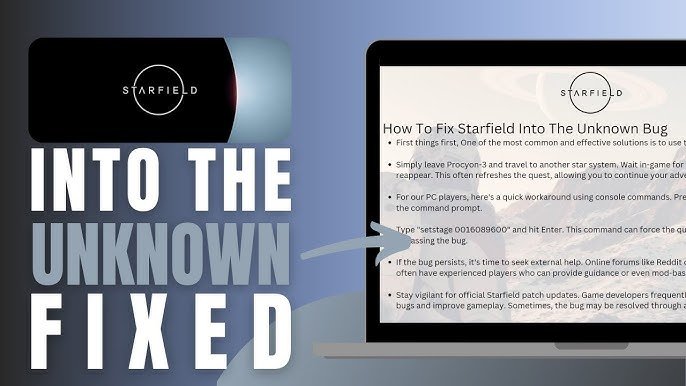
Common Starfield bugs include crashes, visual glitches, and quest progression problems; solutions often involve updating drivers, verifying game files, or reloading saves.
Navigating the vast expanse of Starfield can sometimes be interrupted by frustrating glitches. Players are reporting various issues, from game crashes to bizarre visual oddities, these problems can detract from the experience. Addressing Starfield common bug issues and solutions is crucial for a smoother playthrough.
Many problems stem from outdated graphics drivers or corrupted game files. Verifying your game files through the platform you use can often resolve these problems. If issues persist, reloading a previous save sometimes fixes progression blockers.

Starfield Common Bug Issues and Solutions
Starfield, the massive space exploration game, is a lot of fun. But like many big games, it has its share of hiccups. Sometimes these are small, like a funny character glitch, and sometimes they’re more serious, like crashes that stop you from playing. This section will help you understand and fix some of the most common problems you might run into while exploring the Settled Systems. We’ll go through the issues and offer practical fixes to get you back to your intergalactic journey.
Common Gameplay Bugs
Let’s start with the bugs that can interrupt your gameplay the most. These are the kinds of problems that make you say, “Wait, what just happened?”
NPC and Character Glitches
One common issue is how the non-player characters (NPCs) act. Sometimes they might walk through walls, get stuck in doorways, or start floating in the air. While these can be funny, they can also break the flow of the game. Here’s what you can do:
- Try Waiting or Fast Traveling: Sometimes, NPCs just need a little nudge to reset. Try waiting for a few in-game hours or fast traveling to a different location and then back. This can often put them back in their proper place.
- Reload a Previous Save: If waiting doesn’t work, loading an earlier save might fix the problem. This is useful for times when the glitch happened a while ago and the waiting/traveling did not fix it.
Another character issue occurs with your own character. Sometimes they might get stuck in an animation loop, making them look like they are constantly running in place, or have some other similar kind of quirky movement. Often, using the method mentioned above will fix this problem.
Quest Progression Problems
Quests are the heart of Starfield. But sometimes, they just don’t go the way they should. You might find yourself unable to complete a quest because a key character isn’t where they are supposed to be, or a dialogue trigger doesn’t appear. Here’s how to tackle it:
- Double-Check Objectives: Before panicking, make sure you’ve actually completed all the steps. Sometimes the problem is simply that you’ve missed an objective.
- Use Your Scanner: Sometimes quest-related items are hard to see. Try using your scanner in the area where the quest objective is to locate them.
- Look Up the Quest: A quick search on online forums or guides about that quest may reveal a solution from someone who had the same problem. Sometimes, it’s a specific step or dialogue option you need to take.
- Reload a Save: If all else fails, reload to a point before you started the quest. It might lose some of your progress, but it will prevent you from being stuck in a broken mission.
Combat and Enemy Issues
Combat in Starfield can sometimes get a bit strange. Enemies might get stuck in the environment, not react to your attacks, or even appear invisible. These issues can make the game either too easy or frustratingly impossible. What to do:
- Try a Different Approach: Sometimes changing your strategy can “reset” the AI. Try backing off, moving to a different location, or using a different weapon.
- Reload a Save: If the combat is just too broken, a quick reload might be the best option.
- Update Your Game: Bethesda, the game maker, releases updates to fix bugs. Keeping your game updated ensures that you have the newest and most stable version.
Technical Glitches
Let’s go over some of the issues that are not caused by something happening inside the game, but with how it runs on your computer or console. These technical issues can be annoying to deal with.
Crashes and Freezes
Game crashes and freezes are one of the most frustrating experiences that you can encounter. These can happen in the middle of a really important mission or when you have made a lot of progress. These are some ways to help avoid those issues:
- Check System Requirements: Make sure your computer or console meets the minimum or recommended requirements. If your setup is below the requirements, that may be the primary cause of the crashes.
- Update Your Drivers: Outdated drivers for your graphics card or other computer parts can cause performance issues. Go to your device’s website and download the latest drivers.
- Close Unnecessary Programs: Having too many apps running while you are playing Starfield can slow down your device, leading to crashes. Close anything that you do not need while playing.
- Lower Graphics Settings: If you have the game settings set too high for your system, it can result in freezes or crashes. Lower the graphics settings to see if that solves the problem.
Remember to frequently save your game so that you do not lose all your progress if a crash or freeze happens.
Performance Issues (Low FPS, Stuttering)
Stuttering or having a low frames per second (FPS) count can make the game look choppy, and make playing not fun. Here are a few things you can try to help your game run better:
- Adjust Graphics Settings: Lowering certain graphics settings can give your device a break and improve performance. Try turning down shadows, texture quality, and other settings to get better performance.
- Update Your Drivers: Make sure your graphics drivers are up to date, as stated in the previous section.
- Ensure Game Is Using the Dedicated Graphics Card (PC): On PC, make sure that Starfield is using your dedicated graphics card, and not your integrated one.
- Check Your Background Processes: Sometimes, the problem is something else running on your device, like a cloud storage app or a background update that is taking resources away from the game. Try closing these apps to see if that helps.
Audio Problems
Having audio cut out, sound effects being too loud or too quiet, or other audio problems can disrupt your enjoyment of Starfield. These are some things you can do to try to solve these audio issues.
- Check Volume Levels: Make sure your in-game volume and sound settings are right. Sometimes all you need to do is turn up the game’s volume, or turn down the sounds of some specific audio settings in the game.
- Update Sound Drivers: Just like with your graphics card, you should make sure your sound drivers are updated as well.
- Restart the Game: Sometimes simply closing the game and reopening it can fix small audio problems.
- Check your connections: Check your headphone connection to your PC/Console to make sure it is plugged in completely, or try using a different set of headphones to troubleshoot.
Visual Bugs and Glitches
Visual glitches can be funny at times, but they can also be distracting and make the game less enjoyable. These are some common visual bugs and what to do about them.
Texture and Rendering Issues
Sometimes, textures in the game might look blurry, pop in late, or even disappear. This is common in big, open-world games. These are a few common things you can do.
- Update Graphics Drivers: Make sure you have updated your graphics drivers.
- Adjust Graphics Settings: Try turning down some graphic options, such as texture quality or draw distance, to see if it helps.
- Restart the Game: Just like with audio issues, sometimes restarting the game can solve smaller visual problems.
Lighting and Shadow Problems
Strange lighting or shadow problems can happen, such as flickering shadows or objects that are way too dark or too bright. Here is how to address this:
- Adjust Graphics Settings: In the graphics settings, you can try changing the shadow settings or the lighting options to see if it helps.
- Update Graphics Drivers: Again, you might need to update your graphics drivers for the changes to appear correctly.
Graphical Artifacts
Graphical artifacts are visual glitches that show up as strange patterns or distortions in the game. This could look like colored lines or other weird shapes and textures that appear on the screen. Here is how you can fix this issue:
- Update Graphics Drivers: Make sure you have the newest drivers installed for your graphics card.
- Check Your Hardware: If you have updated drivers, your hardware might be having issues. If your components are overheating or have other hardware problems, they may show artifacts. Make sure your components are adequately cooled and functioning well.
- Try a Different Cable: Check the cables that connect your monitor to your PC or console. The issue may just be a bad cable.
- Lower Graphics Settings: Sometimes, a simple fix is to just turn down your graphics settings.
General Tips for Bug Fixing
Here are some general tips for dealing with bugs, and making the game run smoother. These aren’t specific to any one type of bug, but they are helpful tips to follow.
Keep Your Game Updated
One of the most important things that you can do is to keep the game updated. Developers of games are always releasing patches and updates to fix bugs and other issues, and the newest patch will always have the most bug fixes. Be sure to download and install these updates as they are released.
Save Frequently
In large games like Starfield, it’s important to save often. If you encounter a problem, you can always go back to an earlier save and avoid losing too much progress. You should make sure you are saving every 20-30 minutes or so, or before/after an important mission or situation.
Check Online Forums and Communities
If you are having a bug that you are having a hard time with, there are many resources you can use. Online forums and communities are a great place to check to see if anyone else is experiencing the same issues, and if they have found any solutions to them. It is very likely that someone has run into the same issue, and there are many kind people who are willing to share how they fixed it.
Verify Game Files
Sometimes game files can get corrupted, which can lead to bugs or crashes. Many game launchers (like Steam) have an option to verify the integrity of the game files. This will find any damaged or missing files, and replace them.
Dealing with bugs can sometimes feel like a chore, but with these tips, you’ll be well-prepared to handle the issues Starfield throws your way. By keeping your game updated, saving often, and using the tips given above, you can get back to exploring the universe with as few problems as possible.
Starfield Graphics Enhancement Guide: Boost Performance & Fix Common Bugs
Final Thoughts
Starfield common bug issues and solutions range from visual glitches to quest progression blockers. Players frequently report problems with character models and AI behavior. Game crashes and freezing occasionally occur, disrupting gameplay.
Simple fixes, like restarting the game or updating drivers, often resolve many problems. Reloading previous saves can help with quest-related bugs. Checking for official patches is essential for a stable experience.

