Starfield Console Commands: Game Cheats

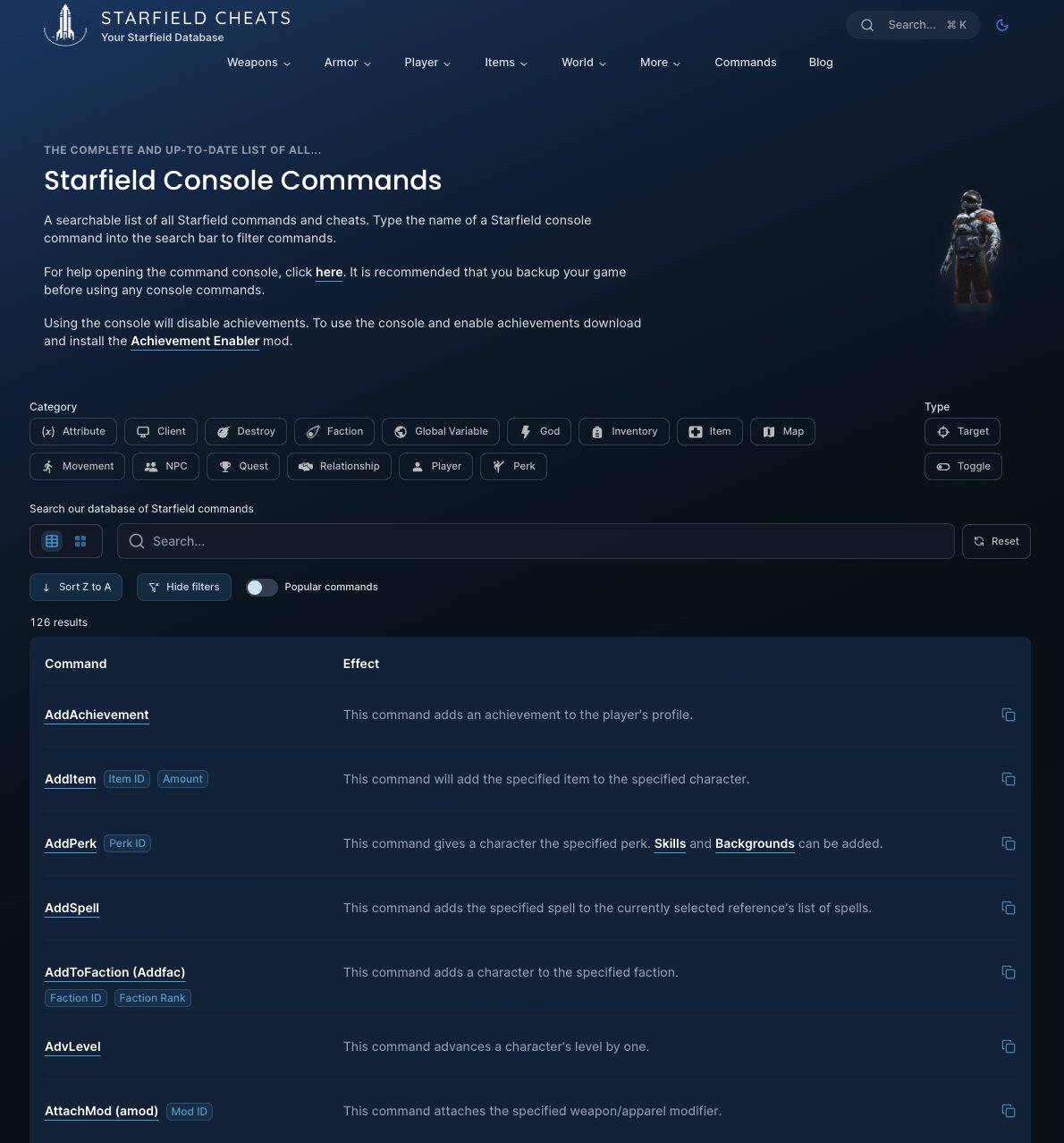
Starfield console commands allow you to alter gameplay, spawning items, changing character stats, and even moving to different locations within the game.

Ever wanted to bend the rules of space? Starfield offers a range of possibilities beyond the normal gameplay. With a few keystrokes, you can access a hidden world of modifications.

These, are known as Starfield console commands, and they let you tweak your experience. You can experiment with different builds or quickly bypass challenging areas. They provide creative ways to interact with the game’s systems.

Starfield console commands: Game Cheats

Starfield Console Commands: Your Guide to Bending the Game to Your Will

Okay, so you’re diving deep into the vast universe of Starfield, exploring planets, battling space pirates, and maybe, just maybe, you’ve hit a snag. Or perhaps you’re just curious about all the cool things you can do that the game doesn’t normally let you. That’s where console commands come in! Think of them as special codes that let you tweak the game in all sorts of ways. This guide will walk you through the exciting world of Starfield console commands, explaining what they are, how to use them, and some of the most popular and useful commands to try.

What Exactly Are Console Commands?

Console commands are basically cheat codes, but way more powerful. They are text-based instructions that you type into a special window in the game, called the console. These commands can do things like give you items, change your character’s abilities, teleport you around the map, and even alter the game world itself. They are a fantastic tool for fixing bugs, experimenting with the game mechanics, or just having a bit of fun and feeling powerful.

Now, it’s important to know that console commands are not meant to be a normal part of the game experience. They are usually only available on the PC version of Starfield. Using them might affect achievements, and sometimes they can even make the game a little wonky, so use them at your own risk! But for those who like to tinker, they provide a whole other level of play.

How to Open the Console

Before we start bending reality, you need to know how to access the command console. Here’s how:

On PC: During the game, press the tilde key (~). It’s usually located just under the Esc key and to the left of the number 1 key on your keyboard. If that does not work, try the grave accent key (), which is on the same key as the tilde on some keyboards. A little text input field will pop up at the bottom of your screen. This is where you will type your commands.

Once you have the console open, you’re ready to begin experimenting. Remember, the console accepts text, so you will type your commands and press enter.

Important Things to Know Before Using Commands

Before you go crazy using console commands, there are a few things you should know:

Save Often: It is a very good idea to save your game before using console commands. If something goes wrong, like your game crashes, you can go back to that save.
Case Sensitivity: Console commands in Starfield are not case-sensitive. You can write them in capital letters, lowercase letters or a mix of both. player.additem is the same as PLAYER.ADDITEM
Targeting Objects: Some commands need to know what you’re talking about. You may have to select an object with your cursor in the game world, before typing a command. For example, if you want to change the size of an object, you will need to click on it, and a reference ID number for it will appear in the center of your screen.
Cheats and Achievements: Using some console commands might stop you from getting certain achievements in the game. Keep that in mind if you want to earn all the trophies. You may need to load a previous save.
Command Arguments: Many commands have extra parts called arguments. These help the command know exactly what to do. For example, player.additem 0000000F 10 means “add 10 credits to my character,” where 0000000F is the code for credits and 10 is the amount.
Reference ID’s: Many commands use item ID codes. You can find lists of these online, so you know what to type.

Read also  What Network Is Commanders Game On

Basic Console Commands

Let’s start with some basic and very useful commands. These are the commands you will probably find yourself using a lot!

Player Manipulation Commands

These commands let you change things about your character.

tgm: This command is for “god mode.” Your character is now basically invincible, and you have unlimited ammo. A great command if you just want to run around and explore without any trouble. If you want to turn off this mode again type “tgm” in the console.
tcl: This command enables no clipping. It lets you walk through walls and objects. Perfect for exploring areas you are not supposed to reach, or if you are stuck in the game. Type tcl again to turn it off.
player.additem : This is an important command. This will add an item to your inventory. You will need the item’s ID which is a string of numbers and letters, and the number you want. For example, to get 100 Med Packs you would type: player.additem 002297E8 100

002297E8 is the ID for the med pack
100 is the amount
player.setlevel : This command changes your character’s level. Just replace with the number you want your new level to be. Remember that leveling up too high may make the game too easy. Be careful what you wish for.
player.modav carryweight : This command changes the maximum weight your character can carry. player.modav carryweight 1000 means you can carry 1000 additional pounds.
player.setav speedmult : Sets your walking speed. player.setav speedmult 2 makes you walk twice as fast.
player.removeperk : Removes a specific perk you have. Requires the perk ID.
player.addperk : Grants you a specific perk. Requires the perk ID.
player.placeatme : Places an object, NPC, or creature in front of you.

Game Manipulation Commands

These commands change the game itself.

caqs: This command completes the main quest. Use it with extreme caution because this will skip a lot of the game!
set timescale to : This command controls how fast time moves. A lower number makes time move slower, while a higher number makes time move faster. The default value is 20. set timescale to 1 makes time move very slowly, and set timescale to 100 makes time move quickly.
fov : This command changes your field of view, which is how much of the world you can see on your screen. A higher number lets you see more. For example, fov 90
showmenu

: Shows a specific menu in game. For example, showmenu playerinventory will open your inventory menu.
completeallobjectives : Completes all objectives for a specific quest. Requires the quest ID.
killall: This command kills all NPCs in the area, except for essential NPCs (ones that are important to the story). It is not as fun as it sounds, because you can’t loot them.
resurrect: Select a dead NPC, and then type this command. They will come back to life.
tai: This toggles the AI of all NPCs on or off. When off, no one will move or do anything. It’s a bit spooky. Type tai again to toggle it back on.
tcai: This toggles the combat AI of all NPCs. When off, no one will fight or shoot. Type tcai again to toggle it back on.
movetoqt: Moves your character to the location of the active quest target.

Read also  Xbox Disaster Recovery Protocols

Item and Object Commands

These commands let you change, find, and manipulate objects in the game.

help : This is a very helpful command! If you want to know the code for something, just type the word and press enter. A list of codes will pop up. For example, help med pack will show you the code for med packs.
getav : This command shows the current value of something. For example getav carryweight shows how much you can carry.
setav : This command allows you to set the value of something. For example, setav carryweight 500 will set your maximum carry weight to 500 pounds.

Advanced Console Commands and Tricks

Now let’s get into some of the more fun, yet slightly more advanced, commands.

Manipulating NPCs

These commands let you play with characters.

addfac : Adds you to a faction. You may need the faction ID, which can be found online.
removefac : Removes you from a faction. You may need the faction ID, which can be found online.
addtofaction : Adds an NPC to a faction at a certain rank. Select an NPC before using this command.
removefromfaction : Removes an NPC from a faction. Select an NPC before using this command.
setrelationshiprank : Sets how much an NPC likes you.
0 means they will try to kill you
1 means they dislike you
2 means they’re neutral
3 means they like you
4 means they are very good friends
5 means they are your lover or spouse
forceav : Forces a stat on an NPC. For example, forceav health 1000 will give them 1000 health.
pushactoraway : Pushes an object or NPC a certain distance away from you. You may need the reference ID of the object or NPC. The force can be a value like 20, 50, 100.
duplicateallitems: Duplicates all items in the inventory of the currently selected character or object.

Ship Manipulation Commands

These commands let you control your ship.

player.additem 1: This adds a new ship to your inventory. Be careful with this, because some ships are special or quest-related.
player.removeitem 1: This removes a ship from your inventory.
getspaceshipid: Shows you your current ship’s ID.
setspaceshipvalue : Changes the value of your ship.
setshiphealth : Sets the current ship’s health value.

World Manipulation Commands

These commands let you alter the game world.

disable: Select an object, and it will be invisible. You can re-enable it again by selecting the place it used to be, and then typing “enable”.
enable: If you have disabled an object, this command will make it visible again.
setscale : This command changes the size of an object. Select the object, and then type the size you want, such as setscale 2. The value 2 makes it twice the size.
setpos : Move an object to a specific location, using coordinates.
setangle : Change an object’s rotation using coordinates.
showgrid: Displays the coordinate grid on the screen.
coc : Teleports you to a specific location. For example, coc NewAtlantis teleports you to the city of New Atlantis. You may need the ID of the location which can be found online.

Read also  Sprunki Gameplay Balance Issues Examined

A Table of Common Items ID’s

Here is a table of commonly used item ID’s to help you get started.

| Item | ID |
| ————————– | ——— |
| Credits | 0000000F |
| Med Pack | 002297E8 |
| Digipick |0000000A |
| Ammo (Various Types) | See help ammo |
| Lockpicking Skill Magazine | 000A1861 |
| Spacesuit |See help spacesuit|
| Weapon | See help weapon |
| Ship Parts | 00021D79 |
| Food items | See help food|

How to find Item and Object IDs

Sometimes you want to add an object, but you don’t know the ID code. The best way to do this is with the help command. For example, if you want to find the ID for a weapon, type help weapon into the console. A list of codes will appear. Scroll through until you see the item you want. You can then use the code in a command like player.additem 1. If you see too many results, be more specific. You can try help laser weapon or help pistol weapon to refine the list.

Troubleshooting Console Commands

Sometimes commands don’t work the way you expect them to, so here are some common things to check:

Spelling: Make absolutely sure you have spelled the command exactly right. Even one wrong letter will stop it from working.
Correct ID: Make sure you have the right ID. Sometimes there are multiple IDs that sound alike. You might find multiple results when using the help command. Use the correct ID that matches the item you are looking for.
Selecting Objects: Some commands need you to click on an object in the game before you type it in. Make sure the ID number pops up in the center of your screen.
Game Version: Check that the console command you are trying is for the specific version of Starfield that you are playing.

A Note of Caution

Using console commands can be fun, but it can also change your game in unexpected ways. If you get a game breaking bug, you may need to load a previous save. It’s generally a good idea to experiment with these commands in a new game file, or after making a manual save. It is also important to know that the developers of the game did not intend console commands to be used this way. They are provided for testing purposes. So be very careful when using them. If you use commands a lot, the game may not be as fun as when it is played normally.

Console commands are a powerful and versatile tool for players who want a different experience with Starfield. Whether you want to become invincible, test different strategies, or just have some fun, the console is there for you. Just remember to use them responsibly and save often. Happy exploring!

Starfield Cheats: How to Enter Console and Best Codes

Final Thoughts

In short, Starfield console commands give players significant control. They enable players to easily adjust gameplay to their preferences. Remember to use these commands with caution, saving your game before use. Experiment and see what adjustments you like best.

Players can quickly change various settings. They can gain advantages or test different features. With careful application, Starfield console commands greatly enhance your experience. You can tailor the game to perfectly fit what you desire.

Leave a Comment

Your email address will not be published. Required fields are marked *