
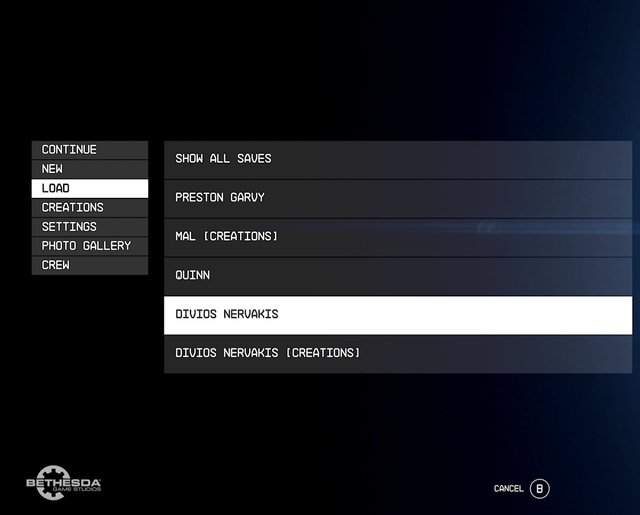
To create a backup of Starfield, manually copy the game’s entire installation folder to a safe location on your computer or an external drive.
Planning to dive deep into the vast universe of Starfield? It’s a fantastic idea, but have you considered the possibility of needing a backup? Losing saved progress or game files can be frustrating. That’s why understanding Starfield how to create a backup of the game is crucial.
Making a copy ensures you can restore your gameplay in case of any issues. This simple step can protect your precious progress from system crashes or unexpected errors. You can then freely explore Starfield with peace of mind.

Starfield How to Create a Backup of the Game
Hey there, fellow space explorers! If you’re anything like me, you’re spending hours getting lost in the vast universe of Starfield. It’s super fun to build ships, explore planets, and get into all sorts of adventures, right? But what if something goes wrong? What if your game data gets messed up, or your saves get corrupted? That’s where having a backup comes in handy. Think of it like having a spare spaceship – just in case your main one needs some serious repairs. Making a backup of your Starfield game is a smart move, and it’s easier than you might think. Let’s walk through it together!
Why Backing Up Your Starfield Game Is Important
Okay, let’s talk about why you should even bother with backing up your Starfield game in the first place. It might seem like an extra step, but trust me, it can save you a lot of heartache. Imagine spending weeks building the perfect space base or crafting the most powerful weapon, only to have it all vanish because of a game crash or a save file error. That’s not a happy thought, is it? Here’s why backing up is a must:
- Protect Against Data Loss: Game data can sometimes become corrupted. This can happen from sudden power outages, game crashes, or even just random computer glitches. Backups are your safety net when things go wrong. They ensure that you don’t have to restart from the very beginning, which would be a huge time-waster.
- Safeguard Your Progress: We all put a lot of time and effort into building our characters, completing missions, and accumulating awesome stuff in the game. A backup makes sure all your hard work doesn’t vanish into thin air. Think of it as insurance for all your gameplay.
- Modding Mishaps: If you like to use game mods (and who doesn’t?), they sometimes can cause problems. If you are testing mods, it can sometimes mess up your game saves. With a backup, you can quickly revert to a working version of the game if a mod goes haywire.
- Experiment Fearlessly: Want to try out a crazy new build or experiment with different choices? A backup lets you do this without worrying about losing your existing progress. You can always restore from the backup if your experimentation doesn’t go as planned.
- Hard Drive Issues: Sometimes hard drives or SSDs can fail. Having a separate backup on another drive or cloud service can protect you from losing everything due to a hardware issue.
In short, a backup is a way to keep your Starfield adventures safe. It gives you peace of mind and allows you to enjoy the game without the fear of losing your hard work.
Where Are Starfield’s Save Files Located?
Before we can back up our saves, we need to know where to find them! It’s like finding the treasure on a treasure map. Here’s how to locate your Starfield save files:
For PC Players (Steam & Xbox PC App):
The save files are generally stored in a specific folder on your computer. It might look like a long path, but don’t worry; it’s easy to follow.
- Open File Explorer: Click on the folder icon in your taskbar (or press Windows key + E).
- Go to Your Documents Folder: On the left side of the File Explorer, click on “Documents.”
- Find the ‘My Games’ Folder: In the Documents folder, you will see a folder named “My Games.” Open it.
- Locate the ‘Starfield’ Folder: Inside “My Games,” look for a folder named “Starfield.” This is where the magic happens. Open this folder, you’ll see a ‘Saves’ folder.
The complete path usually looks something like this:
C:\Users\[YourUserName]\Documents\My Games\Starfield\Saves
(Replace ‘[YourUserName]’ with your actual Windows username.)
Inside the ‘Saves’ folder you will see various folders/files, these folders and files contain all of your save progress of Starfield.
For Xbox Players:
Xbox users have a slightly different setup. The console manages the save files automatically, and they are often backed up to the cloud, if you’re playing online. You can check that your xbox console is backing up your game saves or not, you can check this by going into your xbox console’s setting, navigate to the account setting, then navigate to cloud backup, from there you can see whether your console is backing up your game saves or not.
However, If you’re offline, it will still keep a local backup. The save data is usually on your console hard drive. But for offline play, making a manual copy is not straightforward with a regular Xbox user interface. You would need external storage to manually move the save files around, and unfortunately, direct file access is not as open on Xbox as on PC.
How to Create a Manual Backup on PC
Now that we know where the save files are, let’s make a backup. It’s like making a copy of your favorite drawing – just in case the original gets lost. We will focus on manually backing up saves as that is the most reliable way to keep your progress safe. This process works for both Steam and the Xbox PC version of the game.
Copying Starfield save Files
Here’s a step-by-step guide:
- Close Starfield: Make sure that the Starfield game is not running on your PC.
- Open File Explorer: As before, click on the folder icon in your taskbar (or press Windows key + E).
- Go to Your Starfield Saves folder: Follow the steps we discussed above, to the locate your saves folder, that would be in the folder path like “C:\Users\[YourUserName]\Documents\My Games\Starfield\Saves”
- Copy the ‘Saves’ Folder: Right-click on the entire ‘Saves’ folder. Select “Copy.”
- Choose a Backup Location: Now, decide where you want to save your backup. You can choose a different folder on your computer, an external hard drive, or even a USB stick.
Make sure the place where you save your saves have enough storage for them. - Paste the ‘Saves’ Folder: Navigate to your chosen backup location, then right-click and select “Paste.”
That’s it! You’ve created your first manual backup. It’s important to make this backup periodically, after you achieved something important in the game, it’s better to back it up.
Tips for Manual Backups:
- Name Your Backups: When creating a backup, rename the copied folder with a date or description. For example, “Starfield_Backup_01-10-2024″ or “Starfield_Pre_Mission_X”. This way, you know when the backup was made, and what state your game was in.
- Make Frequent Backups: Create a new backup every few play sessions, especially after major milestones, or after you finish a mission or when you finish crafting something important.
- Don’t Overwrite Backups: Try to avoid pasting new backups over existing backups, try to create a folder for each backup, this way it will be easy for you to recover from the right backup, when needed.
Using Cloud Storage for Backups
Cloud storage is another awesome method of making a backup. It is similar to keeping your Starfield saves safely stored in the internet, which you can access from any computer connected to internet, and when your pc hard drive fails, or your computer crashes, you can just download your backed up files again to start playing your game from where you left off. Let’s take a look on how you can utilize the cloud storage.
Cloud services for Backups
You can use cloud storage like Google Drive, OneDrive, Dropbox, or other cloud services, to back up your game saves. Here’s how it works:
- Set Up Cloud Storage: If you don’t have an account, sign up for a cloud service like Google Drive, OneDrive, or Dropbox. Then you need to download that cloud service client app to your PC, and log into the app with your cloud storage account.
- Create a Backup Folder: Inside your cloud service, create a new folder, such as “Starfield Backups.”
- Copy Your Saves: Follow the manual backup steps above to find your Starfield save files (“C:\Users\[YourUserName]\Documents\My Games\Starfield\Saves”).
- Upload to the Cloud: Copy the ‘Saves’ folder, and then paste inside that folder you just created in your cloud service, this will upload all the save files to your cloud service account.
The most important thing to make this successful is that, after the save files are backed up, you have to allow that cloud client to sync all the files properly, only then you can consider that your game saves are backed up to the cloud. You can monitor your cloud service client app, to check the syncing status. If syncing is not in progress, or paused, then try to resolve the issue.
Benefits of Cloud Backups:
- Automatic Backup: Once set up, you can set up your cloud storage to automatically sync your save folder. This way every time you play the game, after it’s closed, it can backup automatically.
- Accessibility: Your saves are accessible from anywhere with an internet connection.
- Off-Site Protection: Your backups are safe from physical damage to your computer or hardware failure, because your files are stored in the cloud, in the internet.
Restoring Your Starfield Save Files
Now, let’s talk about how to get your game back on track if something goes wrong. It’s like putting your spaceship back together after a tough battle. We will learn to restore from a manual backup as that’s the most reliable method.
Restoring From a Manual Backup
Follow these steps to restore your game from a manual backup:
- Close Starfield: Make sure that the game is completely closed.
- Open File Explorer: Use the folder icon on your taskbar (or press Windows key + E).
- Go to Your Starfield Saves folder: Follow the steps we discussed before to the locate your saves folder, that would be in the folder path like “C:\Users\[YourUserName]\Documents\My Games\Starfield\Saves”
- Open Your Backup Folder: Find the backup folder that you created earlier with the game saves.
- Copy the Backup ‘Saves’ Folder: Right-click on the saved folder, select ‘Copy’.
- Paste the Backup Folder: Then navigate to your “C:\Users\[YourUserName]\Documents\My Games\Starfield” folder, then you will see a “Saves” folder, paste the folder in here. If Windows asks to overwrite or replace, select the option to “Replace” or “Overwrite”.
Now, you can launch Starfield, and it should load your saves from the backup location. This would also restore your progress to the point where you backed up your saves. If you backed up several times, you can try different backups if your current selected backup does not work.
Important Points:
- Double-Check: Always double-check that you are overwriting the correct files and folders. Making a mistake in this step will make your game data unusable.
- Verify: After restoring, start the game and make sure all your progress is restored correctly.
Backing up for Xbox users
As we discussed earlier, the Xbox saves are often automatically backed up to the cloud if you are online. The save data for your Xbox game is usually stored on your console hard drive. However, for offline play, you can try these steps, although this approach is not as user friendly like PC. For Xbox users, the saves are tightly integrated with the Xbox account, making direct file access difficult, but try this if you wish:
Copying the Game Saves
- External Hard Drive: First you have to make sure that you have an external storage available, that is properly formatted for the xbox console.
- Offline Mode: If you are online, go into the console setting, and turn off online mode. Then start your game and save the game.
- Move save files : You will need to move the save files to the external storage. To do this, navigate to the console setting, and then to the storage option, select internal storage, then find the starfield game saves, there should be an option to “Move” game saves to the external storage.
- External Backup: After moving, you can plug this external storage to your PC or other place, to use it as your backup.
- Restoring: To restore, follow these steps in reverse, meaning you will move the game save files from external storage back to the console internal storage. And then turn on the online mode again.
This method is not as smooth as PC, so you will be better served, if you can play the game while keeping connected to the internet, that way, your Xbox console will automatically back up your saves to cloud storage, and you don’t have to do all these complicated steps. You may find that this method is time consuming and can go wrong.
Creating backups of your Starfield game is a smart practice that provides peace of mind. Whether you are a PC user or on Xbox, taking time to back up your game progress can prevent data loss and safeguard your hard-earned in-game progress. Remember to regularly create backups, store them securely, and verify your backups. With the right practices, you can continue exploring the cosmos worry-free.
Make a Backup Save
Final Thoughts
Creating a Starfield backup is essential for safeguarding your progress. Regularly copy your save files from their location. This prevents potential data loss from game crashes or other unforeseen issues.
Remember to back up both the game folder and your specific save file directories. ‘Starfield how to create a backup of the game’ is straightforward and crucial. A proactive approach will ensure you always have a safe restore point if needed.

