
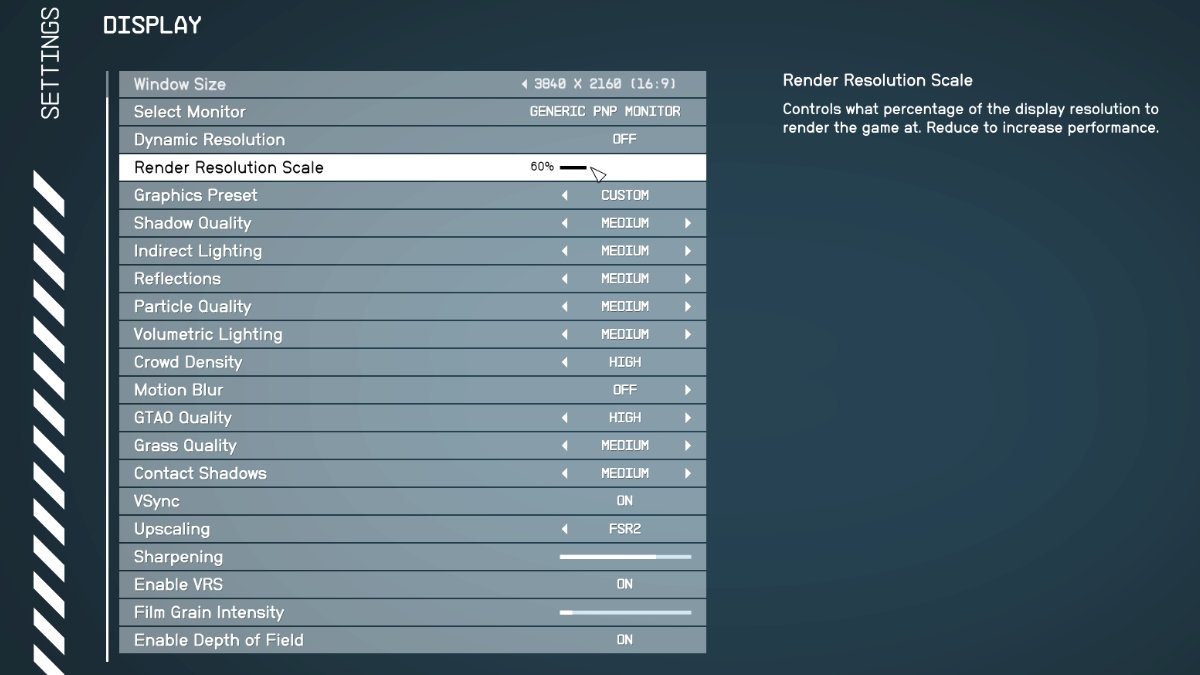
To get the best graphics in Starfield on PC, adjust the in-game graphics settings. Prioritize higher texture quality, shadow detail, and render resolution according to your system’s capabilities. Experiment to find the optimal balance between visual fidelity and performance.
Starfield, Bethesda’s massive space RPG, pushes PC hardware. Achieving the best visuals means diving into the graphics settings menu. Many players are wondering about Starfield how to get best graphics on pc. It’s not a one size fits all process. You must find the sweet spot for your system. The key is balancing high fidelity with frame rates that keep gameplay smooth.

Starfield How to Get Best Graphics on PC
Getting Starfield to look its absolute best on your PC can feel like a big adventure in itself! It’s a game with amazing worlds and details, and seeing it at its finest can really pull you in. But, like with any PC game, making it look gorgeous while running smoothly takes a little know-how. Don’t worry; we’re going to guide you through everything step-by-step, so you can explore the cosmos with incredible visuals.
Understanding Starfield’s Graphics Settings
Before we start tweaking, it’s helpful to understand the different graphics settings inside Starfield. These settings control how the game looks and how hard your computer has to work to run it. Think of it like choosing what ingredients to use in your favorite recipe; some ingredients make the dish richer and tastier, while others help it come together smoothly. Let’s look at some of the most important ones:
Key Graphics Settings Explained
- Resolution: This is like the size of the picture. Higher resolutions (like 1920×1080, 2560×1440, or 3840×2160) make the game look clearer, but they also make your computer work harder. If your game is running slowly, try lowering this setting. A 1920×1080 resolution is often called ‘1080p’ and is a common starting point. A 2560×1440 is ‘1440p’ and is a good step up if your hardware can handle it. 3840×2160 is ‘4K’ and provides very crisp details, requiring significant processing power.
- Texture Quality: Textures are like the wallpapers of the game world. Higher texture quality means sharper and more detailed surfaces on everything from spaceships to rocks. But, again, higher quality textures also demand more from your PC’s graphics card memory (VRAM). Options include Low, Medium, High, and Ultra.
- Shadow Quality: Shadows make the game world look more real. Higher shadow quality means shadows have smoother edges and more detail. However, high-quality shadows can be a resource hog. You can usually choose from Low, Medium, High, or Ultra.
- Lighting Quality: Lighting makes everything more dramatic and beautiful in the game world. High setting provides dynamic reflections and realistic light bounce. Like other settings, high lighting quality can impact performance. Options are typically Low, Medium, High, and Ultra.
- Ambient Occlusion: Ambient occlusion adds depth to the scene by creating subtle shadows where different parts of the environment meet. This improves realism but also slightly decreases performance. Options include Off, Low, Medium, and High.
- Reflections: This setting controls how accurately surfaces reflect their surroundings. Higher reflection settings can create beautiful scenes, but they require more processing power. Options include Off, Low, Medium, and High.
- Volumetric Lighting: This controls how light rays appear to pass through dust, fog, or other atmospheric effects. Higher volumetric lighting settings enhance visual fidelity at a moderate performance cost. Options usually include Low, Medium, and High.
- Render Scale: This setting allows you to render the game at a lower resolution than your monitor’s native resolution and then upscale it. It’s a good option if you want to improve performance without significantly reducing visual clarity. This will have great impact on performance. Options vary from 50%-100% usually.
Finding the Sweet Spot: Balancing Visuals and Performance
The key to getting great graphics is finding the right balance between how good the game looks and how smoothly it runs. It’s no fun if the game looks amazing but stutters constantly. Here’s a general plan to help you get started:
Step-by-Step Optimization Guide
- Start with Presets: Starfield offers pre-made graphics settings like “Low,” “Medium,” “High,” and “Ultra.” Start by selecting the preset that seems right for your computer. If you have a newer, more powerful PC, you can begin with “High” or even “Ultra.” If your computer is older or you’re not sure, start with “Medium” or even “Low.”
- Test and Observe: After choosing a preset, play the game for a bit. Pay attention to how smooth it feels. Are there any stutters or slowdowns? If so, you need to adjust the settings. If the game runs smoothly, then you can think about improving the graphics.
- Adjust Step-by-Step: If you are facing performance issues, try the following steps: First, lower resolution if it is above your monitor’s native resolution. Then, reduce shadow quality, then volumetric lighting, reflection quality, or ambient occlusion. Lower textures as last option. If the game runs smooth enough, you can start increasing settings in reverse order.
- Individual Tweakings: Start by making small adjustments to the settings one by one. For example, if your game runs okay, try moving “Texture Quality” from “Medium” to “High.” Then, play again to see how it affects your game performance. Check if the game is still smooth. If so, you can try the next higher quality setting on another feature. If you are facing some stuttering, lower settings again. Go through each setting until you find the best performance with acceptable visuals.
- Monitor your PC: Using tools like the Windows Task Manager (or other PC performance monitors), you can see how hard your computer’s CPU, GPU, and RAM are working. This info helps you understand which settings are causing the most stress. You are looking at usage of each of these components. High usage can cause bottleneck.
- Consider Upscaling: If you are struggling with lower performance try to turn on AMD FSR or similar upscaling technologies if you have the option to do that. These technologies can upscale a lower resolution to your monitors native resolution resulting in visual clarity close to native resolution, while rendering at lower resolution, resulting in great performance gain.
- Keep your drivers updated: Make sure that your graphic card drivers are up to date. This is very important. Old drivers can cause poor performance.
Advanced Techniques for Enhanced Visuals
Once you’ve got a good baseline, you might want to explore some more advanced techniques to push Starfield’s visuals even further. Here are a few ideas to look into:
Advanced Tweaks
- Graphics Card Control Panel: Both Nvidia and AMD offer control panels for their graphics cards. These panels allow you to fine-tune settings that go beyond what’s offered in the game. You can improve image quality or boost performance by enabling special options like sharpening or by using specific upscaling techniques.
- Modding: The Starfield modding community is already working to enhance the game’s graphics in various ways. Mods might provide improved textures, better lighting, or new post-processing effects. However, be careful when installing mods, as some can cause crashes or instability. Be sure to read descriptions and user comments before installing any mod. Always back up your game files before installing mods.
- Overclocking: Overclocking your graphics card can make it run faster, which can lead to better performance in games. But be very careful with overclocking, as it can damage your hardware if not done correctly. It’s best to do some research and understand the risks before attempting to overclock.
- Monitor Calibration: Calibrating your monitor can ensure accurate colors and brightness, making the game look its absolute best. You can do this either through your monitor’s built-in settings or with third-party tools.
- Understanding Bottlenecks: A bottleneck happens when one part of your computer (like your CPU or RAM) is much slower than the others, limiting the overall performance. It’s crucial to identify and address any potential bottlenecks. Sometimes upgrading a single component could give a very nice boost in performance.
Specific Settings and Their Impact
To help you fine-tune, let’s delve a little deeper into how individual settings can affect the game’s look and performance. This can give you a better idea where to start if you want to change things.
Visual Fidelity vs. Performance
| Setting | Impact on Visuals | Impact on Performance | Notes |
|---|---|---|---|
| Resolution | Higher resolution equals more detail and clarity. | Major. Higher resolutions heavily tax the GPU. | Start with your monitor’s native resolution if possible. |
| Texture Quality | Higher texture quality results in sharper and more detailed surfaces. | Moderate. Higher texture quality increases VRAM use. | Can be lowered without significantly changing the overall visual appeal if needed. |
| Shadow Quality | Higher shadow quality means more accurate and detailed shadows. | Moderate to High. Shadows can impact performance a lot. | A good setting to lower if you need to get more performance. |
| Lighting Quality | Higher quality lighting gives more detailed light and reflections. | Moderate to High. Dynamic lighting can be resource-heavy. | Try lowering it if you have a slower CPU. |
| Ambient Occlusion | Adds depth and realism to the scene. | Low to Moderate. Depends on the quality. | Turn it off if you need more performance. |
| Reflections | Higher reflection quality means more accurate and detailed reflections. | Moderate. Reflections can be resource-intensive. | Turn it off, or lower quality, if performance is an issue. |
| Volumetric Lighting | Higher volumetric lighting improves atmosphere effects. | Moderate. Can be demanding in certain scenes. | Lower this setting if you are facing low frame rate. |
| Render Scale | Lower render scales lessens sharpness of the image. | Major performance gain. | Use as last resort if nothing is working. |
PC Hardware Matters
The best graphics settings are different for each computer. The graphics card, CPU, RAM, and even the storage drive can all affect how Starfield runs. Knowing your computer’s specs is a must for making smart decisions. Here’s a quick guide:
Hardware Considerations
- Graphics Card (GPU): This is the most important part for graphics. More powerful graphics cards can run higher settings smoothly. Make sure your graphics card is compatible with the game. The more VRAM your graphics card has, the better it will handle higher texture quality settings.
- Central Processing Unit (CPU): Your CPU is also important for running the game smoothly. It handles many behind-the-scenes calculations, like artificial intelligence and physics. More powerful CPUs will be able to keep the game smooth even in demanding moments.
- Random Access Memory (RAM): RAM helps your computer access data quickly. Having more RAM (16GB or 32GB) helps game to load textures, models, and level data without stuttering. Insufficient RAM will cause slow game and frequent stutters.
- Storage Drive (SSD/HDD): Having an SSD will drastically improve load times compared to traditional HDD. While SSD does not directly improve graphics, it helps in game loading time, and also avoids stutters from slow asset loading.
Remember that the ‘best’ graphics for you will always be the best balance of image quality and smooth performance that your particular computer can manage. Don’t be afraid to experiment and find what works best.
Remember, achieving great graphics in Starfield is a journey, not a destination. Keep tweaking, keep experimenting, and most of all, keep enjoying the vast universe Bethesda has created. Happy exploring!
Starfield BEST Settings for FPS & Quality (In-Depth Optimization Guide)
Final Thoughts
To achieve peak visual fidelity in Starfield, adjust your graphics settings based on your system capabilities. Prioritize resolution, texture quality, and shadow details for noticeable improvements. Experiment with individual settings; small tweaks often yield great results.
Optimizing your drivers is crucial for smooth gameplay. Use upscaling technologies like FSR or DLSS if your hardware supports it. Finding the perfect balance for Starfield how to get best graphics on pc depends on your specific hardware.
Essentially, carefully tuning your in-game options and ensuring updated drivers delivers the sharpest visuals while maintaining performance. The key is finding the right combination for your PC.

