
Starfield’s autosave feature works automatically, creating saves at key moments like entering a new area or completing quests. You don’t need to manually activate it; the game handles it for you.
Exploring the vast expanse of space in Starfield can be thrilling but also risky. Players often worry about losing progress due to unexpected events. This is where understanding Starfield how to use the auto save feature becomes important. Thankfully the game has your back. It frequently saves your game in the background.
You don’t need to search menus or click buttons to get it working. The autosave feature is present and doing its job, making the gaming experience smoother. You can also make manual saves but most of the time the autosave works.

Starfield How to Use the Auto Save Feature
Let’s talk about saving your game in Starfield! It’s super important, right? Nobody wants to lose hours of exploring or building because something went wrong. Luckily, Starfield has an auto-save feature that can be a real lifesaver. This guide will help you understand how it works and how to get the most out of it. Think of auto-saves as your trusty little helpers, working in the background to keep your progress safe, so you can focus on having fun in space!
Understanding Starfield’s Auto-Save System
Starfield doesn’t just save your game whenever it feels like it. It has specific triggers that make it automatically create a save point. These triggers are usually related to big moments or important actions you take in the game. Let’s dig into exactly when and how these auto-saves happen.
Key Auto-Save Triggers in Starfield
The game is designed to save automatically at these key moments:
Landing on a New Planet or Moon: Whenever you touch down on a new celestial body, the game makes a save point. This is really useful because you might want to explore different landing spots.
Entering or Exiting Buildings/Locations: If you’re going into a building, cave, or any other significant indoor location, Starfield creates an auto-save. The same goes for when you leave. This prevents you from losing progress if something unexpected happens.
Beginning or Completing a Main Quest: At the start or finish of a significant quest, the game saves your place. This is especially handy for complex quests with multiple parts. You don’t have to worry about redoing lengthy sections of a mission.
After Major Dialogue Choices: Making a choice that impacts the game’s story can cause an auto-save to happen. This is helpful if you want to see how different choices might play out without having to start all over.
Fast Traveling: Whenever you fast travel between locations in space or on planets, Starfield will create a save. This is a helpful way to make sure you don’t lose your progress while moving quickly.
Certain Important Story Moments: The game has specific story-driven moments that automatically trigger a save point. These are often tied to important story events.
How Frequent Are Auto-Saves?
Auto-saves are not super frequent. They don’t happen every few minutes. This is designed so that your gameplay isn’t interrupted by constant saving. They typically happen when there’s a meaningful change in your game, so you don’t have to worry about losing too much progress. It’s best to keep this in mind, though, as you shouldn’t depend solely on them. Make manual saves too, which I’ll go over next.
Why You Should Not Rely Solely On Auto-Saves
While auto-saves are super convenient, it’s not a good idea to depend on them alone. Here are some reasons why:
Limited Save Slots: Starfield’s auto-save feature only keeps a limited number of saves at any one time. This means that older auto-saves can get overwritten by newer ones. If you make a mistake and want to go back a long way, you might find that your old auto-saves are gone.
Sometimes, Auto-Saves Might Not Work As Expected: Although rare, the auto-save function might not always trigger when you think it will. This could happen due to glitches or unexpected interruptions during gameplay. Relying only on them means you’re taking a risk.
Auto-saves Don’t Let You Experiment: If you try something and regret the choice, you might want to load an earlier save. But, if you only use auto-saves, the game might have moved on past the point you’d like to return to.
Not Always Before Critical Moments: Even though the game tries to auto-save before big things, sometimes it might not, especially if you’re quickly moving through areas. Having your own manual saves gives you more control.
The Feeling of Security is False: You might feel safe because of auto-saves, but it’s not 100% foolproof. Think of them as a safety net but always backup your progress by saving manually as well.
How To Make Manual Saves In Starfield
Manual saves are your best friends! They are something you make on your own at a time you chose. Having manual saves means you have complete control over your saved progress and where you want to load from. Here’s how to make one:
1. Open the Menu: Press the “Menu” button (usually the ‘Start’ or ‘Options’ button on your controller).
2. Navigate to “Save”: Use your controller’s directional buttons or thumbsticks to go down to the “Save” option in the menu. It’s usually near the bottom.
3. Select “Create New Save”: Click on the “Create New Save” button, typically by pressing the “A” or “X” button on your controller.
4. Name Your Save (Optional): You can name your save file. It helps if you want to label a special moment or a particular stage of your game.
5. Confirm and Save: After this, select to save and you’re all set! Your new manual save is now ready to load whenever you need it.
When To Make Manual Saves
Here are some tips on when to create a manual save:
Before a Difficult Mission: Before you tackle a particularly tough quest or combat scenario, create a save. If things go south, you can easily reload and try again without losing much progress.
Before Making a Critical Decision: When you face a choice that impacts the story or character relationships, save your game before making the choice. This is helpful to see the different outcomes.
After Accomplishing Something Significant: If you complete something important like finding a rare item or finishing a difficult objective, make a manual save. This guarantees you won’t have to do it again.
Before Trying Something Risky: About to try something crazy or experimental? Save first. That way, if things don’t go as planned, you can go back to a safer time.
At Regular Intervals: It’s a good habit to save every so often. Set a timer or create one whenever you have a short break in exploring. Even small amounts of progress that are saved are better than nothing.
Before Customizing Anything: If you’re about to change something important about your gear, ship, or settlement, save. Just in case you don’t like it, you can always go back.
Managing Your Saves
It’s important to keep track of your saves, too. Here’s how:
Understanding Save Slots
Starfield keeps your saves in a list. The game automatically saves to an auto-save slot, and manual saves have their own slots. It’s important to know that they will overwrite older auto-saves after they become too many. Manual saves are what you should keep and manage.
How to Load Saved Games
To load a saved game, do the following:
1. Open the Menu: Press the “Menu” button during gameplay.
2. Navigate to “Load”: Look for the “Load” option in the menu.
3. Choose a Save File: Select the save file you want to load. A list of all your saves will show up, with the most recent save at the top, but you can choose any you like.
4. Confirm: Click on the save and the game will take you back to that moment.
Deleting Old Saves
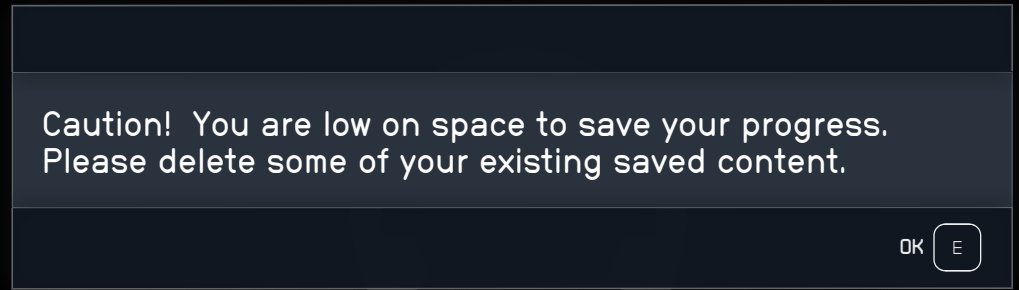
Sometimes, your list of saves can get too long. It’s a good idea to delete older saves that are no longer needed to keep the list more manageable. You’ll have to be careful though, you can’t get them back. You could make multiple saves, and then after going through them, delete the ones that are no longer needed, while keeping the most important saves.
Tips For Safe Gameplay Using Starfield’s Save System
Here are some general tips for a good, safe, and enjoyable experience using saves in Starfield:
Develop Good Saving Habits: It’s better to be safe than sorry. Save manually frequently, especially before making a critical choice or before starting a big task. This ensures that if anything goes wrong, you don’t lose too much progress.
Don’t rely only on auto-saves: Auto-saves are good to fall back on, but manual saves are much more reliable. Manual saves are where you want to make sure your most precious game progress is backed up.
Name Your Manual Saves: If you’re in a tricky situation or at a critical point in the story, naming your saves will make it easier to find them later. For example, “before main quest,” or “before risky decision.”
Save in a Different Slot: Avoid overwriting a important manual save. Make a new save in a new slot every time you make a significant progress in the game.
Keep Backup Saves: When you’re doing something important, try to have a backup save a little further back. If a save gets corrupted, you can still use your backup save.
Be Aware of What You’re Doing: Pay attention when you’re saving. A small mistake could mean you overwrite a valuable save. Make sure you’re on the right screen.
Load Often: If you’re trying to make a choice, load up an earlier save to see how different choices affect the world. It’s a great way to see more of the game.
Take Breaks: Don’t try to play for long hours without saving your game. Take regular breaks and make sure you’ve saved before taking that break.
Clean Up Old Saves Regularly: Old saves can slow the game down a bit or make the save list complicated. Once you’ve gone through them, and know what you need, delete the old ones.
Don’t Be Afraid to Load: If you make a mistake or want to try something different, don’t hesitate to load a save. This is part of the fun of the game, so embrace it.
Understanding Starfield’s auto-save system can really make a big difference in your game experience. While it’s handy, learning to use manual saves effectively is super important for keeping your progress safe. It allows you to freely explore and make choices without worrying about losing all the hard work you’ve put in. Remember, auto-saves are your safety net, but manual saves are your personal insurance policy. So be diligent, use them well, and enjoy your time in the Starfield universe.
With these tips and an understanding of the save features, you’re more than prepared to handle anything the game throws at you. Happy exploring!
Starfield – How to Auto Save
Final Thoughts
Starfield’s auto save feature is crucial for progress. The game automatically saves at key points, like entering a new area. It also triggers upon completing significant actions. Make sure the feature is enabled in your settings menu.
Remember to regularly check your save files for a backup. This helps avoid data loss. Starfield how to use the auto save feature is simple, but vital for a smooth gaming experience. Players should be aware it exists.

