
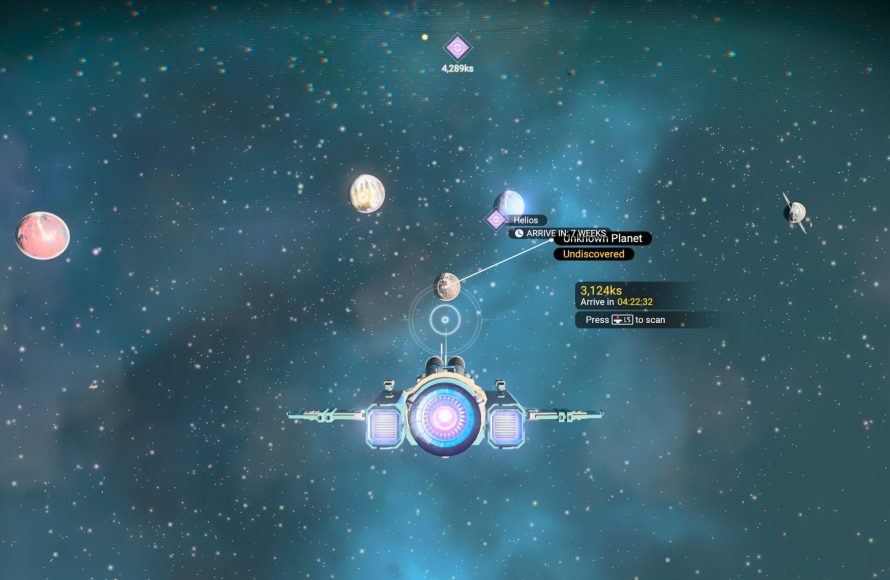
Navigating Starfield’s map effectively requires utilizing markers, understanding the layered system, and paying close attention to your scanner’s readings for accurate point-to-point travel.
Exploring the vastness of Starfield can feel daunting, but effective use of the map system makes it much less intimidating. The game presents a unique approach to traversal, often requiring multiple layers of navigation to reach your destination. This means learning the intricacies of how the map functions is important.
Employing proper Starfield map navigation strategies allows players to move quickly and efficiently between planets, systems, and specific locations. You will learn quickly with practice and careful observation. With practice, you’ll learn to plan your journeys with more precision.

Starfield Map Navigation Strategies
Exploring the vast universe of Starfield can feel overwhelming at first. There are so many planets, star systems, and space stations to visit! But don’t worry, with a few key strategies, you can become a pro at navigating the Starfield map. This guide will break down how to use the map effectively, understand its different layers, and get where you need to go quickly and efficiently.
Understanding the Starfield Map Layers
The Starfield map isn’t just one single view. It’s actually a series of interconnected maps, each showing different levels of detail. Think of it like peeling back layers of an onion. You start with the big picture and zoom in to specific locations. Let’s look at each of these map layers:
The Galaxy Map
This is the largest view, showing all the star systems that are available to you. Each star system is a cluster of stars, planets, and other celestial bodies. You’ll see different colored icons indicating the type of system. For example, a system with a major city might have a different icon from one that’s mainly filled with resource-rich planets. Using the galaxy map is your first step to planning long-distance journeys. To go from one star system to another, you’ll need to use your ship’s grav drive and have the required amount of fuel.
The Star System Map
When you select a star system on the Galaxy Map, you’ll zoom in to the star system map. This shows all the planets, moons, and space stations orbiting the main star of the system. This is where you get to choose exactly which celestial body you want to visit. Here, each planet and moon will have details such as available resources, points of interest, and discovered locations, like cities or settlements. When you find the planet you like, you can choose to travel to its orbit. You won’t land directly from here.
The Planet Map
Once you’ve selected a planet or moon, you’ll enter the planet map, which also called local map. This map displays the topography of the celestial body you have chosen. You will see the different biomes (like forests, mountains, or deserts) and the different places of interest (POI). You may see icons that show discovered locations, landing zones, or places of interest that you haven’t visited yet. You may need to zoom in on the map to see smaller locations and the markers on it. This map is crucial for planning exactly where you land on a planet.
The Local Area Map
After landing, your local map becomes active. This map shows the immediate surroundings around your location, including buildings, paths, and any nearby points of interest you haven’t discovered. You can navigate from one marked spot to another, and you will be able to explore uncharted areas from the map by walking or using your boost pack. This map is also used in interiors, in order to help with navigation inside buildings.
Key Navigation Tools and How to Use Them
Starfield provides many tools to help you navigate this vast world effectively. Knowing how to use these tools is very important for your exploration. Here’s a rundown of what they are and how you can make the most of them:
The Compass
Located at the top of your screen, the compass always shows your general direction and helps you find the nearest POIs and mission markers. It’s useful for orienting yourself and finding objectives in your local area. Your compass also indicates the location of discovered areas, along with markers that you can place on the map.
Waypoint Markers
Waypoints are markers that you can set yourself on your map. They help you navigate to specific points of interest and are great for longer trips or marking locations for later use. To set a waypoint, simply select the point of interest or location on the map and choose the “Set Waypoint” option. The waypoint will be visible on your map and in your compass as well. If you ever feel lost, you can follow your waypoints.
You can also set a mission marker by highlighting the mission on the mission menu. After selecting a mission, you will see the ‘set course’ option, which allows you to navigate towards that mission. The markers will be placed on your compass and on the map, showing you a route towards your goal.
The Scanner
Your scanner is an important tool for exploring planets and space stations. It has many different features, but in the context of navigation it allows you to scan the environment to reveal points of interest, resources, and locations that were previously hidden. Pressing the scanner button (LB) on controller will scan your surroundings and reveal locations of different items.
Fast Travel
Fast travel is available to any location you’ve already visited. This saves a lot of time and hassle, especially when you’re doing missions that take you between different planets and systems. You can fast travel to any known landing site or major settlement, even if it’s in a different star system. To fast travel, simply open your map, select the location, and choose “Travel”. Fast travel is not available when you are in the middle of a fight.
Planning Your Journeys Effectively
A journey in Starfield isn’t always as simple as choosing a destination. You need to consider fuel, necessary resources, the nature of your mission, and more. Strategic planning is key for smooth and efficient exploration. Here’s a step-by-step approach:
Step 1: Check Fuel Levels
Before jumping to another star system, make sure your ship has enough fuel. If you don’t, you’ll end up stranded in space, and that’s not a great position to be in. You can find out how much fuel you have by checking the HUD or the ship menu. Make a pit stop at a space station or a planet to restock if necessary.
Step 2: Review Your Mission Objectives
Knowing your mission objectives will help you choose the right locations to travel to. If you have multiple missions active, try to see if you can complete them in the same star system, in order to save time. By reviewing your mission goals, you can determine the quickest route and find all the important items needed for a quest. For example, if you need to speak to a specific character in a town, make sure that town is marked in your map or mission objectives.
Step 3: Choose Your Landing Zone Carefully
Landing zones are important. Look at the planet map before choosing your landing spot. Are you trying to get to a specific settlement, or are you trying to find certain resources? If you are looking for resources, try to land close to the biome that has those resources. For example, if you want to find trees, don’t land in a desert biome. You can also choose landing spots close to mission objectives, in order to make your mission more effective.
Step 4: Set a Waypoint
Once you know where you are going, set a waypoint. This way, you won’t be wandering around aimlessly, and will be able to get to the intended destination faster. Having your waypoints set correctly is crucial for exploration and completing your missions.
Step 5: Use Fast Travel When Appropriate
If you are going back to an old location, fast travel is the better option. If you are going to a new location, it’s better to travel to it manually to see if there’s anything else that might be interesting on the way.
Advanced Map Navigation Tips
Here are some tips that can help you refine your map navigation skills and make you a more efficient explorer. These tips will help you use the map like a pro:
Use the Scan Tool Often
Scanning the environment as you explore new areas reveals hidden locations, resources, and potential hazards. Don’t be afraid to constantly use the scan tool, as it can lead you to rare and valuable items. You can also scan fauna and flora from alien worlds.
Read the Planet Information
Before landing on a planet, always read the planet information. This helps you know if the planet is dangerous, or if it has unique resources or locations that might interest you. A little research goes a long way.
Mark Interesting Locations
If you find a place you think you might want to return to, mark it with a waypoint. This will save you a lot of time, and you will be able to find it again very easily.
Don’t Be Afraid to Explore
The Starfield map is full of surprises. Don’t just go to the main quest markers. Take detours and explore interesting locations on your own. You might just find something incredible that you were not expecting.
Utilize Landmarks
Use mountains, rivers, and other large landmarks to navigate. These features can help you orient yourself if you get lost and are often good places to find resources or points of interest.
Take Advantage of Interior Maps
Interior maps can help you find hidden doors or passages in buildings. Always make use of the interior maps to make sure that you do not miss any secrets or unique items inside the buildings.
Troubleshooting Common Navigation Issues
Even with the best strategies, you might run into some navigation issues. Here’s how to handle some common ones:
Getting Lost on a Planet
If you get lost on a planet, first make sure that the compass is activated. Second, check your map. Look for landmarks and for already discovered points of interest. If you still can’t find your way, try activating your scan tool, in case the scanner might show a new path or hidden objective.
Can’t Fast Travel
You can’t fast travel while in combat or if the game is loading a new area. Make sure you aren’t engaged in a battle and are outside of a loading screen before attempting to fast travel. If this does not solve the problem, try saving and loading again.
Missing Mission Markers
If your mission markers disappear, make sure the correct mission is selected in the mission menu. You might have accidentally deselected the mission, which hides the markers. If this doesn’t solve the issue, save your game and restart.
Fuel Issues
If your ship runs out of fuel, you might need to travel to the nearest space station or planet to purchase more. Fuel is a critical resource in Starfield, so always pay attention to your fuel gauge before travelling to far away star systems.
Waypoint Issues
Sometimes waypoints disappear on the map. If this happens, you might want to re-set the waypoint again in the map menu.
Navigating the Starfield map can be challenging at first, but with the right knowledge and techniques, you’ll be traversing the galaxy like a seasoned space explorer in no time. Remember to use all the tools at your disposal, plan your journeys carefully, and most importantly, have fun exploring the unknown!
Enhance Your Hollywood Network Map: Key Steps and Strategies
Final Thoughts
Effectively use the local map for immediate surroundings. Rely on the star map to plan longer jumps between systems. Remember to track your active quests; these often indicate where you must go. Pay close attention to mission markers on all maps.
Utilize fast travel options when available for quicker movement between established locations. Considering these elements, you will successfully improve your navigation. Employing these Starfield map navigation strategies will reduce confusion and save time in your exploration.

