
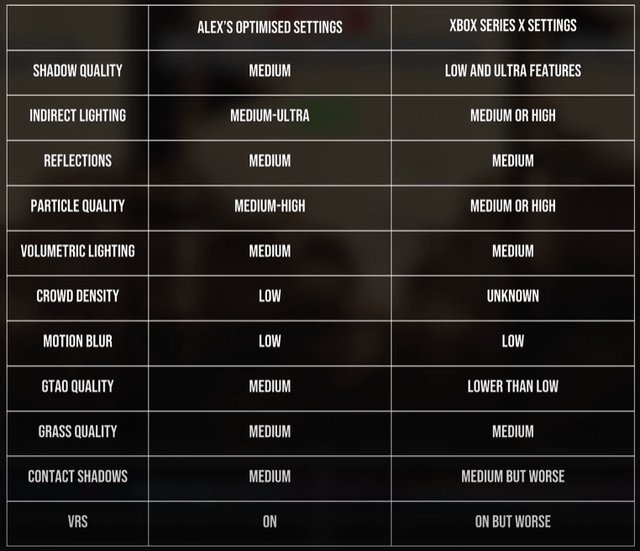
The optimal settings for Starfield depend heavily on your specific hardware, but generally, prioritize lowering shadow quality and volumetric lighting for better performance while maintaining a decent resolution.
Jumping into Starfield and experiencing some frame rate dips? Many players are searching for the right balance between visual fidelity and smooth gameplay. Figuring out the ideal setup can be tricky. Everyone wants to find those perfect Starfield optimal settings.
Finding your sweet spot often involves adjusting several graphical options. You can start with shadow details and then volumetric effects for noticeable improvement. Remember every setup is slightly different, so experimentation is key.

Starfield Optimal Settings: Getting the Best Performance
So, you’re ready to explore the vast universe of Starfield, huh? That’s awesome! But before you jump in, let’s talk about something super important: getting the game to run smoothly. Sometimes, games can be a bit picky, and Starfield is no different. It can look amazing, but it also needs a computer that can keep up. That’s where finding the right settings comes in. It’s like finding the perfect mix of ingredients for your favorite recipe; it makes everything taste much better, right? We’re going to go through all the options, from graphics to display, and find the sweet spot so you can enjoy Starfield without any hiccups.
Understanding Starfield’s Performance Demands
Starfield is a big and beautiful game, but that also means it asks a lot from your computer. Think of it like this: imagine trying to draw a super detailed picture with lots of colors very fast. Your hand might get tired if you don’t take breaks, right? Your computer’s parts, like the CPU (the brain) and the GPU (the picture maker), need to work hard to keep the game running smoothly. If your computer is older or doesn’t have the latest parts, you might see the game slow down, stutter, or not look as good as it should. This is why understanding what makes Starfield tick is the first step in making it run well for you.
The Role of Your PC Hardware
Your computer’s parts are very important when talking about Starfield settings. Let’s look at the key players:
- CPU (Central Processing Unit): This is your computer’s brain. It handles all the calculations and instructions needed for the game. A stronger CPU will help Starfield run smoother, especially in busy areas with lots of characters or activity. If your CPU is having a hard time, you might see your game “stutter” or slow down, especially when loading in new things to the game.
- GPU (Graphics Processing Unit): This is your computer’s picture maker. It’s responsible for the pretty images you see on the screen. A good GPU makes the game look sharp, detailed, and allows you to have higher graphics settings. If your GPU can’t keep up, the game may look blurry or choppy.
- RAM (Random Access Memory): Think of this as short-term memory. The game uses RAM to store information that it needs quickly. Having enough RAM helps the game load fast and transition between areas easily. If you do not have enough RAM, the game may have “loading” stops while you play.
- Storage (SSD vs HDD): How the game is stored matters. SSDs (Solid State Drives) are much faster than HDDs (Hard Disk Drives). If Starfield is stored on an SSD, the loading screens will be much faster, and your game overall will run smoother. Try to have Starfield installed on an SSD if you can.
Graphics Settings: Finding the Right Balance
Now, let’s dive into the nitty-gritty of the graphics settings. These control how good the game looks, but they also directly affect how well it performs. The goal is to find a balance between a great-looking game and a smooth gaming experience. It’s kind of like trying to decide how many sweets you can eat without getting a tummy ache – you want to enjoy the sweets (good graphics) but not overdo it (poor performance!).
Resolution
Resolution is the size of the image you see on your screen, measured in pixels. Higher resolution means more detail and a sharper picture, but it also puts more strain on your GPU. Think of it like watching a movie on a really big TV, then watching that same movie on a small phone screen. The TV shows more detail because it’s bigger, but it takes a lot more resources to run.
- Native Resolution: This is the resolution of your monitor. It usually gives you the best picture. For example, if you have a 1920×1080 monitor, that’s your native resolution.
- Lowering Resolution: If your game is running slow, try lowering the resolution slightly. This can greatly improve performance, at the cost of some visual sharpness.
Graphics Quality Presets
Starfield has a few built-in graphics quality presets that allow you to quickly change a bunch of settings at once. These are useful starting points. It’s like using a “basic” recipe instead of having to create all the settings yourself.
- Low: Sets everything to the lowest possible settings. Best for very old computers. It makes the game run the fastest, but it won’t look very good.
- Medium: A good balance between visuals and performance for mid-range computers. This is a good setting to try if you aren’t sure where to start.
- High: Sets most things to high. It looks better than medium, but it requires a better GPU and CPU.
- Ultra: Sets everything to the max. It looks fantastic but can be very demanding on even the newest computers.
The best way to figure out what preset is for you is to pick one, then try it out. You might have to make a few changes after you pick the preset.
Individual Graphics Settings
Want to have more control? You can adjust each setting individually to find the perfect balance for your system. It’s like choosing your favorite toppings for your pizza rather than just ordering a pre-made one. Some settings have a much bigger impact on performance than others.
Shadow Quality
Shadows can make a scene look realistic, but they are also very demanding. Lowering the shadow quality can improve performance. Try setting this to medium or low for a good balance.
Texture Quality
Textures are like the “skin” of objects. High quality textures look very detailed, but they need lots of GPU power. Medium settings are usually fine for most PCs and can improve game speed.
Lighting Quality
Lighting affects how objects and characters look in the game. High lighting settings can be pretty, but they can also slow the game down. Medium or low is usually okay.
Ambient Occlusion
This setting adds shadows where objects touch each other. It makes the scene look more realistic. But, it also puts extra work on the GPU. Try to set this to low or off if you’re having problems.
Particle Effects
These are things like smoke, explosions, and sparks. Lots of particles on the screen can slow down your game. Try to set this to medium, or low if needed for better performance.
Volumetric Lighting
Volumetric lighting affects how light looks as it passes through things like fog or dust. While pretty, it uses more resources. Turn this down to medium or low to gain some speed.
Reflections
Reflections make things look shiny and realistic. These effects can be very demanding, especially if there are many reflective surfaces on screen. If your game is slow, try turning these down or off.
Field of View (FOV)
This is how much you can see on the sides of the screen. A wider FOV means you see more, but it can put a little bit more strain on your GPU. Find a FOV that is comfortable, that also allows your computer to run the game well.
Display Settings: Tweaking for a Better View
Display settings also play a vital role in your gaming experience. They control how the game appears on your monitor, and they can affect things like smoothness and brightness. It’s like tuning your TV so the picture looks just right.
Fullscreen vs. Windowed Mode
- Fullscreen: This usually gives you the best performance, because the game has full control over the screen.
- Windowed Mode: The game runs in a window on your desktop. You can easily switch to other applications. It can be handy, but it might give you a bit of a performance hit.
- Borderless Windowed: This lets you easily switch to other things, and it usually performs better than regular windowed mode. This is a very good option for a lot of people.
Refresh Rate
The refresh rate is how many times your monitor updates the image per second (measured in Hertz or Hz). A higher refresh rate means smoother motion. If your monitor supports a high refresh rate, make sure the game is set to the same.
- 60Hz: Standard on many monitors.
- 120Hz/144Hz or more: Makes the game look very smooth, but it needs a monitor that supports it.
V-Sync
V-Sync makes your game’s frame rate match your monitor’s refresh rate to prevent screen tearing. Screen tearing is when the top half and the bottom half of your screen don’t match up and look weird. Turning V-Sync on usually helps avoid that, but it can also add some lag, so it might not be a good fit if you’re struggling for performance.
- V-Sync On: Helps prevent tearing, but might slow down your game a bit.
- V-Sync Off: Might lead to screen tearing, but can improve performance if you’re having problems.
Advanced Tweaks and Tips for Starfield
Okay, so we’ve covered the basics. But there are a few more things you can do to get even better performance and a smoother gameplay. It’s like adding special spices to your cooking, to make it better than ever!
Update your Graphics Drivers
Make sure your graphics drivers are up to date. These are like little instruction manuals for your GPU. Sometimes new updates are created that help with game performance, especially when big new games like Starfield come out. Check the website for your GPU for the latest drivers, usually AMD or Nvidia.
Close Unnecessary Programs
Before you start Starfield, close any other programs that are running in the background. This can help free up memory and CPU resources so your game runs smoother. It’s like having extra room in your backpack so that it is easier to carry your stuff. Some programs, like web browsers and music players, use up processing power, which will slow down your game.
Adjust Game Files (Use with Caution!)
There are some settings that you can only change by editing the game’s configuration files. These files are like the game’s internal brain, and if you change things, the game will work differently. We don’t recommend this method unless you are comfortable and understand what the settings do, because it can cause problems if not done correctly.
You can find many guides online that go more in-depth on how to change these types of settings, but be careful and remember to always back up the original files if you do decide to use this method.
Specific Setting Recommendations for Different PC Setups
No two computers are the same, so what works for one person might not work for another. Let’s look at some common PC setups and some recommended settings.
Low-End PC (Older hardware)
- Resolution: 720p or 900p (if possible).
- Graphics Preset: Low.
- Individual Settings: Set everything to the lowest setting possible, try turning reflections off, and set shadows to low.
- Other Settings: Fullscreen mode is best.
Mid-Range PC (Decent modern hardware)
- Resolution: 1080p.
- Graphics Preset: Medium to High.
- Individual Settings: Play around with lighting, shadows, and particle effects. Setting these to medium could help performance, if needed.
- Other Settings: Borderless windowed or fullscreen mode is okay. V-sync may be used if it is not causing problems.
High-End PC (Modern, powerful hardware)
- Resolution: 1440p or 4k.
- Graphics Preset: Ultra, or high.
- Individual Settings: Most settings should be able to be set to high without a problem.
- Other Settings: Fullscreen mode is recommended for the best experience.
Table of Recommended Settings
| Setting | Low-End PC | Mid-Range PC | High-End PC |
|---|---|---|---|
| Resolution | 720p/900p | 1080p | 1440p/4k |
| Graphics Preset | Low | Medium/High | Ultra/High |
| Shadows | Low | Medium | High/Ultra |
| Textures | Low/Medium | Medium/High | High/Ultra |
| Lighting | Low | Medium | High/Ultra |
| Ambient Occlusion | Off/Low | Medium | High/Ultra |
| Reflections | Off | Medium | High/Ultra |
| Fullscreen Mode | Yes | Yes | Yes |
Figuring out the perfect settings for Starfield can be a bit of a trial-and-error process, but it’s worth it. Start with the presets, then tweak individual settings until you find a balance that works well for you. Don’t be afraid to experiment and see what works best for your computer. Have fun exploring the stars, and may your framerates always be high!
Starfield GPU Optimization, The Best Settings to Tweak on PC!
Final Thoughts
Tweaking graphics options improves performance. Experiment with shadow quality and volumetric lighting. These adjustments provide better gameplay experiences.
Reducing the resolution scale impacts visual clarity. Lowering it gives a frame rate boost. Find your own sweet spot for visuals.
Ultimately, achieving Starfield optimal settings requires personal testing. Balance graphical fidelity with smooth gameplay. Every system varies.

