
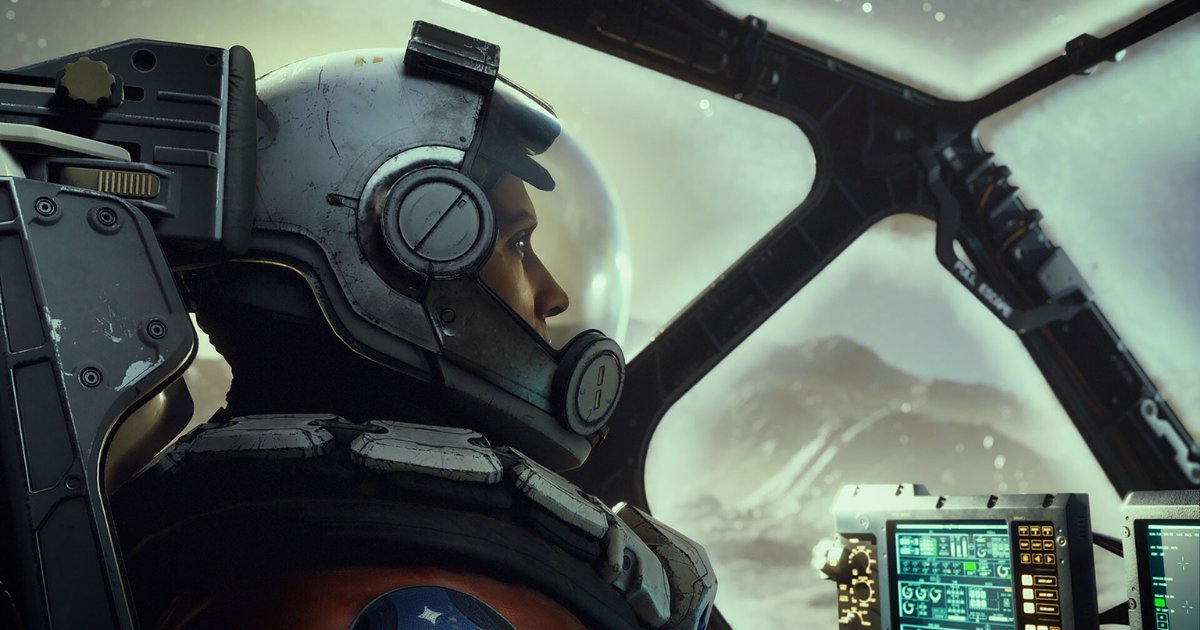
Starfield performance issues often stem from demanding graphics settings or outdated drivers. You can improve performance by adjusting in-game graphics and updating your GPU drivers.
Frustration mounts when your highly anticipated space adventure stutters and lags. Players are reporting various problems hindering smooth gameplay. This article addresses the common Starfield performance issues and solutions that can help improve your experience. We’ll guide you through practical steps to optimize your game.

Starfield Performance Issues and Solutions
Starfield, Bethesda’s big space adventure, has landed with a bang! But, like any big game, it’s not without its hiccups. Many players are seeing their computers struggle to keep up, and that can take away from the fun. Let’s dig into what’s causing these performance problems and, more importantly, how you can fix them!
Understanding the Root of the Problem
Before we jump into solutions, it’s good to know why Starfield might be running slow on your setup. There isn’t just one reason, but usually a combination of things. Let’s explore some common culprits:
System Requirements
First, it’s important to check if your computer even meets the minimum requirements to run the game. Starfield is a pretty demanding game, and if your computer doesn’t have the power it needs, it will struggle. Here’s a simplified look at what’s generally needed:
- Processor (CPU): Think of this as the brain of your computer. Starfield likes a fast one. Older or weaker processors will have a hard time.
- Memory (RAM): This is your computer’s short-term memory. Starfield needs a good amount of RAM to run smoothly. Not having enough RAM can cause the game to stutter or freeze.
- Graphics Card (GPU): This is responsible for making the visuals you see on the screen. Starfield uses high-quality graphics, so a good GPU is essential.
- Storage (SSD): Having the game installed on a Solid State Drive (SSD) rather than a regular Hard Disk Drive (HDD) can make a big difference in loading times and overall performance. SSDs are much faster.
If your computer doesn’t meet these specs, you may need to consider upgrading hardware to have a good experience playing Starfield.
Game Optimization
Sometimes, the issue isn’t your computer, but how the game itself is made. Even with a powerful PC, you can run into problems if the game isn’t well optimized. This means the game might not be using your computer’s resources very efficiently. Issues such as poor rendering distance or badly optimized textures can cause massive frame drops.
Driver Problems
Graphics card drivers are like the translator between the game and your GPU. If the drivers are old, buggy, or not working correctly, you’ll see performance issues. It’s crucial to keep these up to date.
Background Applications
Other programs running on your computer while you play Starfield can compete for resources. Things like your web browser, video editors, or even other games running in the background can take away processing power from Starfield, which then impact frame rates.
In-Game Settings
The graphic settings you choose within Starfield directly affect how well it runs. Using very high settings when your computer can’t handle them leads to performance problems. We’ll talk about how to adjust these soon.
Troubleshooting Common Starfield Performance Issues
Now, let’s look at some specific issues you might be facing and the fixes that can help.
Low Frame Rates (FPS)
Low FPS means the game is running jerky and slow. It can make it hard to aim and enjoy the experience. There are several ways to tackle this:
- Lower Graphics Settings: This is usually the first step. Reduce settings like texture quality, shadow quality, and anti-aliasing. Try lowering them one at a time, see which one makes the most difference for performance.
- Update Graphics Drivers: Make sure you’ve got the latest drivers for your graphics card. You can usually get them from the website of your GPU maker, like NVIDIA or AMD.
- Close Background Programs: Shut down anything you aren’t using while playing Starfield. This can free up vital resources.
- Adjust Resolution: Try lowering the game resolution. Playing at 1080p instead of 1440p or 4K can significantly increase FPS.
Stuttering and Freezing
Stuttering is when the game pauses briefly and randomly, while freezing is when it completely stops for a moment. Here’s how you can address them:
- Check your CPU and RAM usage: Use Task Manager (Ctrl+Shift+Esc) to see if your CPU or RAM are hitting 100%. If they are, you might need to upgrade or reduce in game settings.
- Install Starfield on an SSD: If it’s on a regular HDD, moving it to an SSD will vastly reduce loading times and stuttering.
- Increase Virtual Memory: This can help if you don’t have enough RAM. You can change this setting in your Windows settings.
- Disable Game Mode and Optimization: Windows game mode and some optimization settings can sometimes cause problems, so try disabling them to see if it helps.
- Check for Overheating: If your computer is overheating, it can cause stuttering and freezing. Make sure your computer is well-ventilated, or consider cooling solutions like more fans or liquid cooling.
Texture Pop-in
This happens when textures load slowly or appear suddenly. It can break the immersion. Here’s how you can try to reduce it:
- Adjust Texture Settings: Lowering texture settings, while not ideal, can sometimes help with pop-in.
- Install Starfield on an SSD: Again, using an SSD can help textures load faster and reduce pop-in.
- Update drivers: Newer graphics drivers sometimes include optimizations for textures that can help.
Loading Times
Long loading times can be frustrating. Here are some things you can try:
- Use an SSD: It’s crucial for reducing load times in Starfield.
- Check your storage health: If your SSD is old and heavily used, it might be slower than normal.
- Close other programs: Reduce load on your computer while loading the game can make a big difference
Advanced Optimization Techniques
If the basic fixes aren’t cutting it, here are some more advanced tips you can try.
Tweaking Game Files
You can sometimes improve performance by changing game config files. Here’s what you need to know:
- Locate the Configuration Files: These files are usually located in your Documents/My Games/Starfield folder. The main file you need is StarfieldPrefs.ini.
- Backup Before Changes: Make a copy of the original file just in case things go wrong. This way you can easily restore the original settings.
- Common Tweaks:
- iPresentInterval=0: This can turn off V-sync (Vertical Synchronization) which can sometimes improve frame rates but may lead to screen tearing. Use with caution.
- fShadowDistance=XXXX: Lowering the distance of shadows can improve performance, but you’ll see shadows only closer to the player. Try lower values like 2000.
- uMaxAnisotropy=2: Anisotropy is for texture filtering, lowering it could give better FPS, but a slight reduction in texture quality.
- Caution: Messing with game files can cause issues if you aren’t careful, so do your research.
Using Launch Options
You can set specific launch options through your game launcher (Steam or the Microsoft Store) that can influence the game’s performance. Here’s how:
- Steam: Right-click on Starfield in your library, choose “Properties”, and click “General”. You can enter launch options in the bottom field.
- Microsoft Store/Xbox app: Launch options are not directly supported on the Xbox app. You may need to use a third-party tool or create a shortcut for custom launch options.
- Common Launch Options:
- -force-d3d11: forces the game to use DirectX 11 instead of DirectX 12, which could solve some issues for certain PCs.
- -high: Forces the game to run with high priority, giving it more resources.
- -skipintro: Skips the intro videos to load the game faster.
Modifying Windows Settings
Your Windows settings can affect game performance. Here are some things you can try:
- Game Mode: Try turning it on or off. Sometimes it can conflict with the game and cause problems.
- Power Plan: Set your power plan to “High Performance.” It can help give the computer the resources it needs to run demanding games.
- Background Apps: Disable background apps that take away resources from the game.
- Graphic Settings: Set Windows graphics settings to allow the game to use maximum graphics potential.
Hardware Considerations
Sometimes, software fixes just won’t cut it, and it might be time to think about your computer’s hardware.
Upgrading Your GPU
The graphics card is often the most important part for game performance. If it’s old, upgrading to a newer one will have the most impact.
Increasing RAM
If you have only 8GB of RAM, increasing it to 16GB or more will make a huge difference to how smoothly Starfield runs, especially if you multitask on your computer.
Adding an SSD
If you are still using a regular hard drive for games, upgrading to a SSD is almost essential these days, especially for a game like Starfield. It will drastically reduce load times and prevent stuttering.
CPU Upgrades
A more powerful processor can also improve your gameplay experience if it is an older one. But it is usually the most expensive component to upgrade, so consider the other factors first.
Community Resources and Feedback
The Starfield community is a great place to find solutions. Many players are experiencing similar issues, and forums, Reddit, and Discord servers are filled with tips, tricks, and workarounds. Here are some ways to tap into these resources:
- Official Forums: Visit the Bethesda website and look for their official Starfield forums.
- Reddit: Look for Starfield-related subreddits. They are usually very helpful.
- Discord: Find popular Discord servers dedicated to Starfield where players are chatting about performance issues and how to fix them.
- YouTube: Watch YouTube videos on game settings and optimization for Starfield.
Remember, each PC is different. What works for one person might not work for another. Keep experimenting and use community help as a guide to find the best settings for your own computer.
Dealing with performance issues in a big game like Starfield can be a pain, but by understanding the possible causes and the steps you can take, you’ll be well on your way to having a smoother and more fun experience. Don’t give up! Try all the fixes and explore the community resources. With a bit of work, you can make the game run much better and get back to exploring the vastness of space.
Disable This Setting to Fix Random FPS Drops
Final Thoughts
Addressing Starfield performance issues requires adjustments. Lowering graphic settings significantly improves framerates for many players. Updating graphics drivers can also yield positive results.
Experimenting with various settings proves crucial. Players should monitor resource usage while changing options to pinpoint bottlenecks. These steps directly impact your gameplay experience.
Starfield performance issues and solutions involve player driven optimization. A combination of in-game changes and system tweaks offers a path to smoother gaming.

